How to record with system audio?
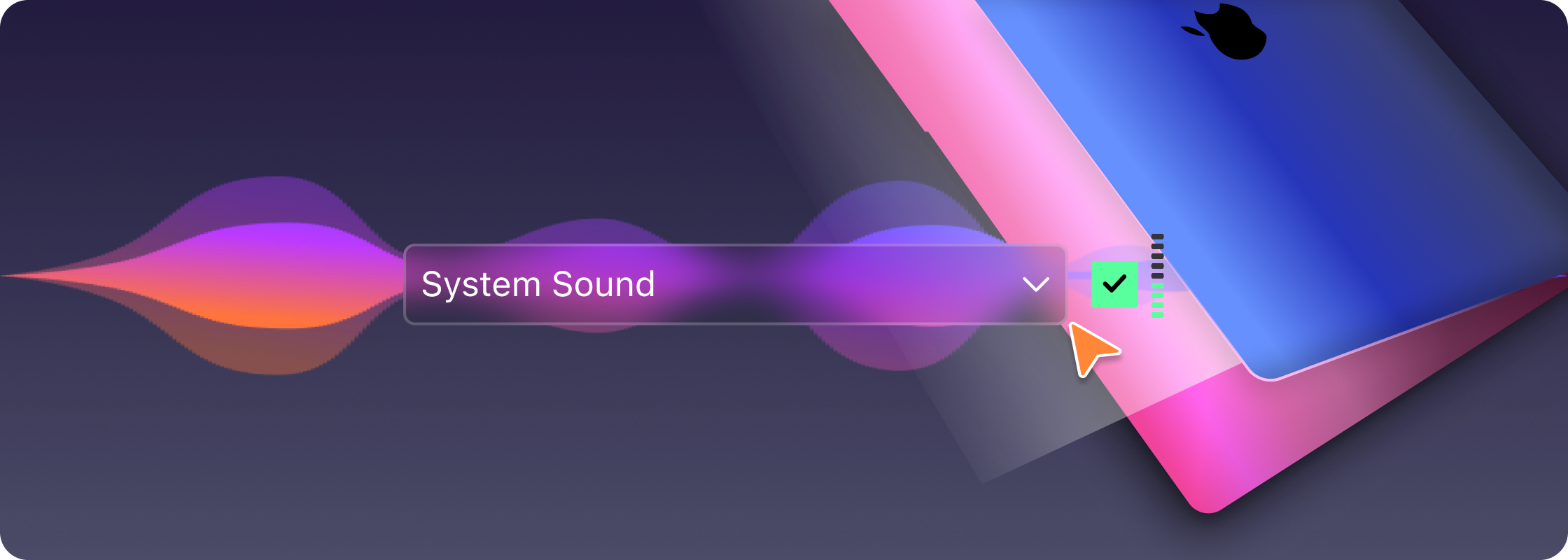
If you want to record with system sound, the audio driver for Record Go is needed. Here are the steps to install the audio driver for Record Go.
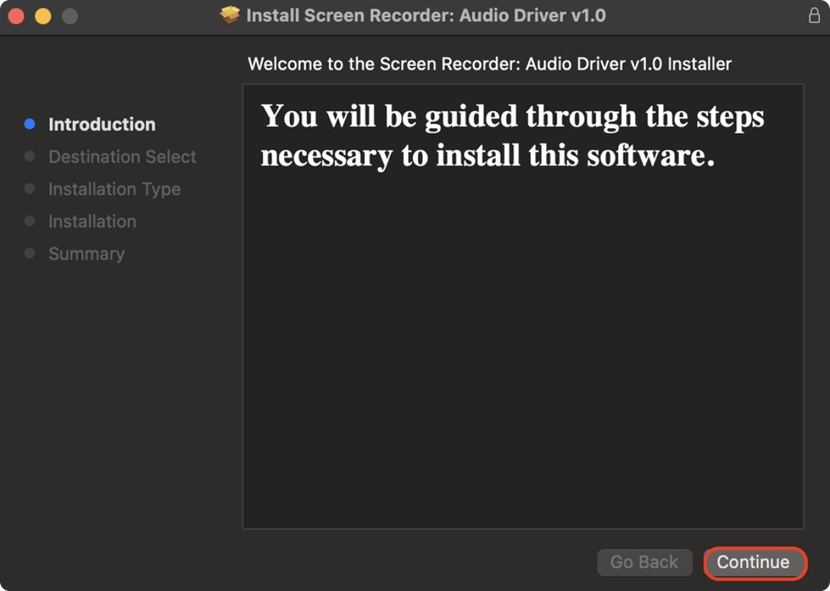
Step 1: Download the audio driver for Record Go and open it. Click "Continue" in the lower-right corner to start the installation.
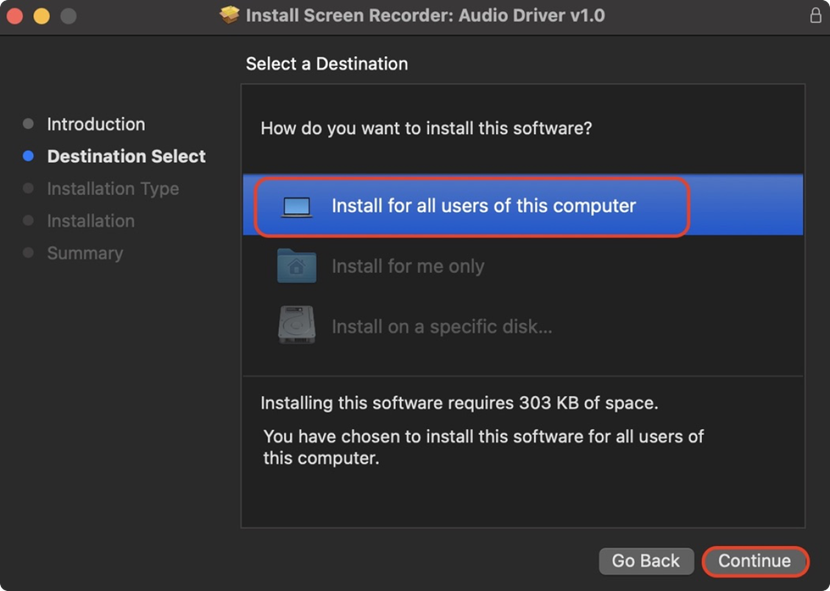
Step 2: Select "Install for all users of this computer" in the next step, and click "Continue" in the corner.
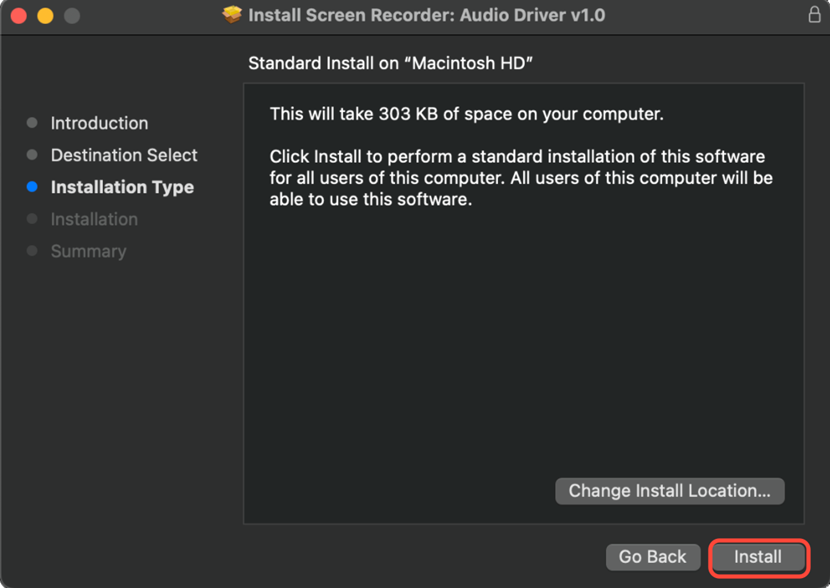
Step 3: Click "Install" in the third step to start installing the audio driver.
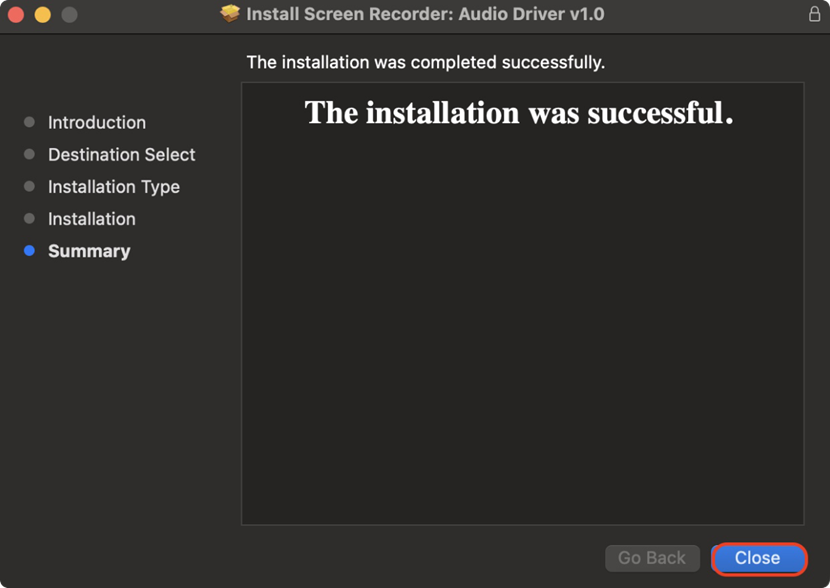
Step 4: When you see "The installation was successful", it means the driver has been successfully installed. Click "Close".
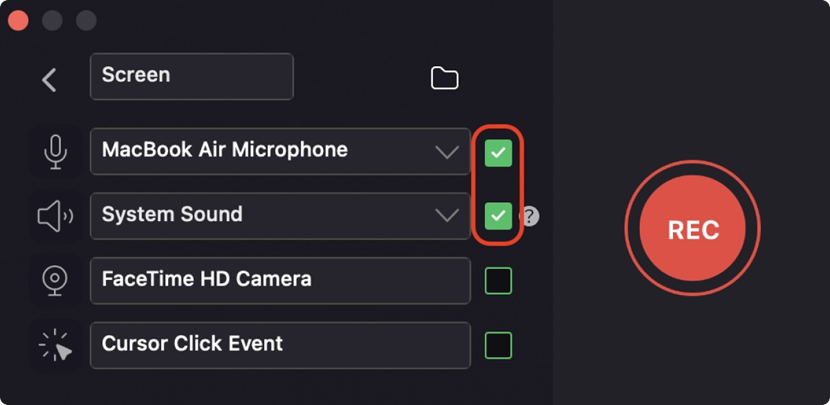
Step 5: Now open Record Go, choose the recording mode, and then select the audio source as needed. You can enable the input/output device by checking them.
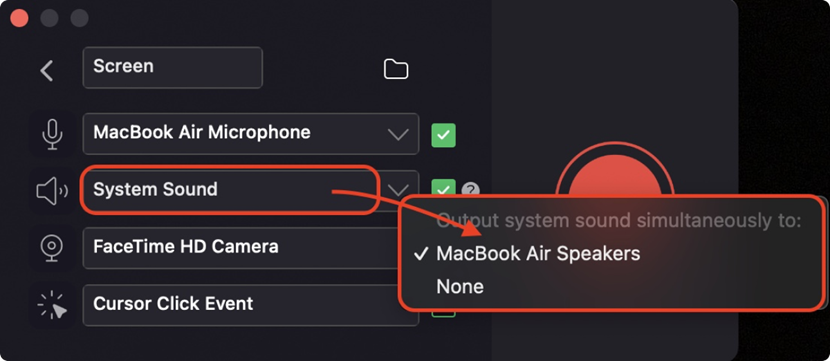
Step 6: Please select a device to output system sound simultaneously when recording. Normally, you can record by selecting "MacBook Speakers" in the dropdown menu of "System Sound".
Now start recording with system sound! Enjoy Record Go!