Add Bookmark to PDF
You can manage bookmarks in your PDF documents directly within PDFgear. Whether you want to rename, reorder, or delete them, here’s how:
- Tap the “+” icon to add your PDF and open it in PDFgear on your iPhone or iPad.
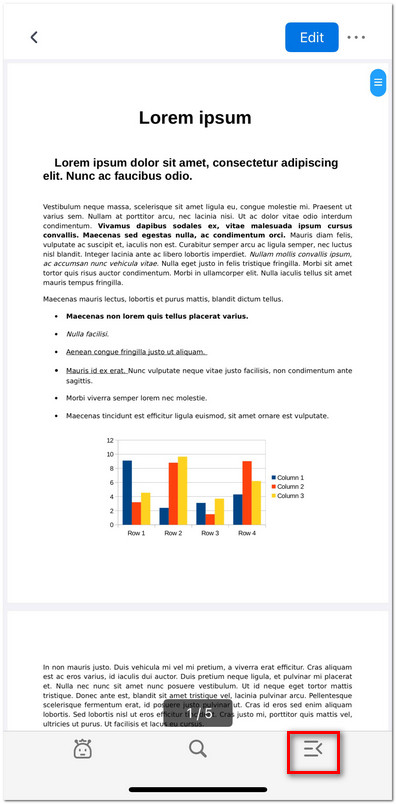
Open the Bookmarks and Annotations Panel
- While viewing a PDF, tap the third icon at the bottom right. A panel will slide up, displaying two tabs: Bookmarks and Annotations.
- Tap the Bookmarks tab to see all existing bookmarks. If your PDF already has bookmarks, they will be listed here automatically.
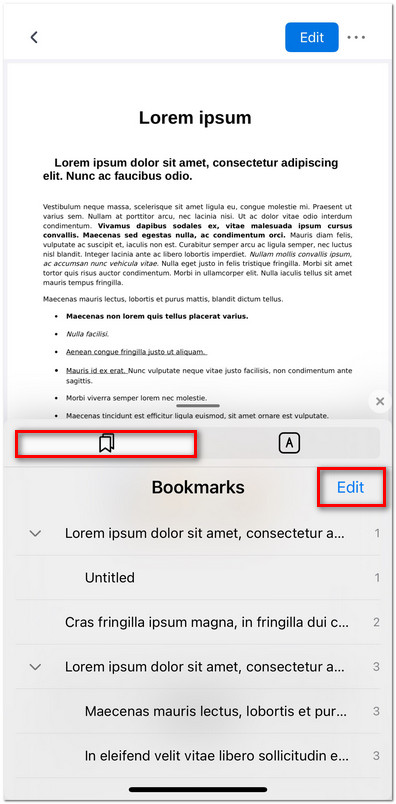
Check and Edit the Bookmarks
- Tap Edit in the top-right corner of the Bookmarks panel to enter edit mode. You can now:
Rename a bookmark: Tap on the bookmark title to modify it.
Delete a bookmark: Tap the red trash icon next to it.
Reorder bookmarks: Hold and drag to move a bookmark up or down.
Add a bookmark: Tap Add to create a new bookmark at the current page and rename it.
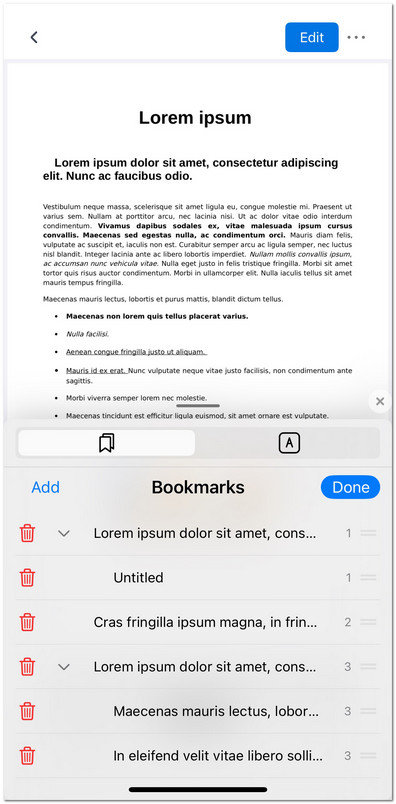
Edit the Bookmarks on iOS
- After finishing edits, tap Done in the top-right corner to exit edit mode.