Annotate PDF
PDFgear enables you to highlight, mark up, draw, or add notes directly on your PDFs on your iPhone and iPad.
- Tap the “+” icon to import a PDF and open it in PDFgear on your iPhone or iPad.
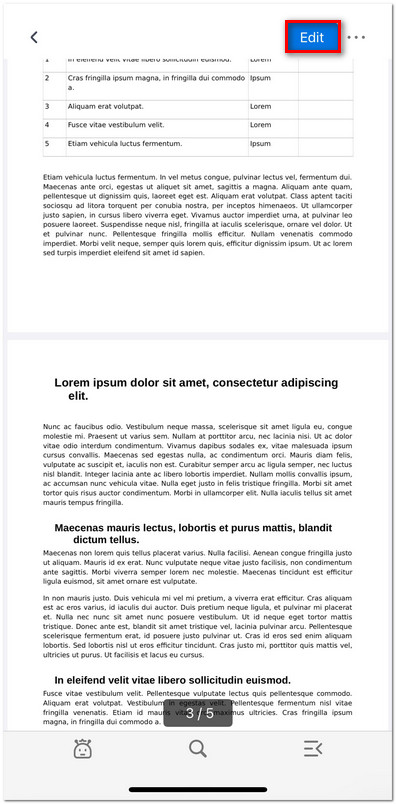
Click to Enter the Edit Mode
- Once the file is open, tap the Edit button in the upper-right corner.
- After entering Edit mode, select the Annotate tab at the top to access all annotation tools. From here, you can:
Highlight text
Underline text
Strikethrough text
Draw with a pen
Mark up the text
Add shapes
Insert notes
Erase annotations
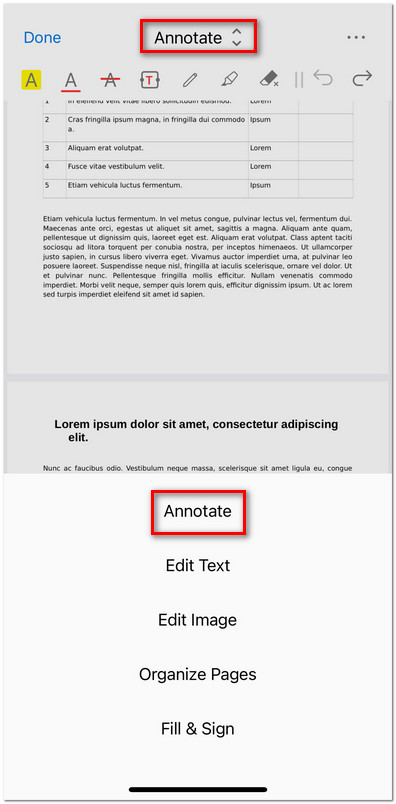
Open PDF Annotation Tool
- Tap the Highlight icon in the Annotate toolbar. Long-press and drag over the text you want to highlight, then choose your preferred highlight color.
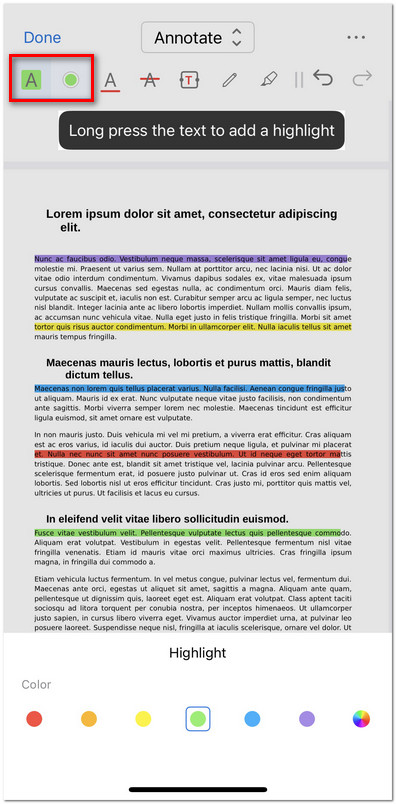
Highlight Text in PDF on iOS
- Tap the Underline icon, then long-press the text you want to underline. You can also change the underline color to suit your preference.
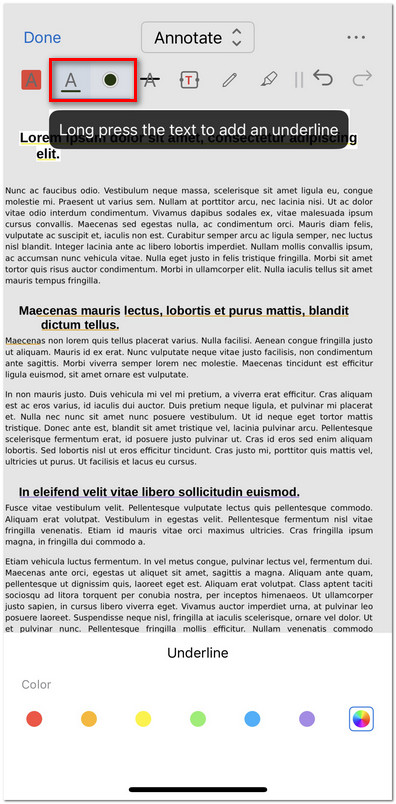
Underline Text in PDF on iOS
- Tap the Strikethrough icon, then select the text you want to strike through. Adjust the color if needed for better visibility.
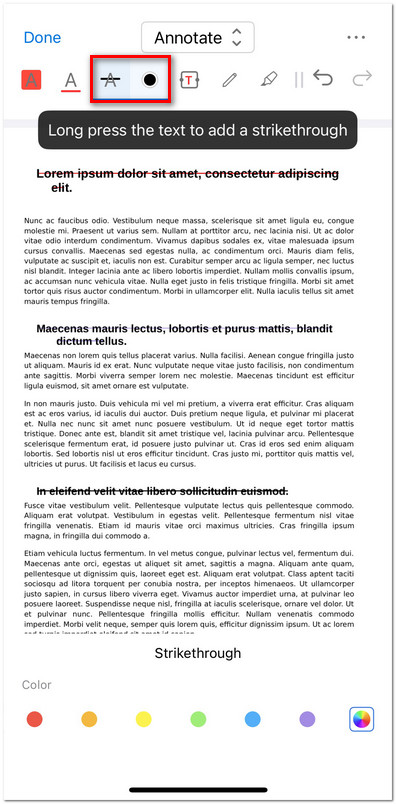
Strikethrough Text in PDF on iOS
- Tap the Insert Text icon, then tap anywhere on the page to add a text box. Enter your text, and customize the font color and size.
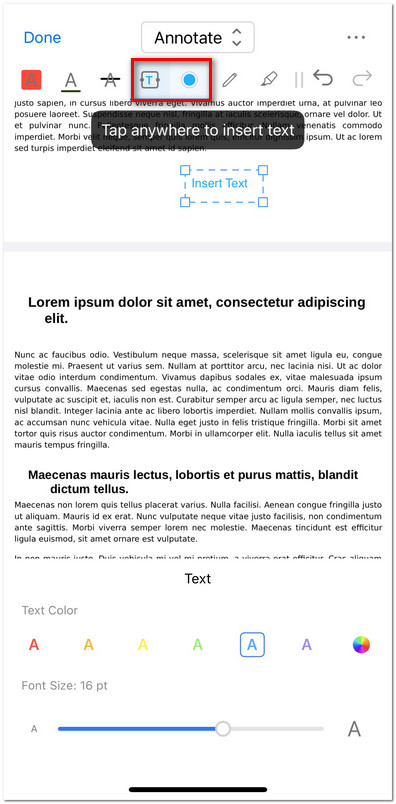
Add Text to PDF on iOS
- Tap the Pen icon to start drawing on the PDF. You can adjust the pen color, change line thickness, or enable Draw in Straight Line for precise strokes.
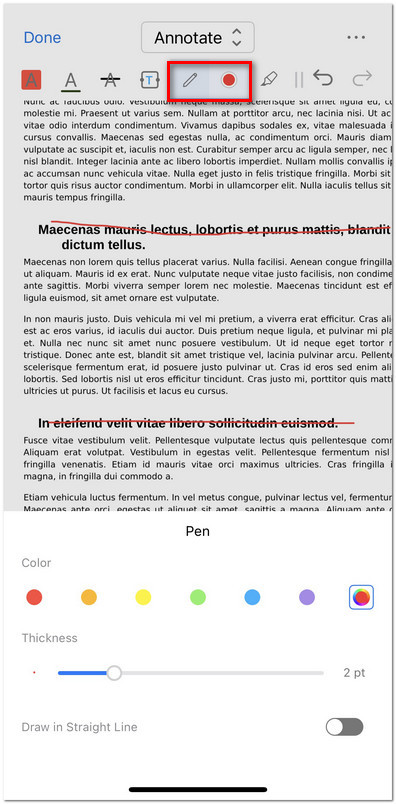
Draw on PDF with Pen
- Tap the Marker icon to apply a marker-style highlight on selected areas. You can modify the marker color, adjust the opacity or thickness, and turn on Straight Line mode for cleaner markup.
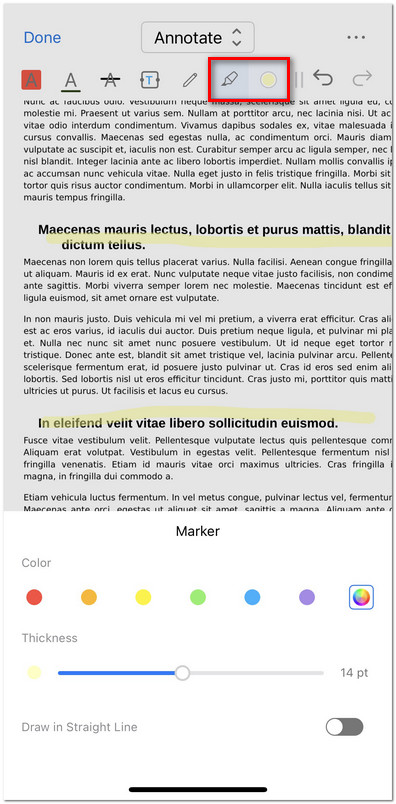
Draw on PDF with Marker
- Tap the Eraser icon and drag over the drawings or marks you want to remove. It works with annotations made using the Pen or Marker tools.
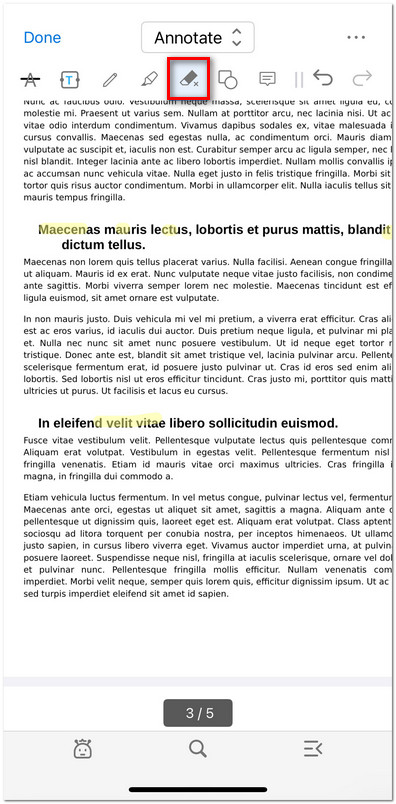
Erase the Drawing
- Tap the Shapes icon to insert rectangles, circles, lines, or arrows. You can customize the border color, line thickness, and fill color to make your annotations stand out.
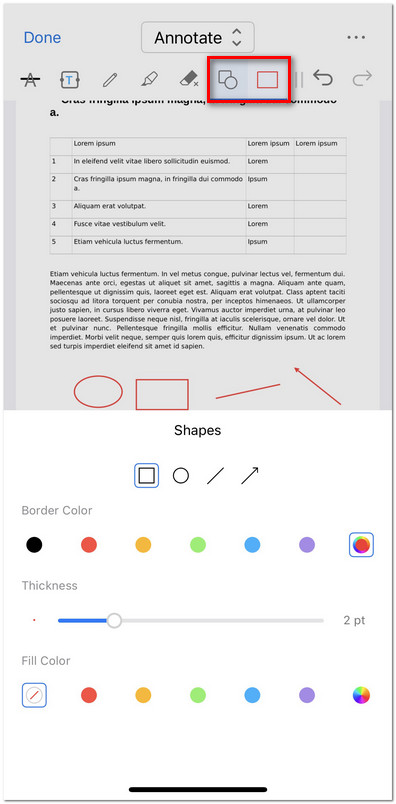
Add Shapes to PDF on iOS
- Tap the Note icon, then tap anywhere on the page to place a note. Enter your comment or reminder text, and choose a background color for easy identification.
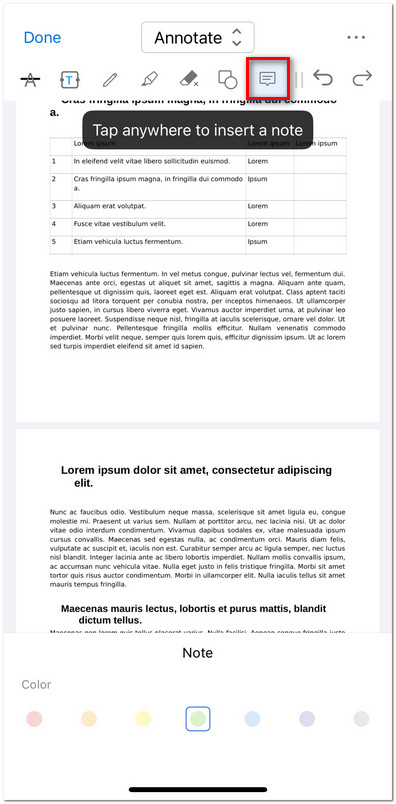
Insert Note into PDF on iOS
- Use the Undo or Redo icons in the Annotate toolbar to reverse or restore your most recent actions.
- When you are satisfied with your changes, click Done in the top left to exit annotation mode.
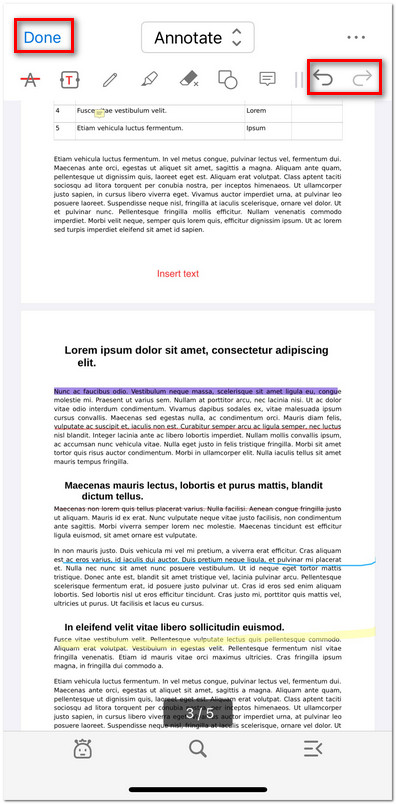
Exit the Annotate PDF Mode