Chat with PDF
PDFgear Copilot, powered by ChatGPT, lets you interact with your PDFs in plain language. Instead of scrolling through pages, you can ask questions, summarize content, or even run PDF tasks right inside the app.
- Go to the Files tab and tap the thumbnail of the PDF you want to open.
- Tap the Copilot icon at the bottom-left corner of the screen.

Open the Copilot in PDFgear for iOS
- A prompt window will appear; tap Chat Now to open the chat panel.
- Copilot will show you sample prompts such as:
“Summarize this PDF file.”
“Rotate this page counterclockwise.”
“Print this document.”
- You can tap one of these suggestions or type your own request in the input box.
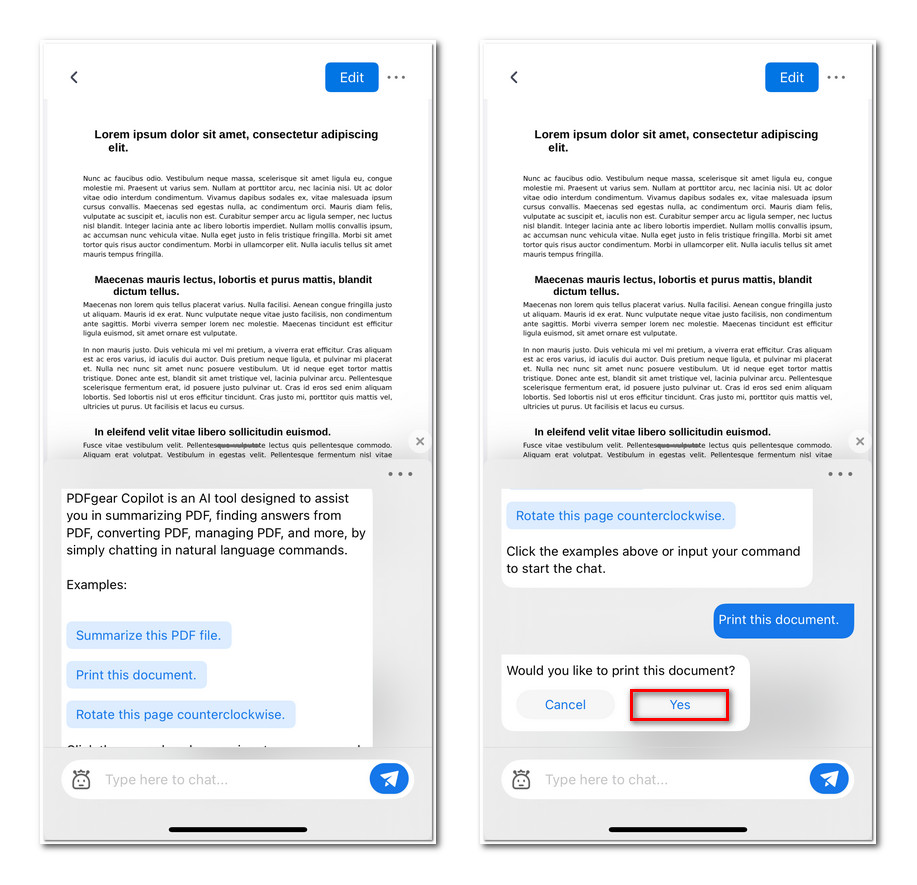
Ask the Copilot to Print PDF
- For example, if you choose Print this document, a confirmation window will pop up asking Yes or No.
- Tap Yes, and the print dialog will open, allowing you to set up and execute the print job.
- If you select Summarize this PDF file, Copilot will scan through the document and generate a concise summary of its main points.
- The summary appears directly in the chat window, so you can quickly grasp the key ideas without reading the entire file.
- You can keep asking new questions or run multiple tasks in the same chat session. Copilot remembers context, allowing each step to build on the previous one.
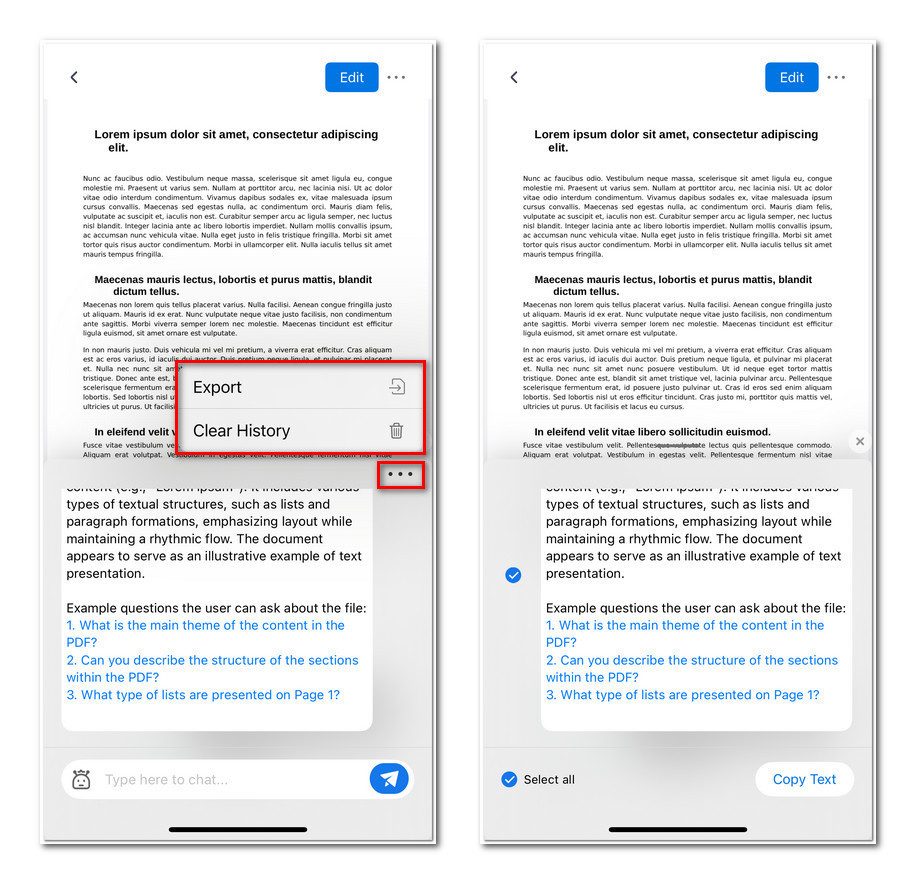
Clear or Export the Chat History
- Tap the three-dot menu in the chat window. Choose Clear History to delete the conversation, or Export to save the chat. Export options let you copy the conversation as text and use it outside the app.