Combine PDF Files
It’s easy to merge multiple PDFs into a single PDF with PDFgear on your iPhone or iPad. Just follow the steps below:
- Click the “+” button in the bottom-right corner of the Files tab to add the PDFs you want to merge.
- Tap the checkmark icon in the top-right corner of the screen to enable selection mode.
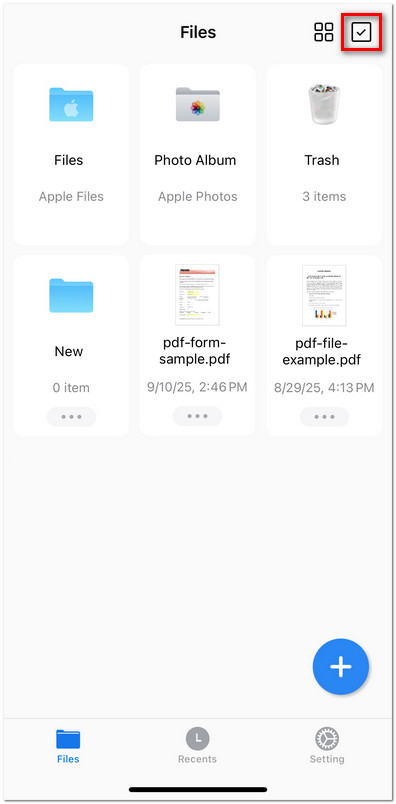
Enable File Selection Mode
- Tap the PDF files you want to merge. A blue checkmark will appear on each selected file.
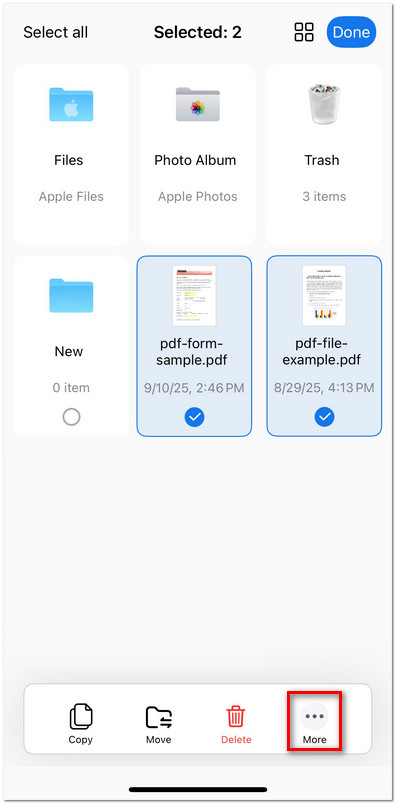
Access More Options in PDFgear for iOS
- When files are selected, a bottom menu will appear. Tap More to view additional options.
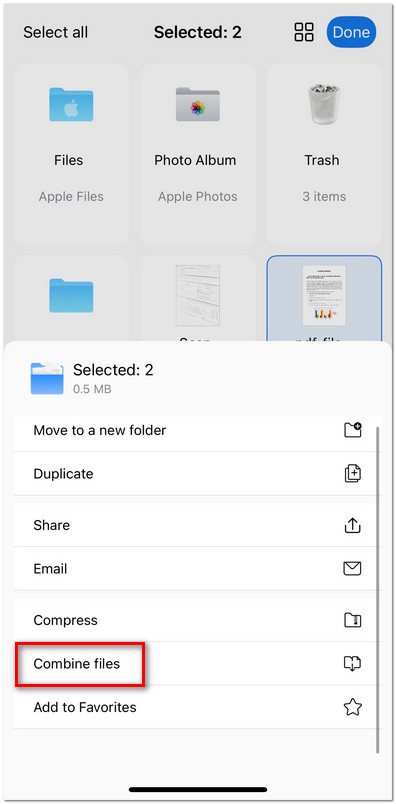
Combine PDF Files in PDFgear for iOS
- From the expanded menu, select Combine files to begin merging your documents.
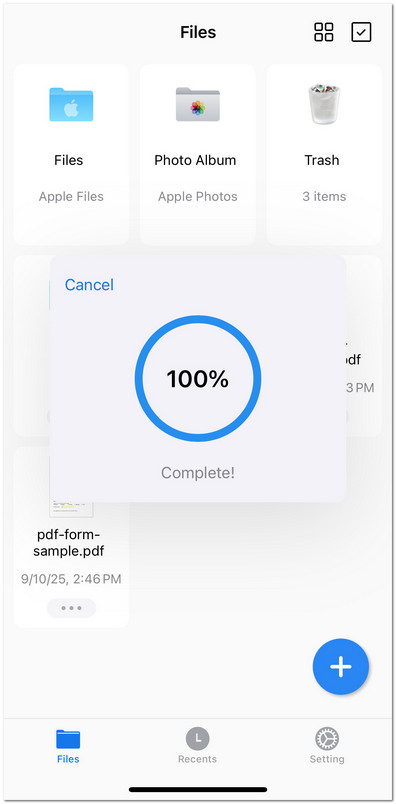
Check the Progress of Merging Files
- Wait for the merging process to finish. A progress indicator will show when it’s 100% Complete.
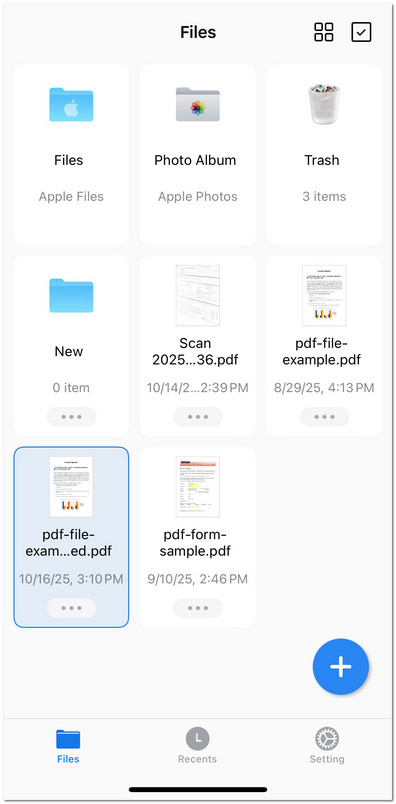
Check the Combined PDF File
- The merged PDF will appear in your Files list with the latest timestamp.