Convert PDF
PDFgear for iOS lets you convert files to and from PDF directly on your iPhone or iPad. You can easily turn Word, Excel, PowerPoint, or images into PDFs, and also convert PDFs back into other editable formats with just a few taps.
Convert from PDF
PDFgear makes it simple to convert your PDF files into Word, Excel, PowerPoint, RTF, JPEG, and PNG. Follow the steps below:
- Tap the “+” button at the bottom right corner, then choose to import your PDF from Files.
- Once your PDF is imported, open the file. Tap the three-dot menu (…) under the PDF file thumbnail.
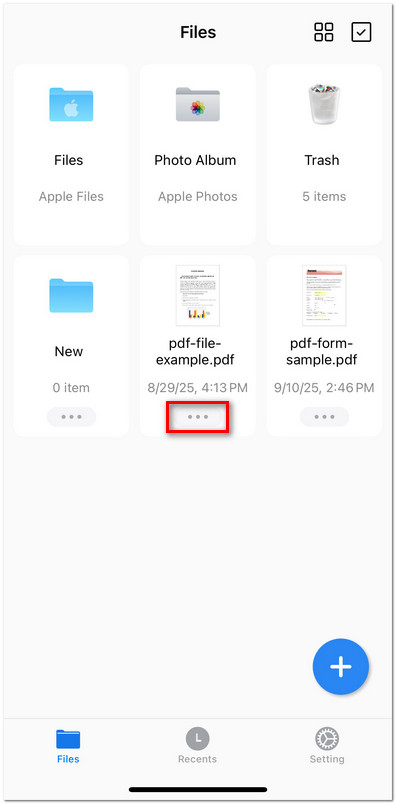
Open the File Manage Options
- From the dropdown menu, tap Convert to start the conversion process.

Select the Convert PDF Option
- Select the format you want to convert your PDF to, such as Word (.docx), Excel (.xlsx), PowerPoint (.pptx), JPEG, PNG, or RTF. Then tap Convert to proceed.
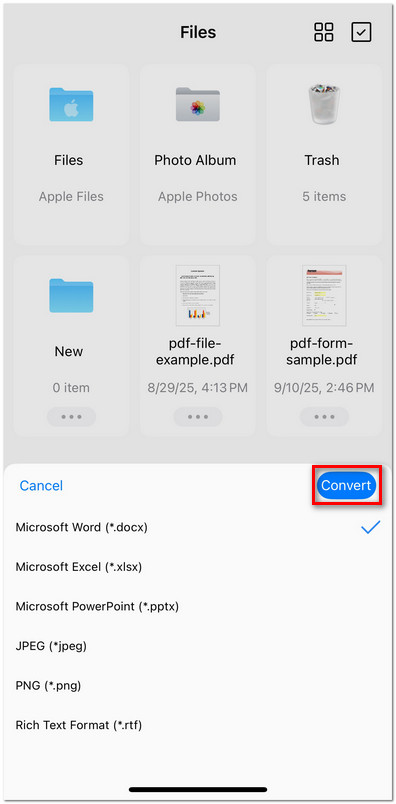
Choose a Format to Convert
- A progress indicator will appear while converting. When it’s done, your new file will appear in the Files list with the latest timestamp.

Check the Converted File
Convert to PDF
PDFgear also allows you to convert Word, Excel, PowerPoint, RTF, images, and other file types into PDFs on your iPhone or iPad.
Convert Documents (Word, Excel, PowerPoint, RTF)
- Tap the “+” button at the bottom, then choose the document you want to convert.
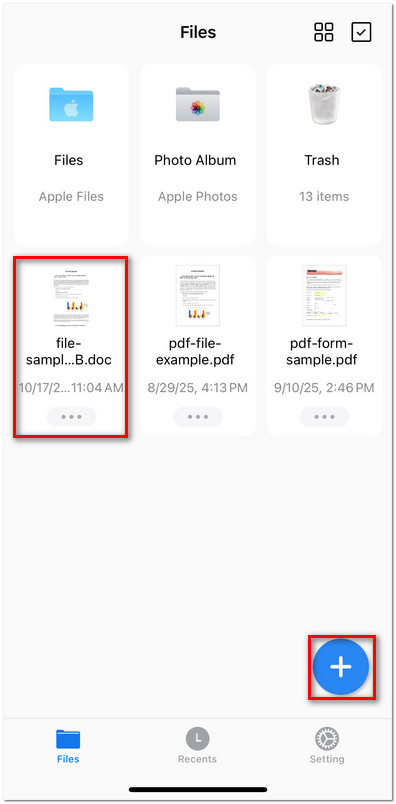
Open a Word Document in PDFgear
- After importing, tap the file to open it in Preview mode.
- Tap the three-dot (···) menu in the upper-right corner and select Convert to PDF.
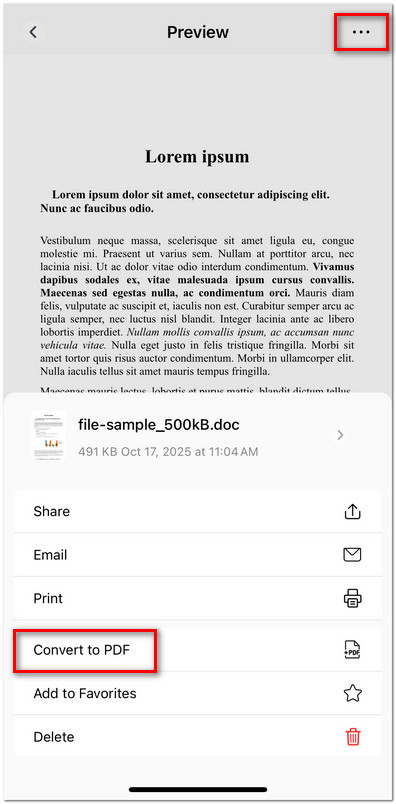
Convert Word to PDF in PDFgear for iOS
- Wait for the conversion to complete. The new PDF file will appear in your Files list with the latest timestamp.
Convert Images to PDF
- Tap the “+” button to import one or multiple images into PDFgear.
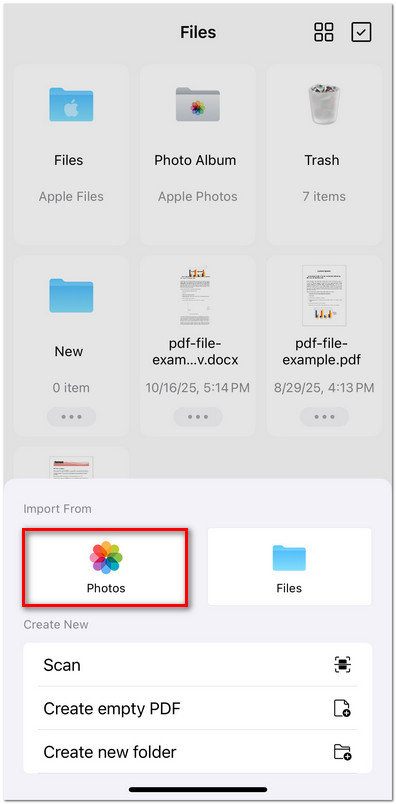
Import Images to PDFgear from Photos App
- A menu will appear automatically with the option Convert to PDF.
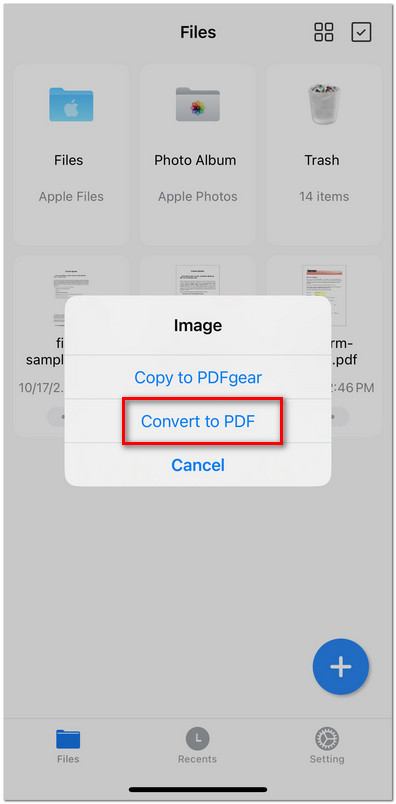
Choose to Convert Image to PDF on iOS
- Before converting, you can customize the following settings:
Page Size: Choose between A4 and Letter.
Page Orientation: Select Auto, Portrait, or Landscape.
Combine Images: Toggle the option Combine images into one PDF if you want all imported images to appear in a single PDF.
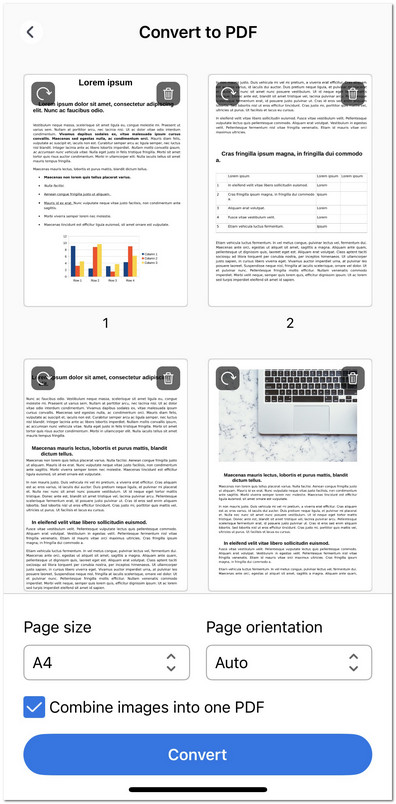
Batch Convert Image to PDF on iOS
- Tap the Convert button to generate your new file instantly.