Edit Text in PDF
With PDFgear, you can directly edit existing text in your PDF. This includes changing the content, font size, and color, as well as copying, cutting, or deleting text.
- Open the PDF you want to edit in PDFgear, and tap Edit from the bottom menu.
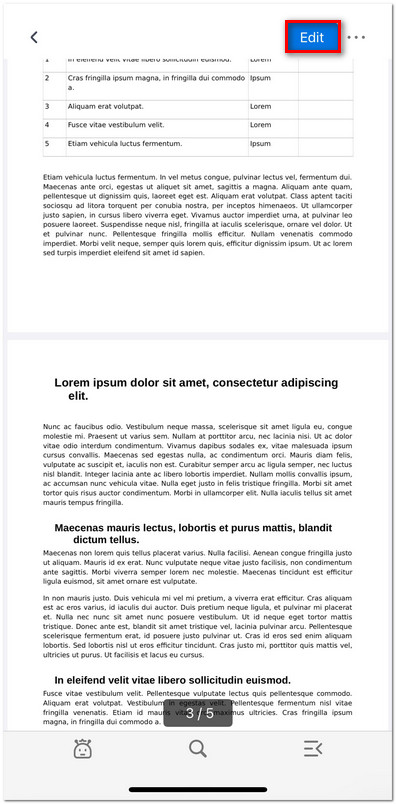
Click to Enter the Edit Mode
- From the top tab bar, choose Edit Text.
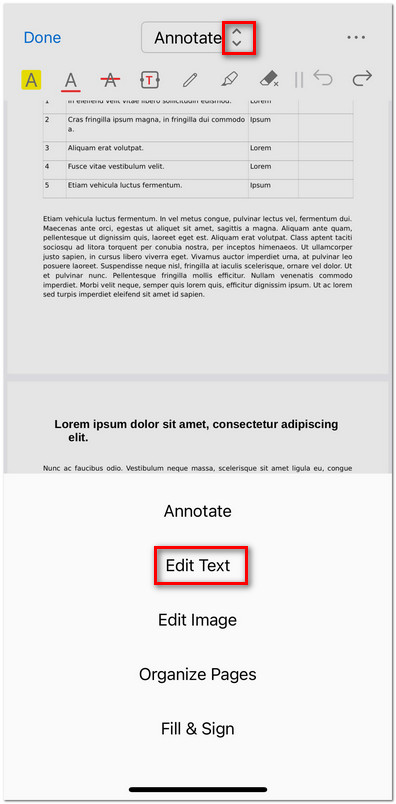
Open the Edit Text Mode
- The PDF will switch to text editing mode, and text blocks will be highlighted with dashed borders.
- Long-press anywhere on the page to add text, then type in the text box.
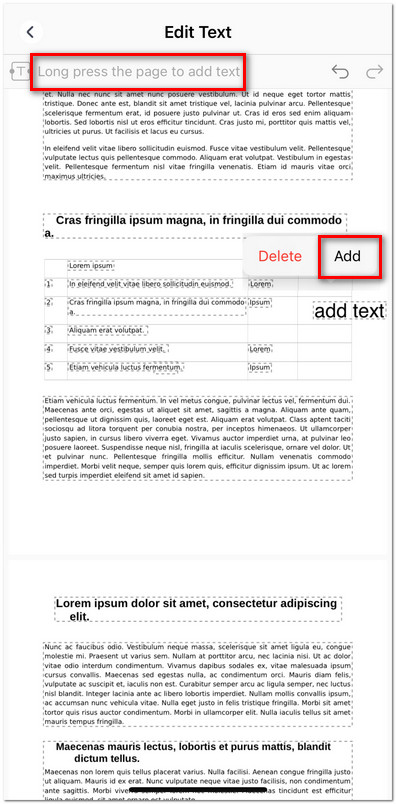
Add Text to the PDF on iOS
- Tap the text block you want to edit, then choose Edit from the toolbar.
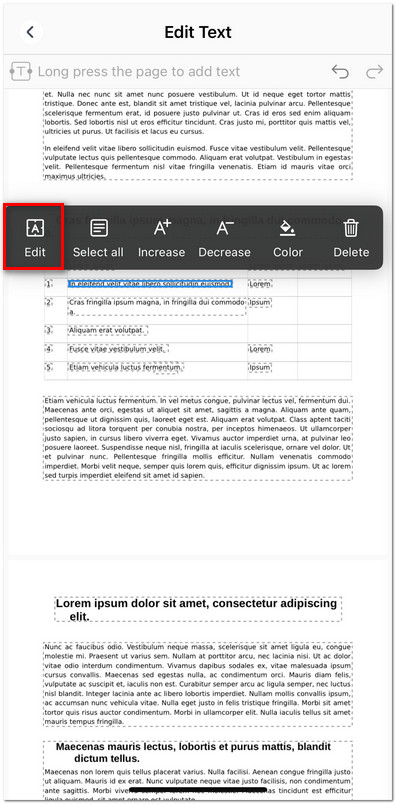
Edit the Existing Text in PDF on iOS
- Single-tap to place the cursor, drag it to the desired position, and start typing to insert or modify text.
- Double-tap to select text. A menu appears where you can copy, cut, paste, change color, or delete the selection.
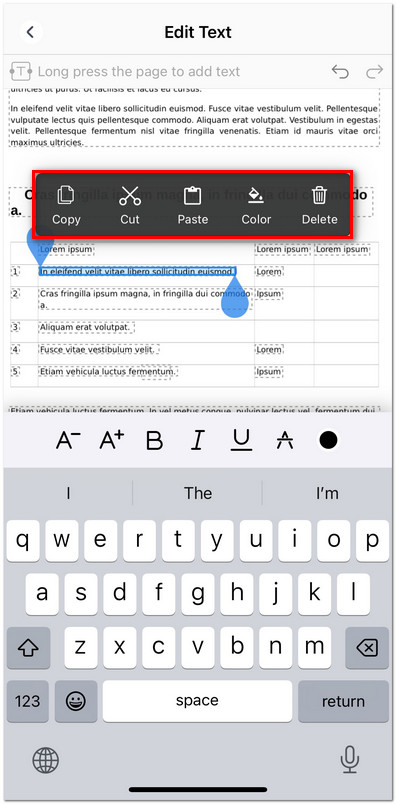
Select Text to Edit on iOS
- To adjust font size: select the entire text block, then use the toolbar to increase (A⁺) or decrease (A⁻) the font size.
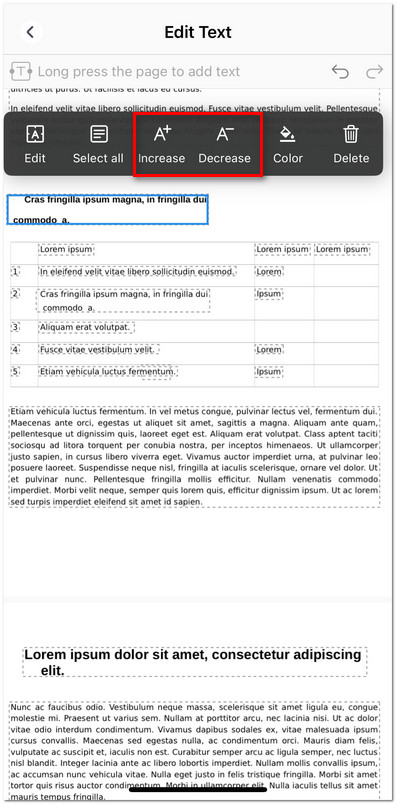
Increase or Decrease Text Size
- To change text color: select text or the entire block, then tap the palette icon.
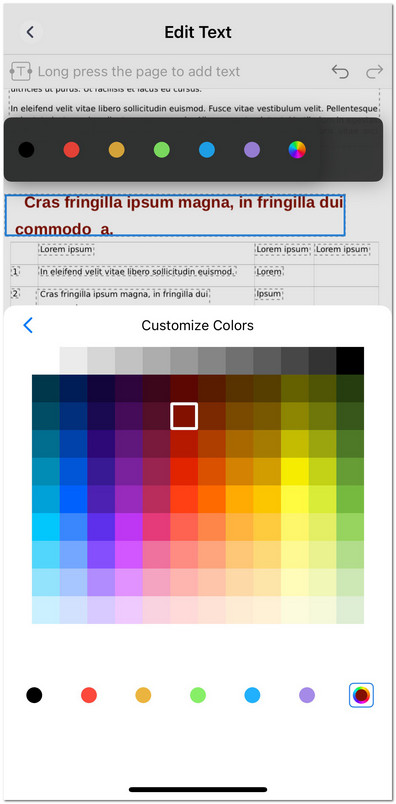
Change the Text Color in PDF on iOS
- To delete text: select the unwanted text or the whole block, then tap Delete.
- Use the Undo and Redo buttons at the top right to revert or restore your last action.
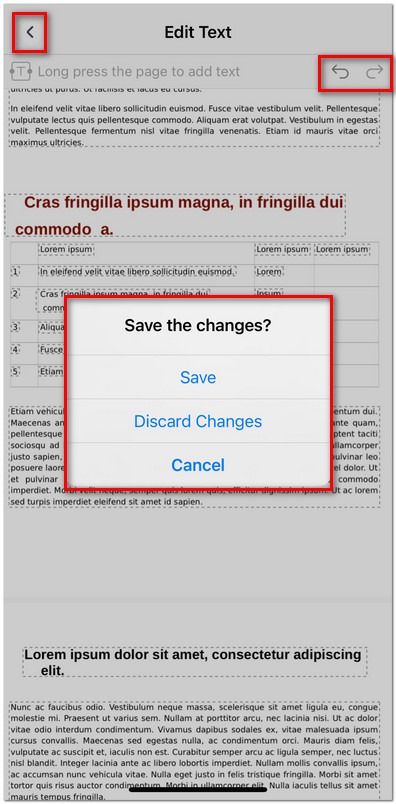
Save the Editing Change
- Tap the back arrow in the top left to exit editing mode. A prompt will appear asking if you want to Save, Discard Changes, or Cancel.