Fill and Sign PDF
With PDFgear, you can easily complete and sign PDF forms right on your iPhone or iPad. Follow the steps below to fill out fields, add marks, stamps, and signatures efficiently.
- Import your PDF into PDFgear from Files on your device. Open the file, then tap the Edit button in the top-right corner.
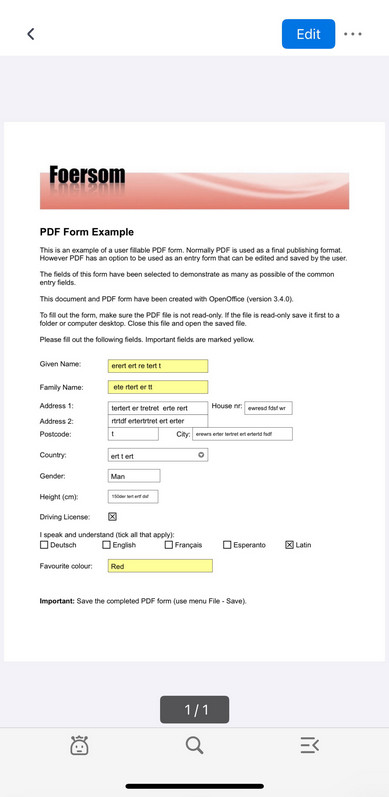
Choose to Edit a PDF Form in iOS
- After tapping Edit, expand the menu at the top and select Fill & Sign from the list of editing modes.
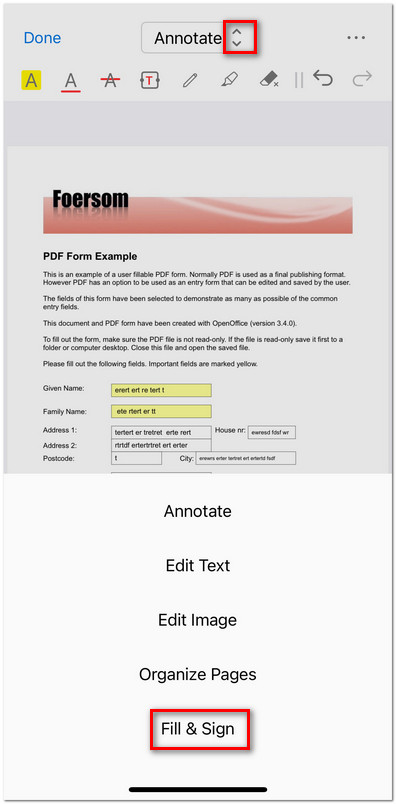
Enter the Fill and Sign Mode
- Once in Fill & Sign mode, the toolbar will appear at the top with several options:
Insert Text
Insert Checkmark
Insert Cross Mark
Insert Stamp
Insert Signature
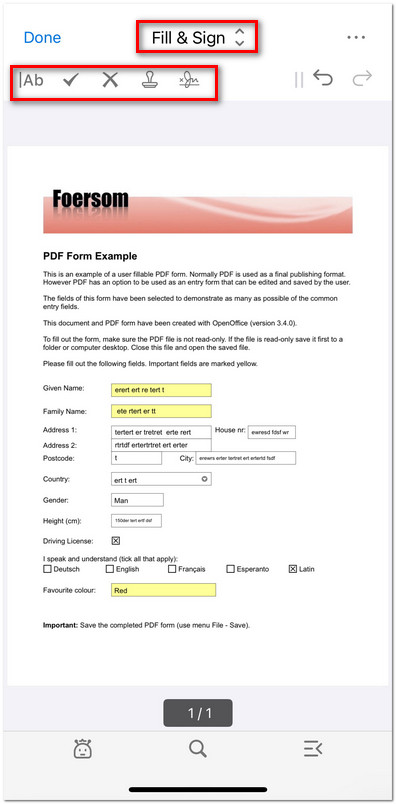
Open the Fill and Sign PDF Tools
- Tap the |Ab icon to add text, then tap anywhere on your PDF to start typing in the box. To customize the text color or font size, tap the circle icon next to the text tool to open the formatting panel.
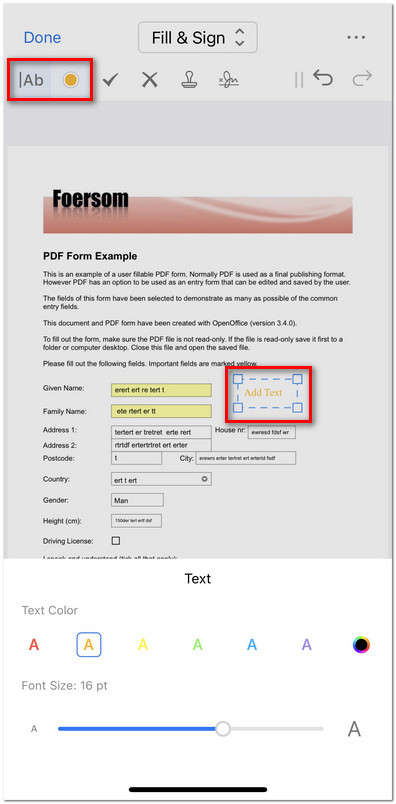
Add Text to the PDF Form
- To mark a checkbox or indicate a selection, tap the Checkmark (✓) or Cross Mark (×) icon on the toolbar. Then tap on the PDF where you want the symbol to appear.
- Tap the Stamp icon on the Fill & Sign toolbar to open the stamp panel. Choose from preset options such as APPROVED, COMPLETED, REJECTED, or CONFIDENTIAL, or tap Create stamp (+) to design your own custom stamp.
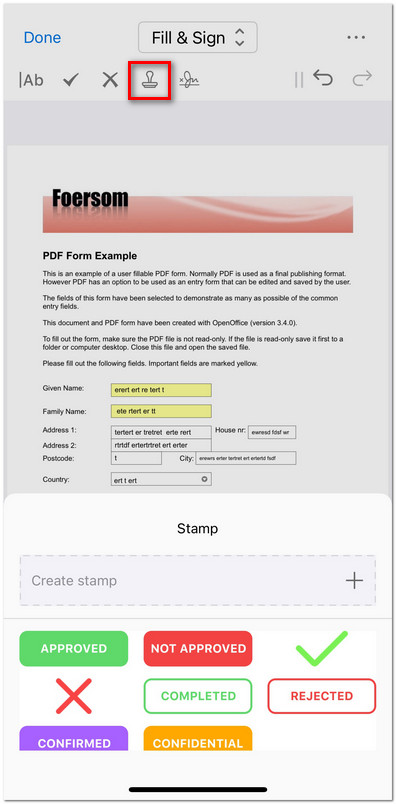
Add a Stamp to the PDF Form
- Tap the Signature icon on the toolbar, then select Create signature to make a new one. You can create your signature in one of three ways:
Draw: Write your signature using your finger or stylus.
Image: Import a saved signature image from your device.
Text: Type your name to automatically generate a digital signature.
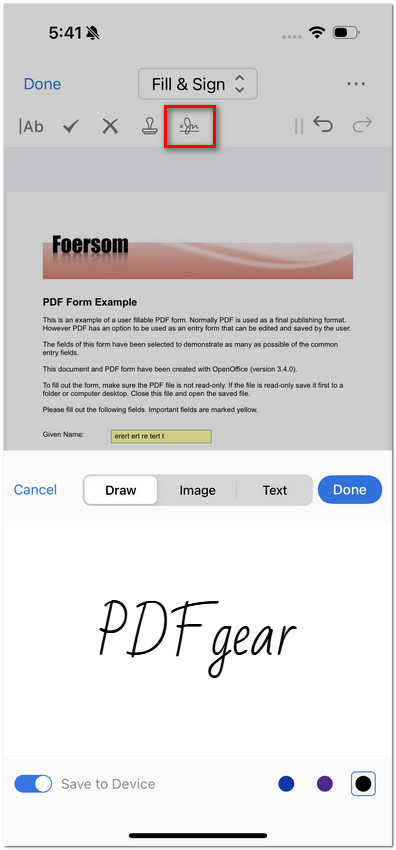
Add Signature to the PDF
- When finished, tap Done, and your signature will be inserted into the PDF. You can move or resize it freely.
- Once all edits are complete, tap Done in the upper-left corner to save your filled or signed PDF to your device or share it directly.