Manage the Files
PDFgear provides various options to help you keep your PDF library organized. You can manage individual files or handle multiple files at once.
Managing a Single File
In the Files tab, tap the three-dot button under a file to open the management menu. The available options include:
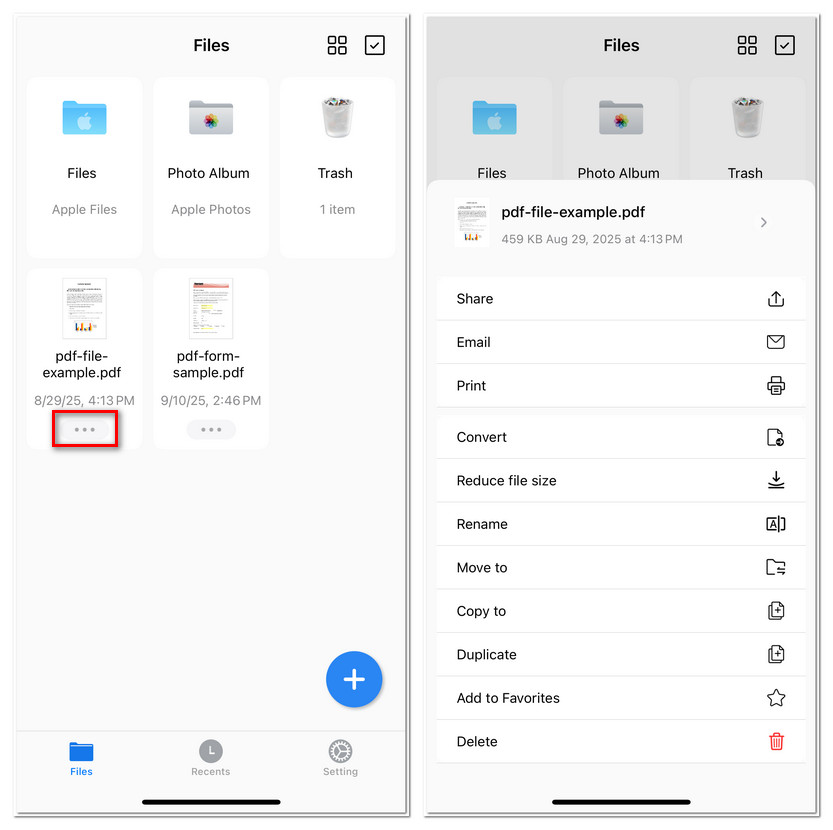
Manage a File in PDFgear
- Share: Send the file through apps or services on your device.
- Email: Attach the file directly to a new email.
- Print: Print your PDF directly or adjust settings like page range and size.
- Convert: Convert the PDF to Word, Excel, PPT, Image, or RTF.
- Reduce file size: Compress a PDF without sacrificing quality.
- Rename: Change the file name to keep your documents clear and organized.
- Move to: Relocate the file into another folder.
- Copy to: Create a copy in a different folder or storage location.
- Duplicate: Instantly make a copy in the same folder.
- Add to Favorites: Mark the file so it appears in your Favorites list.
- Delete: Move the file to the Trash.
Managing Multiple Files
- If you need to manage several PDFs at once, tap the checkmark icon in the upper-right corner of the Files screen to enter selection mode.
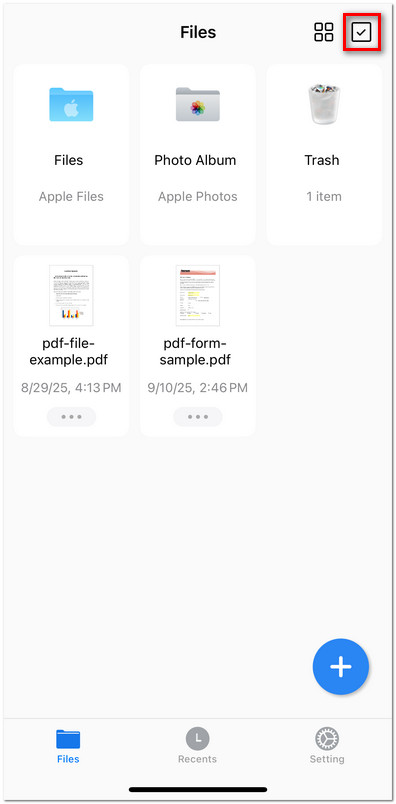
Select Files in PDFgear
- Select the files you want by tapping them; selected files will be highlighted with a checkmark.
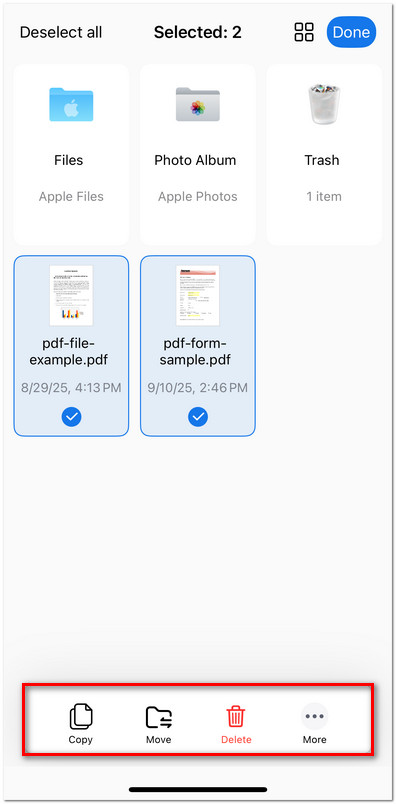
Manage Multiple Files in PDFgear
- At the bottom of the screen, you can:
Copy the selected files.
Move them into another folder.
Delete them in bulk.
- Tap More for additional management options such as:
Move to a new folder
Duplicate
Share
Add to Favorites

Check out More Options for Managing PDFs
- Tap Done in the top-right corner when finished to exit selection mode.