Open Multiple PDFgear Windows on iPad
If your iPad is running iPadOS 26, you can open multiple PDFgear windows. This makes it easy to view, compare, or edit multiple PDFs at once.
- On the Home Screen or in the Dock, open PDFgear. Now the first PDFgear window appears on the screen.
- Drag the top of the window to move it anywhere on the screen.
- Drag from any corner or edge of the window to resize it.

Open a New PDFgear Window on iPad
- To open another window, swipe up slightly from the bottom edge of the screen to show the Dock. Touch and hold the PDFgear icon, then choose New Window.
- You can also swipe down from the top center of the screen to reveal the menu bar in PDFgear, then choose File > New Window.
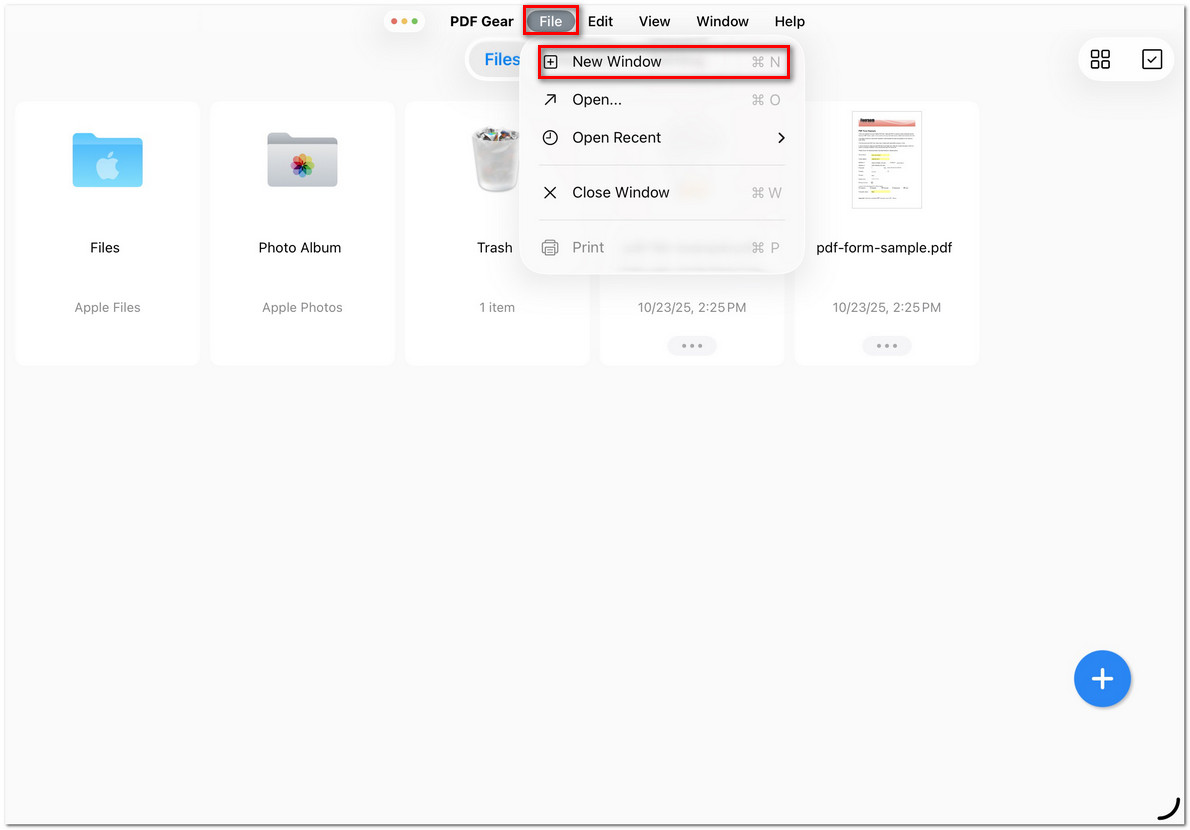
Open a New Window in PDFgear on iPad
- If your iPad is connected to a keyboard, you can use the shortcut ⌘ Command + N in PDFgear to open a new window.
- Repeat these steps to open more windows. Move and resize them side by side to work with multiple PDFs in PDFgear at once.
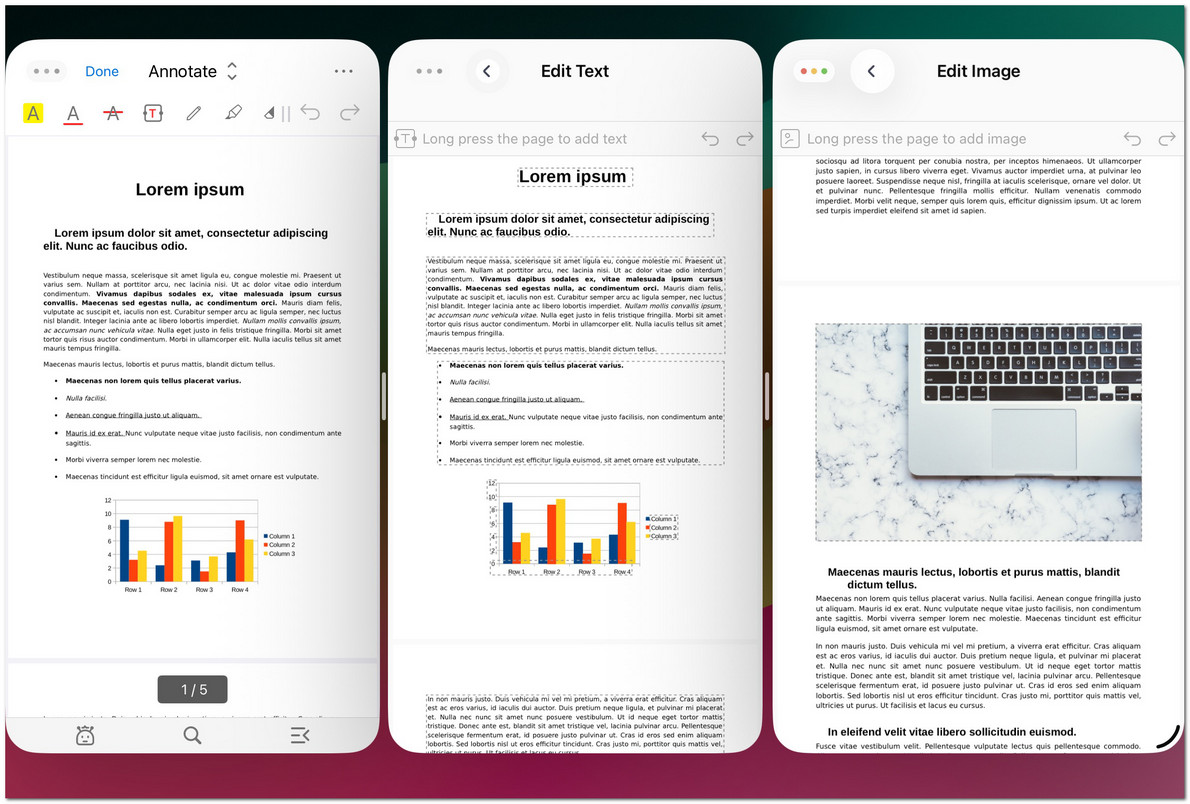
View and Edit Multiple PDFs on iPad at Once