Open PDF
With PDFgear on iOS, you can open PDFs right from the Files app, or import images from Photos and turn them into PDFs instantly.
- In the Files tab, tap the blue “+” button in the bottom-right corner.
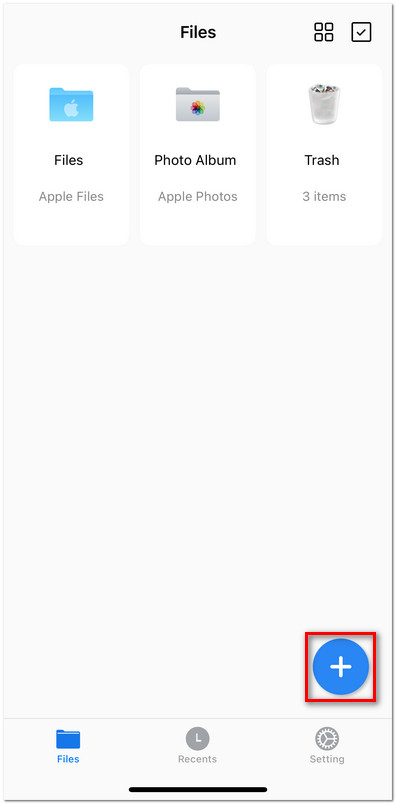
Open a File in PDFgear on iOS
- Under Import From, choose one of the following:
Files: Browse and select PDFs from your Apple Files app or iCloud Drive.
Photos: Import images from your Photo Album, which can be converted into PDFs.
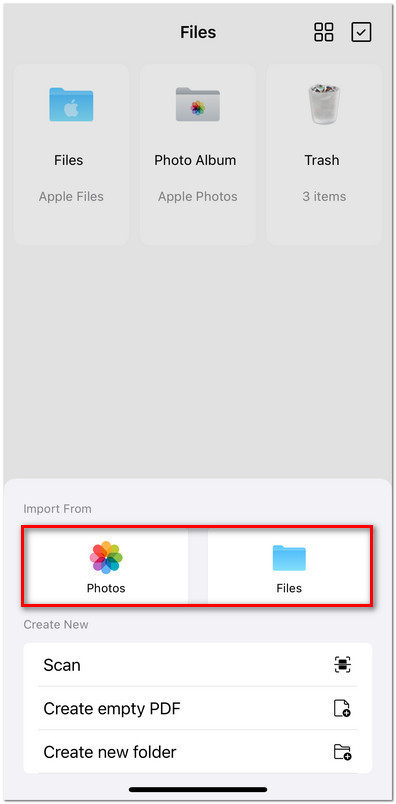
Select to Import File from Photos or Files
- The selected files will appear in your Files tab.
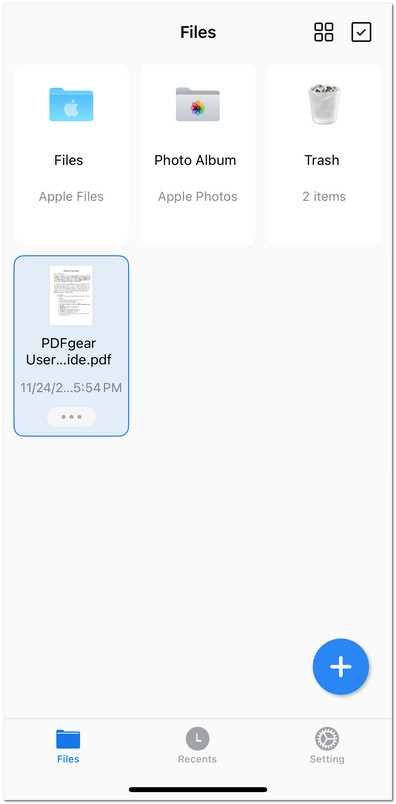
Click to Open a File in PDFgear on iOS
- Tap on the file thumbnail in the Files tab to open and view the document.
- If the PDF is password-protected, you need to enter the password to open it.