Preference Settings
PDFgear for iOS allows you to customize the app’s appearance and organize your files. You can adjust the layout, switch languages, and set up the app the way you like.
Overview of the App Interface
When you open PDFgear on your iPhone or iPad, the interface is organized into three main sections at the bottom: Files, Recents, and Setting. You can easily navigate between these tabs.
- Files Tab
The Files tab is the main screen of the app. At the top, you’ll find shortcuts to Apple Files, your Photo Album, and the Trash folder.
Below that, all your PDFs appear with thumbnails, file names, and dates. The blue “+” button in the bottom-right corner lets you create a new PDF or add files.
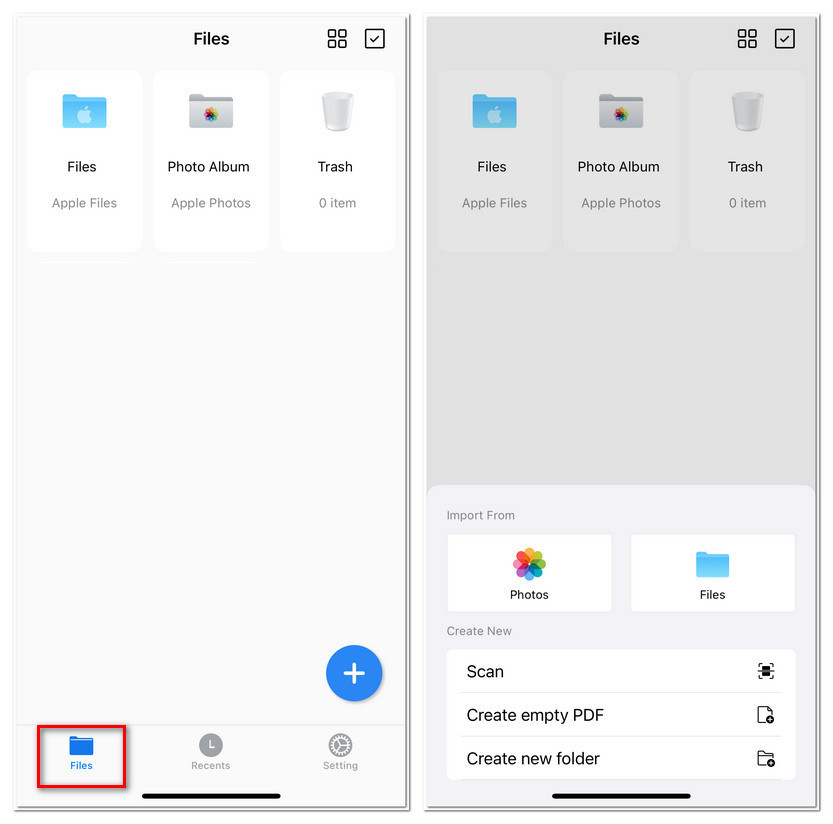
Files Tab of PDFgear for iOS
- Recents Tab
The Recents tab lets you quickly open PDFs you’ve viewed lately. A search bar at the top helps you find files by name, and you can mark important documents as Favorites for quick access.
If you want to tidy up, the Clear option removes items from the Recents list.
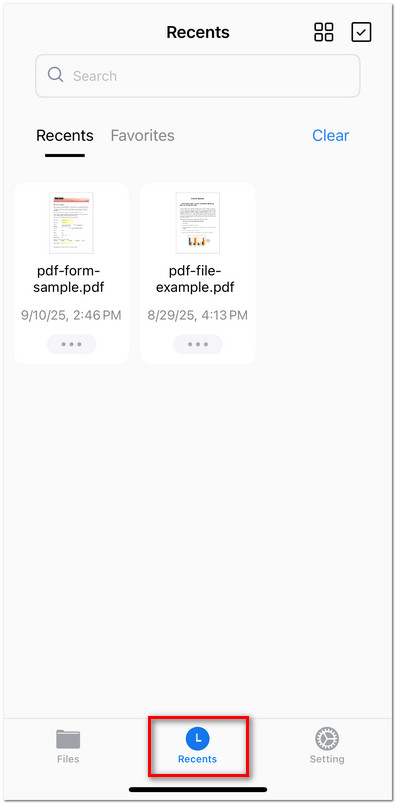
Recents Tab in PDFgear for iOS
- Setting Tab
The Settings tab lets you personalize your app. You can change the language, switch between light and dark mode, send feedback, follow PDFgear online, or share the app with friends.
At the bottom, you’ll see the app’s version number.
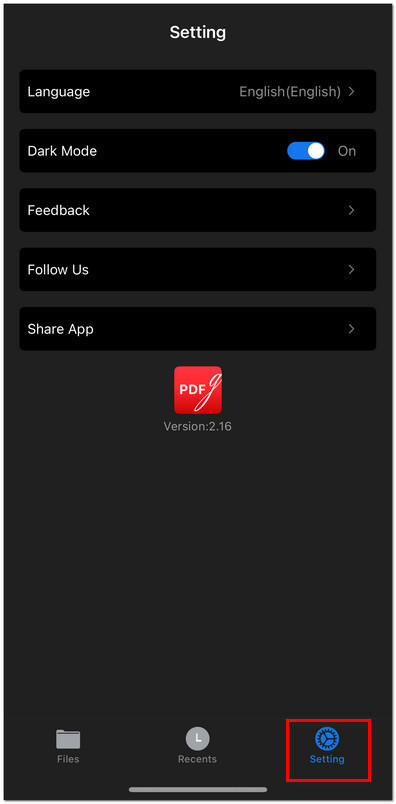
The Setting Tab in PDFgear for iOS
Adjusting File Layout and Sorting
You can change how your documents are displayed.
- Tap the icon in the top-right corner (four small squares) in the Files tab or Recents tab to open the layout and sorting menu.
- A panel will appear at the bottom of the screen with two options:
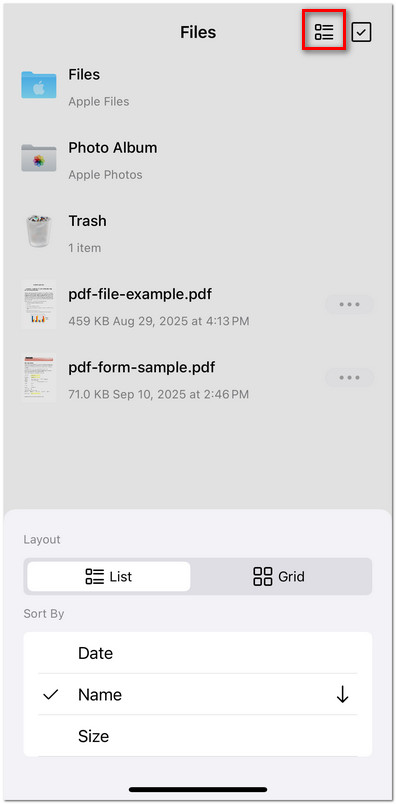
File Layout and File Sorting
Layout: Switch between List view and Grid view to see your imported files in PDFgear.
Sort By: Reorder your files by Date, Name, or Size. You can also adjust the ascending or descending order.
This customization makes it easier to browse large collections of PDFs in the way that feels most comfortable for you.