Remove Annotations from PDF
If you’ve added highlights, notes, or drawings that you no longer need, PDFgear makes it easy to remove them directly on your iPhone or iPad.
You can delete annotations individually or remove multiple at once through the annotations panel.
Delete a Single Annotation
Tap the annotation you want to remove, then choose Delete from the pop-up menu. This lets you quickly remove any unwanted highlight, note, or shape directly on the page.
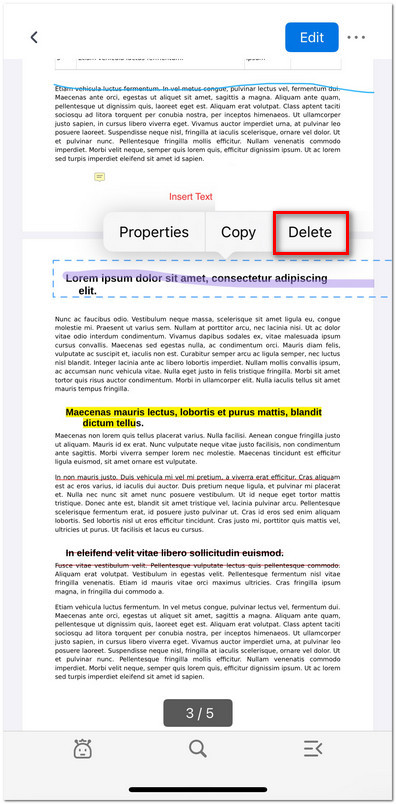
Delete an Annotation in PDFgear for iOS
Delete Multiple Annotations
- To delete multiple annotations at once, tap the third icon at the bottom of the screen to open the control panel.
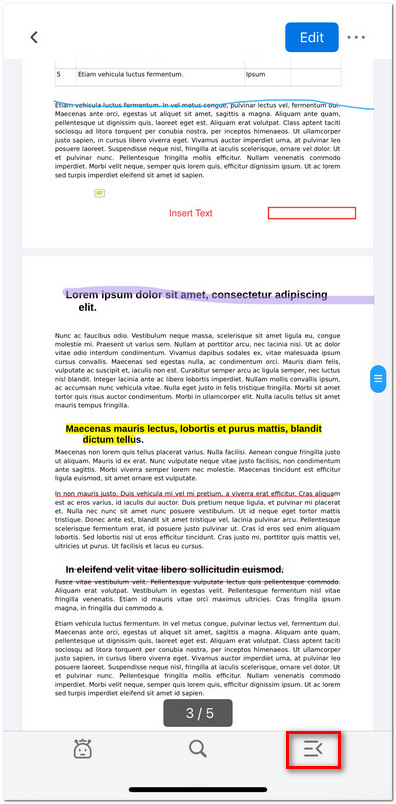
Open the Control Panel
- Switch to the Annotations tab, then tap Edit.
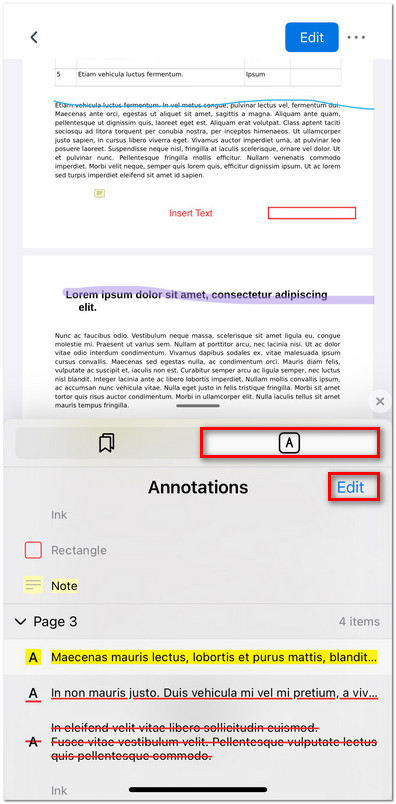
Open the Annotations Panel
- Select the annotations you want to remove and tap the Delete icon to clear them all at once.
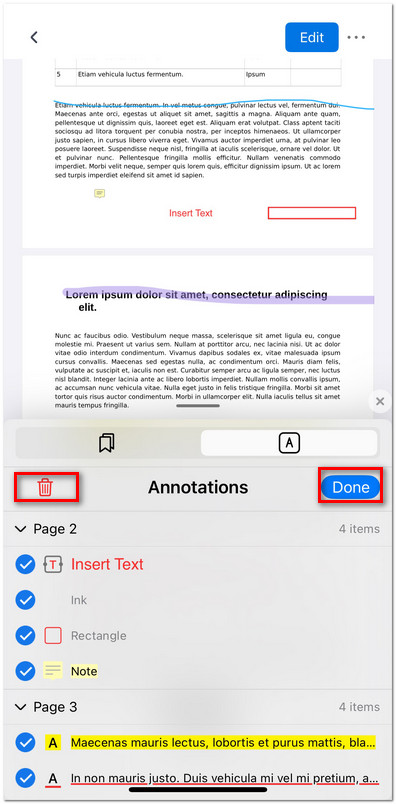
Batch Delete Annotations in PDFgear for iOS