Scan to PDF
With PDFgear on your iPhone or iPad, you can easily scan paper documents and turn them into PDFs. Use your device’s camera to capture pages and save them as a PDF in PDFgear.
- Tap the blue “+” button and select Scan.
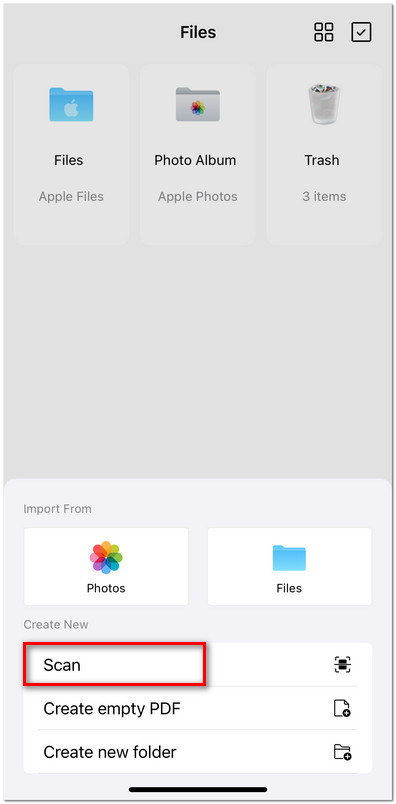
Choose to Scan Paper to PDF
- The first time you use this feature, you must grant PDFgear access to your camera.
- Use your camera to capture the paper document.
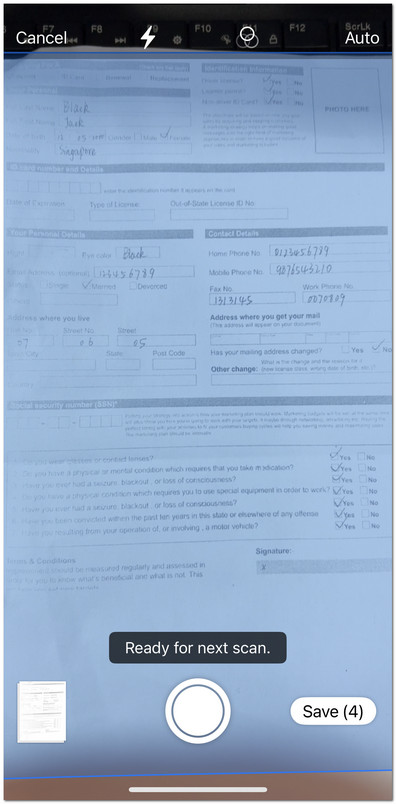
Scan Paper to PDF on iOS
- You can click the icon in the upper-right corner to turn the automatic shutter on or off.

Check the Scanned PDF File
- Save the scan, and PDFgear will convert it into a PDF stored in your Files tab.