Search in PDF
PDFgear makes it easy to locate words or phrases in your PDF quickly, so you don’t need to scroll manually through long documents.
- Tap the “+” icon to import your PDF and open it in PDFgear.
- Once the PDF is open, tap the magnifying glass icon at the bottom of the menu bar.
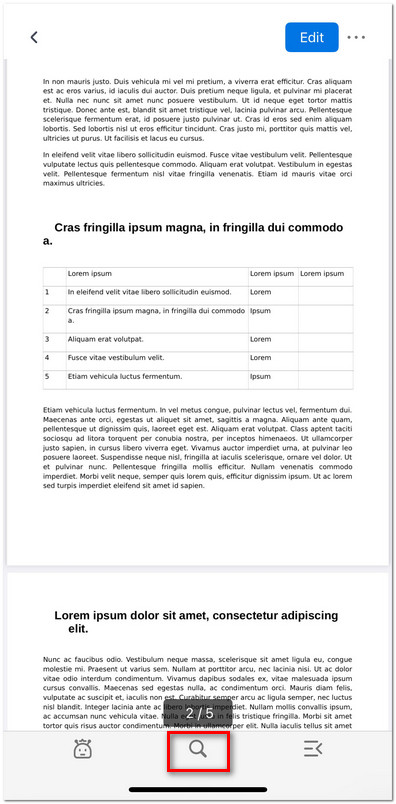
Tap on the Search Icon
- Type the word or phrase you want to find in the search bar. Tap Search on your keyboard.
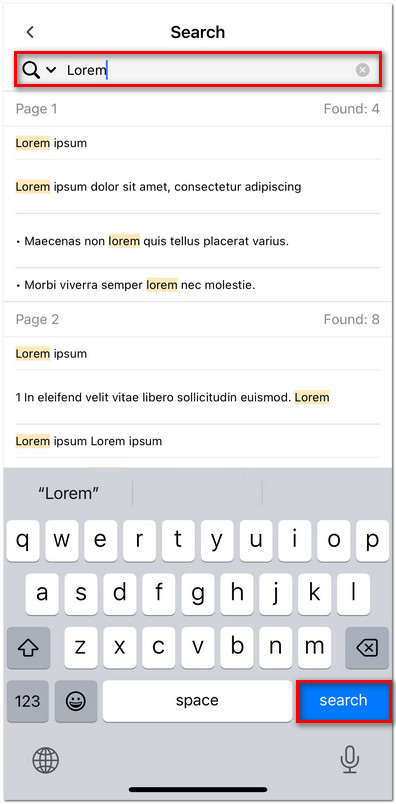
Search Words and Phrases in PDFgear for iOS
- All occurrences of the keyword will be listed by page number.
- Tap any result from the list to jump directly to that part of the PDF.
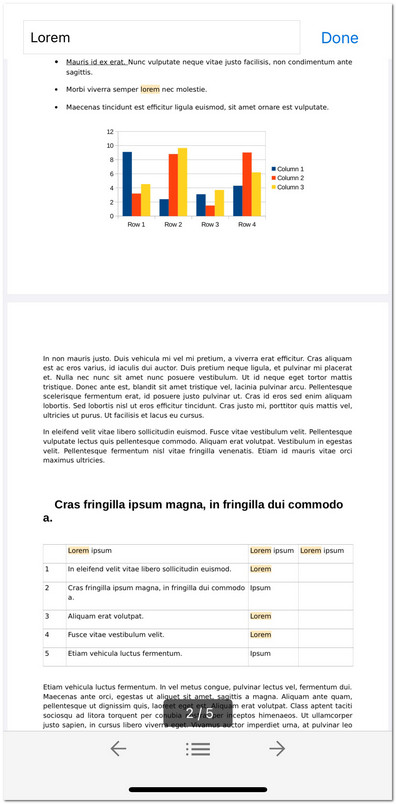
Find Specific Words
- The matched words will be highlighted in the PDF viewer, making them easy to spot.
- Click the Done button in the upper right corner to exit search mode.