View PDF
Enjoy a flexible reading experience in PDFgear on your iPad or iPhone. Switch between single or two-page views, and read comfortably in any environment with Dark Mode.
Change Page View
- Open any PDF and tap the three-dot menu in the top-right corner.
- Expand the View Settings section.

Check the View Settings
- Select a view mode from the drop-down menu:
Single page continuous: Scroll vertically through the document.
Single page: Display one page at a time.
Two page: View two pages side by side in landscape.
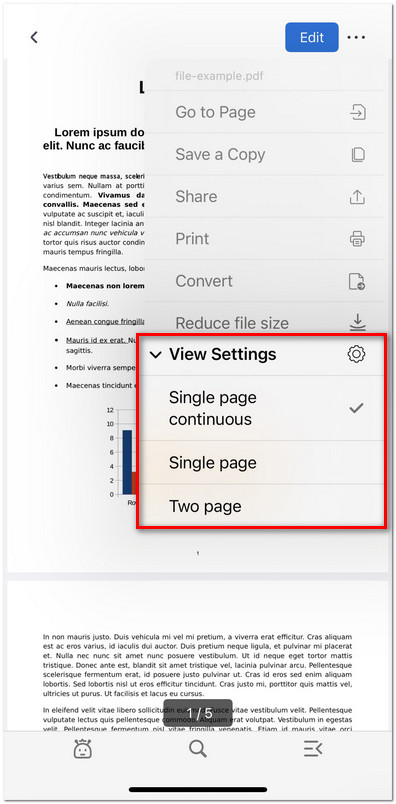
Choose the Page View Mode
- You can also rotate your device to change between portrait and landscape views.
Read PDF in Dark Mode
PDFgear allows you to enable Dark Mode to read a PDF in low-light environments.
- Return to the app’s main screen and tap the Setting tab at the bottom.
- Find the Dark Mode option.
- Toggle the switch to On.
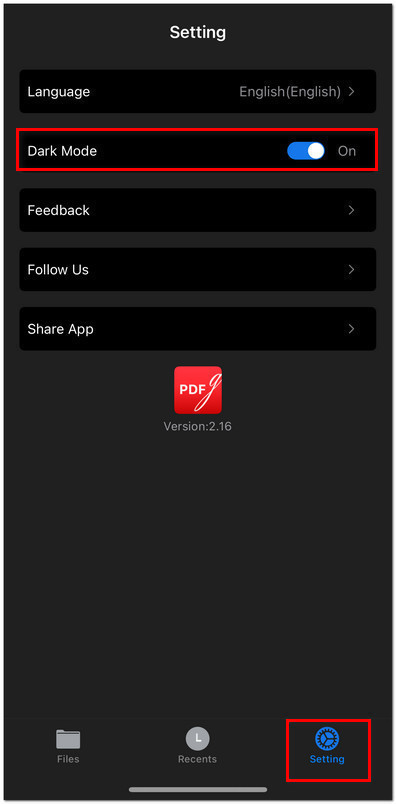
Enable the Dark Mode in PDFgear for iOS
Dark Mode will be applied to the entire app, including the document viewer.