Create and Convert PDF
Create a Blank PDF
PDFgear lets you quickly make a blank PDF on your Mac. Use it as a digital notepad or a placeholder for future content.
- Open the PDFgear app on your Mac. In the left panel, click Create Blank PDF.
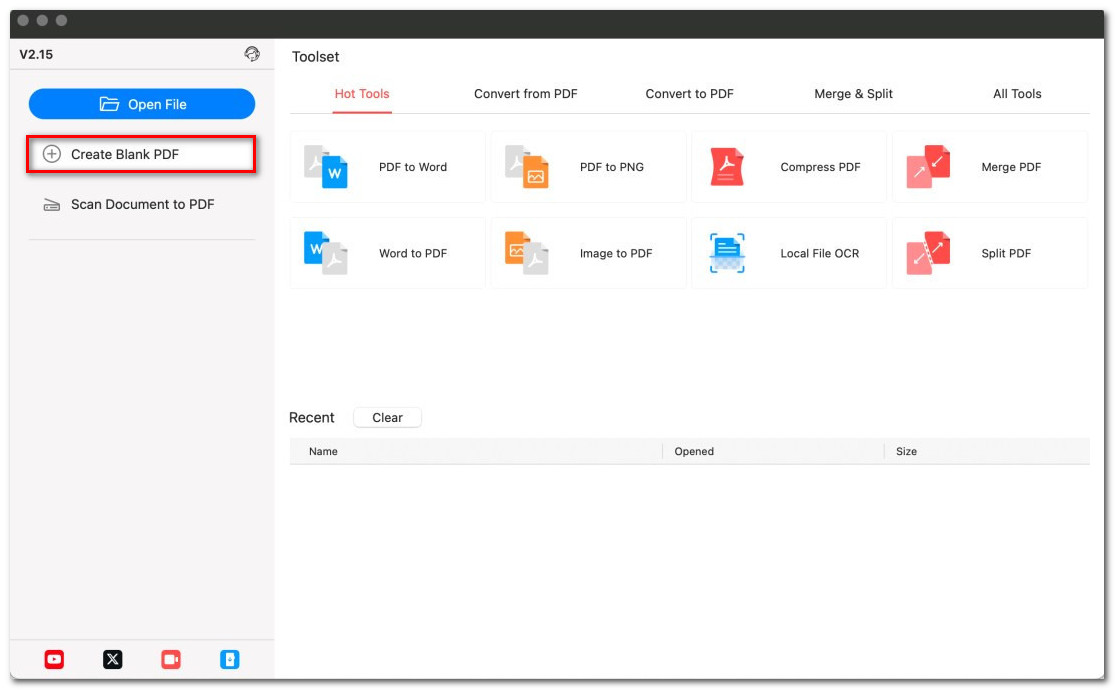
Create a Blank PDF on Mac
- A pop-up appears. Choose the folder and file name, then click Save.
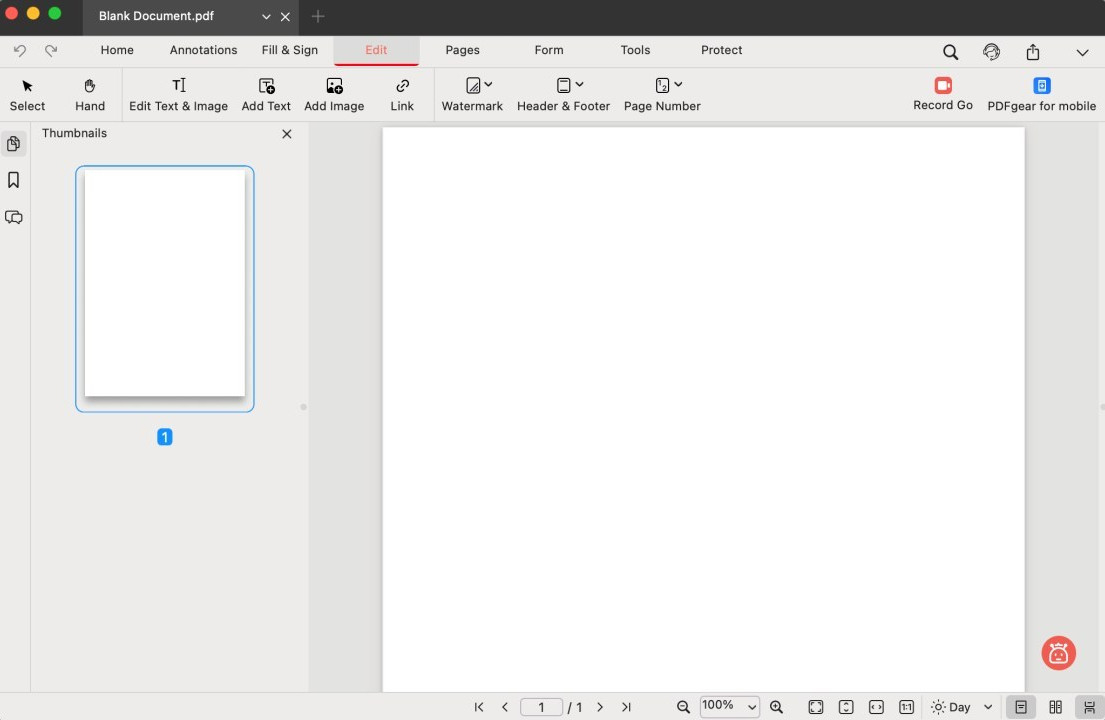
Design Your Blank PDF
- Your new blank PDF opens in the editor. You can add text, images, or annotations right away.
Convert to PDF
You can also convert other file types into high-quality PDFs. Supported formats include:
Word to PDF
Excel to PDF
PPT to PDF
Image to PDF
RTF to PDF
TXT to PDF
- Open PDFgear and go to the Convert to PDF tab. Choose a format (e.g., Word to PDF).
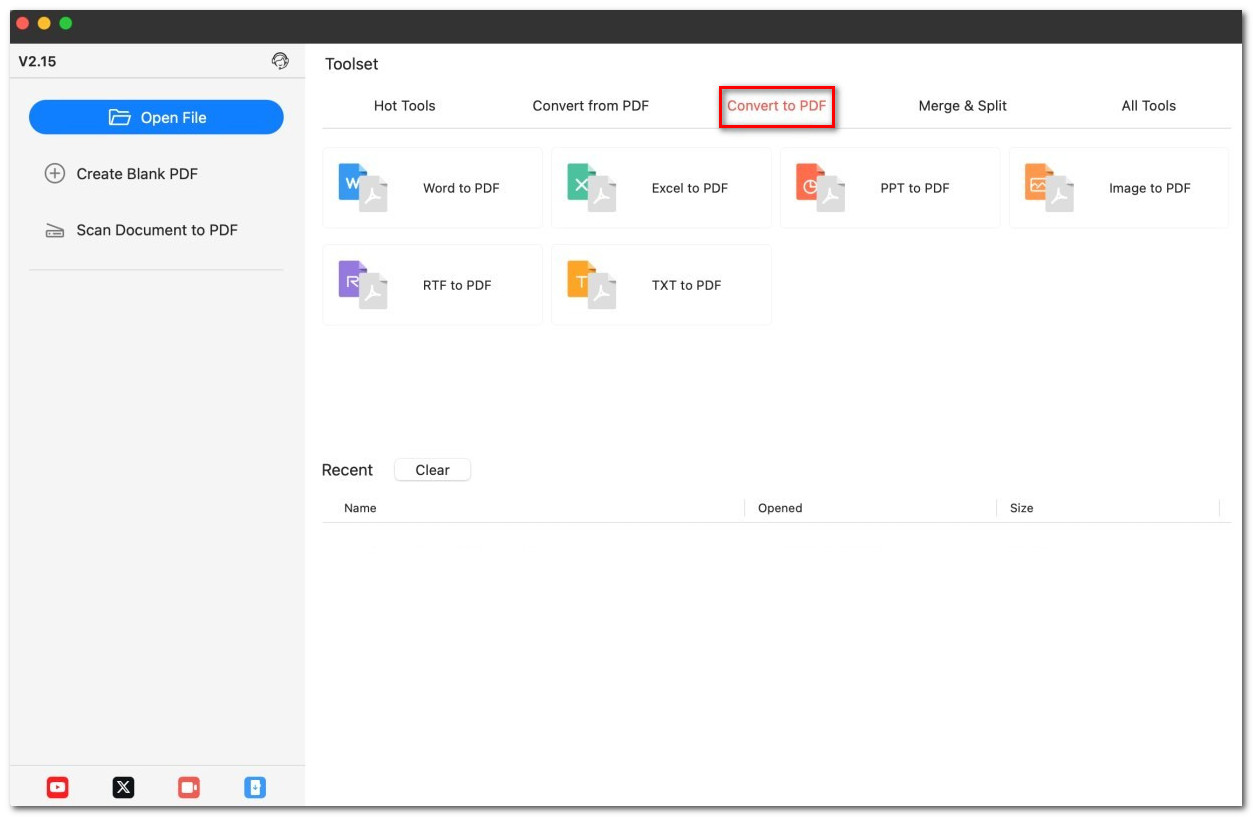
Open the Convert to PDF Tab
- Click Add Files to upload your documents or images. Here are some options for different conversions:
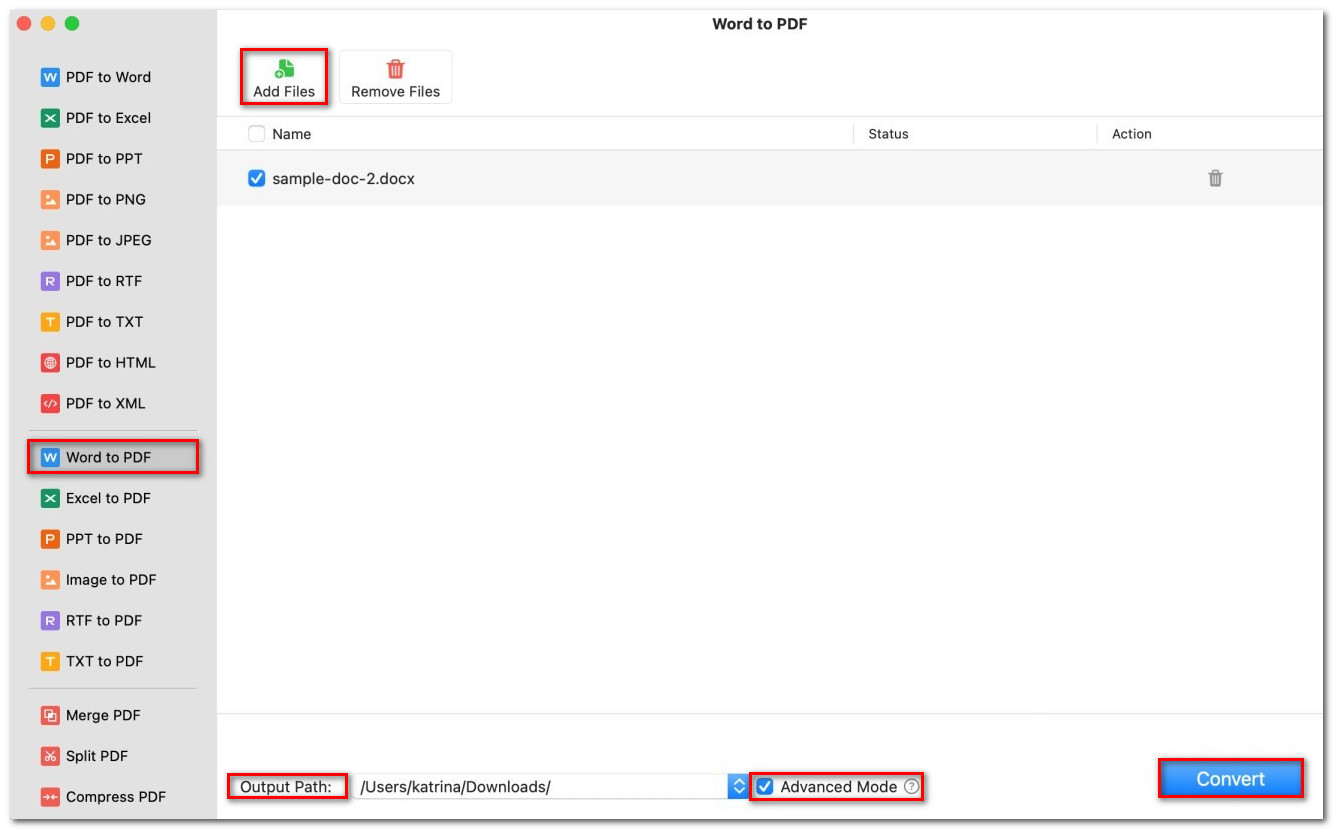
Customize the Word to PDF Conversion
- For Word, Excel, PowerPoint, RTF, and TXT files: Enable Advanced Mode for improved layout retention.
- For Image to PDF: Adjust Page Settings (size, orientation, margins) and choose whether to combine multiple images into one PDF.
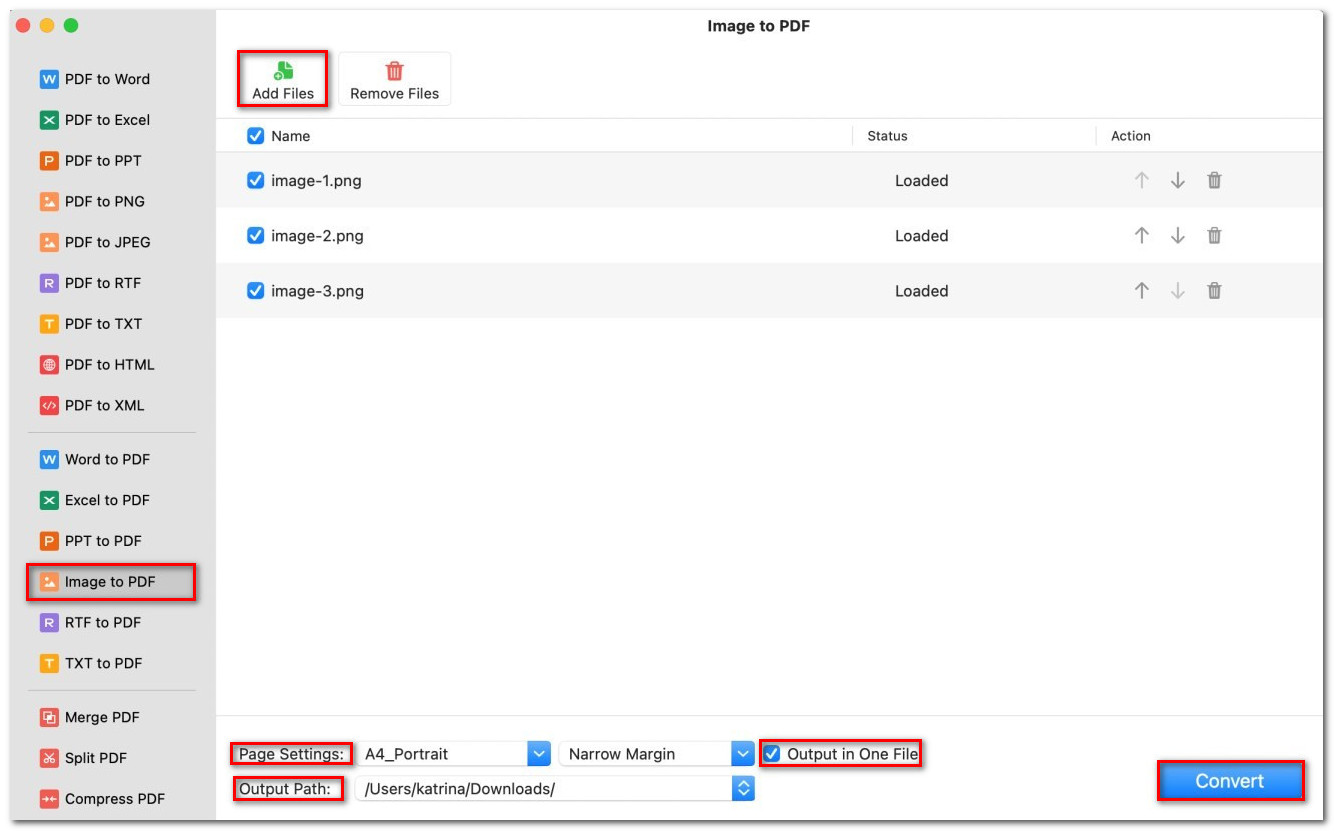
Customize the Image to PDF Conversion
- Select an output folder. Click Convert. PDFgear will create your new PDF in seconds.
Scan Document to PDF
PDFgear also has a free PDF Scanner to turn paper documents into digital files.
- In the left panel, click Scan Document to PDF.
- A window pops up with a QR code.
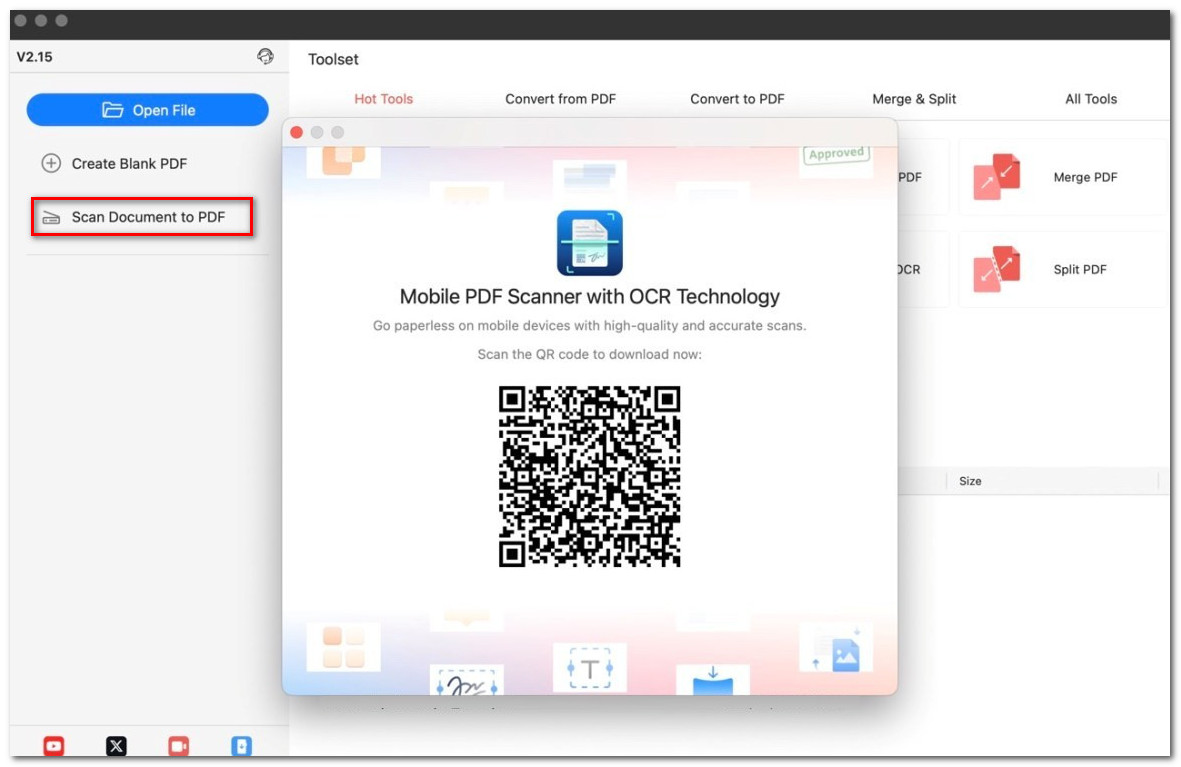
Scan Document to PDF
- Scan the QR code to download PDFgear Scan on your mobile device for free.
PDFgear Scan uses OCR to recognize text and create accurate, high-quality scanned PDFs. You can scan on your phone, then send the file back to your Mac for editing or sharing.
Convert from PDF
PDFgear makes it easy to convert your PDF documents into a wide range of commonly used formats. It supports formats including:
PDF to Word
PDF to Excel
PDF to PPT
PDF to PNG
PDF to JPEG
PDF to RTF
PDF to TXT
PDF to HTML
PDF to XML
- Open PDFgear and choose a format under Convert from PDF (e.g., PDF to Word).
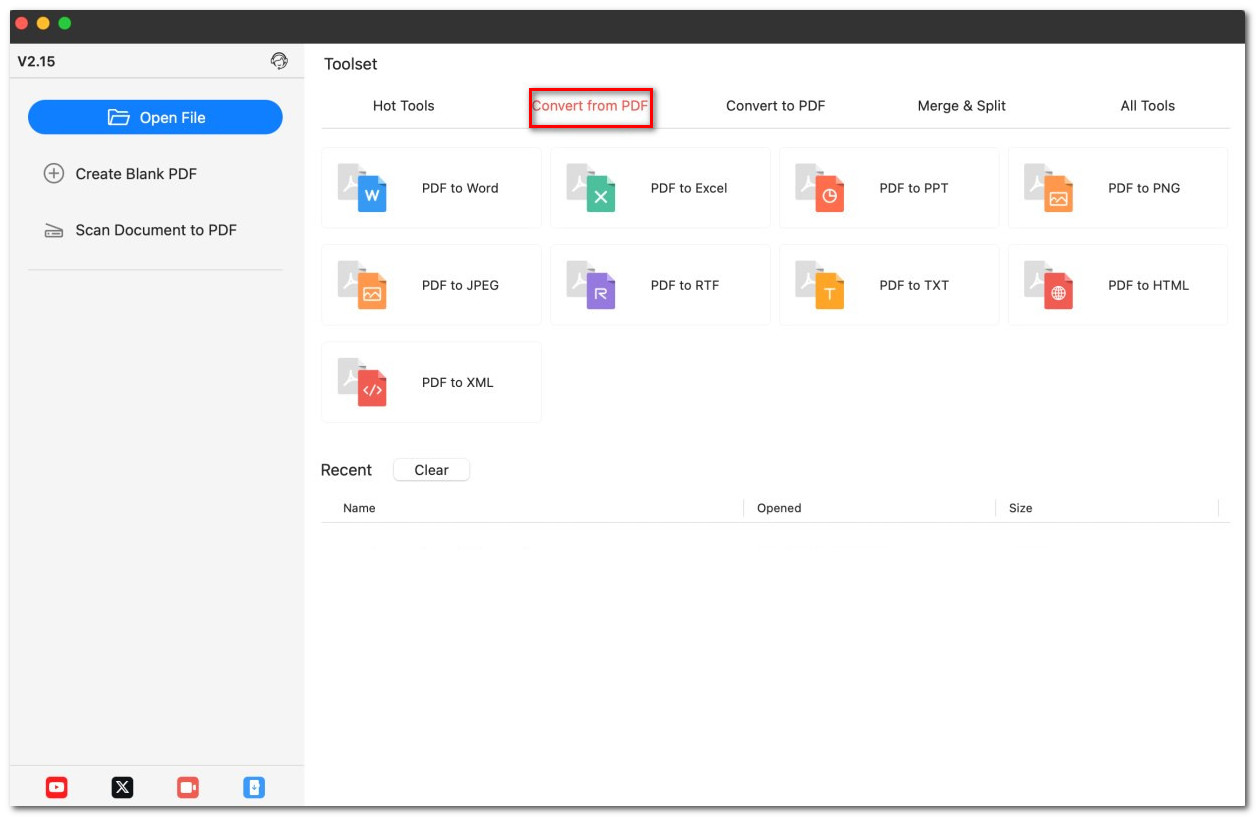
Open the Convert from PDF Tab
- Click Add Files and load the PDFs you want to convert. You can add one or many at the same time.
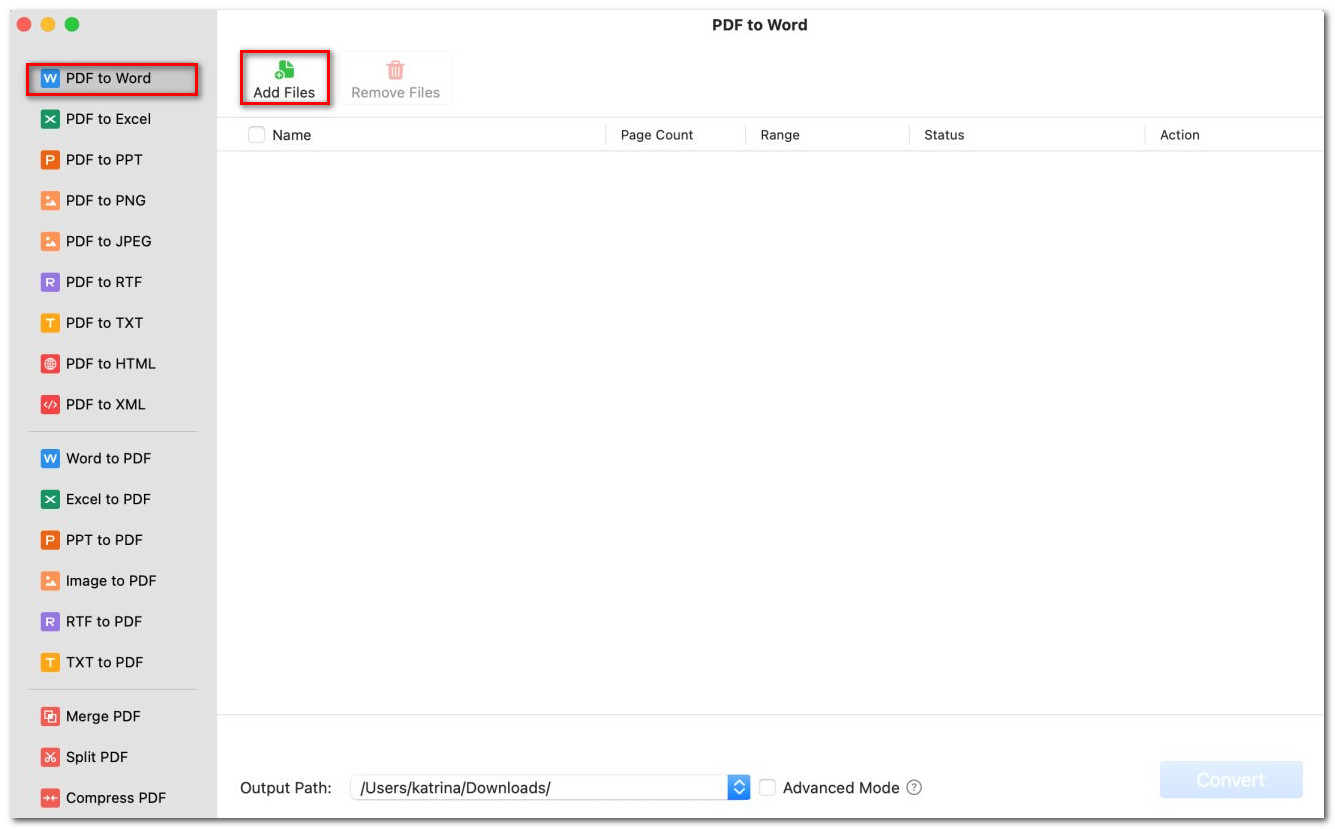
Add a PDF to Convert
- (Optional) Adjust the page range if you don’t want to convert the whole file.
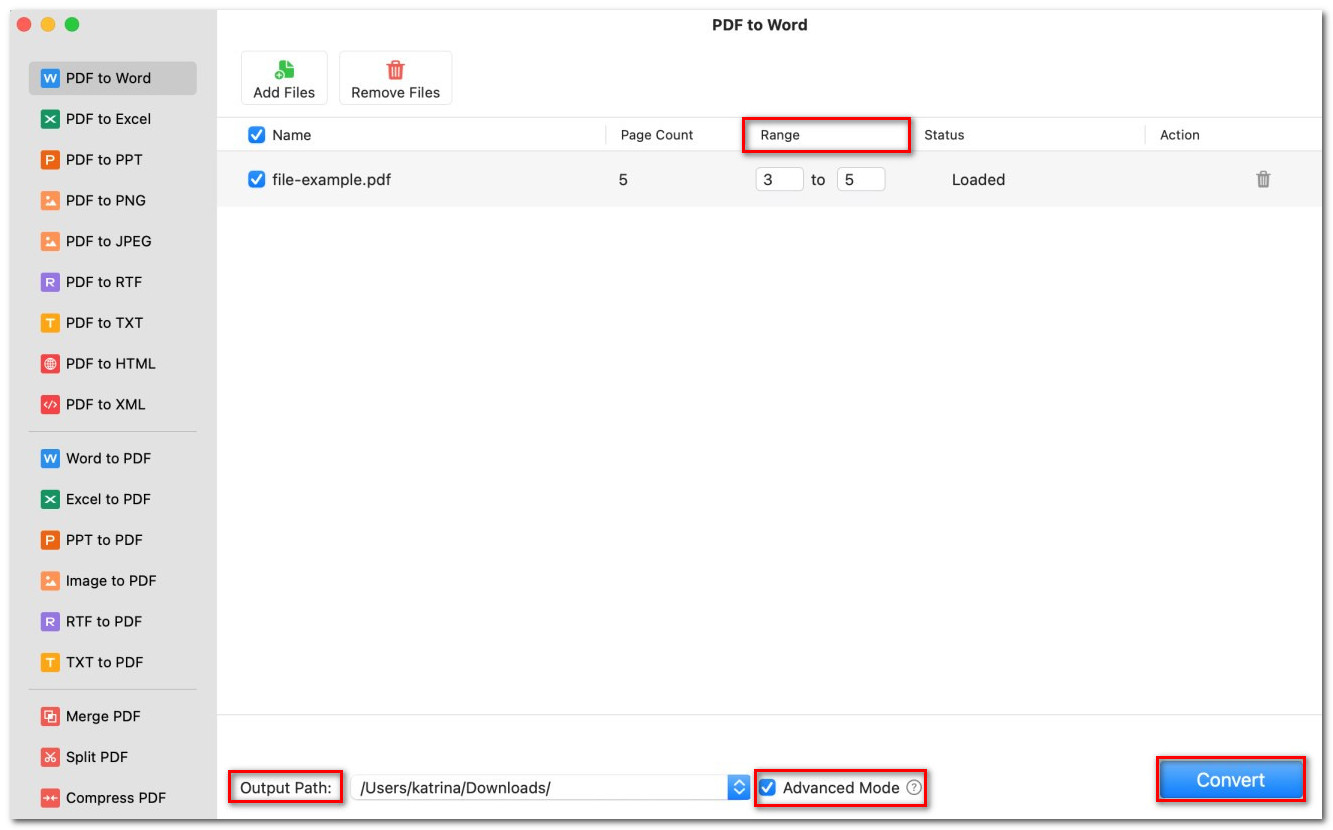
Convert a PDF to Word Format
- At the bottom, pick an output folder.
- Hit the Convert button, and PDFgear will do the rest.
Note: For PDF to Word and PDF to RTF, you can enable Advanced Mode. It takes longer but preserves complex layouts better.
Batch Convert PDFs
Need to process many files at once? PDFgear supports batch conversion.
- On the home screen, choose the conversion direction you need:
Convert from PDF: Convert a PDF to Word, Excel, PowerPoint, PNG, JPEG, RTF, TXT, HTML, or XML.
Convert to PDF: Convert Word documents, Excel spreadsheets, PowerPoint presentations, images, and files in RTF or TXT format to PDF.
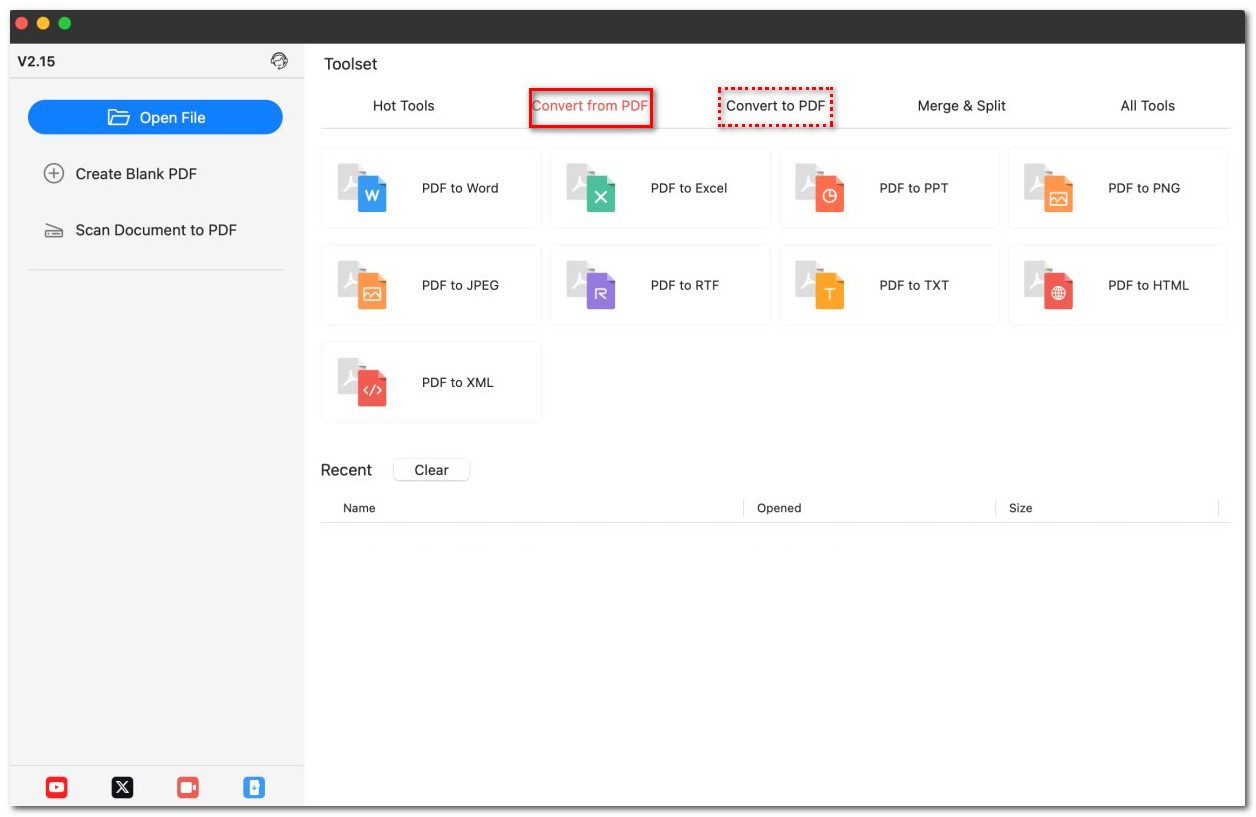
Open the Converter Window
- When the converter window opens, click Add Files to import multiple PDFs or documents.
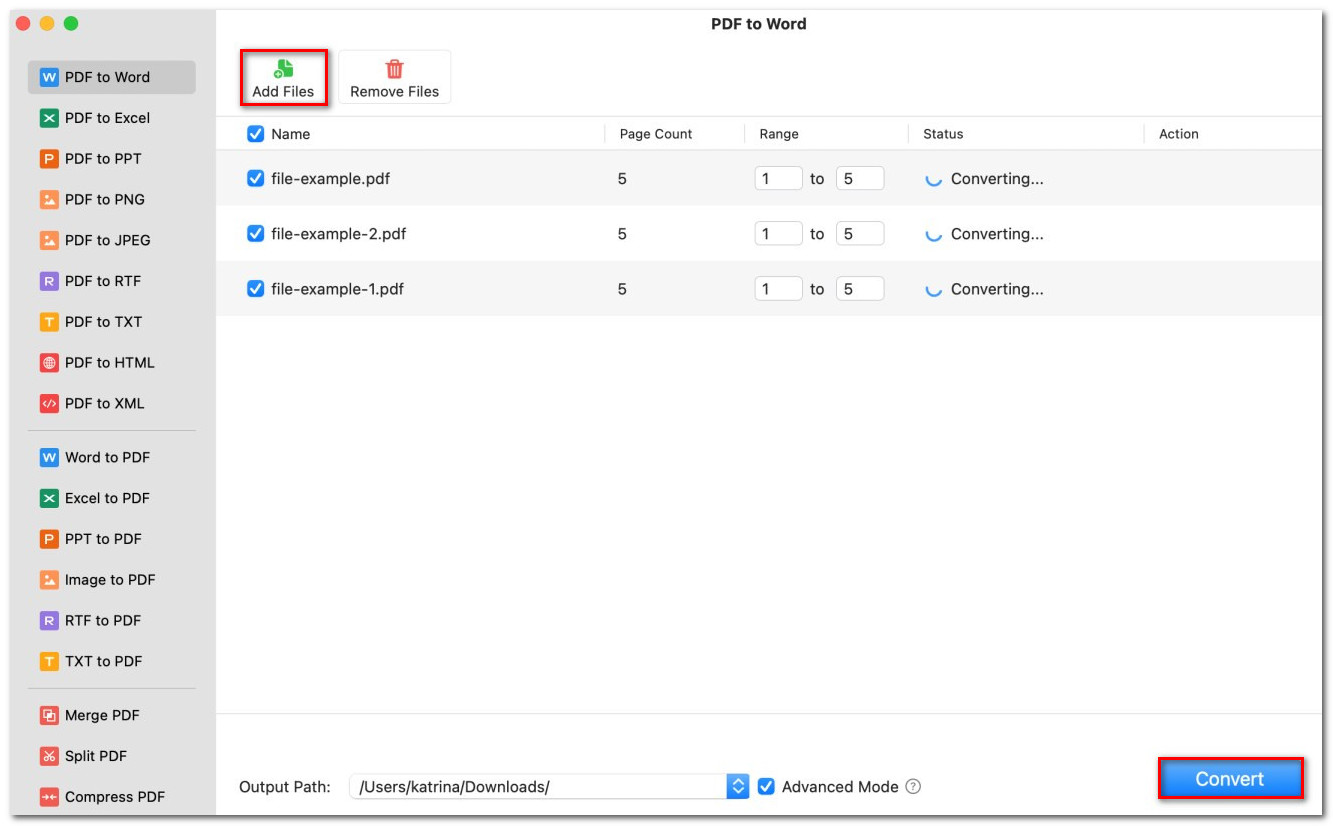
Batch Convert PDF Files
- Select an output path and adjust the settings if needed.
- Click the Convert button. PDFgear will handle all files at once.