PDF OCR
What is OCR?
OCR (Optical Character Recognition) is the technology uses to recognize text in scanned PDFs or images and turn it into real, editable text. Instead of being stuck with flat images, you can search, copy, and edit the content just like a normal PDF.
PDFgear offers two main OCR options depending on your needs:
Make a Scanned PDF Searchable
With this option, PDFgear runs OCR directly on your scanned PDF. The file looks the same, but the text becomes selectable and editable. You can:
- Search for words or phrases
- Highlight and copy text
- Edit the content directly in the PDF editor
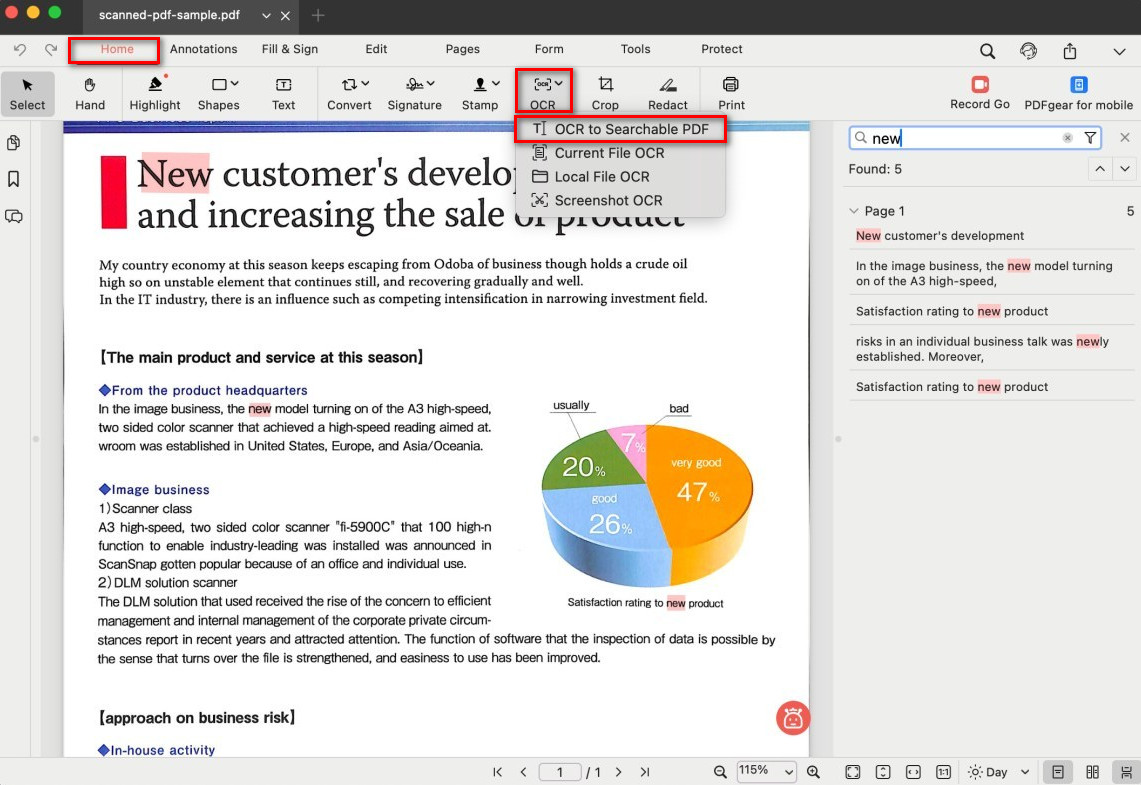
Make a Scanned PDF Searchable
This is the best choice if you want to keep working inside the PDF itself.
Extract Text from a Scanned PDF
Sometimes you don’t need to edit the PDF, but you just want to grab the text inside. PDFgear also supports running OCR to extract the recognized text as plain content. You can do this for the entire document or for specific regions you select.
- Quickly copy the text
- Save or export it into another file
- Reuse the content without retyping
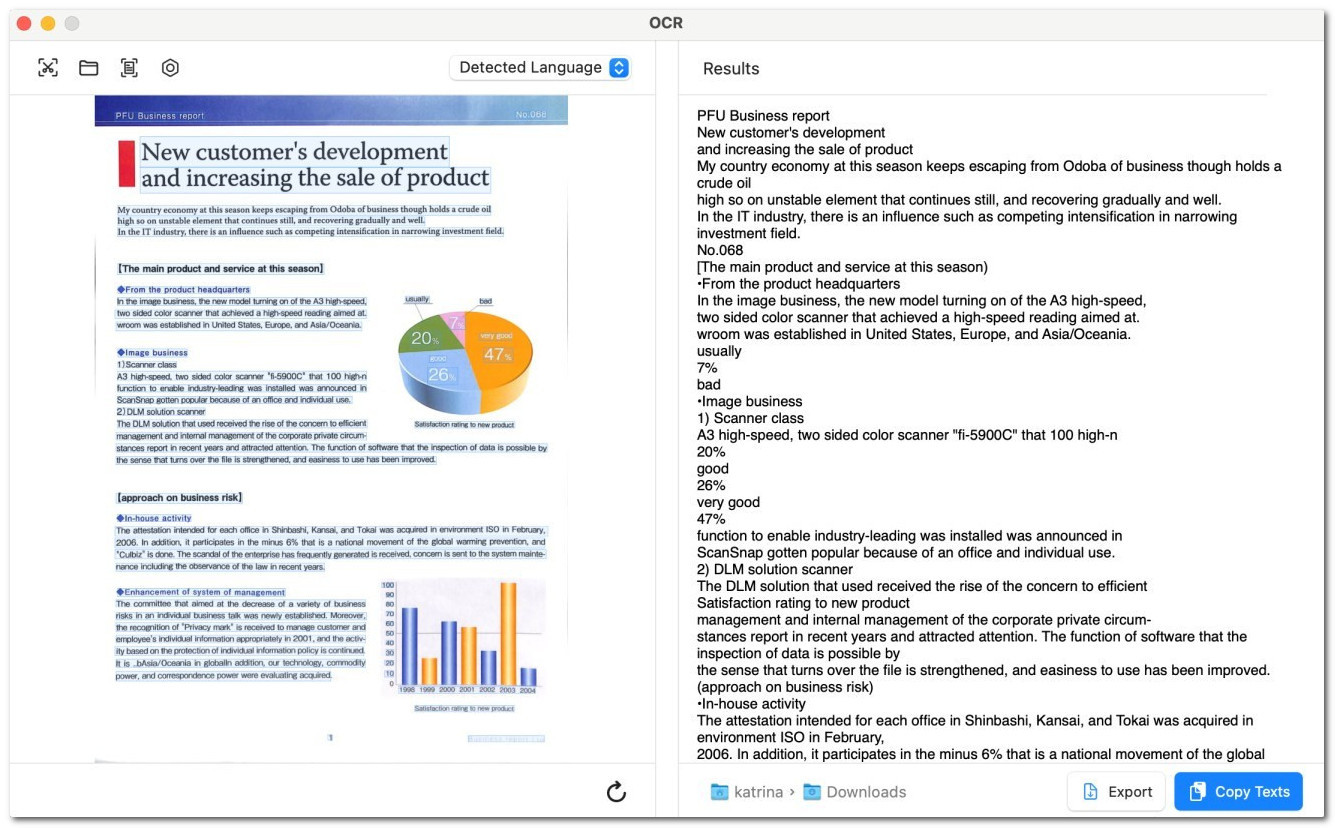
Extract Text from Scanned Image
This is the ideal option when you simply want to reuse text from a scanned document.
Make PDF Searchable
Scanned PDFs are usually just images, so you can’t search, highlight, or edit the text. With PDFgear’s OCR feature, you can turn them into fully searchable and editable documents in a few clicks.
- Open your scanned PDF in PDFgear.
- In the top menu, go to the Home tab and click OCR.
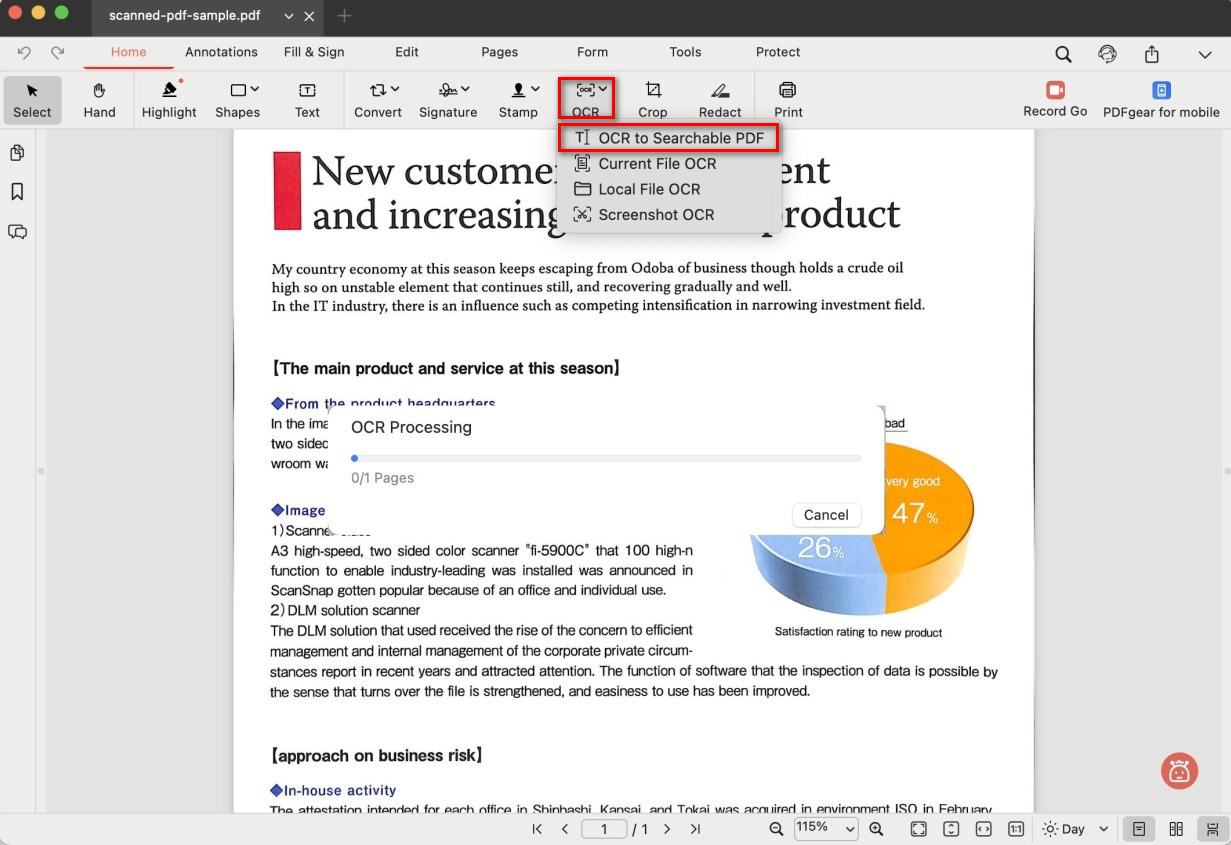
OCR to Searchable PDF
- From the dropdown, choose OCR to Searchable PDF. A save window will appear.
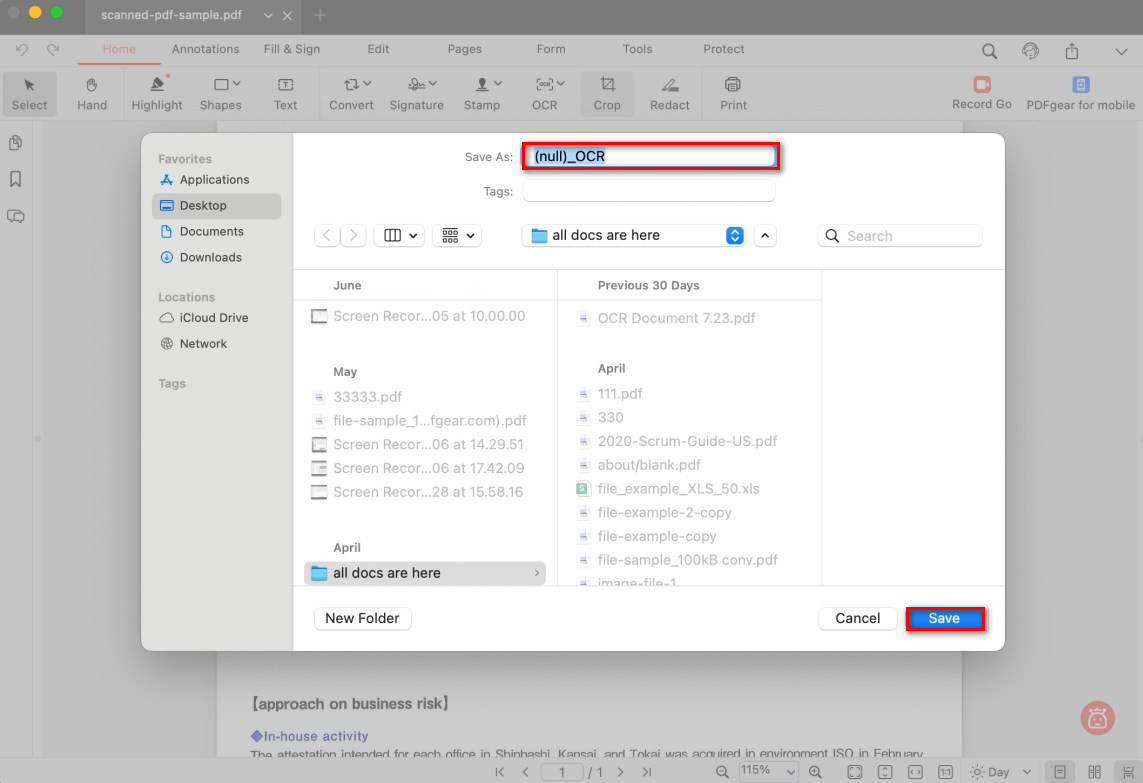
Save the Searchable PDF File
- Pick a folder, rename the file if needed, then click Save.
- The new PDF will open automatically in PDFgear.
You can now press Command + F to search for text, or highlight, copy, and edit it just like a normal PDF.
Extract Text from Scanned PDF
The powerful built-in OCR feature in PDFgear lets you extract text from scanned PDFs and reuse it anywhere you need.
- Open your scanned PDF file in PDFgear on your Mac.
- Go to the Home tab and click OCR.
- From the dropdown, choose one of these options:
Current File OCR: Run OCR on the PDF you already opened.
Local File OCR: Pick another PDF from your computer.
Screenshot OCR: Select an area on your screen to recognize text.
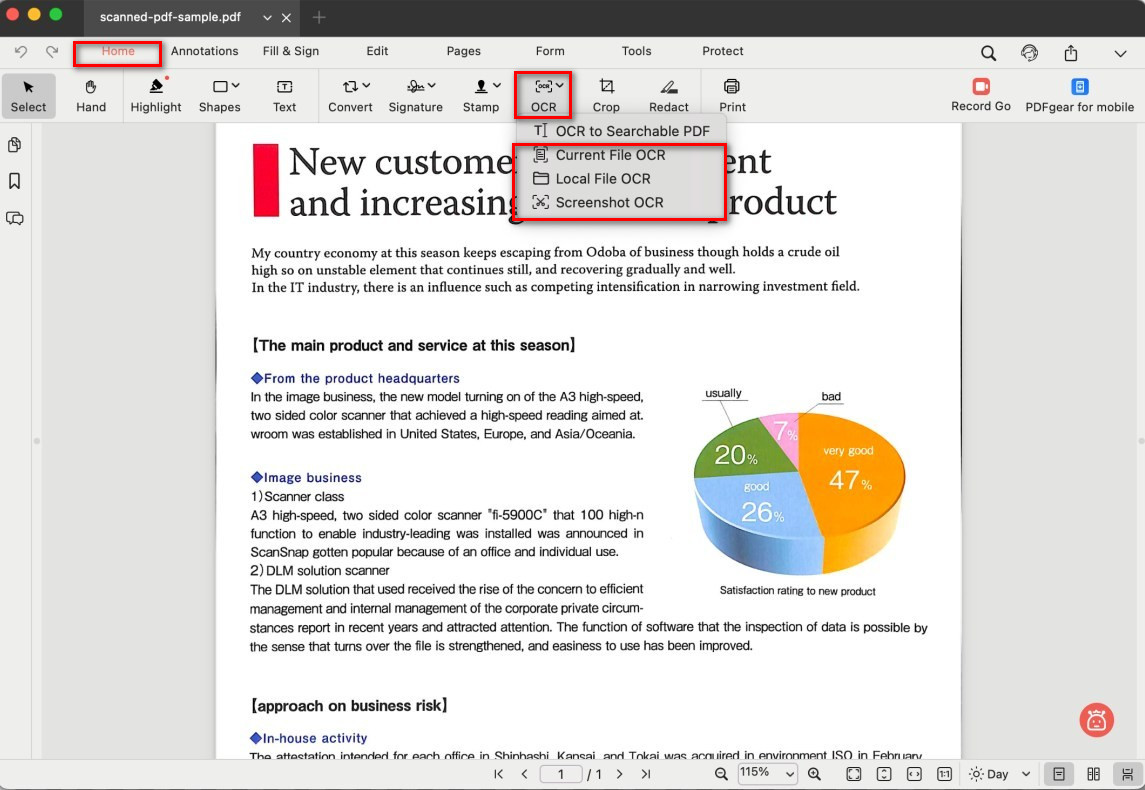
Open the Text OCR Tool
- PDFgear will auto-detect the language. If needed, pick the right language from the dropdown for better accuracy.
- The left panel shows the original scanned PDF, and the right panel shows the recognized text. Scroll through to review the results.
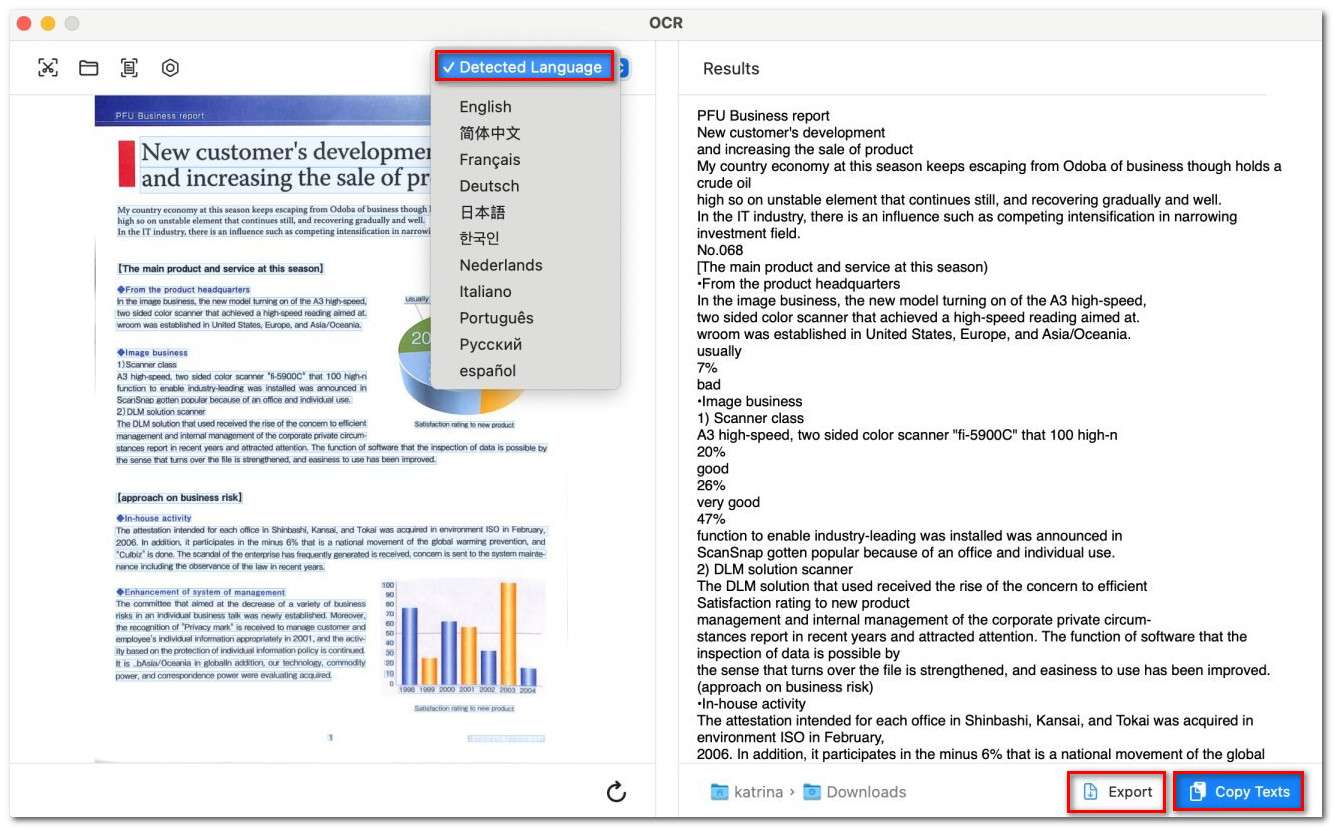
Extract Text from the Scanned PDF
- Click Export to save the text as a file, or click Copy Texts to copy everything to the clipboard and paste it into Word, Notepad, or another app.