PDFgear AI
PDF Copilot
PDFgear Copilot, powered by ChatGPT, lets you chat with your PDFs like talking to an assistant.
Just use plain language, and it will handle your requests—whether you’re asking questions, pulling data, or running tasks.
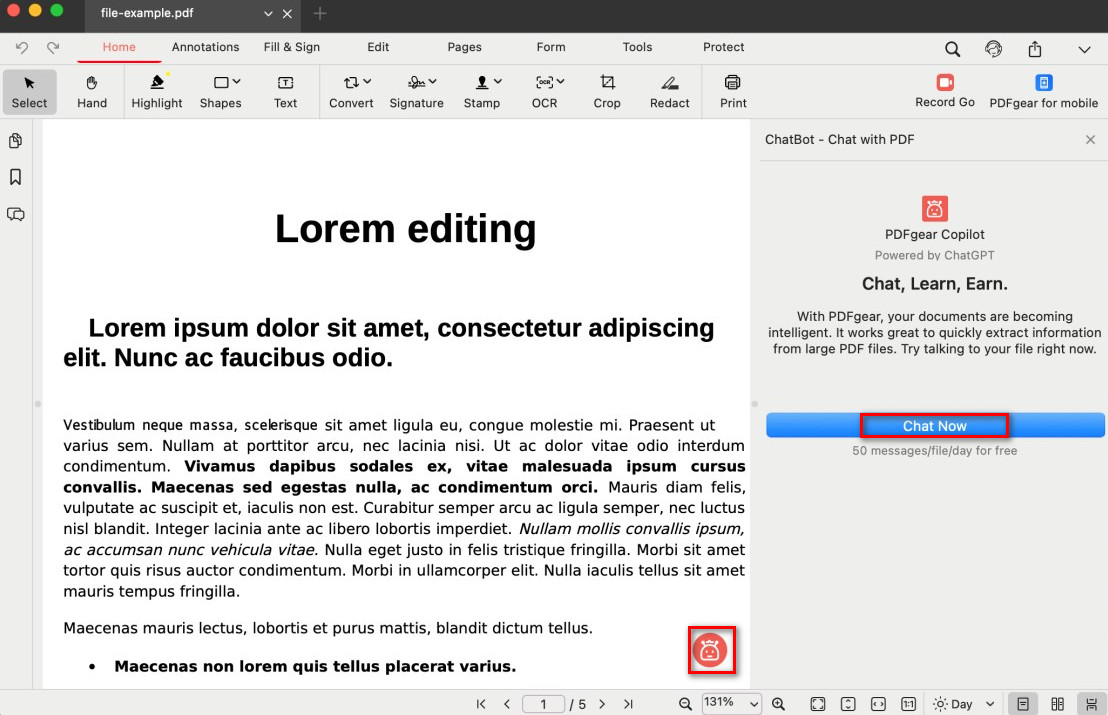
PDF Copilot in PDFgear
What You Can Do with Copilot
- Ask and get instant answers: Skip the scrolling. Type your question, and Copilot finds the answer.
- Summarize long documents: Get the key points from reports, manuals, or research papers in seconds.
- Run PDF tasks: Need to compress, convert, or delete a page? Just tell Copilot.
- Extract details: Pull numbers, dates, names, or other data without searching manually.
- Smart conversations: If your request isn’t clear, Copilot asks follow-ups so you get the right result.
- Works on scanned PDFs: With OCR built in, even scanned files become searchable and ready for AI help.
Chat with PDF
PDFgear lets you chat with your document directly. You can ask questions, get summaries, run tasks, and extract info—all in natural language.
- Click the Copilot icon on the right-hand panel, then click the Chat Now button to open the chat window.
PDF Copilot in PDFgear
- When the chat opens, Copilot shows sample prompts you can try, such as:
“Summarize this PDF file.”
“Convert this PDF to Word.”
“Compress this PDF.”
“Add a password to protect this file.”
“Display this PDF in slide mode.”
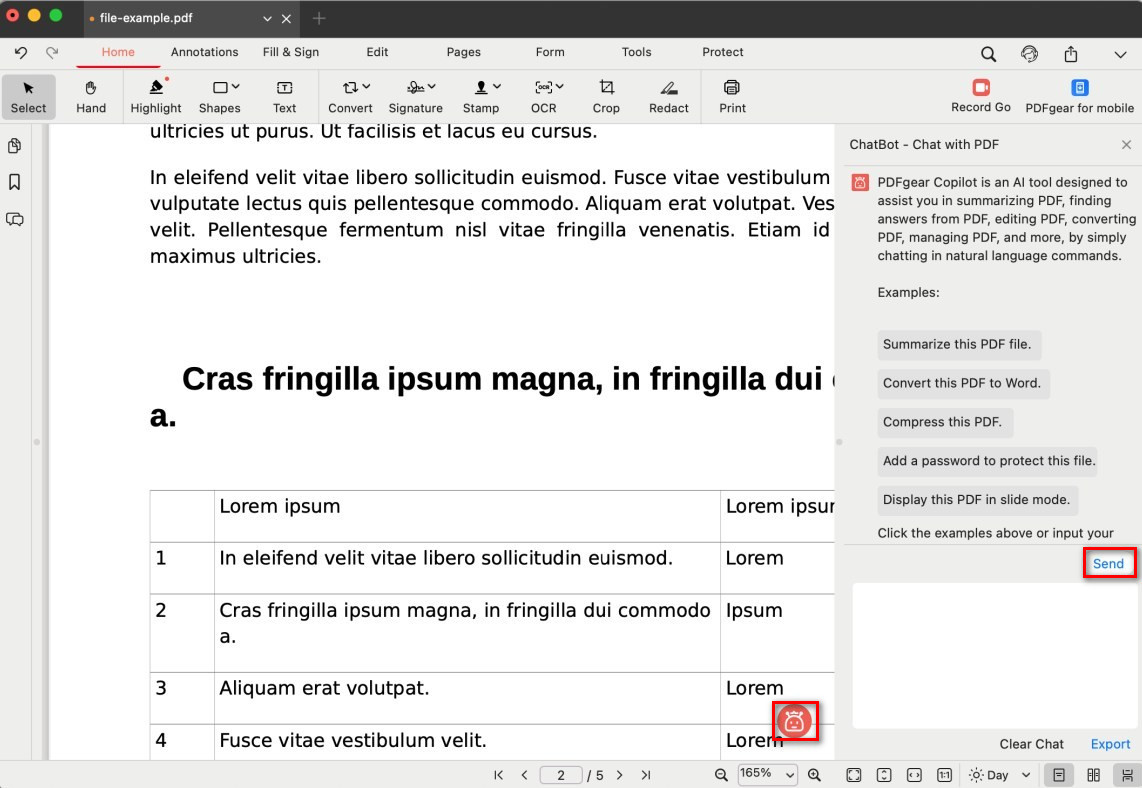
Start a Chat in PDFgear
- Click one of these examples or type your own command to start the conversation.
- Copilot will process your request and either show results or ask for more info. For example, if you ask it to add a password, it will prompt you to enter one first.
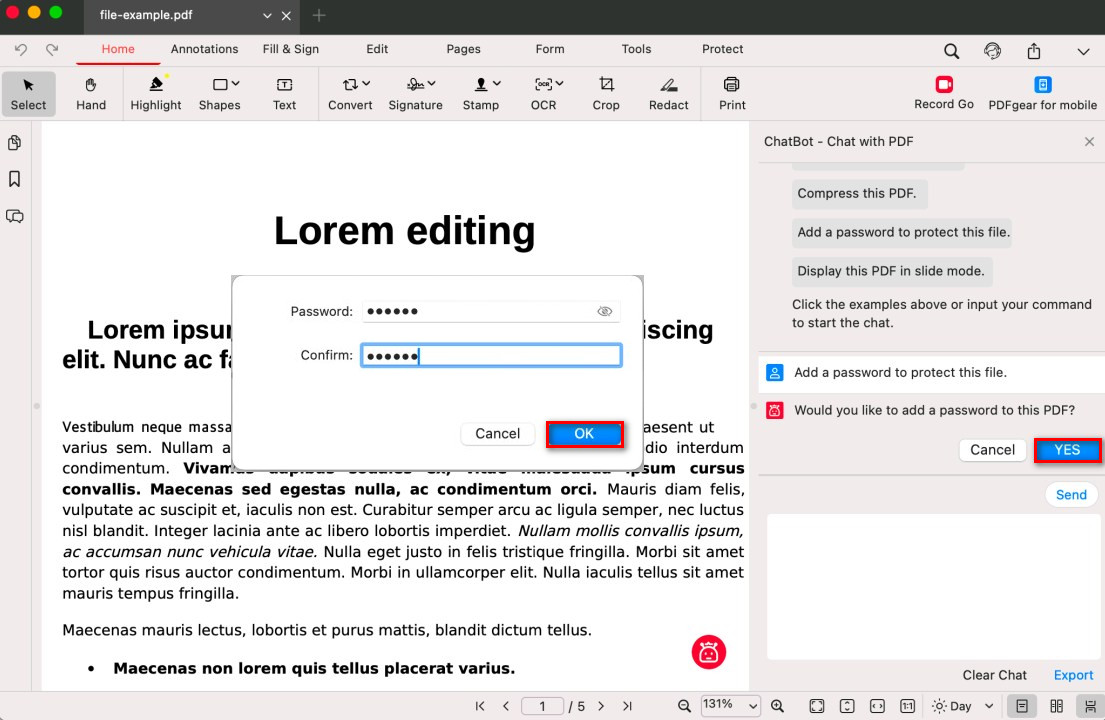
Ask PDFgear to Add Password to PDF
- You can keep asking follow-up questions or run multiple tasks without leaving the chat window. Copilot remembers the context, so you can build on previous queries.
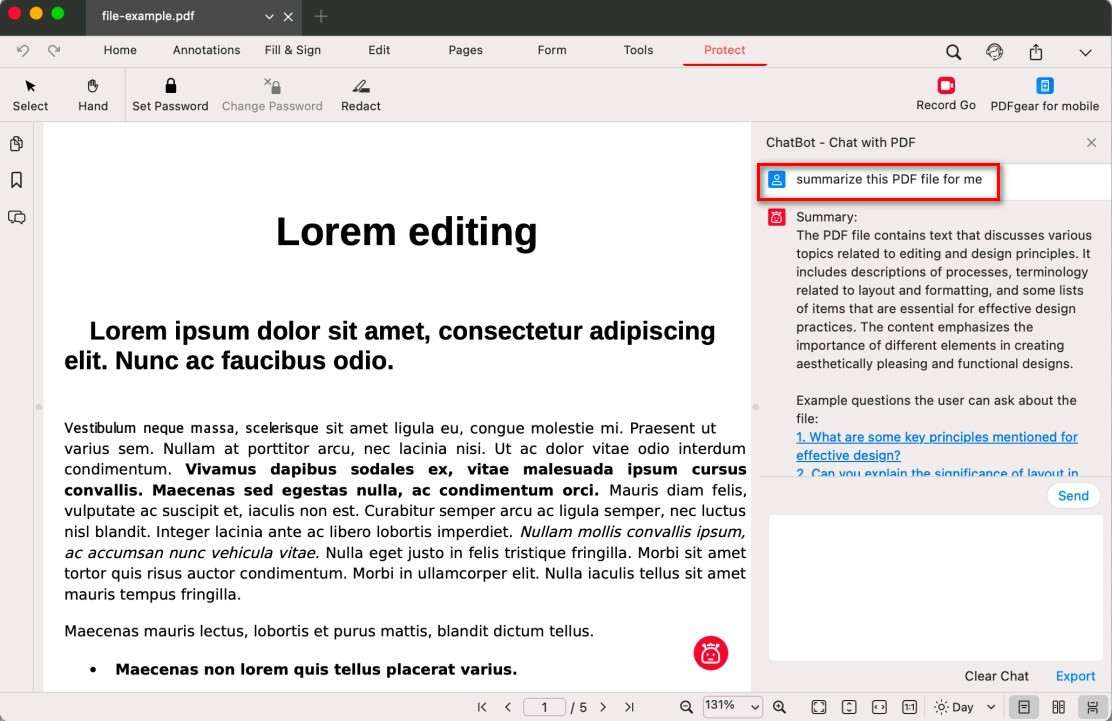
Summarize Your PDF with PDFgear
- Click Export at the bottom-right, then choose to copy the chat to your clipboard or save it as a TXT file.
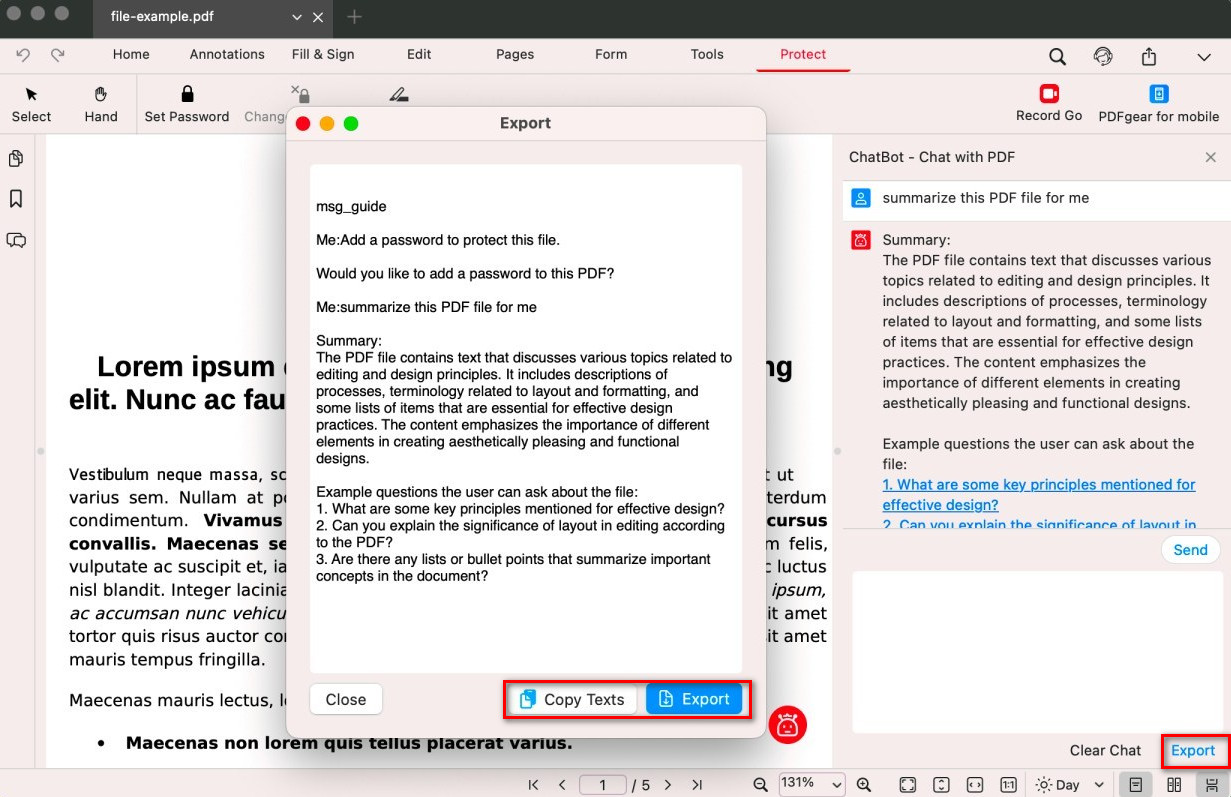
Export the Chat History
💡 Tip: You get 50 free messages per file each day, giving you plenty of room to explore, summarize, edit, and manage your PDFs.