How to Scan Documents in OneDrive After Microsoft Lens Retirement

Summary :
Learn how to scan documents in OneDrive and migrate Microsoft Lens scans after its retirement in 2026, with flexible scan-first alternatives like PDFgear Scan.
Table of Contents
Microsoft has announced the retirement of the Microsoft Lens app on iOS and Android starting January 9, 2026, with scanning disabled after March 9, 2026. Microsoft is now pointing users to OneDrive as the go-to replacement.
As of the writing of this post, if you open Microsoft Lens, you’ll see this:
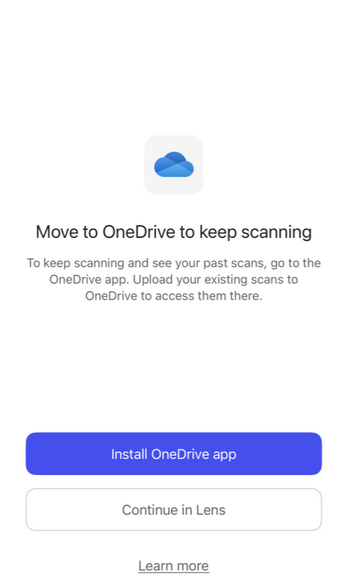
Lens Notification
This guide explains how to scan in OneDrive, migrate existing Lens scans, and provides a more flexible alternative.
How to Scan Documents in OneDrive (Step-by-Step Guide)
With Microsoft Lens retiring, OneDrive is now Microsoft’s recommended option for scanning documents on mobile. The good news is that OneDrive already includes a built-in scanner. Here’s how to scan documents with it.
Frist install OneDrive app from Apple App Store or Google Play.
Open the OneDrive app on your iOS or Android device and sign in with your Microsoft account.
Tap the “+” button at the bottom of the screen, then select “Capture”. Use your device’s camera to capture the document. OneDrive automatically detects the page edges, but you can retake the photo or adjust the crop if needed.
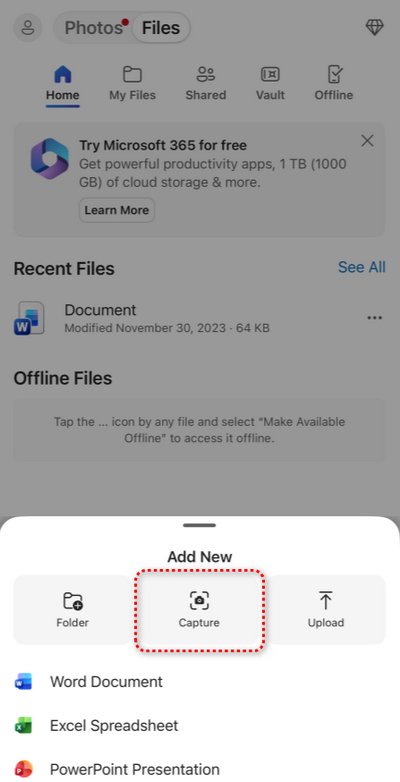
Tap Capture
Once the scan looks right, review it and apply basic edits such as cropping or rotating. You can then choose a destination folder, rename the file if necessary, and save it.
The scanned document uploads to OneDrive immediately and becomes available on all devices signed in to your account.
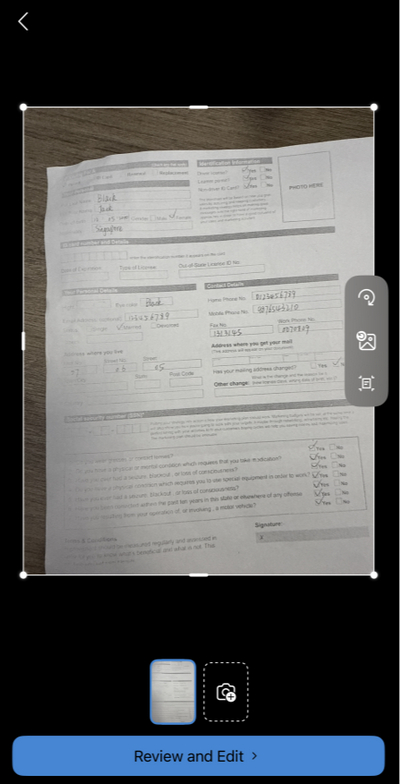
Scan in OneDrive
How to Move Existing Microsoft Lens Scans to OneDrive
If you have scanned documents in Microsoft Lens, don’t forget to migrate them before uninstalling the app or losing access.
Before you start, make sure you can still access your scans. You should still be able to open your existing scans as long as Lens is still installed and you’re signed in with the same Microsoft account.
Once you’ve confirmed your scans are accessible, you can move them to OneDrive in one of two ways.
Method 1: Upload Lens Scans to OneDrive Manually (Recommended)
1. Open the Microsoft Lens app on your device.
2. Select one or more scans you want to move.
3. Tap “Share”.
4. Choose “OneDrive” as the destination.
5. Select the target folder in your OneDrive account and complete the upload.
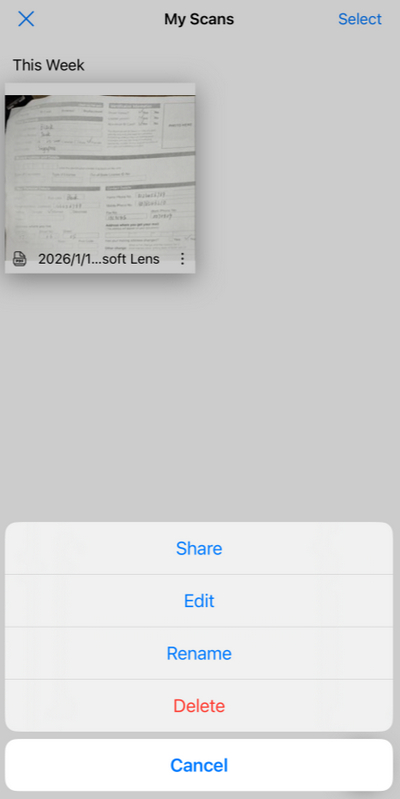
Share Lens Scan
This method keeps files within Microsoft’s ecosystem and avoids quality loss.
Method 2: Export to Local Storage, Then Upload to OneDrive
1. In Microsoft Lens, export your scans to local storage as PDFs or images. Save your scans to Files (iOS) or Files by Google/My Files (Android).
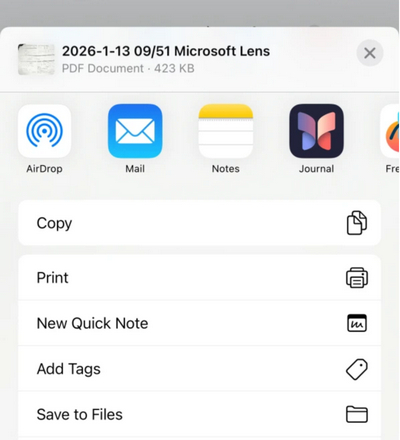
Save Lens Scan to Local Storage
2. Open the OneDrive app and tap the lower-right “+” button.
3. Upload the exported files manually to your desired folder.
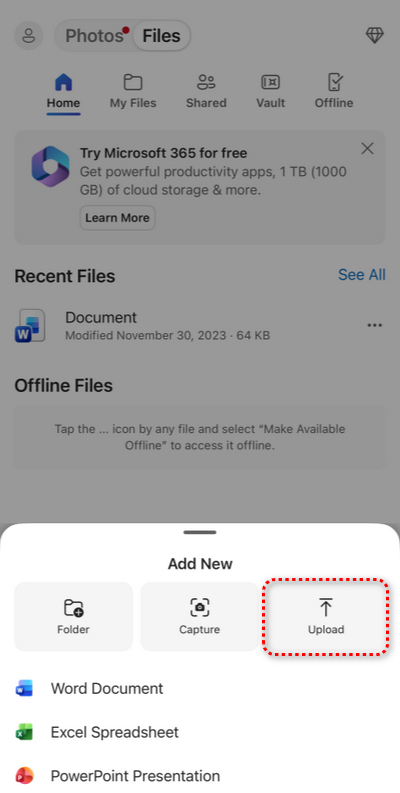
Upload Scans to OneDrive
Important Notes During Migration
Before uninstalling Microsoft Lens, make sure important scans are backed up. Confirm that all files are fully uploaded and accessible in OneDrive, and check your available storage if you’re migrating a large number of documents.
Microsoft Lens Alternative for More Flexible Scanning
OneDrive works well for basic, cloud-based scanning, especially for users already using Microsoft’s storage services. It’s a convenient choice when your main goal is to capture a document and store it in the cloud.
However, if you used Microsoft Lens as a scan-first app, you may miss features like local saving, specialized scan modes, and more control over export formats. In that sense, OneDrive is not designed to cover every Lens-style workflow.
PDFgear Scan as a Free and Flexible Scanning Option
PDFgear Scan is a free document scanning app for iOS and Android designed for fast, seamless, and flexible scanning.
It supports local saving, multiple scan modes for documents, receipts, IDs, and books, as well as OCR and AI-assisted features. PDFgear Scan is positioned as an optional alternative for users who want a Lens-style scanning experience with more control.
OneDrive vs Microsoft Lens vs PDFgear Scan: Key Differences and Limitations
| Feature | Microsoft Lens | OneDrive Scanner | PDFgear Scan |
| Primary Purpose | Scan-first app | Cloud storage with scanning | Scan-first app |
| Scan Quality | High | High | High |
| OCR | |||
| Multi-Page Scanning | |||
| Scan Modes (Receipt, ID, Book, Whiteboard) | |||
| Export Formats | PDF, Image, Word, PowerPoint | PDF, Image | PDF, Image, Word, Long Image |
| Local Saving | |||
| Editing Tools | Basic | Basic | Advanced |
| Cost | Free | Free (with limited cloud storage) | Free |
Final Thoughts
After Microsoft Lens retirement, OneDrive is Microsoft’s officially recommended scanning alternative and works well for basic, cloud-based needs.
If you were used to Microsoft Lens as a scan-first app, a dedicated scanner like PDFgear Scan will likely feel more natural. OneDrive is mainly a cloud storage app, and its scanner is designed for quick capture and saving to the cloud, not specialized scanning workflows. If you want to stick with OneDrive, don’t forget to migrate your Lens scans before uninstalling anything.
More Related Articles
