4 Simple and Free Ways to Redline a PDF

Summary :
Discover 4 easy and free methods to redline a PDF on desktop and online, perfect for marking up and editing documents quickly without spending a dime.
Table of Contents
How to Redline a PDF
When working on contracts, reports, or any important documents, it’s important to track changes and ensure every edit is clear. This is where “redlining” comes in. Redlining a PDF allows you to highlight revisions, compare different versions, and communicate changes effectively.
In this guide, I’ll show you three different methods to teach you how to redline a PDF, helping you keep your documents organized and transparent.
PDFgear is a free PDF editor that lets you easily strikethrough (redline), underline, and highlight text in a PDF. You can also edit, add, or delete text in your documents.
Redline PDF File Offline Using Free PDF Editor
First, I highly recommend PDFgear. This completely free PDF editor is not only compatible with Windows and Mac devices but also offers a comprehensive set of features.
Notably, it allows you to easily add strikethrough annotations in PDFs with various color options, making it an excellent tool for handling PDF documents.
Step 1. Download and Install PDFgear
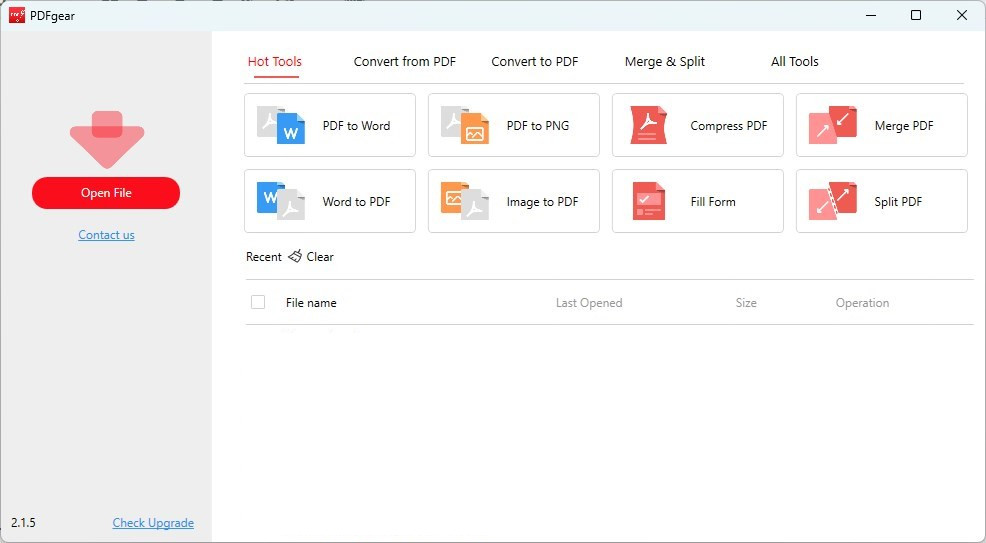
Go to the official website to download and install PDFgear. Once the software is open, choose Open File to upload the PDF document you want to edit.
Open File in PDFgear
Step 2. Redline Your PDF
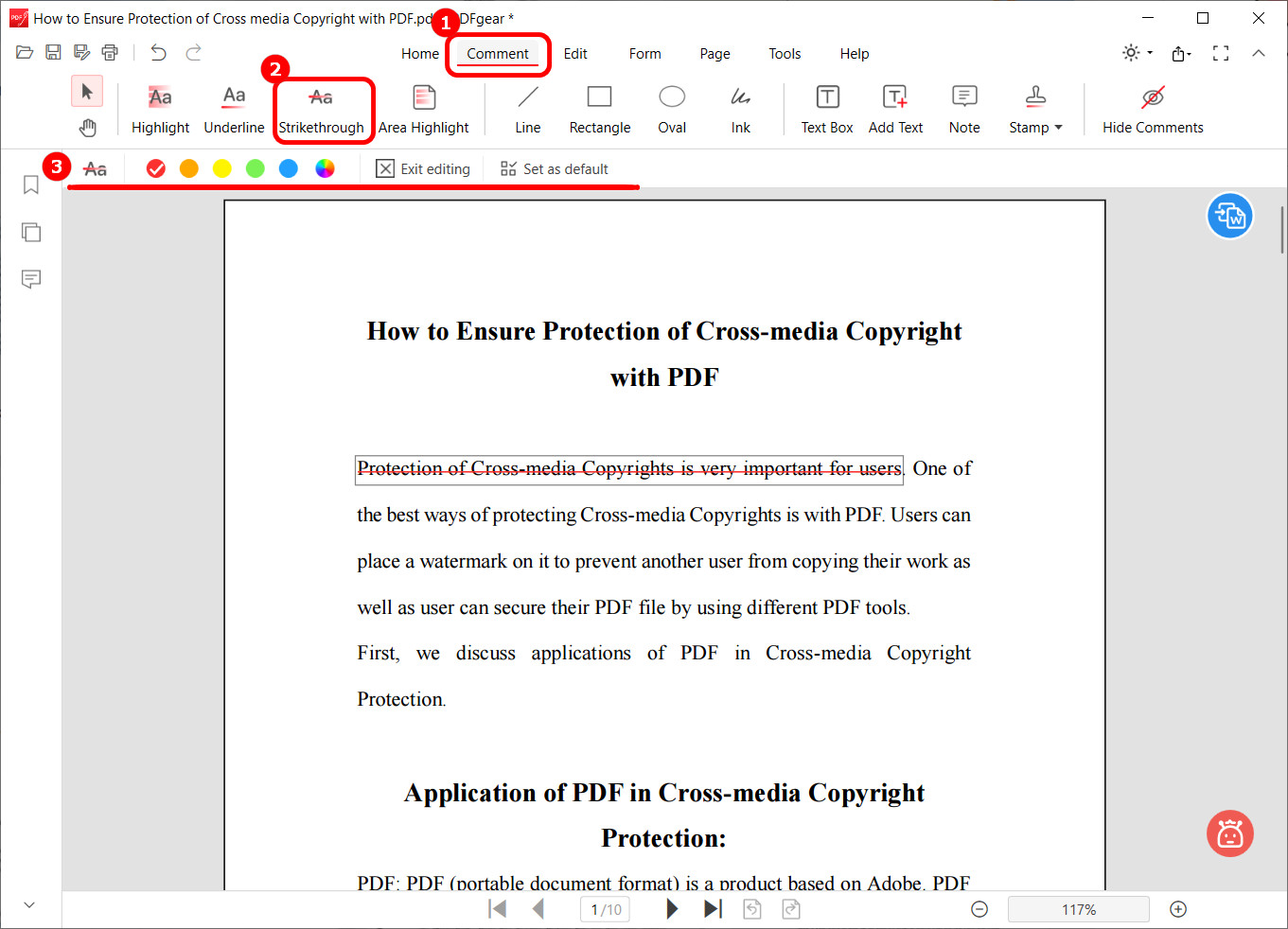
After opening the file, click on the Comment tab. Here, you have three editing options. After clicking Strikethrough, simply use your mouse to select the text where you want to add the red line. Click the color button below to switch the color of it.
Redline a PDF document with PDFgear
In addition to adding redlines to your PDF, PDFgear also allows you to add rectangles, ovals and arrows to your PDFs.
You can also use the text box feature to add textual annotations directly. In summary, PDFgear stands out for its comprehensive commenting features, allowing you to easily add various annotations.
Redline PDF Document Online for Free
If you want to efficiently handle PDF documents without installing any software, the Online PDF Editor of PDFgear is your best choice. As a web-based tool, it allows you to redline and annotate PDFs from anywhere, anytime—especially suited for mobile devices.
You can complete all these tasks using just your browser, making it easy to edit PDFs directly on your phone or any other device.
Step 1. Upload PDF File to Online PDFgear
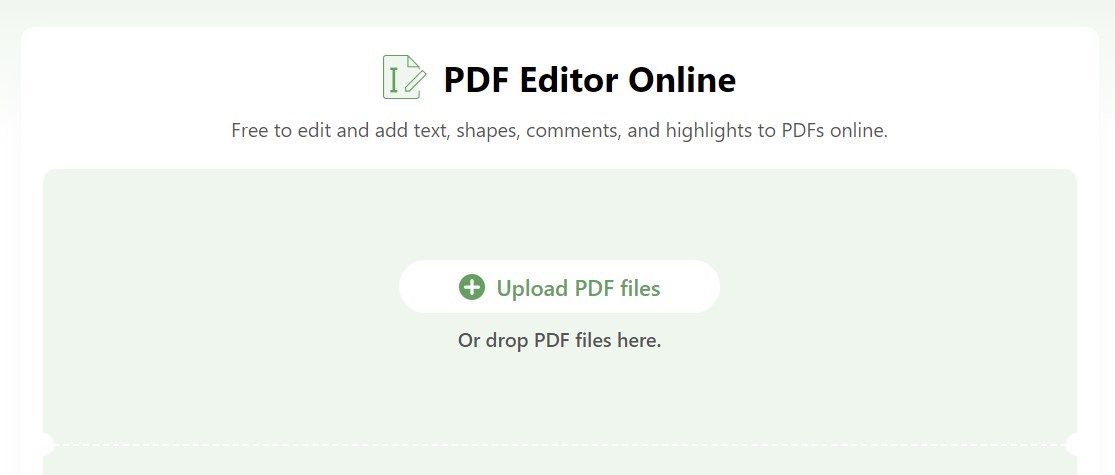
Visit the Online PDFgear editor website. Click on Upload PDF File to upload your document.
Upload PDF to the Online Editor
Step 2. Redline a PDF Online
Click on the Add or Edit Annotations option on the right to enter the PDF editing interface. Then, you can use your mouse to select the corresponding text after selecting Strikethrough Text. You can easily click the paint bucket to change the color of the line after selecting the text.
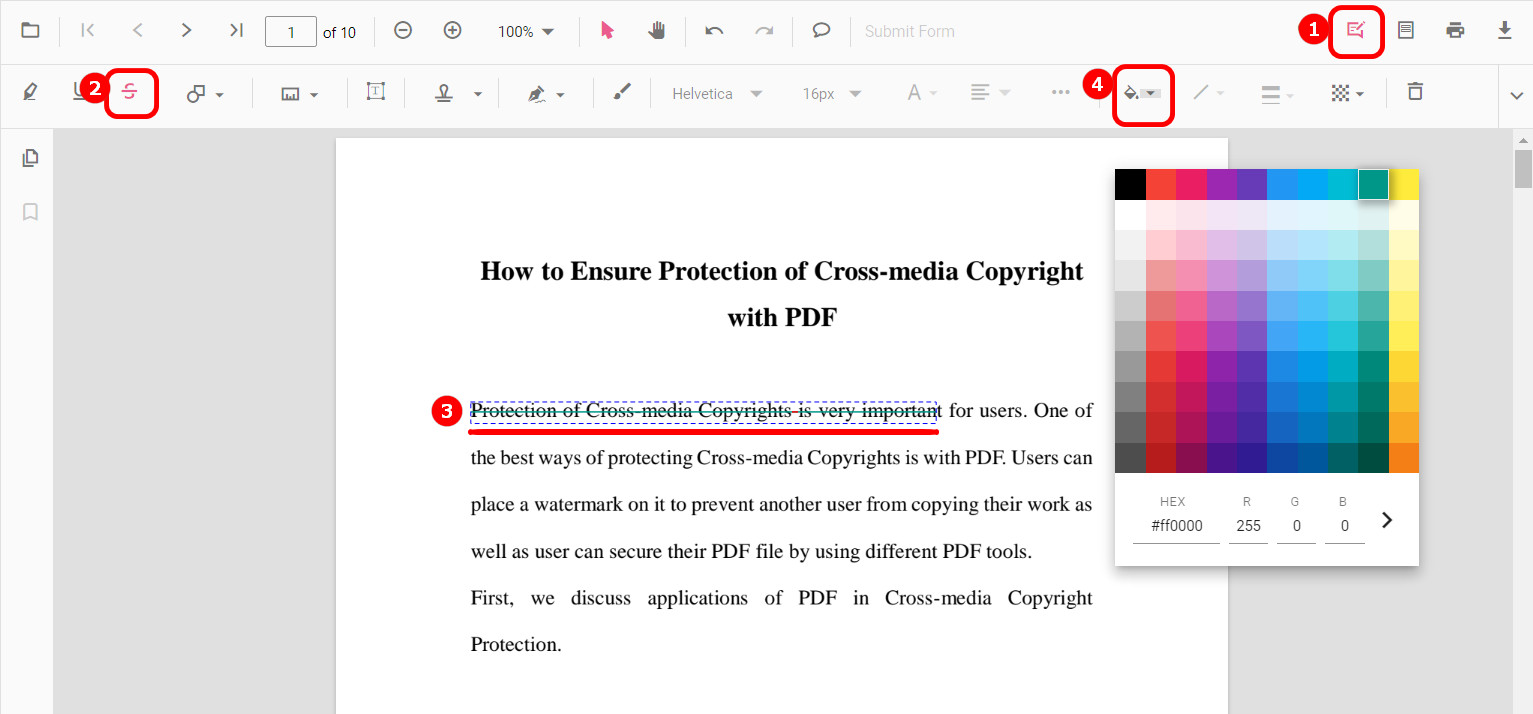
Redline PDF with Online PDF Editor
Additionally, Online PDFgear allows you to freely add shapes or hand-drawn annotations, further enhancing the document’s editability. This online PDF editor not only offers a simple interface but also provides many editing tools, balancing performance and efficiency.
Redline Text in a PDF on Mac with Preview
If you want to redline text in a PDF on your Mac without using third-party software, Preview is the perfect tool for the job. It’s a built-in macOS application that allows you to view and edit PDFs with ease.
Step 1. Open the PDF in Preview
Right-click on your PDF file, select Open With, and choose Preview.
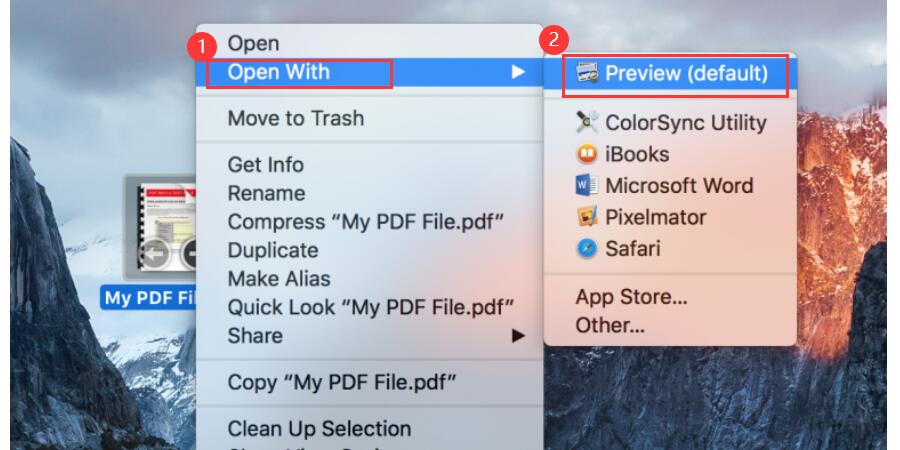
Step 2. Activate the Markup Toolbar
Click on the pencil icon at the top of the Preview window. You can highlight the text you want to redline with the Text Selection button. In the Markup Toolbar, you can change color from the color options.
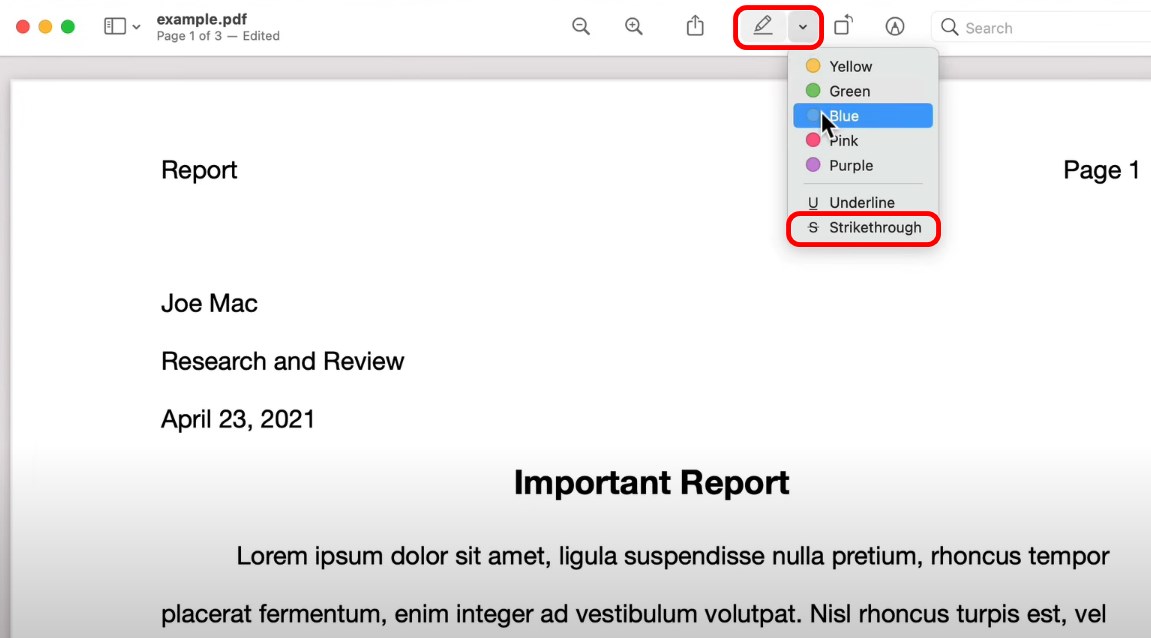
Redline PDF on Mac with Preview
On your Mac, you can redline text in a PDF without needing any additional tools by using Preview. However, since Preview is a built-in application, its features might be limited for more advanced editing needs.
For more robust PDF editing capabilities, I’ll next recommend using Adobe, which offers a comprehensive solution for handling complex PDF tasks.
Redline Text in a PDF Using Adobe Acrobat
Adobe Acrobat, a renowned PDF editing tool in the industry, is the preferred choice for many professionals due to its stability and extensive features. Acrobat offers comprehensive editing capabilities, allowing precise redlining, highlighting, and annotation of documents to ensure every modification is clearly visible.
Step 1. Open Your PDF in Adobe Acrobat
Start Adobe Acrobat and open the PDF file you want to edit by selecting File > Open and choosing your document.
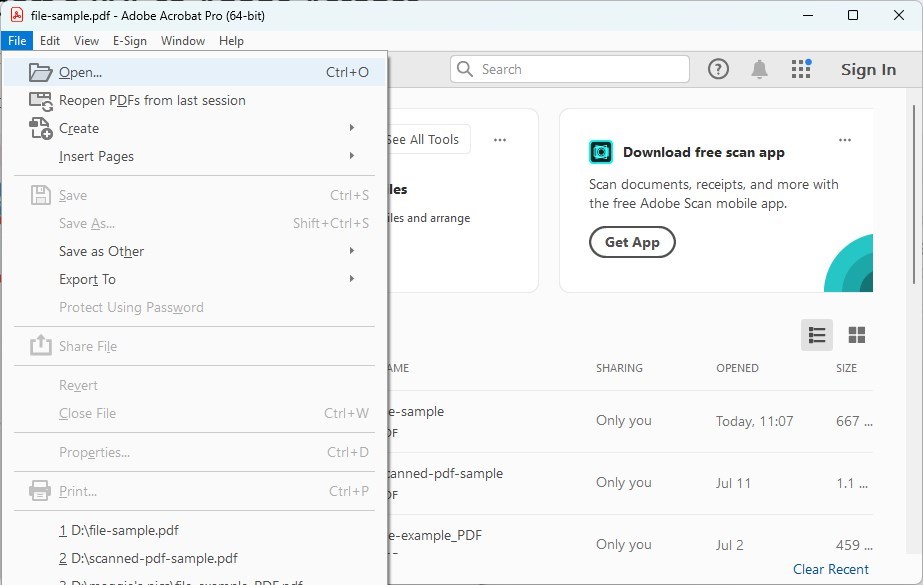
Open a PDF in Adobe Acrobat
Step 2. Redline PDF document in Acrobat
Go to the right-hand pane and click on Comment. This will open the commenting tools. In the commenting toolbar, choose the Strikethrough Text tool.
Click and drag your cursor over the text you want to strikethrough. The selected text will be marked with a line through it.
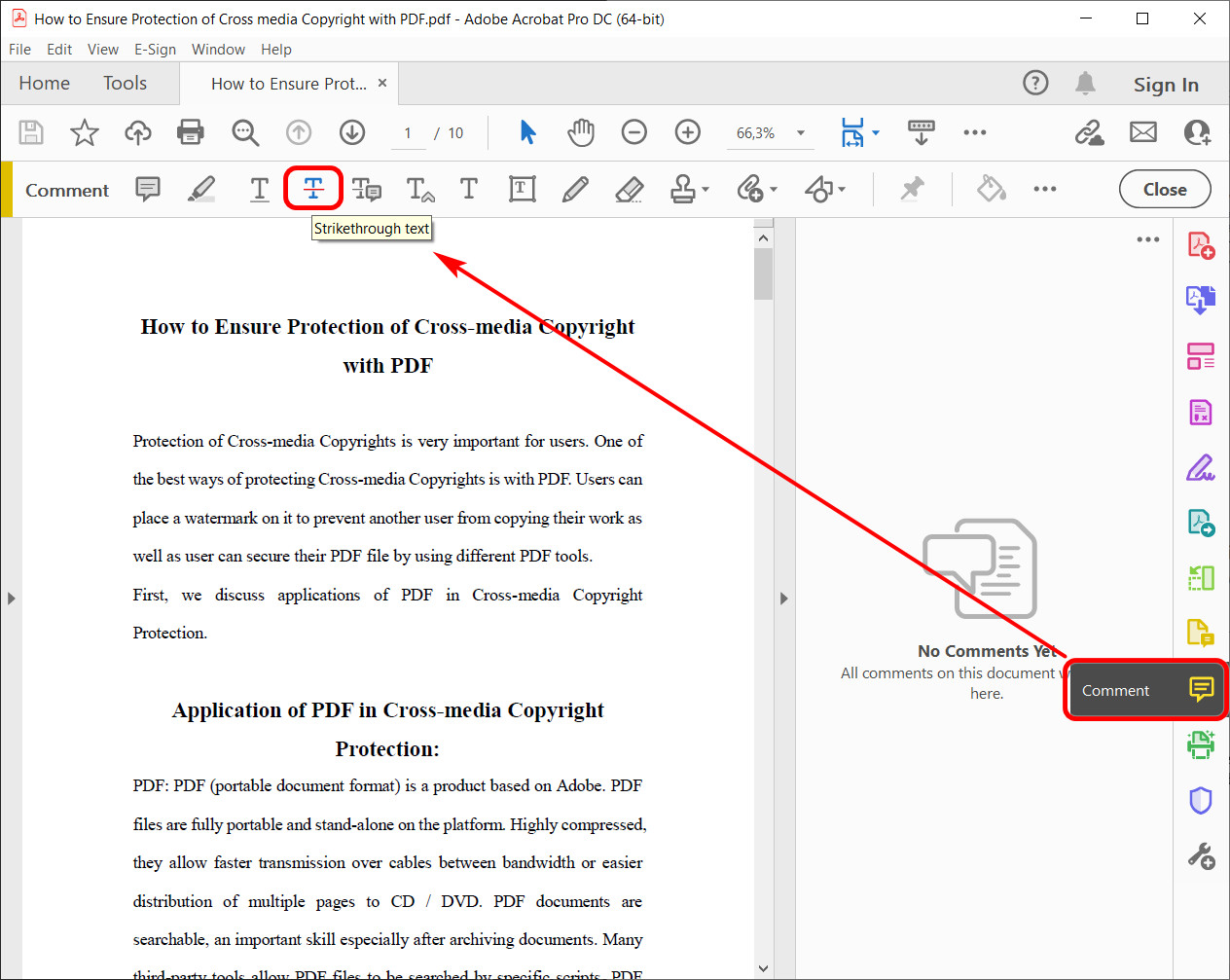
Redline PDF with Acrobat
In the top toolbar, you can click the red circle to change to other colors. In the shortcut toolbar that appears immediately after selecting the text, you can also directly change the color of the red line.
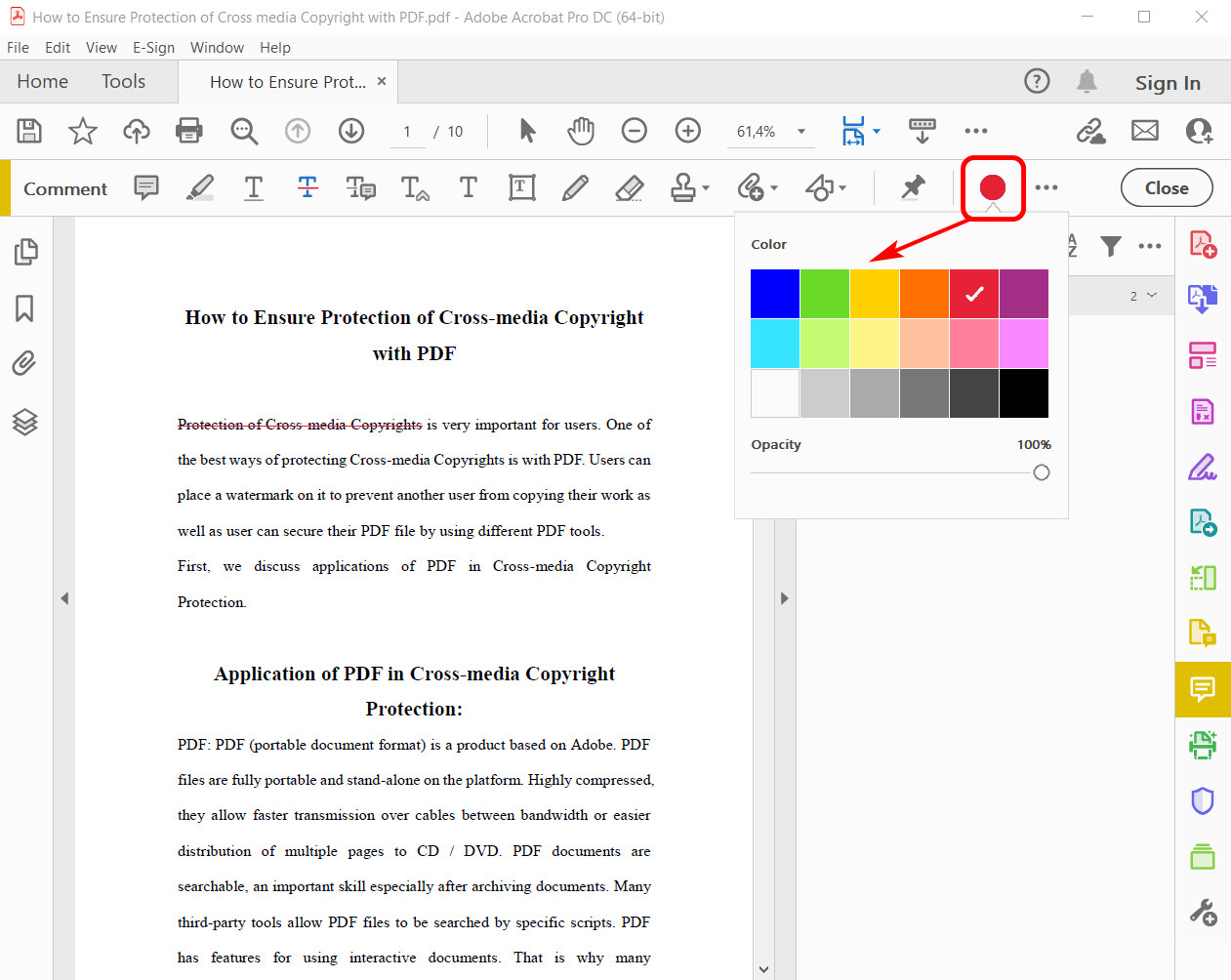
Change the Color of Red Line
A special feature of using Adobe Acrobat for redlining is that after marking text, you can immediately add detailed comments in the right-hand annotation pane. This ensures each edit is accompanied by a clear explanation.
FAQs
1. How do I show the redline in PDF?
To display redline annotations in a PDF, most PDF editors have a Show Comments or similar option. By enabling this feature, you can view all redline markings and comments within the document.
2. What is the best tool to redline a PDF?
For an excellent PDF editing experience, try PDFgear. It’s a powerful tool offering various annotation features like highlighting, strikethroughs, and comments, completely free of charge. Its intuitive interface and ease of use make it ideal for all your PDF editing tasks.
Conclusion
In this article, I explored three methods for redlining PDFs. Desktop tools like PDFgear and Adobe Acrobat each have their advantages. For those who prefer online solutions, Online PDFgear provides a convenient web-based editor, allowing PDF annotations directly in the browser without needing additional software.
Overall, PDFgear is highly recommended for its extensive features, ease of use, and support across multiple platforms, making it suitable for all PDF editing needs.
