How to Remove Notes from PDF for Free

Summary :
This article shows you how to remove notes from a PDF online for free, and even batch delete all notes from a PDF at once.
Table of Contents
Getting rid of sticky notes from a PDF is like peeling off an old post—just without the satisfying “rip” sound.
It’s quite easy with PDFgear – just click and delete. Moreover, PDFgear offline software even allows you to delete all PDF notes in one click.
Remove Notes from a PDF Online for Free
This is undoubtedly the most convenient method – PDFgear offers a free and powerful tool for you to delete comments and notes in PDF files, online for free.
You don’t need to sign up for an account, and there’s no watermark.
Step 1. Go to PDFgear online PDF editor, and click the Select PDF File button to open the PDF with notes.
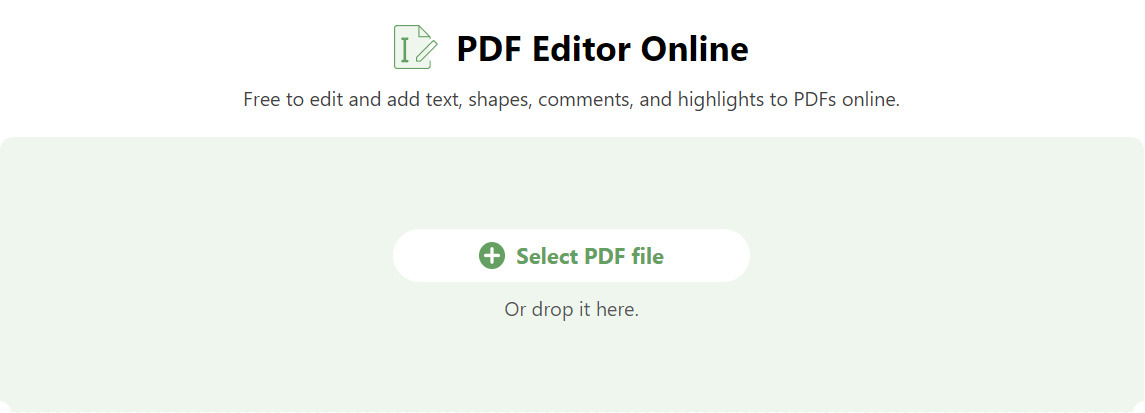
Select PDF file
Step 2. Right-click on an unnecessary note and click Delete to remove it from the PDF.
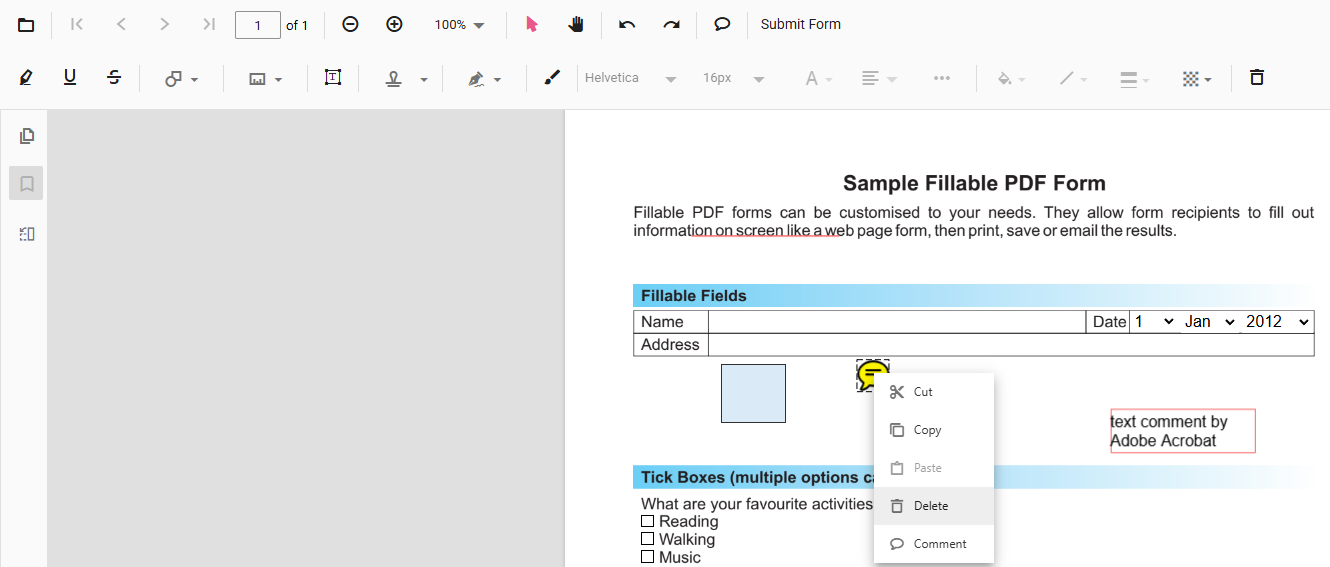
Right-Click Remove
Step 3. To check and manage all notes, go to the upper-right side and click Comment Panel. Select the unwanted note, click the triple dots icon ⋮ on it, and click Delete to delete the note.
Repeat the steps to delete all the notes you need to.
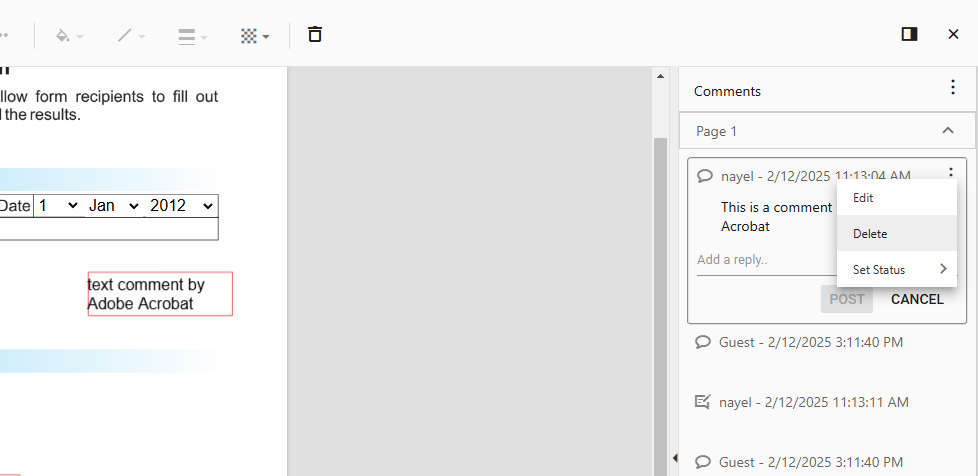
Delete Annotation
Step 4. To save the new PDF without notes, go to the upper-right side and click the Download file button.
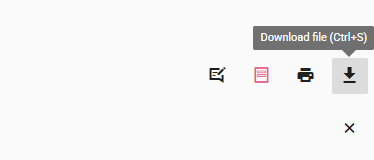
Click Download File
Batch Delete All Notes in PDF on Windows for Free
PDFgear is a free and powerful PDF editor with a standout feature to delete all PDF notes in batches.
This can be a huge time-saver when you have a large document with multiple comments or sticky notes scattered throughout. Instead of removing them one by one, you can quickly clear them all with 2 clicks.
PDFgear is a free and powerful PDF editor that allows you to select and delete all PDF notes in bulk.
Step 1. Download and install PDFgear, fire up the program, and click Open File to select the PDF with notes.
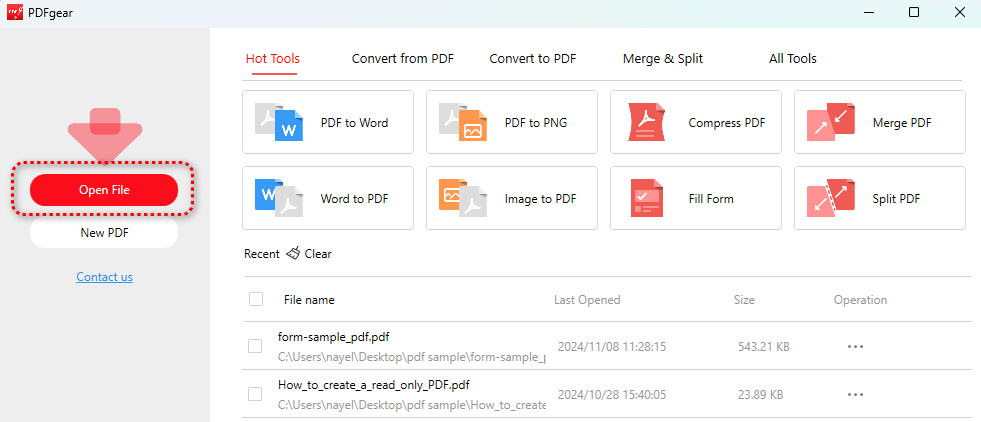
Open File
Step 2. Once the PDF is opened, click the Comments button from the left panel.
From there, you can select and delete the unwanted notes, or simply click on the Batch Delete button.
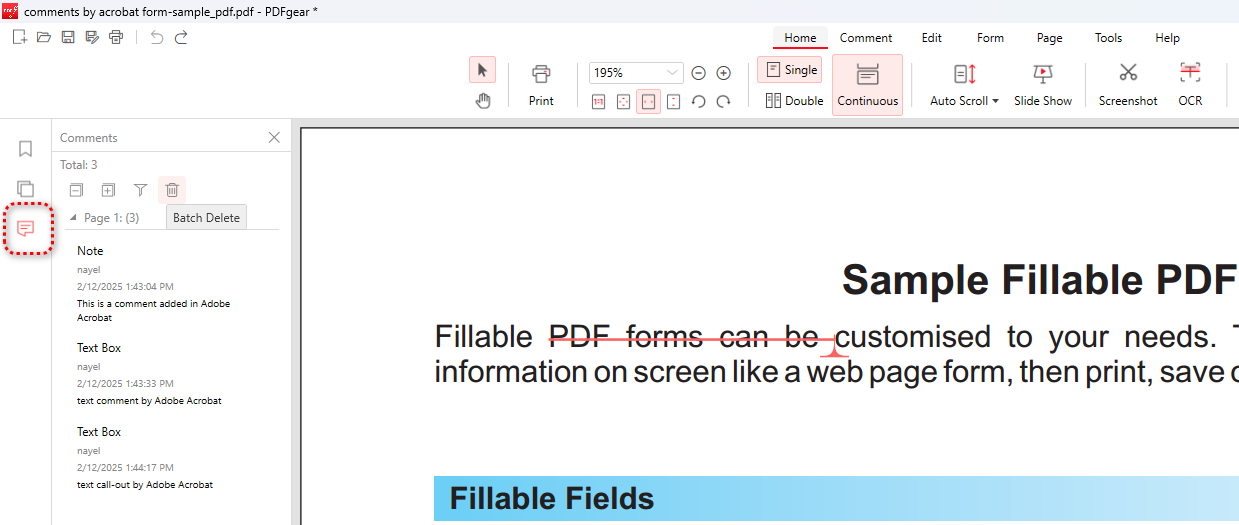
Batch Delete
Step 3. Tick on Select Al and click Delete to remove all PDF comments and annotations.
Click Yes in the pop-up window for confirmation.
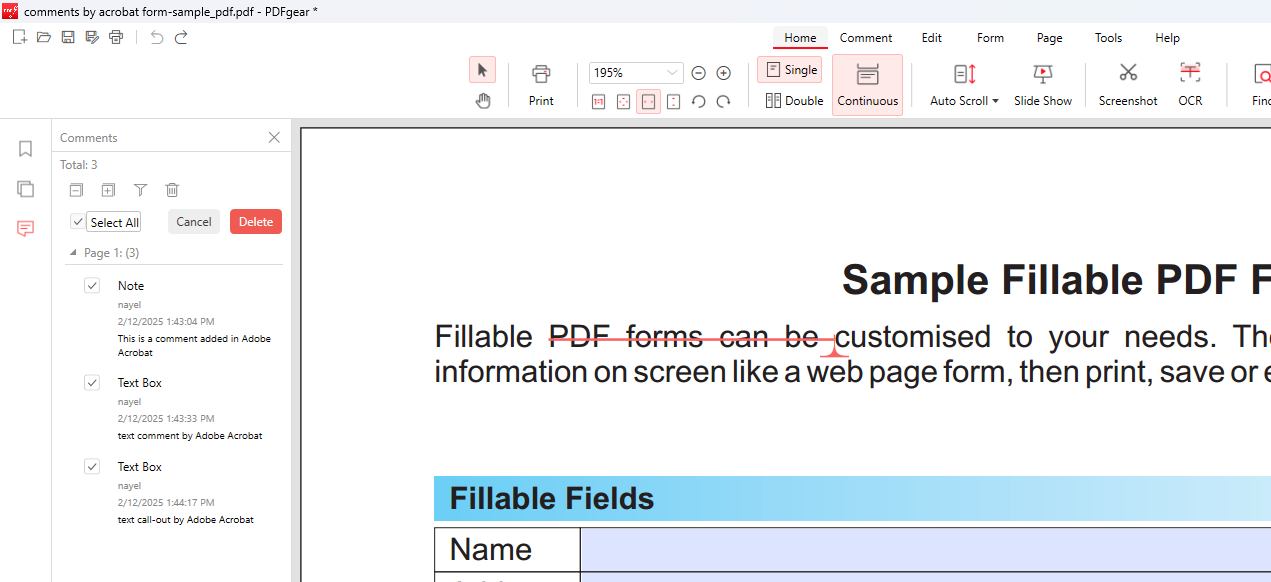
Select All
Step 4. Lastly, click the Save as button in the top-left corner to save the PDF without annotations.

Save PDF
Batch Delete All Notes in PDF on Mac for Free
PDFgear also has a Mac version for you to remove all notes in a PDF in bulk.
Compared with the Preview app, PDFgear’s advanced annotation management features and additional PDF editing tools make it a better option to work with PDF notes on Mac.

Step 1. Download PDFgear, install it, and open it on your Mac device. Click Open File to open the PDF with notes.
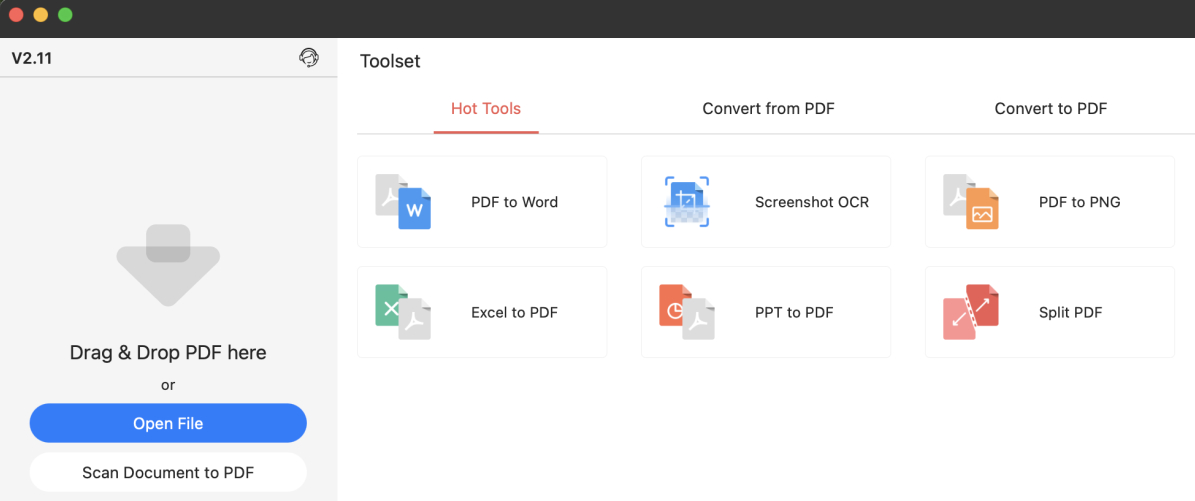
Open File
Step 2. Click on the Comments button on the left-most panel, and you’ll see the list of all notes.
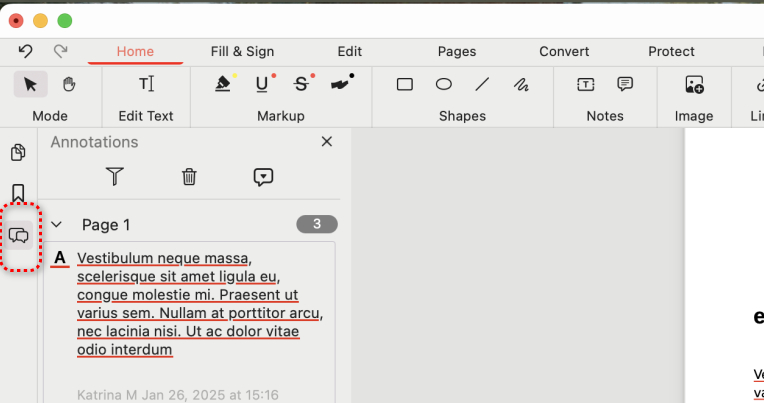
Click Comments
Step 3. Select all the notes you intend to delete, and click the upper trash can button 🗑 to remove them.
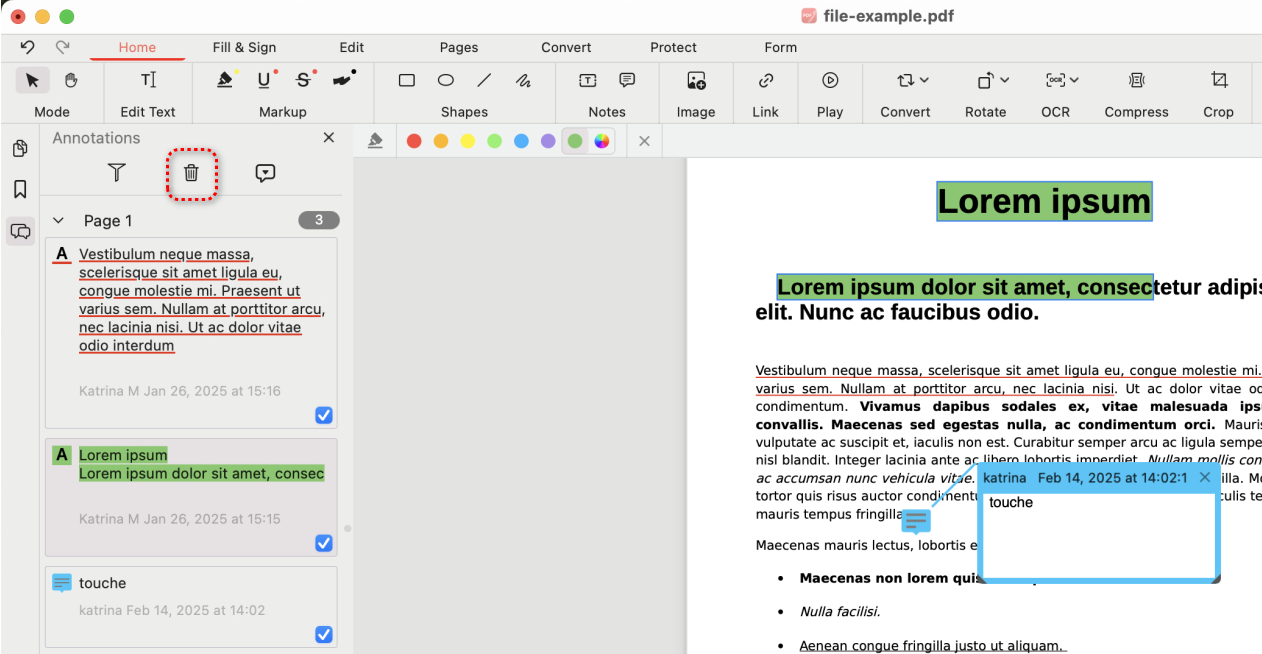
Select All and Delete
Step 4. Lastly, go to File > Save As to save the PDF without notes.
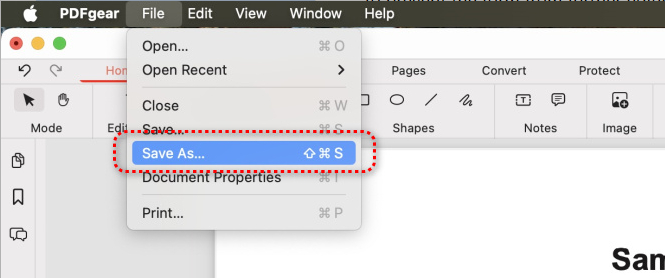
Save the PDF
Remove PDF Notes Online for Free on Mobile
PDFgear’s online PDF editor also allows you to delete notes from PDFs on iPhones and Android phones.
The functionalities are absolutely the same, you only find mere differences in the application UI. Now let’s see how it works.
Step 1. Go to PDFgear online PDF editor and tap the Select PDF File button to open the PDF on your device.
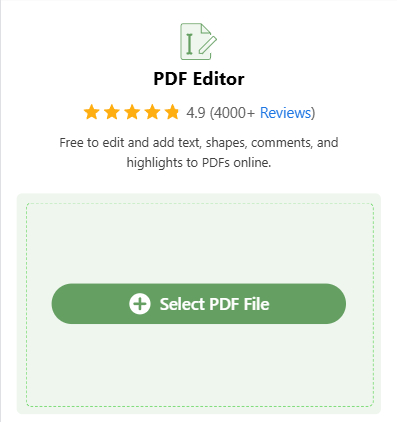
Select PDF File
Step 2. When the PDF file is opened, go to the bottom to look for the menubar, and tap the More button “>” on the right-most side.

Tap More
Step 3. Tap the Comment Panel button on the menubar.
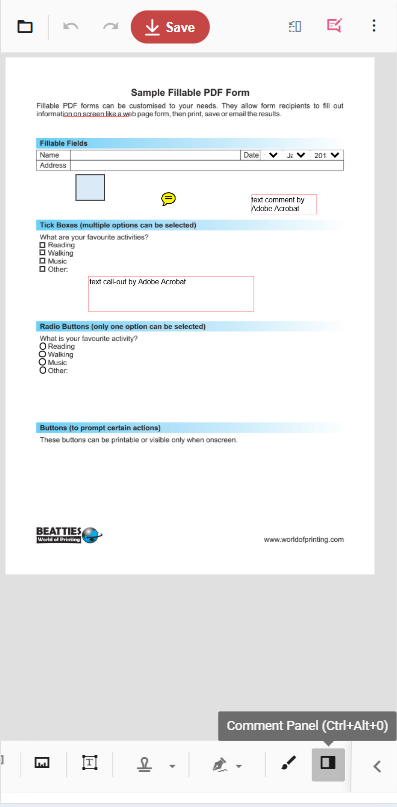
Tap Comment Panel
Step 4. From the list of notes, tap the triple dots icon ⋮ on the one you intend to remove and select Delete.
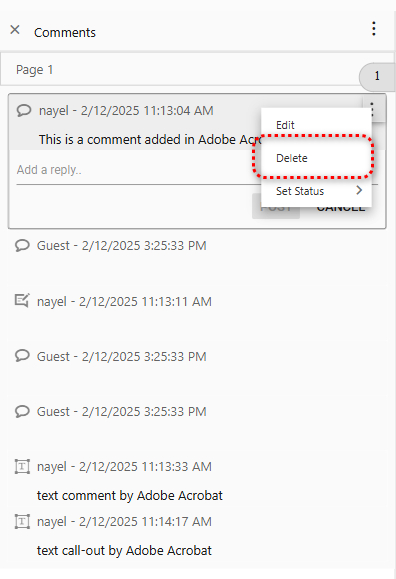
Delete Annotations
Step 5. When all the unnecessary notes are removed, tap the red Save button to get the new PDF.

Save PDF without Annotations
FAQs
Is it possible to remove notes without installing any software?
Yes, PDFgear online PDF editor offers a Comment Panel feature for you to review, edit, and delete all notes in PDF files online for free, without installing software.
Will removing comments affect the rest of the PDF?
No, removing comments should not affect the underlying content of the PDF.
How to remove notes in PDF on Mac in Preview?
Open PDF in Preview, press ⌘+i to open the Inspector panel, and you’ll see the annotations on the right panel. Click on an annotation, press the backspace key, and click again in the PDF to remove it.
How to delete all notes in Adobe Acrobat?
In Adobe Acrobat or Acrobat Reader, open the PDF and go to the Comments tool, press and hold the Shift (Windows) or Command (Mac) key while selecting all the unwanted notes, right-click and select Delete.
