Can’t Download Microsoft Lens? Here’s How to Fix It

Summary :
Given the official shutdown, the Microsoft Lens app will no longer be available for download in late 2025. Learn how you can still get the app after the point, and the best alternative solution.
Table of Contents
Microsoft Lens (formerly Office Lens) has been one of the most popular mobile apps for scanning documents, whiteboards, and business cards. Unfortunately, Microsoft has officially announced that it will retire the app in 2025.
If you can no longer download the Microsoft Lens app or you simply can’t find it in the app stores anymore, here are the reasons why — and what you can do about it.
Microsoft Lens Shutdown: When and Why It’s Gone?
As the company phases out support, the app will gradually become unavailable for new downloads, and it will no longer receive updates or support after its retirement. Here’s how the phase-out will unfold:
-
September 15, 2025: Microsoft Lens begins its retirement phase. From this date, the app is no longer available for new installations.
-
November 15, 2025: The app will be fully removed from both the Apple App Store and Google Play Store. But you can still use it if you keep it installed.
-
December 15, 2025: After this point, creating new scans in the app will no longer be possible, although users can still access their previously saved scans (as long as the app remains installed on their device).
TL;DR
To continue scanning documents for free after that point, you have two options. One is to attempt to download Microsoft Lens through sideloading or restoring from system backup. However, they are not recommended as they can be either insecure or unreliable. Even if the installation succeeds, it is estimated that Microsoft will disable the scanning feature in the background, and you’ll lose the core feature anyway.
The smarter move is to switch to a trustworthy and reliable free alternative, and we highly recommend PDFgear Scan.
What Are Some Best Free Scanner Apps to replace Lens?
As mentioned, even if you can temporarily keep Microsoft Lens on your device, you’ll eventually lose its scanning feature. The best long-term fix is to move to a modern replacement app.
PDFgear Scan (Free scanner app with no limits)
PDFgear Scan offers everything Lens users valued, plus powerful upgrades — and it’s completely free. Our app automatically detects edges, removes messy backgrounds, and corrects perspectives with no effort required. We support a wide range of scan modes, from Documents, Receipts, and ID Cards to Books, QR Codes, and even Scan to Word.
PDFgear Scan’s OCR is crisp and precise, Multi-page scanning is seamless, editing tools are robust, and we even let you create and apply signatures directly on your scans. And our integrated AI Chat — included for free — allows you to instantly extract key information from documents.
Learn more about what makes PDFgear Scan the best Microsoft Lens alternative.
With PDFgear Scan, you won’t just be replacing Microsoft Lens — you’ll be upgrading to a faster, more powerful, and completely free tool. Get it now!


Here’s how to transition to PDFgear Scan from Lens:
1. In the Lens app, go to My Scans and export your scans to PDFs or images.
2. Download and install PDFgear Scan from the Apple App Store or Google Play.
3. Open PDFgear scan, and tap the lower plus button to add your Lens scan to the app.
4. Then you can work with your earlier scan or start new scans with PDFgear scan!
Microsoft Copilot 365(Missing some key features)
Microsoft advises users to migrate to the Microsoft Copilot 365 app, which includes a built-in scanner. Its scanning section looks and feels familiar, since it shares the same basic user interface as Lens. However, it comes with trimmed-down functionality: features like Immersive Reader, OneNote integration, and business card scanning are not included. If you just need basic scanning, Copilot 365 will cover the essentials.
From the comparison table below, you’ll have a better understanding of their features.
| Feature | PDFgear Scan | Microsoft 365 Copilot | Microsoft Lens |
| Document Scanning Quality | High | High | High |
| Multi-Page Scanning | |||
| OCR (Searchable Text) | |||
| Export to PDF | |||
| Export to Image | (Multiple/Long) | ||
| Export to Word, PowerPoint | |||
| AI Summarization, Assistance | (FREE) | (Paid) | |
| ID Card, Book, QR Code Scan | |||
| Direct Save to OneNote | |||
| Business Card Scan and Contact Save | |||
| Cloud Integration | Optional | Optional | |
| Ad-Free Experience | |||
| Cost | Free | Subscription for AI Features | Free |
How to Download Lens App After Shutdown (Not Recommended)
If you really need to get the Microsoft Lens app on your device after the removal, there are a few things you can do, but each comes with trade-offs:
Sideload Lens on Android
Sideloading APKs lets you install apps that are no longer available in the store, older versions of apps, or apps from third-party developers.
For Microsoft Lens, even if it’s removed from the official app stores, you can still download the APK file from a trusted source and sideload it to your device.
That’s how to do it:
Please note: By default, Android devices don’t allow for installation from external sources, so we’ll have to first enable it (once only). However, sideloading apps from unreliable sources can expose your device to security risks and malware. So proceed with caution.
1. On your mobile phone, go to Settings → Apps → Your preferred browser app → Allow “Install unknown apps”.
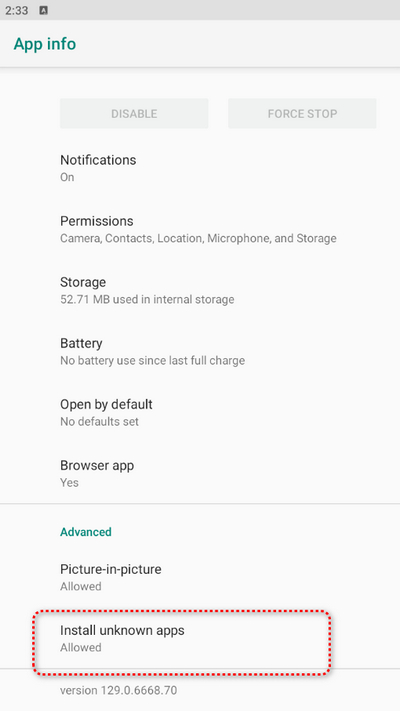
Enable Sideload
2. That the same browser that we’ve just enabled sideloading for, and download the Microsoft Lens APK file from a trusted source like APKMirror, APKPure, and Uptodown. Usually, you want to download the latest variant.
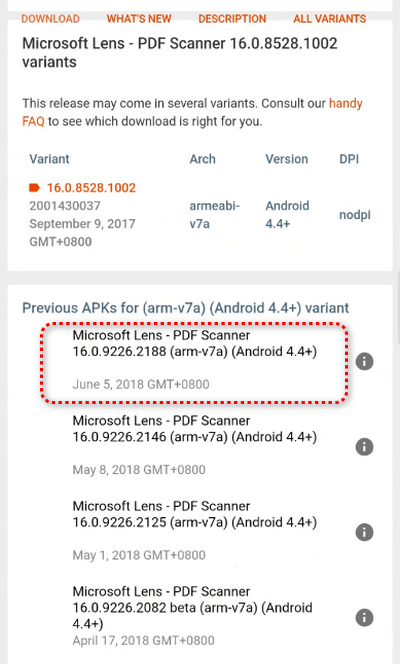
Download APK
3. In your web browser download folder, tap to open the downloaded APK file. And then install the APK on your mobile phone.
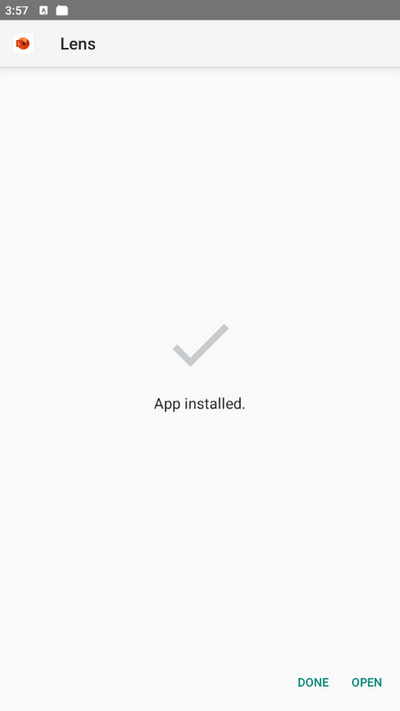
Install Lens APK
4. Open and use Lens as usual.
Important Notes:
-
No official support or updates.
-
Be careful to only download from well-known repositories (not random sites).
-
Microsoft could eventually disable server-side features, limiting functionality.
Restore Lens App on iOS
On iPhones, sideloading is not supported unless the device is jailbroken, which is risky and not recommended. The only way left to get Microsoft Lens outside the App Store is to restore it from a backup that includes the app.
When you back up your iPhone using iTunes, Finder, or iCloud, the backup saves a snapshot of your device — including the apps you had installed, your app data, settings, and files. If you later restore your iPhone from that backup, the phone will be rolled back to the state it was in at the time of the backup. This includes reinstalling apps that were present back then, even if they’ve since been removed from the App Store. This is why restoring from an old backup can bring back Microsoft Lens after its removal.
That’s how to do it:
1. Ensure you previously backed up your iPhone using iCloud or iTunes/Finder while Microsoft Lens was still installed.
2. Plug your iPhone into your Mac or Windows PC.
3. Open Finder or iTunes:
- On macOS Catalina (10.15) and later, open Finder.
- On macOS Mojave (10.14) or Windows, open iTunes.
In Finder or iTunes, choose your iPhone from the sidebar.
4. Click Restore Backup, choose a backup that was created while Microsoft Lens was installed, confirm, and let the device restore.
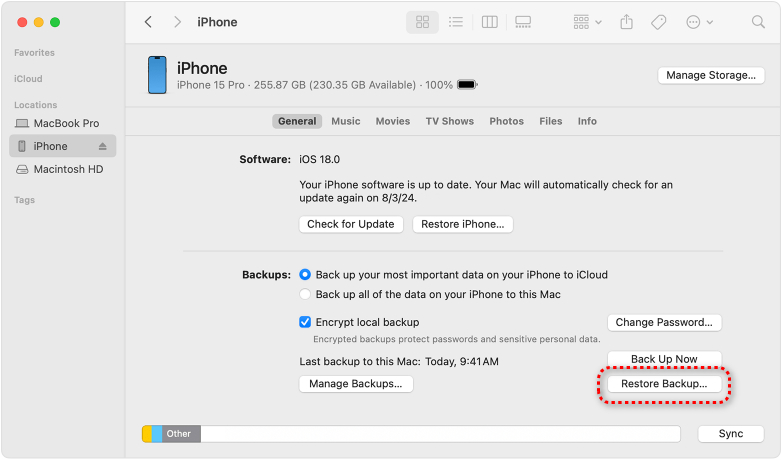
Restore Backup
5. Enter the password for your encrypted backup when prompted.
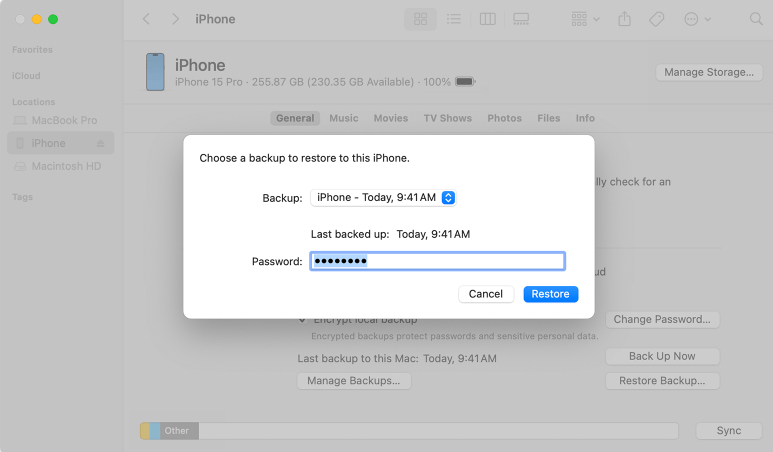
Enter Password
6. After the restore, Lens should reappear on your device if it was part of that backup.
Important Notes:
- You cannot newly download Microsoft Lens from the App Store once it’s removed.
- Restoring from a backup will replace the current data on your device with older data. Back up your latest files before doing this.
- Like Android, the app will not be able to scan new documents after December 15, 2025.
The Catch to These Tricks
You should note that no trick (like disabling internet, freezing updates, or sideloading) will keep the Microsoft Lens scanning feature after Dec 15, 2025. While they can get the Lens app on your device, they cannot bypass Microsoft’s scanning cutoff. The only way forward is to archive it for old scans and adopt a replacement for new scans.
Why? Because Microsoft Lens isn’t just a local camera + crop tool — its scanning engine (OCR, cleanup, PDF conversion, and some saving features) relies on Microsoft’s backend services. But because Microsoft wants to fully retire it, they will switch off the scanning pipeline at the server level.
Even if you block updates or disable the internet, the app will likely:
- Refuse to start a new scan, or
- Allow the photo capture, but fail to process/export it.
FAQs
Why can’t I download Microsoft Lens on iPhone or Android?
You can’t download Microsoft Lens because Microsoft is retiring the app starting in September 2025, with new installs disabled in mid-October and the app completely removed from app stores in mid-November 2025. This means the app is no longer available for new downloads in the Apple App Store and Google Play Store.
What should I use instead of Lens?
Microsoft officially recommends the Microsoft 365 Copilot app. However, PDFgear Scan is the best free alternative that fully replicates and enhances Lens’s features.
How to export my Lens scans before shutdown?
To export your Microsoft Lens scans before its shutdown, export them as PDFs, images to your gallery, or to other Microsoft services like OneDrive, OneNote, Word, or PowerPoint from the export screen after editing your scan. For local files, grant “All Files Access” permission to the Microsoft 365 Copilot app and access scans in the “My Creations” section.
When will Microsoft Lens be completely removed?
Microsoft Lens will not be completely removed until after December 15, 2025, when the ability to create new scans is disabled.
What are the best free alternatives to Microsoft Lens?
The best free alternative to Microsoft Lens overall is PDFgear Scan. Apart from that, we’ve also found some free or inbuilt options, including Apple Notes, Google Drive, OneDrive, OneNote, and Samsung Notes.
More Related Articles
