How to Merge PDF Files in Windows 10 and Windows 11 for Free

Summary:
Combining multiple PDF files into one is not as complicated as we thought, read on to figure out how to combine PDF files online or offline for free.
Table of Contents
An application form, supporting documents, and a cover letter are easier to submit when they’re in one PDF. On Windows 10 or 11, you can combine two or more PDF files into one without Adobe Acrobat or the need to print and scan them again.
Start with PDFgear’s online merger if you want to combine PDFs without installing anything. If you also need to edit or convert PDFs, use PDFgear for Windows.
| Method | Best for | Installation |
| PDFgear Online Merge | Combining PDFs in a browser | Not required |
| PDFgear for Windows | Merging and continuing with PDF editing or conversion | Required |
Both PDFgear methods are free and require no account.
How to Merge PDFs on Windows Online with PDFgear
PDFgear’s online PDF merger combines files directly in your browser on Windows 10 or 11. Your PDF data is processed locally, without being uploaded to a server. You don’t need to register, and the downloaded PDF has no added watermark.
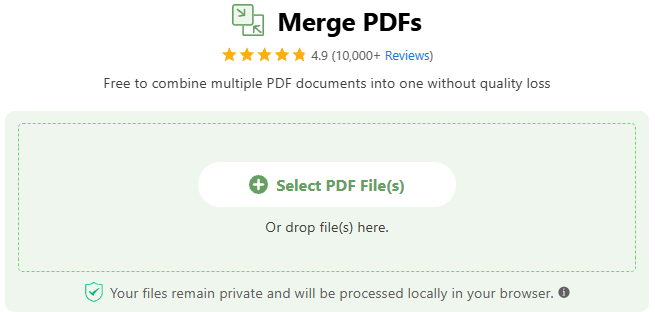
1. Select your PDFs. Click Select PDF File(s) and choose at least two PDFs from your computer. You can also drag the files onto the tool. In the file picker, hold Ctrl while clicking to select several files from the same folder.
2. Check the file list. Make sure all the documents you need are included. Use Add PDF Files to include another PDF, or remove a file you don’t want in the final document.
3. Arrange the files. Drag the files into the order you want them to appear. For example, place your cover letter before the application and its supporting documents.
4. Merge and download. Click Export to merge the files, then click Download File when the combined PDF is ready. Save it to your computer using your browser’s download controls.
5. Open the result. Open the saved PDF from your browser’s downloads list or the folder you chose. Check that all the expected pages are present and that the documents appear in the right order.

Merge PDFs with PDFgear Online Merger
How to Merge PDFs on Windows without Adobe Acrobat
PDFgear for Windows is a free desktop PDF merger with editing and conversion tools in the same app. Choose it if combining documents is part of a larger job—for example, when you also need to correct text in a PDF or convert a document to another format.
The basic merging task is similar to the online tool. After installation, you can merge offline without an account or a paid subscription, and set page ranges for individual input files.
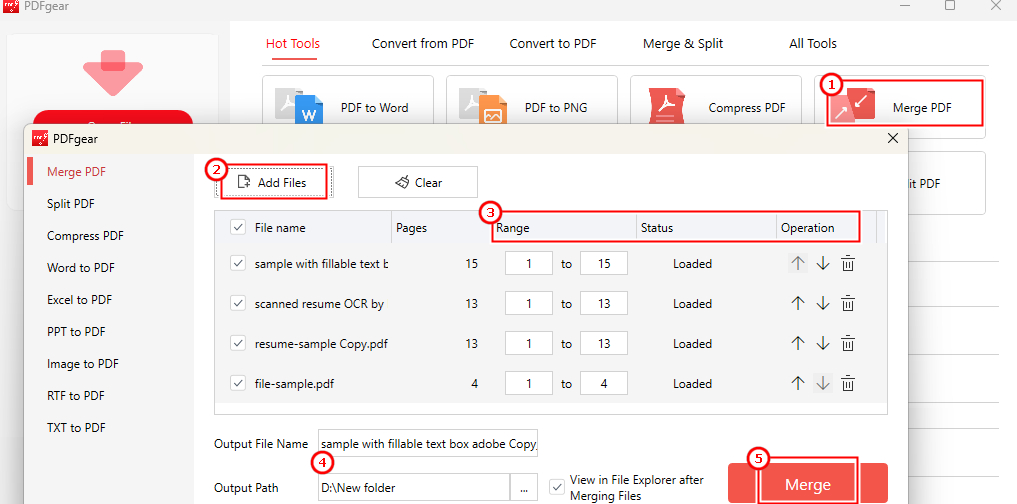
Combine PDFs on Windows with PDFgear
1. Install and open PDFgear. Download PDFgear for Windows, install it on your Windows 10 or 11 computer, and launch the app. Once installed, its PDF merging tool can work without an internet connection.
2. Open the merge tool. From PDFgear’s home screen, go to Merge & Split and choose Merge PDF. If you already have a PDF open in the editor, Tools > Merge PDF provides another entry to the merging tool.
3. Add the documents. Click Add Files and select the PDFs you want to combine. Check the list before continuing so you don’t accidentally include the same document twice.
4. Set the order and page ranges. Use the ordering controls to move each file into position. If you need only part of a PDF, set its Page Range to the pages you want to include. Check the page numbers in the source PDF first, especially when its printed page numbers differ from its position in the file. Keep all pages selected for files you want to include in full.
5. Choose where to save the result. Set the output folder in the merge window, then click Merge. Use a location you can easily find, such as a folder for the application or project you’re preparing.
6. Check the saved PDF. Open the combined file from the output folder. Review the transitions between documents and confirm that your selected pages are included. Keep the source PDFs until you’ve checked the result.
How to Combine PDFs with Adobe Acrobat Online
Adobe also provides a free online PDF merger that works in a Windows browser. You don’t need a paid Acrobat subscription for the basic online merge. This is separate from the Acrobat desktop application, whose features and access requirements differ.
Adobe’s online tool processes files on its servers. If you want to keep PDF data in your browser instead, use the PDFgear online method above.
1. Open the Adobe Acrobat online PDF merger.
2. Click Select files and choose the PDFs to combine, or drag them into the drop zone.
3. Reorder the files so they appear in the correct sequence.
4. Click Merge files, then download the combined PDF to your computer.
Open the downloaded file to check the result. Adobe’s official instructions distinguish downloading the merged PDF from signing in to share it by link or use additional page-organizing features.
FAQs About Merging PDFs on Windows
Does Windows have a built-in PDF merger?
Windows 10 and 11 don’t provide a standard PDF merge command in File Explorer, and Microsoft Edge’s built-in PDF reader doesn’t combine multiple files. Selecting PDFs or printing them to PDF is not the same as merging them into one document.
Microsoft does offer merging in other products. Power Automate for desktop has a Merge PDF files action, but you need to configure a flow. SharePoint and OneDrive also support PDF merging in eligible Microsoft 365 environments; availability depends on the applicable subscription or license.
A PDF merger downloaded from Microsoft Store is a separate app, rather than a built-in File Explorer feature. For a straightforward merge without setting up a flow, use either PDFgear method above.
Why won’t my PDF files merge?
First, open each source file separately to check that it’s a readable PDF. If one file won’t open or appears damaged, download it again or ask its sender for a valid copy.
If the tool requests a password, use the correct password and make sure you have permission to work with the document. A merger isn’t a way to bypass access restrictions. Also check that you’ve selected at least two files and that any page ranges refer to pages that exist. After correcting the input, try the merge again.
Does merging PDFs reduce their quality?
PDFgear merges PDF pages without intentionally compressing images or lowering their resolution, so merging should not reduce visual quality. Check the merged PDF before sharing, especially if it contains fillable forms or digital signatures.
