How to Rotate a PDF on iPhone for Free

Summary :
Learn how to rotate a PDF on iPhone for free using built-in tools or PDFgear, the easiest way to permanently fix PDF orientation without sign-ups or limits.
Table of Contents
Rotating a PDF on an iPhone is one of those tasks that sounds obvious but often turns out frustrating. Many users try rotating their phone or unlocking screen rotation, only to find the PDF still sideways. Others manage to rotate a page, but the change disappears when they share or print the file.
This article explains how to rotate a PDF on an iPhone for free. It compares different methods and explains when PDFgear is the most reliable solution.
Quick Steps: Permanently Rotate PDF on iPhone for Free

1. Download and open the PDFgear app on your iPhone.
2. Add your PDF to PDFgear and open it.
3. Go to the Organize Pages section.
4. Select the page(s) and rotate left or right.
5. Save the PDF to apply the rotation permanently.
Rotate in PDFgear App on iPhone

If you prefer not to install an app, PDFgear also offers an online PDF rotator that works directly in mobile browsers.
Rotate View vs Rotate Page for PDFs
A major reason users struggle with PDF rotation on iPhone is that “rotation” can mean two very different things.
Rotate View
When you rotate the view, you are only changing how the PDF is displayed on your screen. This happens when you rotate your iPhone or unlock orientation lock. The PDF file itself remains untouched, meaning the change is temporary and disappears when you close the file or share it.
Rotate Page
Rotating the page, on the other hand, modifies the actual PDF file. The page orientation is rewritten in the document, so the rotation is preserved across devices, apps, printing, and sharing.
Rotate PDF on iPhone Using PDFgear iOS App
PDFgear iOS App is the most reliable way to permanently rotate a PDF on iPhone or iPad. Instead of offering temporary view rotation like iOS system viewers, it edits the actual PDF structure, ensuring the orientation remains correct across all devices and apps.
PDFgear lets you rotate individual pages or entire documents for free, using an intuitive thumbnail-based interface. There are no hidden charges, no forced file duplication, and no restrictions, just a fast, focused tool built specifically for real PDF fixes on mobile.
How to Rotate PDF on iPhone with PDFgear:
1. Download and open the PDFgear app on your iPhone. Tap the lower-right Plus icon to add your PDF to PDFgear.
2. Tap the PDF to open it in PDFgear, then tap Edit, and go to the Organize Pages section.
3. Select the needed pages or tap All to select all pages, then tap the Rotate button.
4. Tap the triple-dots button in the top-right corner and tap Save a Copy to save the edited PDF.
The PDFgear iOS app is an all-in-one utility. In addition to rotating, it allows for cropping, merging, splitting, and annotating, enabling a complete workflow without needing to switch apps.
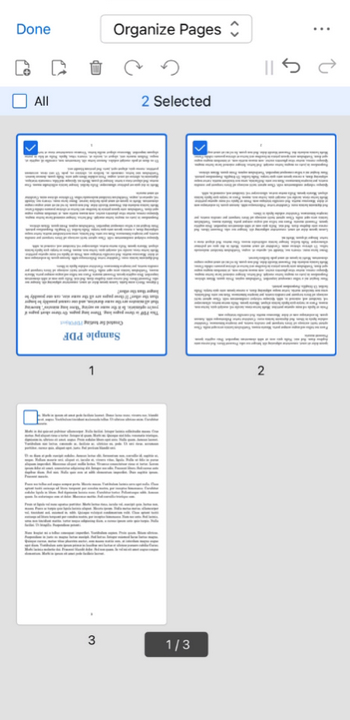
Rotate PDF on iPhone for Free
Rotate PDF on iPhone Online with PDFgear
PDFgear online PDF rotator is built for users who want to rotate a PDF on an iPhone quickly, privately, and without friction. There’s no app to install, no account to create, and no subscription prompts interrupting the workflow, making it ideal for one-off fixes or urgent mobile edits.
You can rotate a single misaligned page or rotate the entire document at once, and the changes are saved permanently in the PDF.
How to Rotate PDF on iPhone Using PDFgear Online:
1. Open PDFgear’s online PDF rotator in Safari or Chrome.
2. Tap Select PDF File to open a PDF from your iPhone.
3. Tap the page thumbnail to rotate a PDF page or tap the lower Left or Right button to rotate all pages.
4. Tap the blue Rotate button to start rotating.
5. Download the updated PDF.

Rotate PDF Online on iPhone
Many online PDF tools upload files to their servers and interrupt users with sign-in prompts. PDFgear works differently: your PDF is loaded and processed locally in the browser, with no account required, delivering faster performance and better privacy on mobile devices.
Rotate PDF on iPhone with the Files App
The Files app is Apple’s built-in file manager on iPhone, and it includes basic PDF page rotation after iOS/iPadOS 15. Files allows you to rotate individual PDF pages directly inside the document, and the changes are saved automatically.
How to Rotate PDF on iPhone Using the Files App:
1. Open the Files app.
2. Locate and open your PDF.
3. Tap the page number icon to switch to page thumbnail view.
4. Select a page.
5. Tap on the Rotate Left or Rotate Right option.
6. Tap Done to save changes.
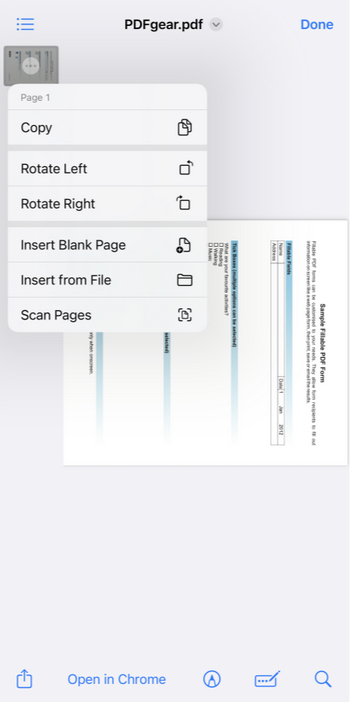
Rotate PDF in Files on iPhone
Warning:
Files works best for simple corrections rather than repeated or complex PDF rotation tasks. The interface is not very discoverable, batch rotation isn’t supported, and in rare cases, rotated files may behave inconsistently in certain third-party apps.
Rotate PDF on iPhone Using the Notes App
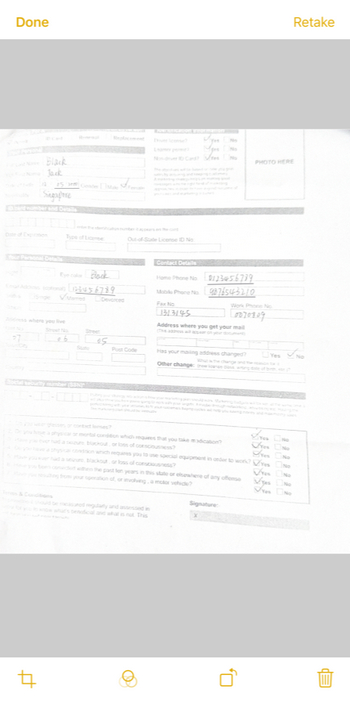
When you use Notes to scan documents with the built-in camera scanner, each page is treated as an image before being saved as a PDF. At this stage, Notes will automatically straighten skewed scans, and it allows you to rotate pages freely.
However, once the scan is finalized and saved as a PDF, the rotation option is no longer available.
How to Rotate PDF on iPhone with the Notes App:
1. Open the Notes app.
2. Create a new note or open an existing one.
3. Use Attachment > Scan Documents to scan your paper pages.
4. When a scan is taken, tap to open it in the lower-left corner, and use the Rotate button to rotate it.
5. Use Share > Save to Files to save the scan as a PDF.
Rotate PDF in Notes on iPhone
As a result, Notes works well if you immediately notice a page is upside down while scanning. It is not suitable for fixing orientation issues in existing PDFs or previously saved scans.
Rotate PDF on iPhone with Adobe Acrobat
Adobe Acrobat is often recommended as a standard PDF solution, but its rotation support on iPhone is limited.
Adobe Acrobat mobile app on iPhone does not provide a manual rotate-view control, and permanent page rotation requires a paid subscription. For free rotation, Adobe only provides this feature through its online Rotate PDF tool.
How to Rotate PDF Using Adobe Acrobat Online:
1. Open Adobe Acrobat’s Rotate PDF tool in Safari or Chrome.
2. Upload a PDF from your iPhone.
3. Rotate one or all pages.
4. Download the rotated PDF.
In testing on iPhone, Adobe allows one free rotation and download without signing in. After that, users are prompted to log in with an Adobe ID and consider upgrading. This makes it less practical for repeated, lightweight PDF fixes on mobile.
By comparison, PDFgear online rotator offers the same core rotation function without sign-ins, usage prompts, or workflow interruptions, resulting in a faster and more focused experience.
Deskew Scanned PDFs on iPhone in Photos
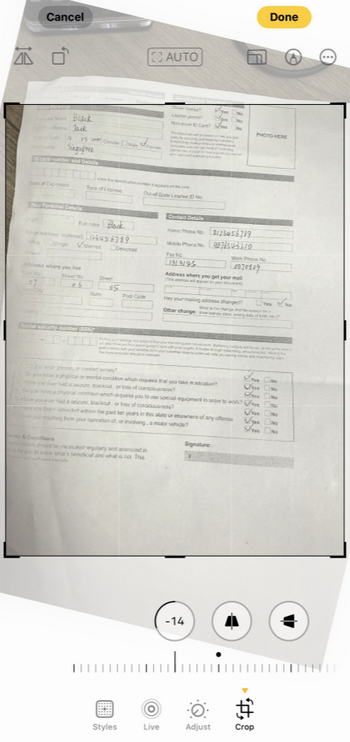
Photos does not actually edit PDFs. Instead, it edits the underlying images after you convert or extract pages as images (for example, by taking screenshots). Its rotate and straighten tools are image-editing features designed to fix camera angles, which is why they can rotate and crop PDF and correct slight tilts that standard 90-degree PDF rotation tools cannot.
How to Deskew PDF Using Photos:
1. Open the PDF in Files and take a screenshot of the PDF page.
2. Open the screenshot image in Photos. Tap Edit, and select the Crop icon at the bottom.
3. Drag the lower slider to rotate the image by degrees, and drag the rectangle corners to crop the image.
4. Tap Done in the top-right corner to save the image. Then select the image, tap the Share icon, and select Print.
5. Use two fingers to pinch outwards (zoom in) on the photo to create a PDF preview, and choose Save to Files to save your new PDF.
Rotate PDF in Photos on iPhone
Warning:
This approach comes with a trade-off: once images are edited and converted back into a PDF, the document becomes image-based. Text is no longer selectable or searchable, and overall quality may degrade. This method is best reserved for fixing skewed scans when precision matters more than text fidelity.
Rotate PDF View on iPhone Using Auto-Rotate
Auto-rotate is a built-in iPhone system feature that changes how content is displayed on the screen based on device orientation. It works at the interface level and applies to apps that support dynamic layout rotation, including PDF viewers.
This method is ideal when your only goal is to read a sideways PDF comfortably, such as a landscape document opened in portrait mode. Auto-rotate does not modify the PDF file in any way. Once the file is closed, shared, or opened on another device, the orientation remains unchanged.
How to Rotate PDF View with Auto-Rotate:
1. Open Control Center.
2. Turn off Orientation Lock.
3. Open the PDF.
4. Rotate your iPhone.
This method changes the display only. It does not modify the PDF file, so the orientation won’t be preserved for sharing or printing. For permanent rotation that works everywhere, PDFgear offers a free solution on iPhone.
Choosing the Best Way to Rotate a PDF on iPhone
| Best Method | When to Use It | Suitable PDF Type / Scenario |
| PDFgear iOS App | You need permanent rotation that works everywhere | Any PDF, including scanned PDFs; single-page or multi-page documents; files you need to share or print |
| PDFgear Online | You want permanent rotation without installing an app | One-time or occasional edits; standard and scanned PDFs; quick fixes in mobile browsers |
| Files app | You want a built-in solution for simple page fixes | Individual pages in regular PDFs (iOS 15+); light edits with no batch needs |
| Notes app | You are scanning paper documents right now | Newly scanned documents inside Notes; rotation during the scanning process only |
| Photos app (workaround) | You need to straighten a skewed scanned page | Image-based scans that need fine-angle correction; not suitable for text-heavy PDFs |
| Auto-Rotate (View Only) | You only want to read the PDF comfortably | Any PDF when viewing only; no sharing, printing, or saving required |
| Adobe Acrobat Online | You want to use Adobe’s tools once for free | One-time PDF rotation before sign-in prompts; not ideal for repeat use |
Key Takeaway
If the rotation needs to stay with the file, tools like PDFgear that edit the PDF itself are the safest choice. Built-in iOS features work best for viewing or one-off fixes, but they quickly show limitations once you need to reuse or share the document.
FAQs
Why can’t I rotate a PDF on iPhone?
Some PDFs are encrypted, protected, or generated with fixed orientation, which prevents rotation. Older iOS versions or apps may also lack page-level rotation. Tools like PDFgear iOS App or PDFgear Online can rotate both standard and scanned PDFs permanently, bypassing these restrictions.
Why does rotating the screen not rotate the PDF?
iPhone screen rotation only changes the view, not the PDF itself. Pages remain fixed, so the file may appear sideways. To permanently fix orientation, use a rotation tool like PDFgear or the Files app (iOS 15+), which modifies the PDF rather than just the display.
How do I rotate only one page in a PDF on an iPhone?
In the Files app (iOS 15+), open the PDF, switch to page thumbnails, long-press a page, and tap Rotate. On iOS 26 or later, Apple’s Preview app also supports page rotation. PDFgear lets you rotate specific pages permanently as well.
Why does my PDF stop working after rotation?
Rotated PDFs may become unresponsive in some apps, especially large or scanned files. Issues include sharing problems, incompatibility with other readers, or metadata corruption. PDFgear handles rotation safely for both standard and scanned PDFs, ensuring the file remains fully functional after editing.
Can I automate PDF rotation on iPhone?
iOS Shortcuts can automate simple PDF rotations, like rotating all pages in Files. It may not handle scanned PDFs or specific pages. For reliable, flexible rotation, PDFgear iOS App or PDFgear Online is recommended, especially for batch or repetitive tasks.
Conclusion: What’s the Best Way to Rotate PDF on iPhone?
If you only need to view a PDF comfortably, auto-rotate is enough. For permanent changes that work everywhere, PDFgear for iOS is the most reliable option. If you prefer not to install apps, PDFgear Online offers the fastest no-install workflow. Built-in iOS tools work for edge cases, but they come with limitations that matter once PDFs are shared or reused.
