How to Combine PDF Files on iPhone and iPad

Summary:
Quickly discover 3 simple and free ways to combine PDF files on your iPhone and iPad: use the built-in Files app, utilize an online PDF combiner for quick merging, or explore a dedicated PDF app for more features.
Table of Contents
An application form, a bank statement, and a supporting document may arrive as separate PDFs, even when the upload form accepts only one file. You can put them together on your iPhone or iPad without moving everything to a computer.
In this guide, we’ll show you how to merge PDFs for free and arrange individual pages. Let’s get started with the most simple solution: using an online PDF merger.
Merge PDFs Online on iPhone and iPad with PDFgear
For a one-time merge, open PDFgear’s online merger in Safari or Chrome on your iPhone or iPad. No app installation or account is required.
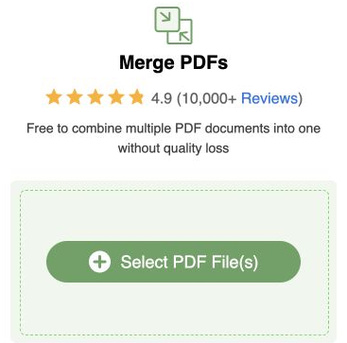
1. Open the PDFgear online PDF merger.
2. Tap Select PDF File(s) and select the PDFs you want to combine. You can add more files later. If you can’t find a PDF from an email or another app in the file picker, open that email or app and save the PDF to the Files app. Then return to the merger and select it.
3. Check the file list. Drag each item’s handle to arrange the files in the order you want. Use Add PDF Files to add another PDF, or tap an item’s delete icon to remove that file group.
4. To remove individual pages, turn on Show Pages and tap the delete icon beside each unwanted page. With Show Pages off, the delete icon removes the displayed group of pages from that PDF.
5. Tap Export to combine the remaining pages in the displayed order. Keep the page open until the result is ready.
6. Tap Download File and follow your browser’s prompts to save the PDF. Open the saved file from your chosen location and check its pages and order.

Merge PDFs online on iPhone with PDFgear
PDFgear’s online merger processes PDF contents locally in your browser, so merging does not require uploading those contents to a processing server. By comparison, the online PDF mergers from Adobe and iLovePDF require file uploads. This makes PDFgear useful when you want to combine documents without a server upload.
For tasks beyond the browser merge, PDFgear for iOS also lets you rotate pages, extract them into separate PDFs, and reduce the finished file’s size in the same app.
Combine PDFs on iPhone and iPad with the PDFgear App
Prefer using an app? PDFgear for iOS combines PDFs for free on both iPhone and iPad. It also lets you edit text, compress files, add signatures, and annotate documents in one place. Here’s how to merge your PDFs:
1. Go to PDFgear for iOS, follow the App Store download link, and install the app on your iPhone or iPad.
2. Open PDFgear, go to the Tools tab, and tap Merge PDFs.
3. Tap Add PDF Files, then choose Apple Files. Select your PDFs in iCloud Drive or another available location, then confirm your selection in the system file picker. To use PDFs already stored in PDFgear, select them from the file list and tap OK.
4. Review the added documents. Touch and hold a file thumbnail, then drag it into the order you want. Tap Add PDF Files again if you need more documents. To adjust individual pages, turn on Show pages: drag page thumbnails to reorder them or tap a page’s trash icon to exclude it.
5. Tap Merge PDFs to combine the documents.
6. When the merge finishes, PDFgear returns to its Files tab and highlights the new PDF. Its filename is based on the first added document, with _merge.pdf appended. Open the result and check its contents before sharing.

Combine PDFs on iPhone with the PDFgear app
These steps work whether you need to merge two PDF files or combine several documents into one. Check for duplicate copies and similarly named files before merging, especially when choosing between a completed form and an empty copy. Keep the original PDFs until you have checked the combined document.
Combine PDFs with Built-in iPhone Tools
The Preview steps below apply to iOS 26. If your iPhone does not have Preview, use Apple Files when its selection menu offers Create PDF, or merge in your browser with PDFgear Online. The browser route requires no additional app installation; the Files route depends on the actions available for your selected PDFs.
Use Preview on iOS 26
To add one PDF to another in Preview on an iPhone running iOS 26:
1. Keep a separate copy of your original PDF if you need to preserve it unchanged. Open the document you want to add pages to in Preview.
2. Tap the page count to show the page thumbnails. If the page count is hidden, pinch two fingers together or apart on the page to reveal it.
3. Touch and hold a page thumbnail, then choose Insert from File.
4. Select the other PDF. Check the inserted pages and repeat if you need to add another PDF.
5. To change the sequence, touch and hold a thumbnail until its menu appears, then drag it above or below another page.
The inserted pages become part of the PDF you opened in Preview. Review that document before saving or sharing it.
Use Create PDF in Files when available
On your iPhone, if Apple Files offers Create PDF for the selected PDFs:
1. Save the PDFs in the same folder in Apple Files.
2. Open that folder, tap More (the three-dot menu), and choose Select.
3. Select the PDFs, open the selection menu, and choose Create PDF if available.
4. Open the new PDF in that folder. Check its page order and rename it to distinguish it from the inputs.
Names such as 01-application.pdf and 02-statement.pdf make the intended sequence easier to recognize. Check the output rather than assuming selection order guarantees page order. If pages need rearranging, use PDFgear’s Organize Pages or Preview on iOS 26.
If Create PDF is missing, switch to the PDFgear app method or Preview on iOS 26.
Compare PDF Merge Methods for iPhone and iPad
Choose based on whether you want a browser merge, further editing in an app, or an available Apple tool.
| Method | Choose it for | Keep in mind |
| PDFgear Online | Merging PDFs and removing unwanted pages in an iPhone or iPad browser | Free; no account; PDF contents merged locally in the browser |
| PDFgear for iOS | Merging and organizing pages on iPhone or iPad | Free app; installation required |
| Preview on iPhone | Adding a PDF to an open document | These steps use iOS 26 |
| Files on iPhone | Combining PDFs from one folder | Requires Create PDF in the selection menu |
Check the Merged PDF Before Sending It
Open the saved result before sending it. PDFgear highlights the merged PDF in its own Files tab on iPhone or iPad. For an online merge, open the downloaded PDF from the location you chose when saving; the iPhone Create PDF method saves its result in the source folder.
Before emailing the result or uploading it to a form, check:
- Page count: Without deletions, a four-page application plus a two-page statement should produce six pages.
- Document joins: Look at the last page of each source and the first page of the next for missing, repeated, or misplaced material.
- Readability and orientation: Inspect small text and scanned pages at full size.
- Access: If a PDF needs a password, obtain it or request an accessible copy. Being able to open a protected PDF does not guarantee every merge method can combine it.
Give the finished file a recognizable name so you send the merged version rather than one of its inputs. In Apple Files on an iPhone running iOS 26, open the PDF, tap its title, and choose Rename. Use Move from the same menu if you need to put it in another folder.
If the finished PDF exceeds your recipient’s upload limit, open it in PDFgear for iOS, tap the three-dot menu at the top right, and choose Reduce File Size. Inspect the smaller result before sharing. Compression is optional.
FAQs
Can I merge only selected pages from different PDFs on iPhone or iPad?
Yes. In PDFgear for iOS, open Tools > Merge PDFs, tap Add PDF Files, and add your PDFs. Turn on Show pages, then tap the trash icon on each page you want to exclude. Drag the remaining page thumbnails into the required order and tap Merge PDFs. The combined PDF appears highlighted in the app’s Files tab. Your source PDFs remain unchanged.
Can I combine PDFs or scans saved in Notes?
Yes. Open the note, then tap the PDF attachment or scanned document to open it. Tap Share, choose Save to Files, and select a folder in iCloud Drive or on your device. Repeat for the other documents you want to combine.
In PDFgear for iOS, open Tools > Merge PDFs > Add PDF Files > Apple Files, then browse to the folder where you saved them. Select the PDFs and merge them. You can also select those same files in PDFgear’s online merger.
Will merging preserve fillable forms and existing signatures?
Fillable forms are not guaranteed to remain fully interactive after merging. Visible handwritten or image signatures may remain, but existing certificate-based digital signatures will not remain valid for the new merged document. Check the merged file’s fields and signature appearance before sharing, and apply any required digital signatures after merging.
Can I merge photos or Word files with PDFs?
Yes. To merge photos with a PDF, use PDFgear’s PDF Page Adder. It automatically converts images into PDF pages and inserts them into your document. You can drag and drop pages to reorder them.
For Word files, first convert Word documents to PDF, then merge the resulting PDFs with your existing PDF.
