How to Change Default PDF Viewer in Whatsapp: Step-by-step Guide

Summary :
This article explains how to change the default PDF viewer in Whatsapp on Android, Samsung and iOS devices. Helps you quickly view, share and print files.
Table of Contents
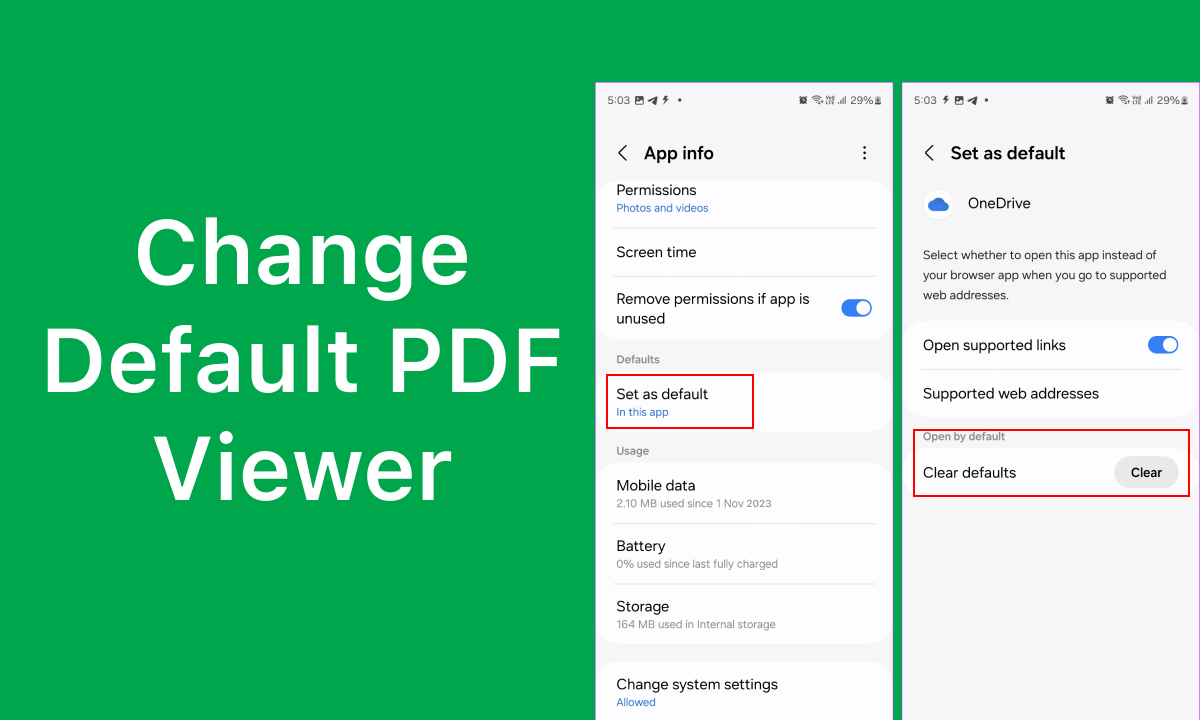
How to Change Default PDF Viewer in Whatsapp
Nowadays, almost everyone has the need to quickly open, preview and edit PDF on mobile devices and calculators. But how do you view it when you receive a PDF shared by others on Whatsaap, a commonly used chat software?
In fact, Whatsapp itself does not have a built-in PDF viewer. It often defaults to using the default PDF viewer set on the device to open PDFs. But sometimes the results are unsatisfactory. In this article we will take you through the details of how to change Whatsapp’s default PDF viewer on Android, Samsung and iOS mobile devices.
Change Default PDF Viewer in Whatsapp For Android
To change the default PDF viewer in Whatsapp on an Android device, you usually need to go to your device’s system settings to change the default app setting, rather than changing it directly in WhatsApp. However, the steps are very simple. The following are specific distribution guidelines.
Step 1. Open the settings main menu of your Android device.
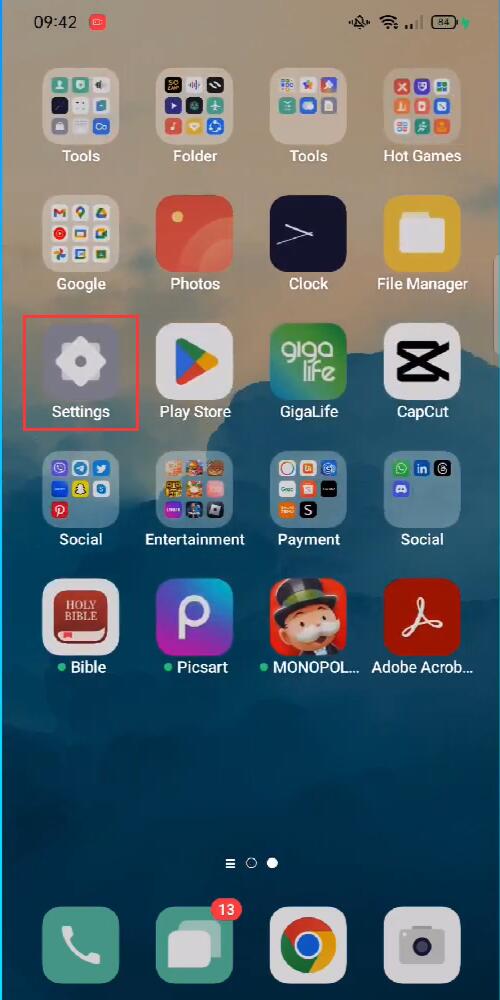
Open Settings on Android
Step 2. Scroll down the menu bar and find “App Management”.
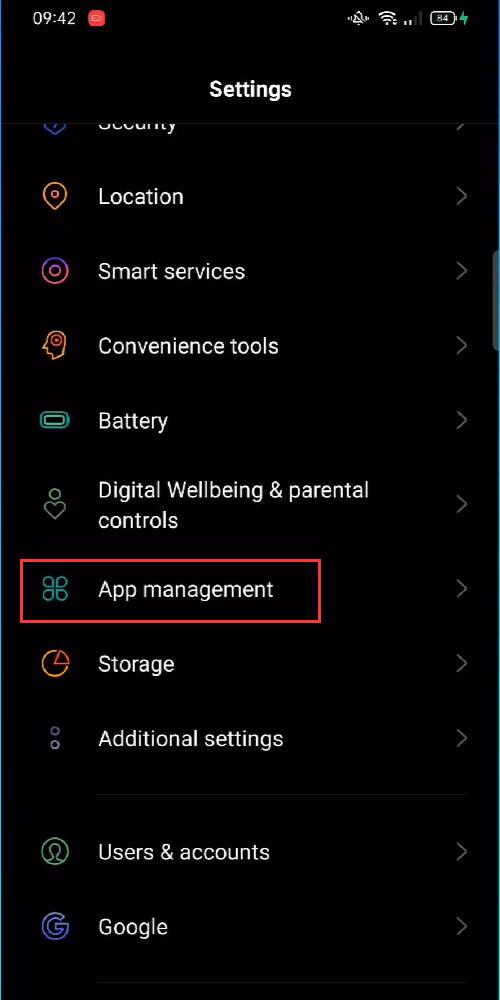
Open App Management
Depending on the Android version, you may need to find “Apps” first and find the “Manage Apps” option on the next screen.
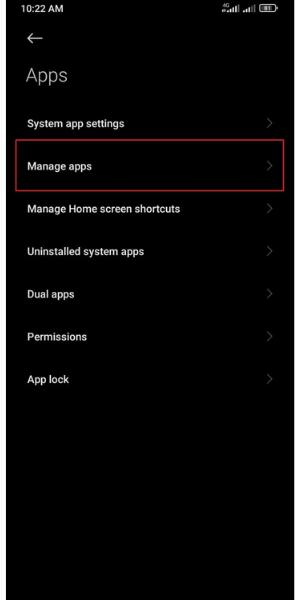
Manage Apps on Android
Step 3. Click “App list” > Find and click the default PDF viewer currently set on the device > Click “Open by default” > Select “Clear Default” to remove the current default settings.
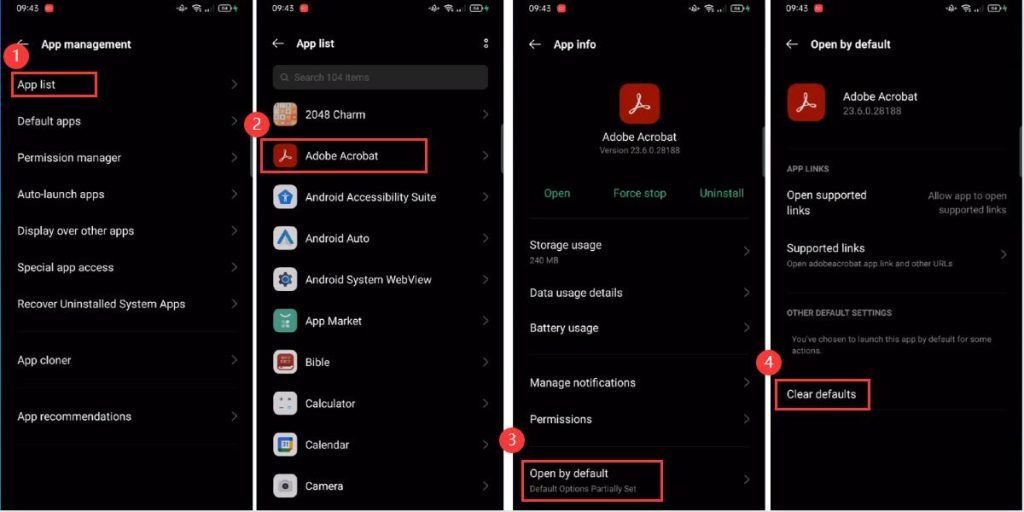
Clear Default PDF Viewer
Step 4. Go to Whatsapp and click on the PDF file you want to preview > The device system will pop up a window asking you to select a PDF viewer for reading the document > Check “Don’t ask again” > Select the corresponding PDF viewer Open PDF with new PDF viewer and make it the default PDF viewer for Whatsapp on Android devices.
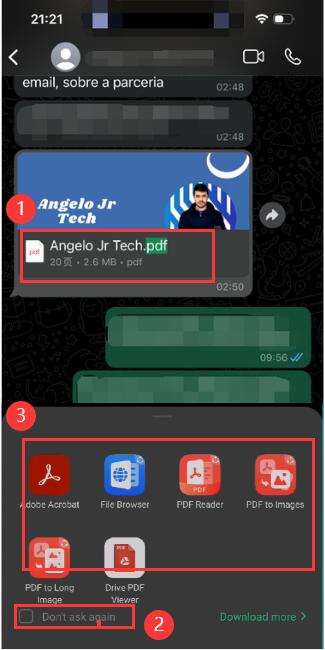
Change Default PDF Viewer in Whatsapp for Andoird
Change Default PDF Viewer in Whatsapp For Samsung
Samsung device system is the same as Android device system. So the method steps to change Whatsapp’s default PDF viewer are also of type. Just select the default PDF viewer when opening a PDF. Here’s how it works:
Samsung device system is the same as Android device system. So, the same are the method steps to change Whatsapp default PDF viewer. Simply select the desired default PDF viewer when opening a PDF. Here’s how it works:
Step 1. Swipe down on the home screen > Tap the Settings icon to go to the main Settings app on your Samsung device.
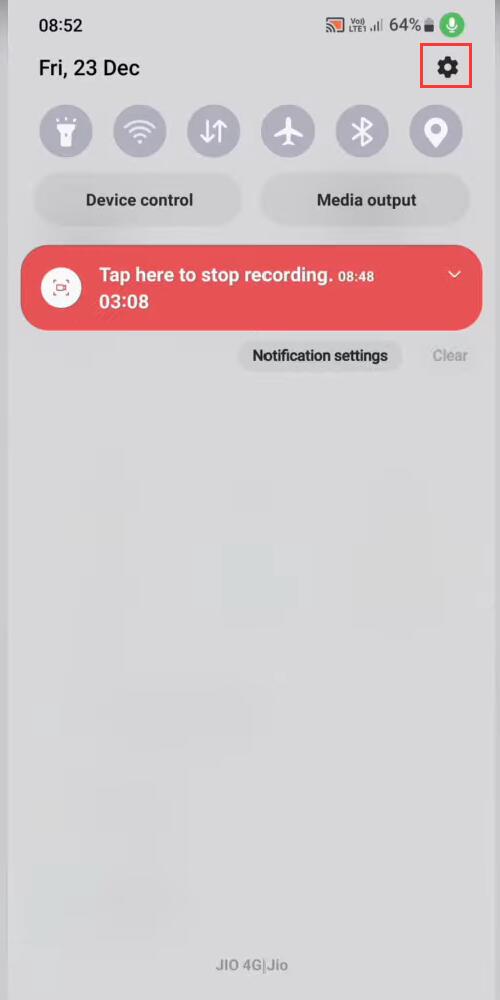
Open Settings on Samsung
Step 2. Slide down the menu bar and find Apps > Find and click the current default PDF viewer in all applications > Click “Set as Default” > Click “Clear” next to Clear Default.
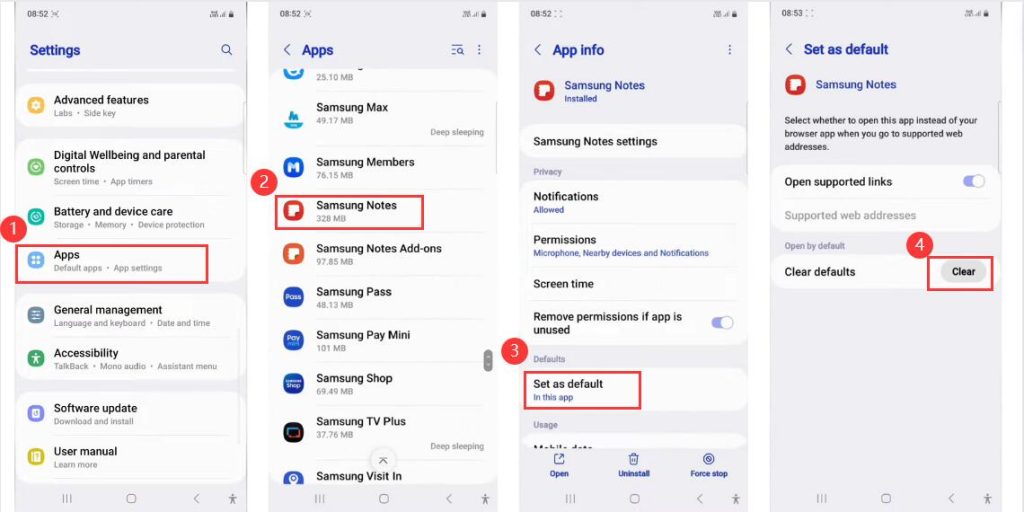
Clear Default PDF Viewer on Samsung
Step 3. Return to Whatsapp > Click on PDF > Select the desired PDF viewer in the pop-up window that appears > Click “Always” to set the selected PDF as the default PDF viewer.
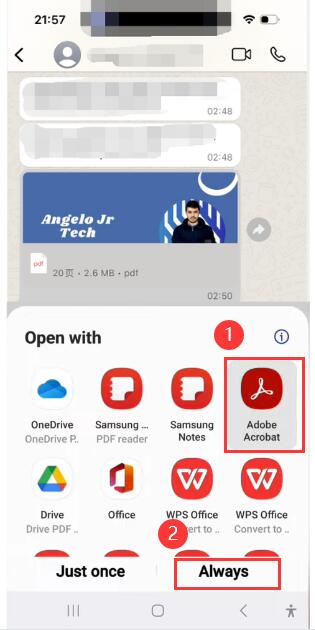
Change Default PDF Viewer in Whatsapp for Samsung
Change Default PDF Viewer in Whatsapp For iOS
On iOS devices, you can preview PDF files directly in Whatsapp, but you can also choose to use a professional PDF viewer for viewing and simple editing.
Changing Whatsapp’s default PDF viewer on iOS devices is similar to Android, but there are some subtle differences. You can open and view PDFs in other applications by following these steps:
Step 1. Open WhatsApp and navigate to the PDF file > Click on the PDF file and you may see a preview of the PDF.
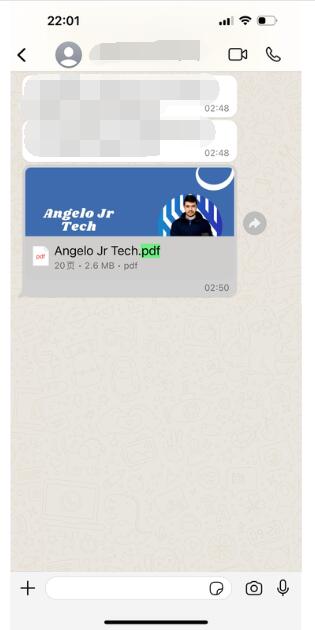
Preview PDF in Whatsapp on iOS
Step 2. Click the share icon > Scroll down the menu bar > Select Open in corresponding application. Here we choose to use PDFgear, a professional and free all-in-one PDF viewing and editor as the default PDF viewer, so we click “Copy to PDFgear” > Confirm “Copy to PDFgear” again on the subsequent page, and it will automatically jump to the desired PDF viewer.
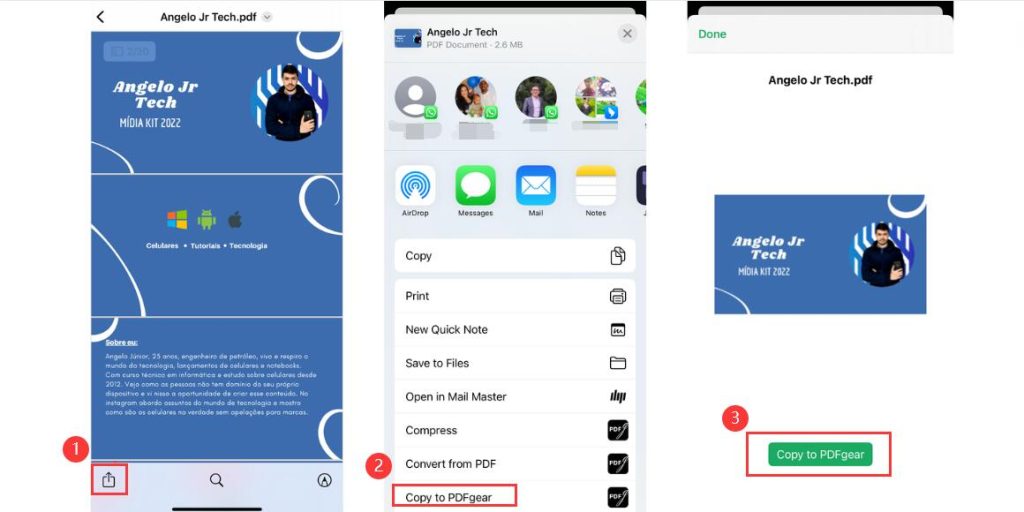
Change Default PDF Viewer in Whatsapp for iOS
For future files, iOS will remember which app you last used to open a similar file type, but it may not always default to your favorite app. You may need to repeat this process for other files.
FAQs
Why am I not prompted to choose a PDF viewer when opening files in WhatsApp?
If you’re not being prompted, it’s likely because you’ve already set a default app for viewing PDFs. You’ll need to clear the default settings as described in the first question to be asked again.
How can I make Adobe Reader my default PDF viewer for WhatsApp files on my phone?
Follow the steps to clear the current default app as mentioned in the first question. Then, when you next open a PDF from WhatsApp, choose Adobe Reader from the list of apps and select ‘Always’ to set it as your default.
Will changing the default PDF viewer affect how PDFs are opened from other apps?
Yes, changing the default PDF viewer will affect how PDFs are opened from all sources on your device, not just WhatsApp.
What if my preferred PDF viewer isn’t listed when I try to open a PDF from WhatsApp?
If your preferred app isn’t listed, make sure it’s installed on your device. If it is installed but not listed, you may need to clear the default settings for the current PDF app and try again, or sometimes a device restart can help refresh the list of available apps.
Can I have different default PDF viewers for different apps?
No, Android and iOS do not support setting different default apps for different source apps. The default PDF viewer you set will be used by all apps on your device that require a PDF viewer.
Conclusion
Viewing PDF files shared in Whatsapp has never been difficult. This article provides you with the most comprehensive method to change the default PDF reader in Whatsapp. Choose your favorite PDF viewer and set it as the default option to optimize your PDF viewing experience.
