Shortcut to Rotate PDF Document

Summary :
Different devices may have varying options for rotating PDF documents. The article recommends all the available shortcuts and settings specific to the device you are using.
Table of Contents
How to quickly and easily adjust the orientation of your documents? Surly use keyboard shortcuts!
Taking advantage of these shortcuts, you can save time and enhance your productivity, making it easier to work with PDF documents and get things done efficiently.
Different scenarios are applying different shortcuts. For example, in Adobe Acrobat Pro, you can use the Ctrl+Shift+Plus or Ctrl+Shift+Minus shortcuts to rotate a page clockwise or counterclockwise, respectively.
But how are other PDF readers and editors applying shortcuts to flip PDF documents? Read on and get the shortcuts for you.
The Shortcut to Rotate PDF Document on Windows
Windows 10 does include a built-in PDF reader in the Microsoft Edge web browser. This means that you can open and view PDF documents using Microsoft Edge without the need to install any additional software.
However, it doesn’t provide a shortcut to rotate PDF documents while using Microsoft Edge to read PDF files.
To rotate a page in a PDF document using Microsoft Edge, you will need to use the rotate buttons in the toolbar.
To access the toolbar, move your mouse cursor to the top of the window, and the toolbar will appear. Then, click on the ’Rotate’ button to rotate the page clockwise by 90 degrees.
You can click the button multiple times to rotate the page by 180 or 270 degrees.
If you need to rotate multiple pages in a PDF document, you will need to repeat this process for each page.
Alternatively, you can use a third-party PDF editor that includes keyboard shortcuts for rotating pages to increase your workflow efficiency.
How to Rotate PDF Document with Shortcut on macOS
Preview is the built-in program to read and edit PDF files on macOS devices. Using the keyboard shortcuts to rotate PDF documents in Preview on a Mac can be a quick and efficient way to perform this task which can save time and increase productivity when working with PDF documents, especially if you need to rotate multiple pages in a document.
The shortcut to rotate PDF files with Preview.
- To rotate a page counterclockwise: Press ‘Command + Left Bracket’
- To rotate a page clockwise: Press ‘Command + Right Bracket’
In addition, Preview has a range of other features for working with PDFs, including the ability to annotate, sign, and edit PDF documents. Keyboard shortcuts can also be used for these tasks, making it easier to work with PDFs efficiently.
Shortcut to Rotate PDF Document on Popular PDF Editor Reader
There are lots of great PDF viewers and editors around the table. Like Adobe Acrobat Reader Pro, Foxit, and PDF Expert on macOS devices. Some great well-known online PDF editors and readers, like SmallPDF, iLovePDF, and SodaPDF, are also popular while working with PDF documents.
There is no need to deep talk about the convenience of taking advantage of shortcuts to flip PDF pages while working. Let’s take a look at some of the commonly used keyboard shortcuts for rotating PDF documents within popular third-party PDF software.
Adobe Acrobat Reader Pro:
- To rotate a page counterclockwise:
On Windows: Press ‘Shift + Ctrl + -’
On macOS: Press ’Shift + Command + -’
- To rotate a page clockwise:
On Windows: Press ‘Shift + Ctrl + +’
On macOS: Press ’Shift + Command + +’
Foxit:
- To rotate a page counterclockwise:
On Windows: Press ‘Shift + Ctrl + -’
On macOS: Press ’Shift + Command + -’
- To rotate a page clockwise:
On Windows: Press ‘Shift + Ctrl + +’
On macOS: Press ’Shift + Command + +’
PDF Expert Which Only Works on macOS Devices
- To rotate a page counterclockwise:
Press “Command + [”
- To rotate a page clockwise:
Press “Command + ]”
It’s important to note that keyboard shortcuts may differ depending on the version and operating system of the PDF viewer or editor you are using. Therefore, it’s essential to check the program’s documentation or settings to confirm the keyboard shortcuts for rotating PDF pages.
In case you are looking for a method to rotate a PDF document while using an online PDF tool like smallPDF and ilovePDF. Sadly, the online toolkits won’t support keyboard shortcuts to use.
The Quickest Solution to Rotate PDF When Working with PDF
Meet PDFgear, a free and full-featured PDF master, that works on Windows 10/11, macOS devices, and iOS phones.
Not only PDFgear provide the software to work with PDF, but it also has a toolkit to handle PDF with its online toolkits.
This means that you can rotate PDF online with a PDF online rotator.
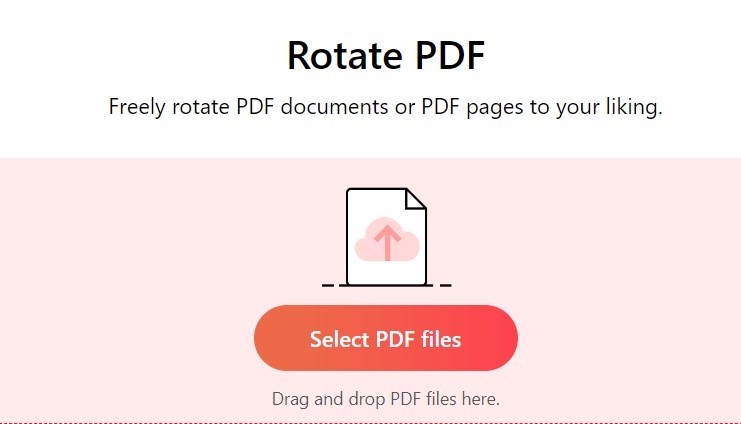
Rotate PDF Online with PDFgear
Conclusion
This guide shows how to use keyboard shortcuts to rotate PDF documents on different devices and software. As a comprehensive list of shortcuts for popular PDF readers and editors, including Adobe Acrobat Reader Pro, Foxit, and PDF Expert.
Now you can learn the importance of using keyboard shortcuts to save time and increase productivity when working with PDF files. It also includes instructions for rotating PDF documents on Windows 10 and macOS devices.
Sure you can try PDFgear, a free PDF solution that provides both software and online toolkits to handle PDF files efficiently. Unlike other online PDF tools that do not support keyboard shortcuts, PDFgear offers a comprehensive solution for handling PDF files.
