How to Add Strikethrough in PDF With and Without Adobe Acrobat

Summary :
This post walks you through how to use Adobe Acrobat for strikethrough, and how to use a free alternative to Adobe Acrobat for striking through text in PDF.
Table of Contents
Strikethrough in Adobe Acrobat
When you’re editing a PDF, there are times when you want to remove some text without deleting the whole paragraph or words. The strikethrough tool can help – it lets you cross out words, but they remain visible.
Adobe Acrobat strikethrough is one of many ways to cross out text in a PDF. Other programs can also be used for PDF strikethrough, with PDFgear PDF Editor being one of them, as it is free and user-friendly.
How to Strike Through Text in PDF in Adobe Acrobat
Adobe Acrobat markup tool allows you to easily fix text using a red line while making changes to PDFs. It is a powerful paid PDF editor that provides editing and annotation tools, allowing users to easily make any changes to PDFs, including editing images and adding highlights and comments to the PDF.
Here is a step-by-step guide on how to use Adobe Acrobat for strikethrough:
Step 1. Open the Comment toolbar
Navigate to the “File” Tab > Click the “Open” option > Choose a PDF from your device.
After opening the file, go to the “Comment” section on the right toolbar.
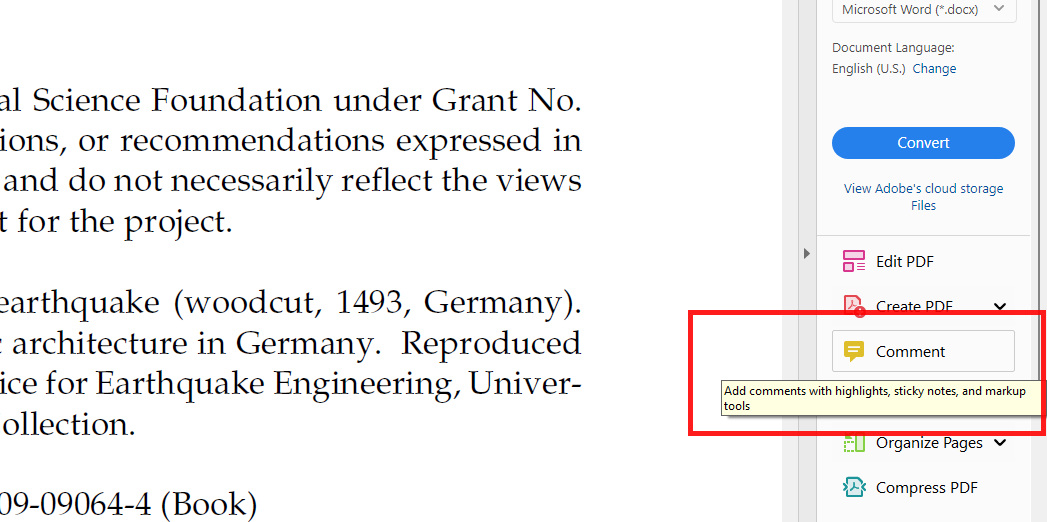
Comment Toolbar in Adobe
Step 3. Strikethrough in Adobe
To put a line through text, you can either click the “Strikethrough text” button at the top and then select the text with your mouse, or you can just press the “Delete” key on your keyboard.

Use Adobe Strikethrough
Step 3. Customize the Strikethrough
If you want to customize the strikethrough, you can right-click on the crossed-out text and choose “Properties.”
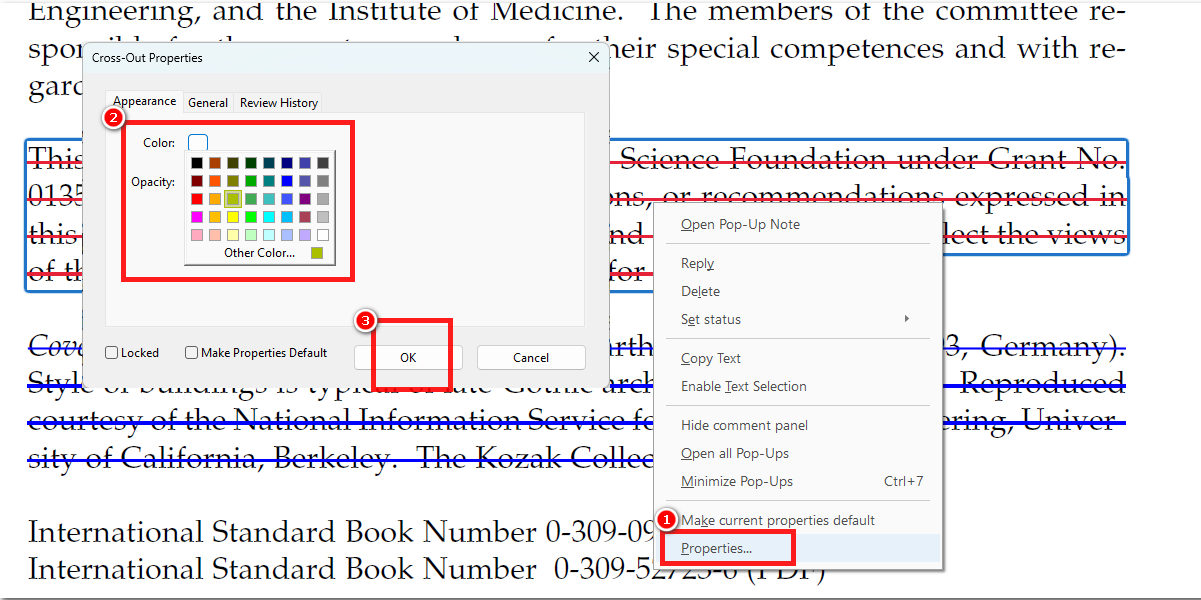
Customize the Strikethrough Line
In the Properties dialog, you can change the font size, color, or opacity for the strikethrough line.
How to Strikethrough Text in PDF With an Adobe Acrobat Alternative
If you don’t want to spend money on Adobe Acrobat for strikethrough in PDF, here is a free alternative for you. With the PDFgear application, you can not only strike through text in a PDF for free but also highlight and underline the PDF text.
Furthermore, PDFgear offers many free editing tools for replacing and removing existing text in the PDF, as well as adjusting the font and font size of the PDF text. You can download this application on your Mac and Windows for easy PDF editing.
PDFgear includes a strikethrough feature, allowing users to add, change strikethrough colors, and remove strikethrough in PDFs.
Here is how to use PDFgear to cross out text in a PDF without Adobe:
Step 1. Open your PDF
Launch the PDFgear Desktop software and open the PDF document in which you want to add a strikethrough.
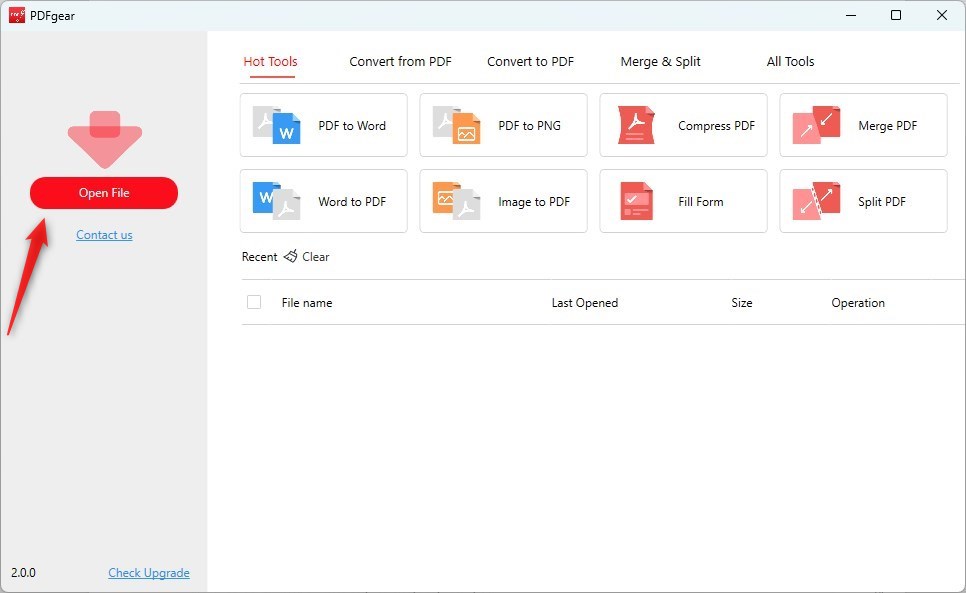
Open a PDF in PDFgear
Step 2. Select the Text to Strikethrough
Use your mouse to click on the text you want to strikethrough, and it will be highlighted.
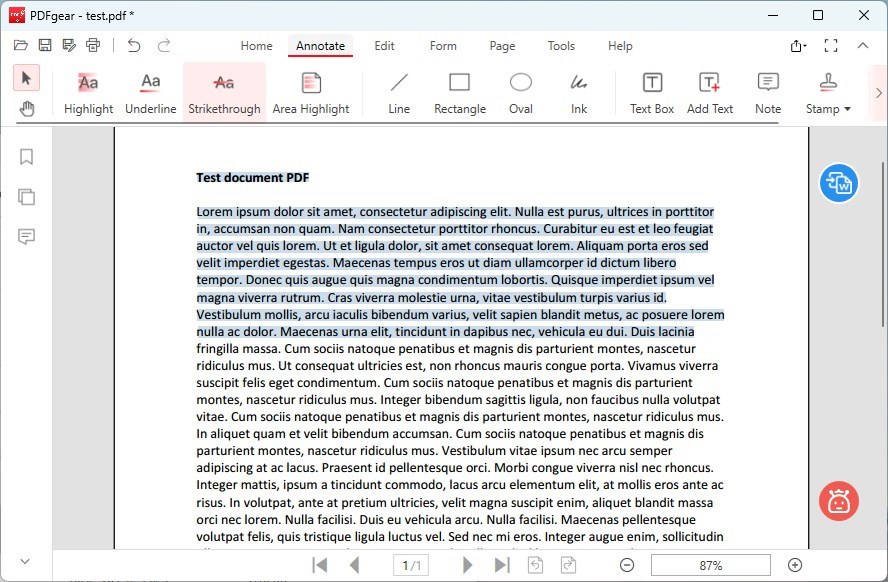
Select the Text to Cross Out
Step 3. Apply the Strikethrough
Go to the “Annotate” tab, and select the Strikethrough tool from the drop-down menu. You can choose the line color for the strikethrough.
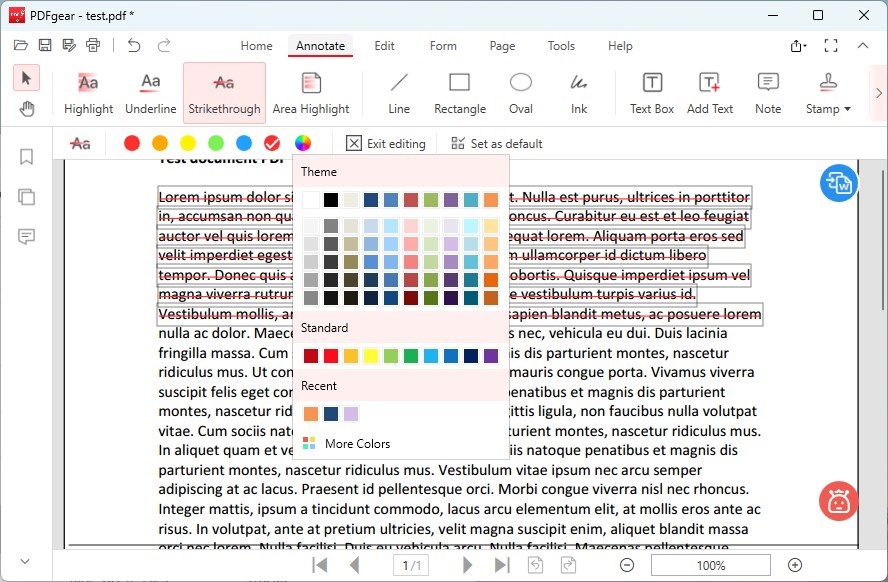
Strikethrough PDF in PDFgear
All the selected text will be strikethrough.
Conclusion
When it comes to PDF editing and proofreading, you can efficiently remove unwanted text by strikethrough without deleting entire paragraphs or words. While Adobe Acrobat Pro requires a purchase for text strikethrough in PDFs, you can use the free PDFgear program on both Windows and Mac to add strikethrough to text in PDFs and access various advanced editing features.
