6 Methods for English to Marathi PDF Translation

Summary :
Are you looking to translate English to PDF with ease? Several options can help you translate your English PDF into Marathi.
Table of Contents
PDF Translate English to Marathi
Marathi is one of the most popular regional languages spoken in the Maharashtra state of India. Imagine you have to send a document in PDF to someone, and the person does not know English. That is where a tool for translating English to Marathi would come in handy. This post will discuss the best methods to translate English PDF to Marathi.
How to Translate English PDF to Marathi with AI Using PDFgear
PDFgear is one of the powerful PDF Editor tools that helps you chat with PDFs. It has a chatbot feature called PDFgear Copilot, which helps you interact with your PDF files using the natural language.
The tool is powered by GPT 3.5, making it robust for translating English PDFs into Marathi. It is your best AI tool to chat with PDFs.
With the integration of GPT-3.5, PDFgear can help users translate, summarize, and explain a PDF for free. Download and try it!
Step 1. Download and Start PDFgear
Begin by downloading PDFgear to your computer, and following the on-screen instructions for installation. Once installed, launch PDFgear on your device.
Step 2. Open the English PDF
In PDFgear, click on the ‘Open File‘ button to navigate through your computer’s files. Choose and open the English PDF document you wish to translate.
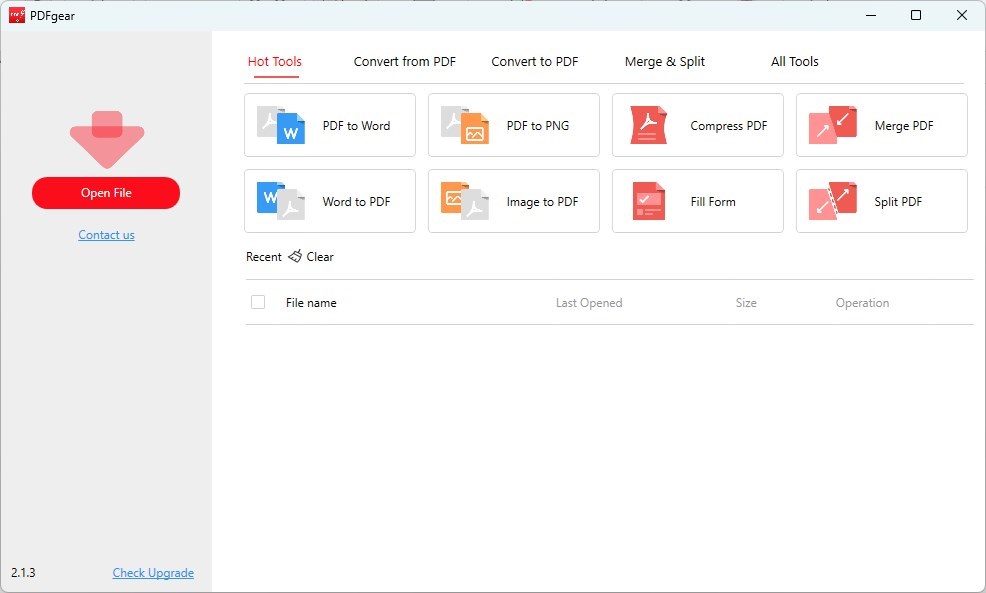
Open a English PDF in PDFgear
Step 3. Utilize the Chatbot for Translation
Find the chatbot icon, usually located at the bottom-right corner of the PDFgear interface. Copy the English text from your PDF and paste it into the chat window.
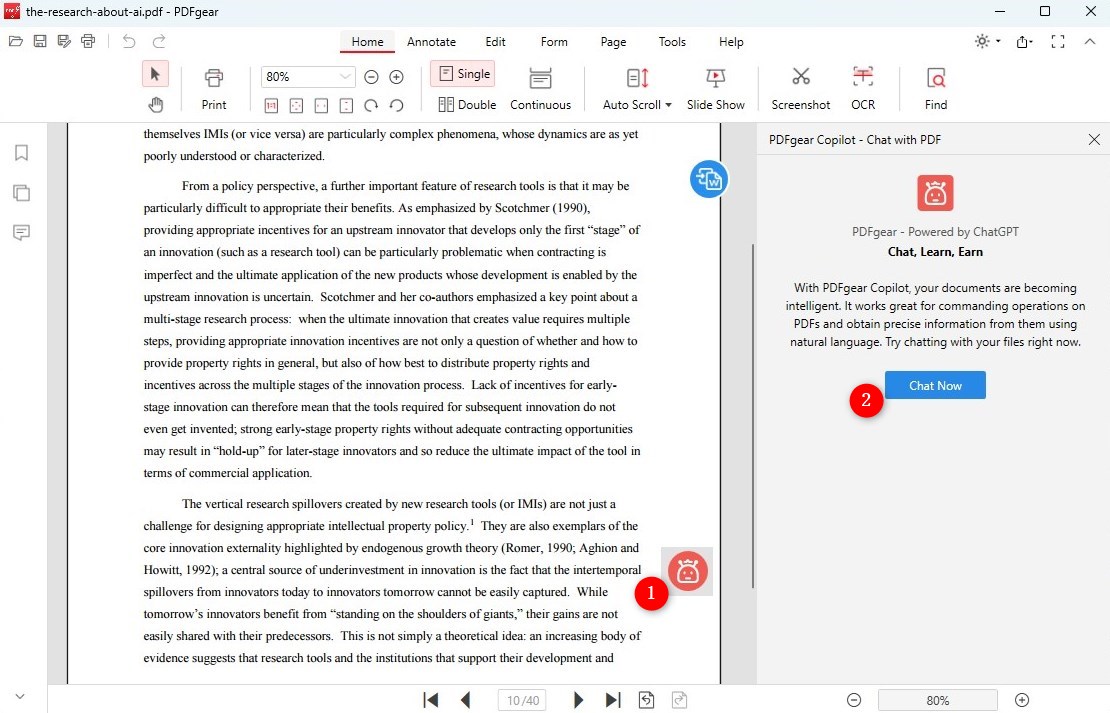
Open the PDFgear Copilot
Provide a prompt instructing the chatbot to translate the copied content into Marathi. For instance, type something like, “Translate the above content to Marathi.”
Step 4. Translate English to Marathi with AI

Translate PDF text from English to Marathi with PDFgear
Once you’ve entered the prompt, PDFgear PDF Copilot will process the translation task. This should only take a few seconds, and afterward, the translated English text will be readily available.
How to Translate a PDF from English to Marathi with Online Doc Translator
Online Doc Translator, as the name itself should indicate, is a web-based portal for translating documents from one language into another. Translating an English PDF into Marathi is completely free of charge.
The translation process is quick. You upload your English document, and the platform instantly translates it to Marathi, maintaining the original layout.
Step 1. Go to Online Doc Translator’s website. On the homepage, you will see an option to upload your document.
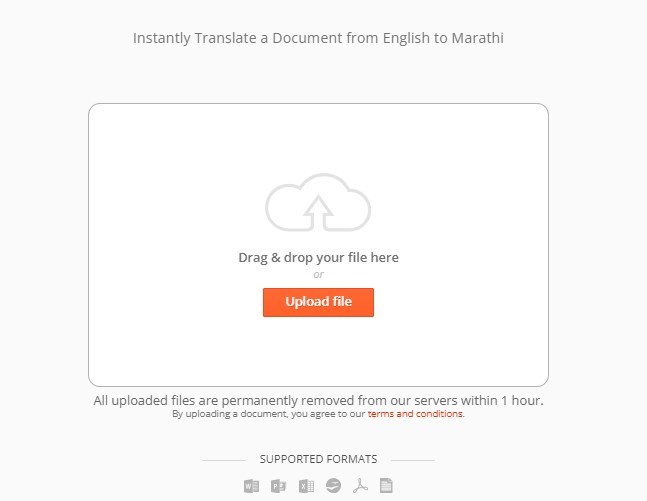
Upload an English PDF to Online Doc Translator
You can either drag and drop your PDF file into the designated area or click on the “Upload file” button to select the file from your computer.
Step 2. Once uploaded, the platform will automatically detect that your document is in English. Choose Marathi as the target language for the translation.
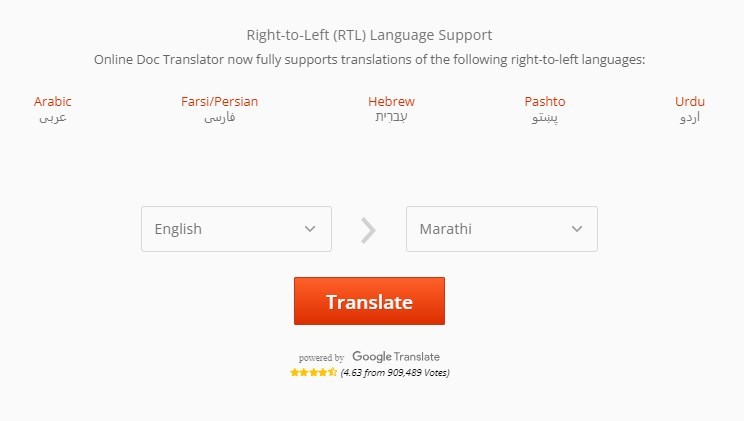
Translate English PDF to Marathi with Online DocTranslator
This is usually done from a dropdown menu where you can select from various languages.
Step 3. After selecting Marathi, click on the “Translate” button. The website will then process your document and translate it from English to Marathi.
Step 4. Once the translation is complete, the website will provide you with a link to download the translated document. Click on this link to download the Marathi version of your PDF.
How to Translate a PDF File from English to Marathi with DeftPDF
DeftPDF is another online tool that helps you translate English PDF into Marathi or any other language. It can efficiently work across several platforms. DeftPDF supports scanned PDFs using OCR technology, which can extract and translate text while retaining the original layout.
The first three pages of translation are free. If your document exceeds three pages, DeftPDF charges $1 per additional page. For Unlimited Plan subscribers, the price is reduced to $0.5 per page. Files are kept private and are automatically deleted from DeftPDF’s servers after 5 hours.
Step 1. Go to the DeftPDF translation page. Click on “UPLOAD FILE” to select and upload the PDF document from your computer.

Upload an English PDF to DeftPDF
Alternatively, you can drag and drop the document into the designated area. DeftPDF also allows you to upload files from Dropbox, Google Drive, or directly via a website URL.
Step 2. After uploading your document, choose the current language of the document (English) and the language you wish to translate it to (Marathi) from the provided dropdown menus.
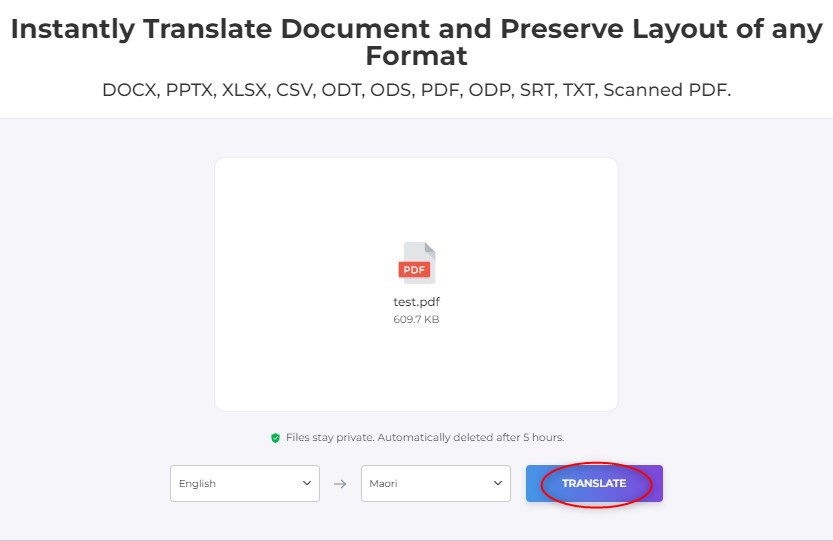
Translate English to Marathi PDF with DeftPDF
Step 3. Click on the “Translate” button to begin the translation process. DeftPDF will then translate your PDF from English to Marathi.
Step 4. Once the translation is complete, DeftPDF will provide a link to download the translated document. Click on this link to save the Marathi version of your PDF to your computer.
How to Translate English to Marathi PDF Using DocTranslator
DocTranslator is a powerful PDF translator app designed to work with documents. It is specifically designed and created to work with the documents. The PDF translation tool comes with support for over 100 languages.
The tool works with AI further, making it a truly formidable option in the long run as the best way to use AI to translate PDFs. For documents under 1,000 words, the service is free. For larger documents, there might be a fee.
Step 1. First, you need to sign up for a free account at DocTranslator.com. Once your account is set up, log in to access the translation services.
Step 2. Go to the “Translations” tab. Here, you will find the option to upload your PDF file. Click on “Upload a File” and select the PDF document you want to translate from your computer.
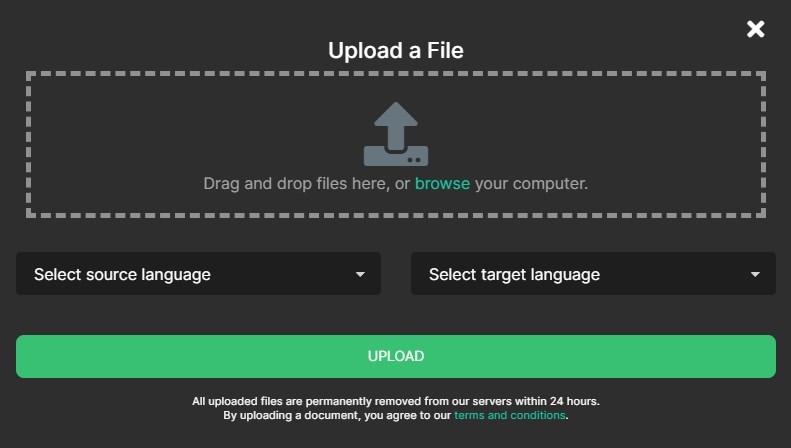
Upload an English PDF to OnlineTranslator
Step 3. Specify the original language of your document, which in this case would be English. Choose Marathi as the target language for the translation.
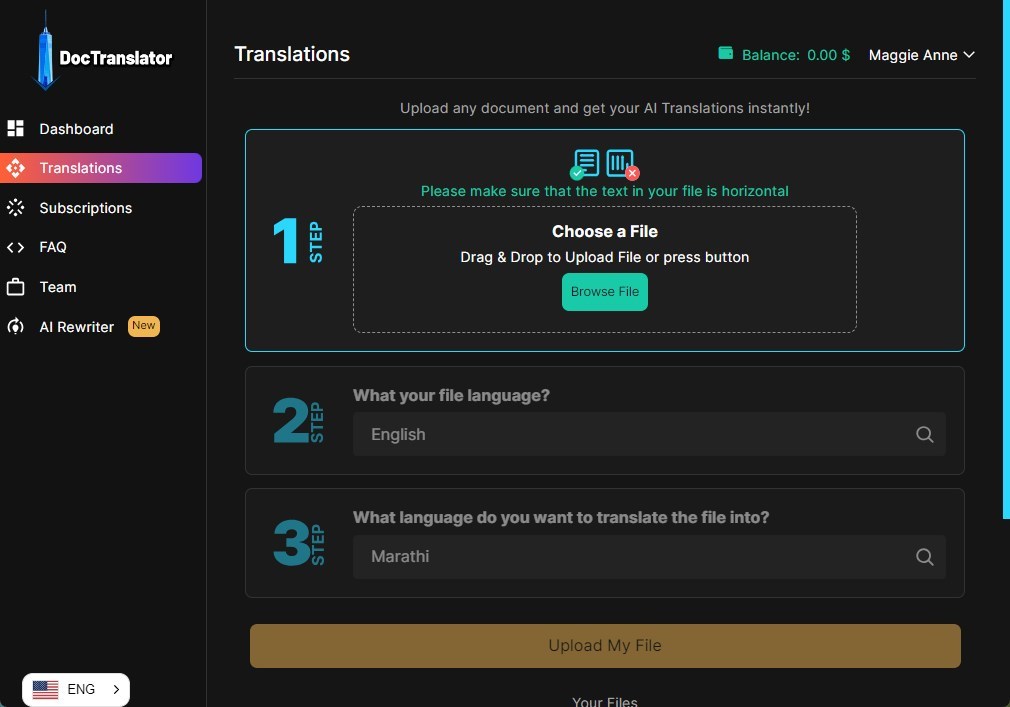
Translate English to Marathi PDF with DocTranslator
Step 4. After selecting the languages, upload your file. The website will then process the translation. The time taken for translation can vary depending on the file size.
Step 5. Once the translation is complete, a “Download” button will appear. Click on it to save the translated PDF to your computer.
Do note that you will need to pay for the translation. The minimum price per page is $2.0.
How to Translate PDF Document from English to Marathi with Shabdkosh
Shabdkosh offers an app for offline and online translation for the Indian languages. The tool comes with a translator and dictionary options. It supports both text and documents.
They provide extensive Linguistic APIs for developers, including bilingual dictionary APIs, translation APIs, OCR APIs, Rhyme APIs, and spell check APIs across English and 12 Indian languages.
Step 1. Go to the Shabdkosh Document translator page, and click on the option to upload the PDF document you want to translate.

Upload an English PDF to Shabdkosh
Step 2. After uploading your document, select English as the source language and Marathi as the target language for translation.

Translate a PDF from English to Marathi with Shabdkosh
Step 3. Initiate the translation process. Shabdkosh will then translate your PDF from English to Marathi.
Step 4. Once the translation is complete, a link or option should be available to download the translated document.
How to Translate an English PDF to Marathi with Google Translate
Google Translate is a powerful AI PDF translator you can trust. It supports more than 175 languages. For translating text-based PDFs, Google Translate can provide accurate and quick translation from English to Tamil.
If your PDF is a scanned image or the text can’t be selected, you’ll need to use Optical Character Recognition (OCR) software to convert the image to text. Afterward, you can upload the document to translate online using Google Translate.
Step 1. Open your web browser and go to the Google Translate website. On the Google Translate page, you will see options for translating text, documents, and websites. Click on the “Documents” option.
Step 2. Select English as the source language (the language your document is currently in). Choose Marathi as the target language (the language you want to translate your document into).
Step 3. Click on “Browse your computer” and select the PDF document you want to translate.
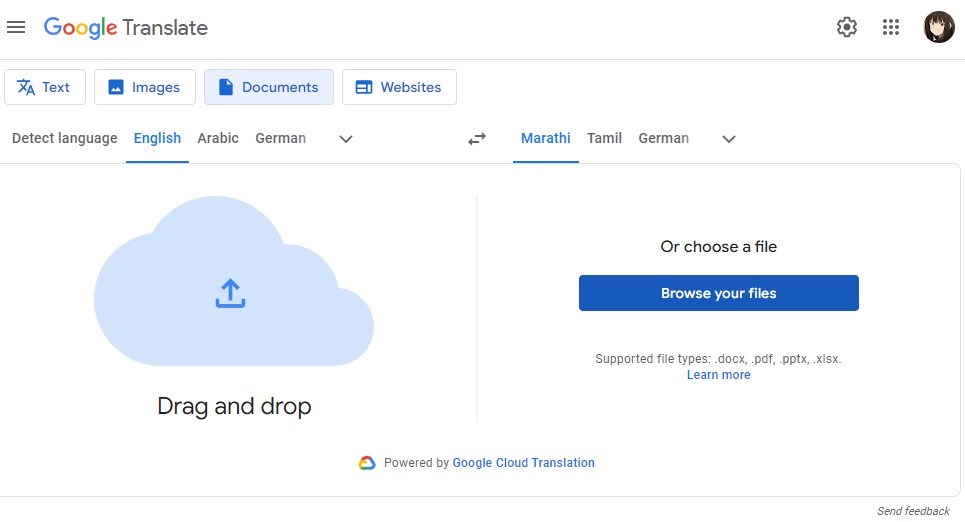
Upload an English PDF to Google Translate
Alternatively, you can drag and drop your PDF file into the designated area on the Google Translate page.
Step 4. After uploading the document, click on the “Translate” button. Google Translate will then process the document.
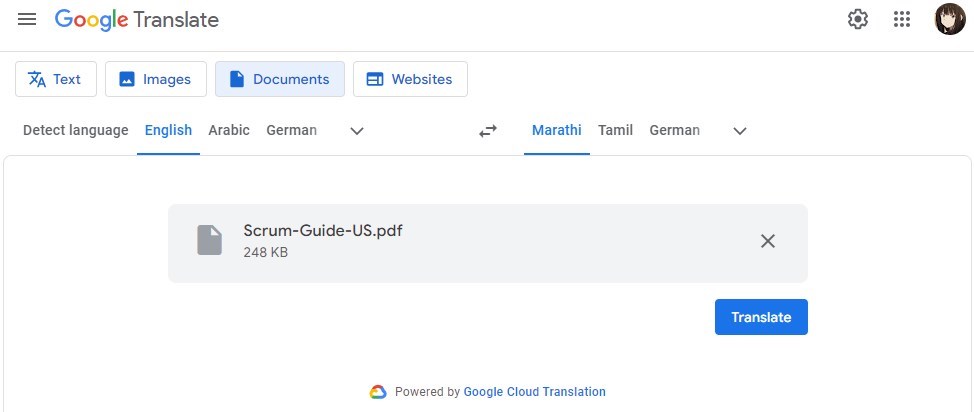
Translate English PDF to Marathi with Google Translate
Step 5. Once the translation is complete, Google Translate will display the translated text. This text is not provided in PDF format but as text on the webpage.

Download the Translation on Google Translate
Conclusion
Marathi is one of the most popular languages in India and is spoken in Maharashtra and Goa states. We assume the tools featured above should ideally help you translate your English PDF into Marathi through easy steps. In our experience, PDFgear proved to be a good choice, thanks to its ability for PDF editing and chatting with PDF files.
