4 Easy Methods to Number Lines in Google Docs

Summary :
Eager to know how to number lines in Google Docs? 4 easy methods are listed here. Read and follow those steps to make your file organized with number lines.
Content Table

How to Number Lines in Google Docs
Google Docs is widely used in the office, for it is super convenient and can auto-save documents in Google Drive. It is also a perfect option for teamwork. Therefore, people increasingly select Google Docs as their Word document editor and creator. But the operation is quite different compared to Microsoft Word.
Sometimes you may be wondering how to add line numbers in Google Drive to make it easier to track changes and revisions, especially in long documents. Don’t worry about that. The post here will guide you on how to number lines in Google Docs. Go on reading if you have this kind of request.
Method 1. Number Lines in Google Docs Using Bullet List
The first direct way to number lines in Google Docs is to use the bullet list. For a new Google Doc, using the bullet list to organize your long document is a wise option. This method is simple and easy to access. But you have to notice that it is only suitable for a new file.
Step 1. Create a new document in Google Docs.
Step 2. Select the Numbered List function on the top menu bar.
Step 3. Add your content and the number list will be automatically generated.
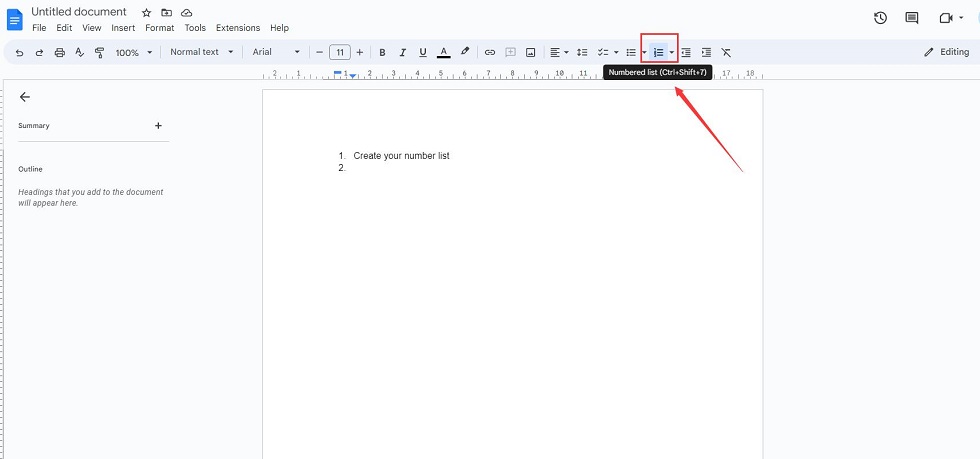
Number Lines in Google Docs with Bullet List
This method is straightforward and easy for new beginners to perform, but again, for an already created file, it doesn’t work from time to time. For a long Google Docs document already existing, you can try the following methods to number lines in it.
Method 2. Number Lines in Google Docs Using Tables
Another effective way to number lines in Google Docs is to create a table and copy and paste your text into it. This method can make your content more direct to read and understand. But one downside is that it may cost your time and energy to organize the text and the table.
Step 1. Open your document in Google Docs and select Insert > Table on the top left menu bar.
Step 2. Decide the column and row of your table and insert it. Then adjust the width of the column.
Step 3. Add numbers in the first column and copy and paste the content to the second column.
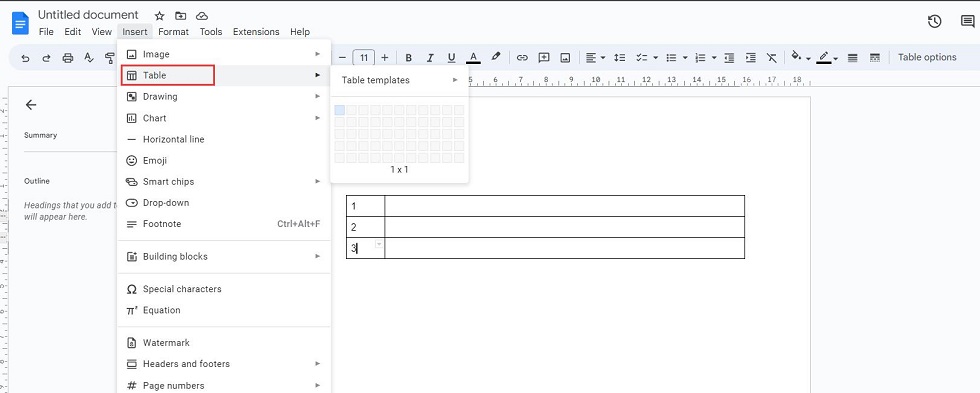
Number Lines in Google Docs with Table
Here is how to number lines in Google Docs with tables. Admittedly tables can make your file easier and clearer to navigate. Your content will also be well-formatted. Using tables, you can also make a Google Docs checkbox and make labels in Google Docs without effort. But what if you want to number paragraphs in Google Docs without tables? Go on learning the following proven methods.
Method 3. Number Paragraphs in Google Docs
Users may be wondering how to number paragraphs in Google Docs in practice. Google Docs also allows you to do that with its number list feature. Through numbering paragraphs, your document will be more organized and easier to scan and comprehend. Check the following steps to learn how to number paragraphs in Google Docs.
Step 1. Open your file in Google Docs.
Step 2. Press Ctrl + A to select all paragraphs in the document.
Step 3. Click the Number List button on the top right corner of the menu bar. Then those paragraphs will be numbered in order.
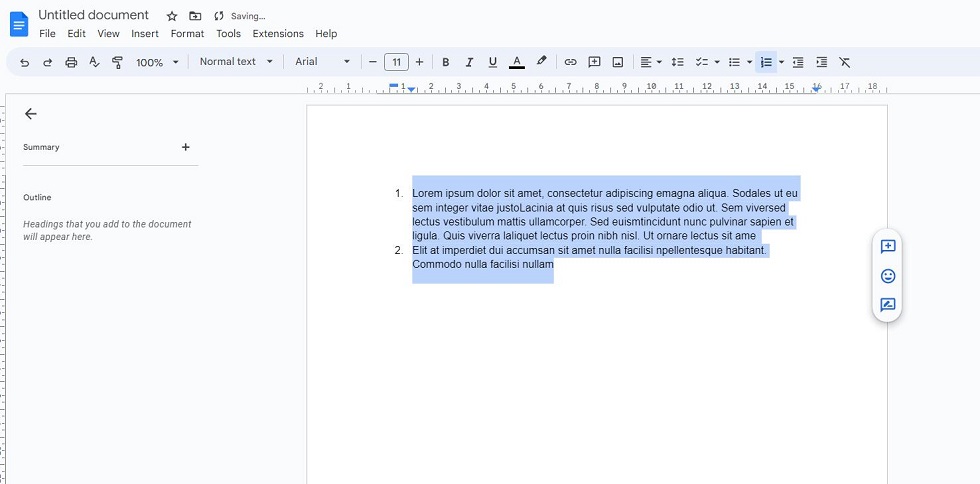
Number Paragraphs in Google Docs
Notice: Suppose you’d love to use this way to add number lines to paragraphs in Google Docs, make sure your paragraphs are separated logically before you tap on the Number List button.
Method 4. Number Lines in Google Docs Using Shortcut
Another easy way to number lines in Google Docs is to use shortcuts. It makes things handier and saves your effort to the greatest extent. Just press the shortcut, then you can add the numbered list to Google Docs immediately. To number existing paragraphs in Google Docs with the shortcut, select all content in the first place and then use the shortcut. And you can press the shortcut again to cancel the number list.
Step 1. Open your document or create a document in Google Docs.
Step 2. Press Ctrl + A to select all text, then press Ctrl + Shift + 7 to add number lines to your document.
Step 3. Hit Enter to add more lines to the current document.
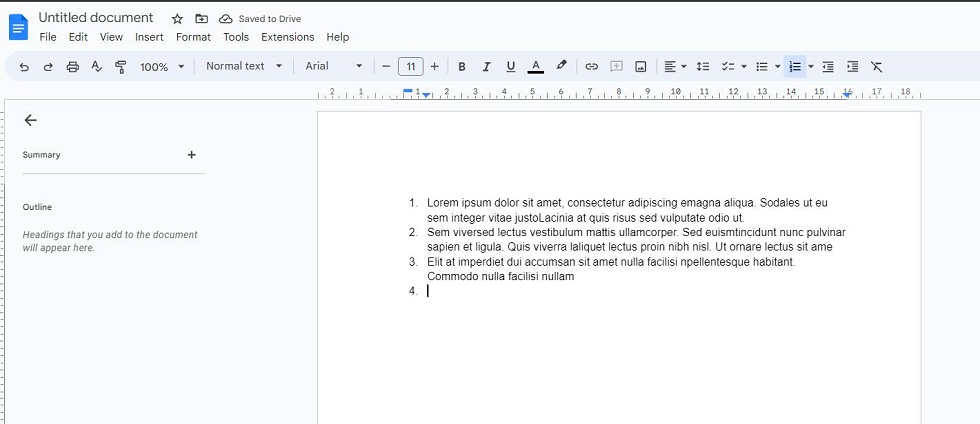
Number Lines in Google Docs with Shortcut
That’s the four simple methods to add number lines in Google Docs. Just follow the above easy steps and start to organize your Google Docs documents with number lines. If you also have several doubts, check the following FAQs to obtain related answers.
FAQs on Numbering Lines in Google Docs
How to Number Every 5 Lines in Google Docs?
To number every five lines in google docs, first, you need to split every five lines of your content into a separate paragraph. Then select one paragraph add click the Number List button to add the number line. Repeat the operation to number another five lines in your document.
How do you add fancy lines in Google Docs?
It is not tricky to add fancy lines in Google Docs. Open your file in Google Docs, then click Insert > Drawing > Add New on the top of the page. Then pick the line style and draw it on the blank area, and press Save and Close to insert it into your document. Google Docs is not only for document editing but also can contain a variety of delicate designs and creativity. Except for fancy lines, make a booklet in Google Docs is also supported.
How do I make a Google Doc look like lines in paper?
You can insert horizontal lines to Get notebook Like writing lines in Google Docs. First, run Google Docs and create a new document. Second, click Insert> Horizontal Lines to add lines to the document. Then repeat the operation to insert more lines as you like.
How do you draw a number line in Google Sheets?
To create a number line in Google Sheets, first, open the sheet in Google Sheets, then press Insert> Drawing. Create a line in a drawing and then confirm to insert it.
