How to Search in PDF in iPhone

If we don’t have a computer around us, can we search in a PDF with only an iPhone? Reduce the pressure of using PDF, here we offer a simple and efficient way to help find PDF directly on iPhone with PDFgear!
PDF is considered by many to be the best file format because it is easy to transfer. Because of this, PDF files tend to be larger in size because they need to store a lot of content. This leads to a large number of pages in PDF files. When you need to find a small portion of a PDF file, you have to use a PDF reader to search the content. This is not difficult for computer users, because there are many computer programs for PDF. But for those on the street, finding a PDF on an iPhone is a challenge.
Don’t use your fingers to repeatedly slide on the screen to find the content you want. Let’s follow the method below to find PDF directly on your iPhone!
Find PDF on iPhone with PDFgear
It’s not effortless to find a PDF tool that can work on both computers and mobile phones. Let’s meet PDFgear, an all-in-one free PDF online tool that has excellent compatibility, and can work on not only Windows, and Mac but also iOS and Andriod. In addition, PDFgear doesn’t need to be downloaded or registered. You just need to type in its URL into your browser, select PDF reader, and operate it directly.
Here is a useful shortcut that is easy as can be to help you search for a PDF on iPhone with PDFgear. Follow the detailed steps below and forget the tedious and difficult manual methods you used before!
Step 1. Find the PDF Reader
Use Safari to enter pdfgear.com and find the hit the “PDF Reader” to go to the tool page.
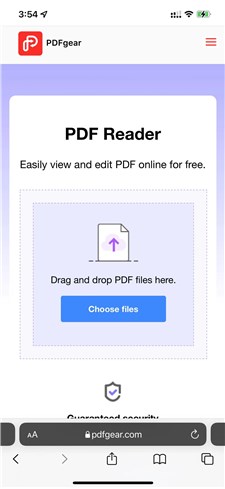
PDF Reader
Step 2. Upload PDF File
Hit the “Choose files” button and select the PDF in your iCloud Drive.
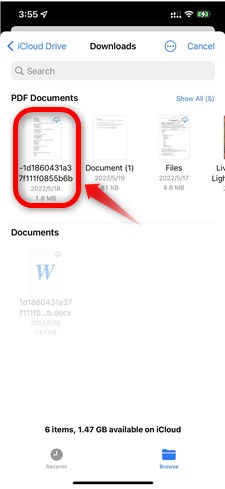
Upload PDF File
Step 3. Search PDF Now
Hit the magnifying glass icon and type the content you want to search in the text. And then you can browse the results of the search.

Search PDF
In the whole process, PDFgear will not charge any fees and protect your information security by erasing your file information completely every time you refresh or close Safari.
In Addition
Except for searching PDF, PDFgear has greater abilities to conquer all PDF problems like compressing PDF, editing PDF and converting PDF to JPG, Word to PDF, and so on.
When using these tools, you can experience all the complete functions without downloading. No watermark, no login, and no cost, you only need to open PDFgear with the browser on your computer or mobile phone to solve all the puzzles and troubles of PDF. So hesitate no more and try PDFgear now!
Frequently Asked Questions about Finding PDF on iPhone
After reading this post, if you have any doubts, please read the following questions and find out!
How to search PDF on Mac?
Due to the compatibility of PDFgear, it can help you do the job on Mac too. Follow the method below and solve your problem.
Step 1. Open the tool page of PDF reader of PDFgear.
Step 2. Upload your PDF File to PDFgear.
Step 3. Click the magnifying glass icon in the upper right corner
Step 4. Enter the content you want to search in the text box and browse the results.
Is PDFgear free?
Yes, it is. There is no charge for all functions of PDFgear, and it is guaranteed that there will be no additional charge for you to pay during your use.
What else can this PDF reader do?
In addition to searching the content of PDF, the PDF reader of PDFgear can also scale the PDF size, cut off redundant white edges, and allow you to take notes or add various elements to PDF with various tools.
Related articles
How to Fix ChatGPT Error Code 1020 Access Denied | 100% Working
Follow this troubleshooting and know everything about ChatGPT access denied. More than 9 solutions will be provided to fix ChatGPT error code 1020.
Adobe Acrobat Pro vs Standard: The Detailed Comparison
This page thoroughly compares the main differences between the Pro and Standard plans of Adobe Acrobat, to help save money in the long run.
Acrobat AI vs PDFgear Chatbot: Which is a Better AI?
On this page, we’ll thoroughly compare the newly released Acrobat AI with the popular AI PDF chatbot PDFgear to see if the Adobe subscription is worth it after the feature update.
The 7 Best Free Alternatives to Adobe Acrobat AI Assistant
Discover top Adobe Acrobat AI alternatives! Boost your PDF productivity with these feature-rich, cost-effective solutions. Explore now!
Adobe Acrobat AI Assistant & How to Use for Free
Adobe has just introduced a new feature in their flagship PDF editor and reader Adobe Acrobat. Learn if it's accessible for now, and how to use it for free.
Best 4 Ways to Add Tick in PDF with Ease
Follow this tutorial and learn about 4 effective ways on how to add tick in PDF. A comprehensive and free step-by-step guide will be provided to help you add the tick or checkmark.
How to Permanently Rotate PDFs Using Adobe Acrobat Reader DC
Permanently rotating PDFs on Adobe can be a bit tricky. No more worries, there are easy-to-understand guides on how to rotate individual pages of PDFs and bundles of PDFs on Adobe Acrobat Reader DC.
 Free but Effective Methods to Convert HEIC to PDF on Windows and Mac
How to convert HEIC to PDF without cost? Here is the right place for you to find the answer. We list the 2 best methods in this post, whether you are a Windows user or a Mac user, you can get your converting goal with great ease.
 How to Extract PDF Pages Online for Free
How to separate pages in PDF? You can find a large number of PDF splitters on the Internet, but the good and bad are mixed. We have selected the two best solutions, no need to pay, the methods the post provided can help you extract PDF pages online for free.
 How to Compress PDF Offline on Windows and Mac
Compressing the size of PDF can not only realize better cross-platform transmission but also reduce the storage burden of your device. This article will introduce 3 free methods to quickly compress PDF files when you are offline!
