The Best Offline PDF to Word Converters for Free

Summary :
Learn the best free offline PDF to Word converters. Compare accuracy, OCR support, and limitations to find the right tool for safely and easily converting PDFs.
Table of Contents
You might need to convert a PDF to Word when you want to edit a contract, update a resume, or fix a form you received from someone else. In these situations, using an offline converter often feels safer. It avoids upload limits and works even when you do not have an internet connection.
The challenge is that many tools claiming to be free still include restrictions or produce poor results. Therefore, this guide helps you identify offline PDF to Word converters that actually work and what each one can offer.
PDFgear: Free PDF to Word Converter Offline
PDFgear is one of the few tools that lets you convert PDFs to Word completely offline, with no limitations. You can convert as many files as you want, including large or scanned PDFs, and the results are usually clean and easy to edit.
There is no account needed, and all processing stays on your device, which makes it a safe choice for personal or work documents.
How to convert using PDFgear

1. Open PDFgear and select “PDF to Word” on the main interface.
2. Add your PDF file. If it is scanned or image-based, enable the “OCR” option for better results.
3. Click “Convert” and save the Word file to your computer.
Convert PDF to Word Free Offline with PDFgear
What makes PDFgear the best offline option
- Works entirely offline once installed.
- Free to use with no file limits, watermarks, or accounts.
- Built-in OCR for scanned PDFs.
- Reliable formatting retention.
- Simple interface suitable for beginners.
- Supports Windows, macOS, iOS, and Android.
LibreOffice: Open-Source Offline PDF to Word Converter
LibreOffice is an open-source office suite that can handle basic PDF to Word conversion without an internet connection. It is a good option to convert simple and text-based PDFs.
However, it does not include OCR and often struggles with complex formatting, so the results may not be as accurate as dedicated converters.
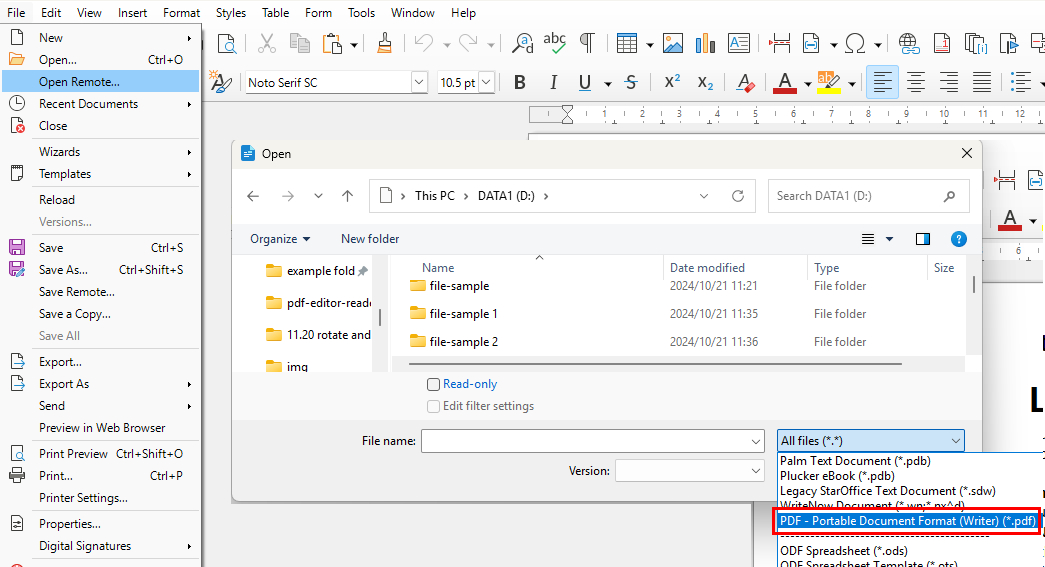
Steps: Open “LibreOffice Writer” > Go to “File” > “Open“ and select your PDF > Then go to “File“ > “Save As“ > Choose “Microsoft Word (.docx)“ and save.
Tip: Writer does not open PDFs by default. When selecting a PDF, use the File type / Filter dropdown at the bottom of the pop-up window and select “PDF – Portable Document Format (Writer)”. This forces LibreOffice to open the PDF in Writer; otherwise, it will automatically open in Draw.
LibreOffice PDF to Word Converter Free Offline
Strengths
- Completely free and open source
- Works fully offline
- Available on Windows, macOS, and Linux
- Good for simple, text-only PDFs
Limitations
- No OCR, so scanned PDFs cannot be made editable
- Formatting often breaks with complex layouts
- The conversion process is a bit complicated and requires practice
- You must open the PDF in Writer to export it as a Word file
LibreOffice is best for users who need a free, open-source offline tool for converting simple, text-based PDFs. But if you care more about formatting accuracy, PDFgear is the better choice to convert PDF to Word without losing layout or structure.
Microsoft Word: Offline Conversion but Not Fully Free
Microsoft Word can open PDF files directly on your device, and it works fully offline. Since many people already have Word installed, it is a convenient choice for quick edits.
However, it is not completely free for all users and often has trouble preserving complex layouts. Word also does not support OCR, which means it cannot convert scanned PDFs into editable Word documents.
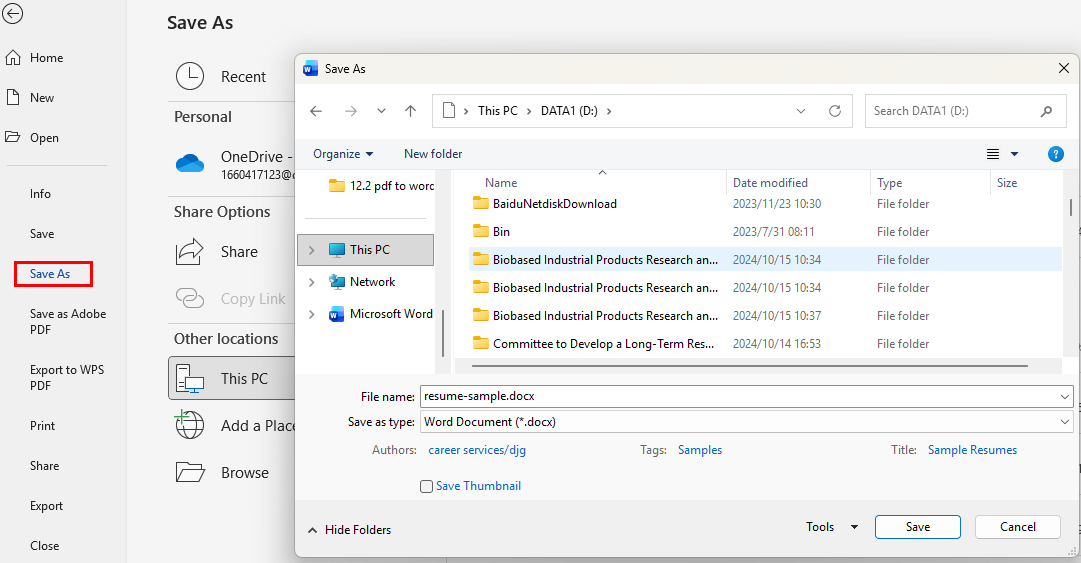
Steps: Open the PDF with Microsoft Word > Word will show a warning that the layout may not match the original PDF > Click “OK” to continue > Save the converted file as “.docx”.
Convert PDF to Word Offline with Microsoft Word
Strengths
- Works completely offline
- Easy to use and widely available
- Good for text-based PDFs with simple formatting
Limitations
- Not free unless you have an existing license
- No OCR, so scanned PDFs cannot be made editable
- Formatting often shifts or breaks with complex layouts
- Results vary depending on the original PDF structure
Microsoft Word is suitable for users who already have a Word license and need a quick offline conversion for simple, text-based PDFs.
iLovePDF Desktop: Offline but Freemium PDF to Word Converter
iLovePDF Desktop allows you to convert PDFs to Word offline, and it includes OCR for scanned documents. It is easy to use and works on both Windows and macOS.
However, it is not fully free. The free version only offers around three tasks per day, and you need a paid upgrade for unlimited use.
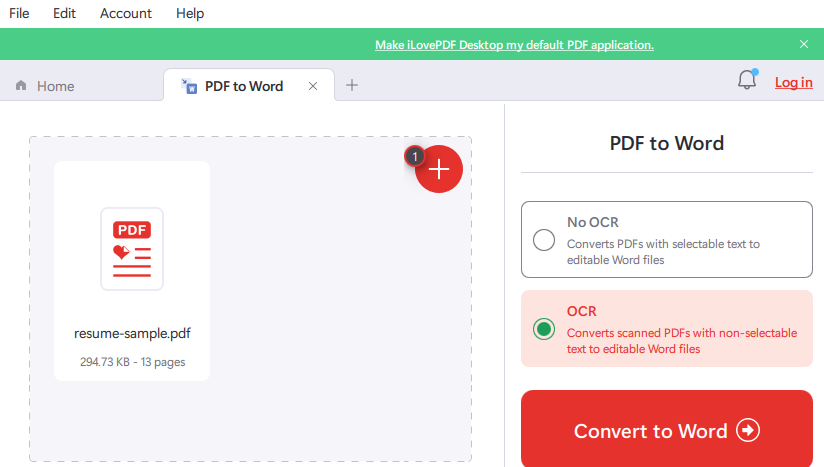
Steps: Open iLovePDF Desktop > Select “PDF to Word” from the tool list > Import your PDF file > Enable “OCR” if the PDF is scanned > Click “Convert to Word” and save the Word file.
Convert PDF to Word with Offline Software iLovePDF Desktop
Strengths
- Supports OCR for scanned documents
- Simple and beginner-friendly interface
- Cross-platform (Windows and macOS)
Limitations
- Free version has feature and usage limits
- Formatting may not be as accurate as dedicated converters
- Not ideal for frequent or heavy converting
iLovePDF Desktop is suitable for users who need occasional offline PDF to Word conversions and want basic OCR support, but do not rely on fully free, unlimited usage.
Adobe Acrobat: Offline but Paid PDF to Word Converter
Adobe Acrobat is one of the most powerful PDF tools available, and its desktop version allows you to convert PDFs to Word offline with excellent accuracy. It includes high-quality OCR, handles complex layouts very well, and usually produces the most reliable results.
However, Acrobat is not free. PDF to Word conversion is available only through a paid subscription.
Steps: Open the PDF in Adobe Acrobat > Click “Export To” in the right-hand panel > Choose “Microsoft Word (.docx)” as the export format > Click “Save” to generate the Word file.

Offline PDF to Word Converter Adobe Acrobat Pro
Strengths
- Industry-leading OCR for scanned PDFs
- Very accurate conversion with strong layout preservation
- Handles complex documents, tables, and multi-column designs better than most tools
Limitations
- Requires a paid Adobe Acrobat Standard or Pro plan
- Subscription can be expensive for users who only need occasional conversions
Adobe Acrobat is best for users who need the highest accuracy, work with scanned or highly formatted PDFs, or already have an Acrobat subscription through work or school.
Comparison Table of Offline PDF to Word Converters
Here is a quick comparison of all the offline PDF to Word converters mentioned above. This table summarizes their key differences so you can easily review which tool fits your needs.
| Tool | Free & Offline | OCR | Formatting | Scanned PDFs | Platforms |
| PDFgear | ★★★★★ | ★★★★☆ | Win / macOS / iOS / Android | ||
| LibreOffice | ★☆☆☆☆ | ☆☆☆☆☆ | Win / macOS / Linux | ||
| Microsoft Word | Partially free | ★★☆☆☆ | ☆☆☆☆☆ | Win / macOS | |
| iLovePDF | Limited free | ★★☆☆☆ | ★★★☆☆ | Win / macOS | |
| Adobe Acrobat | Paid | ★★★★★ | ★★★★★ | Win / macOS |
FAQs
Why do many PDF-to-Word conversions fail?
Most failed conversions happen because the PDF is actually a scanned image instead of real text. Without OCR, the converter cannot recognize the characters, which leads to blank pages, uneditable content, or broken formatting. Using an OCR-supported tool like PDFgear can fix this issue. You can refer to Method 1.
How do I convert scanned PDFs offline?
You will need a converter that supports offline OCR. With PDFgear, simply open the app, select “PDF to Word“, import your scanned PDF, enable “OCR“, and convert it into an editable Word file.
Which offline converter keeps formatting the best?
Adobe Acrobat and PDFgear offer the most reliable formatting accuracy. Acrobat provides professional-level results but requires a paid subscription, while PDFgear delivers strong accuracy for free.
Is Microsoft Word really free for PDF conversion?
No. Although Word can convert PDFs offline, it is only free for certain users such as students or those with limited access versions. Most users need a paid Microsoft 365 subscription, which can be costly if you only need occasional conversions.
What is the best free PDF to Word converter for Windows or macOS?
PDFgear is the best fully free offline option for both Windows and macOS. It includes OCR feature, has no limits or watermarks, and retains formatting better than other free tools.
Conclusion
Offline PDF to Word converters differ greatly in accuracy and capabilities. LibreOffice and Microsoft Word work for simple edits, iLovePDF Desktop offers only a few free tasks, and Adobe Acrobat delivers excellent results but requires a subscription.
If you want a completely free offline tool with dependable formatting and built-in OCR for scanned PDFs, PDFgear is the best choice for both everyday and advanced conversions. Try it now and start converting without limits.
