How to Save Canva as a PDF [The Ultimate Guide]

Summary :
Discover the ways to save Canva designs directly to PDF for easy printing and sharing, and explore PDFgear for batch conversion of design files.
Table of Contents
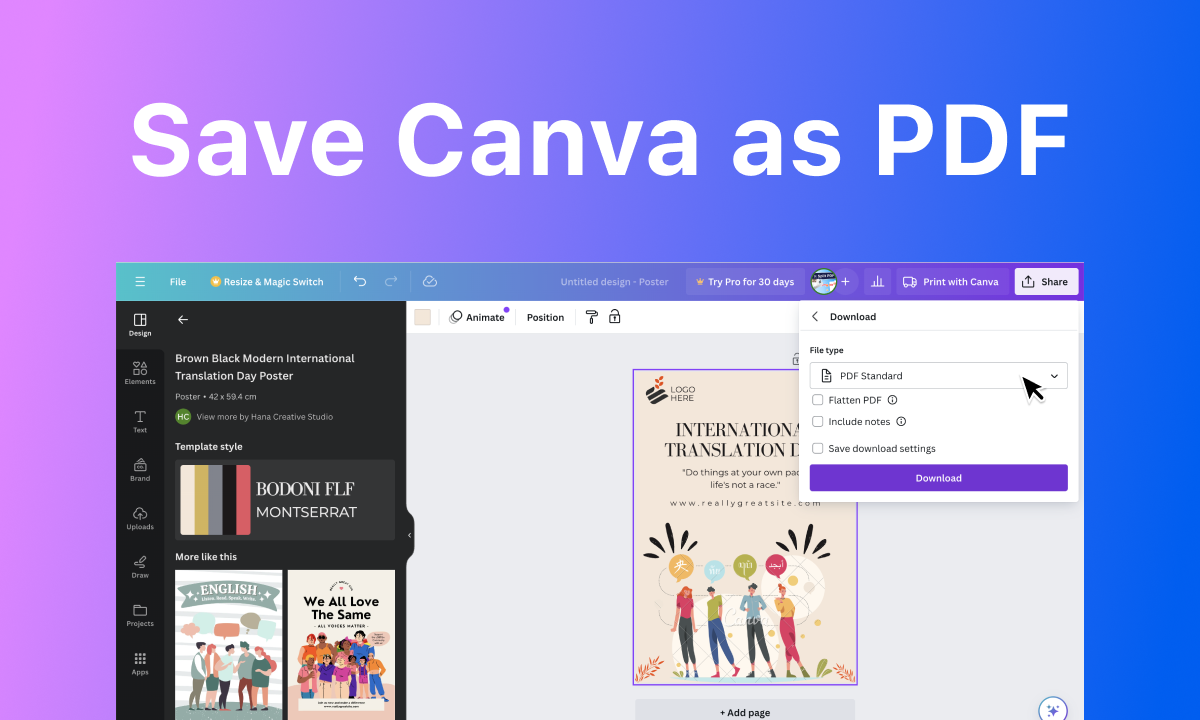
How to Save Canva as PDF
Since its launch, Canva has greatly assisted designers and photographers in their creative work. To effectively disseminate art ideas, designs often need to be saved as PDFs for printing and sharing across platforms and devices.
However, it still perplexs users to download the files as PDFs in Canva. Don’t worry, we’ve got you covered! This post will guide you step by step on how to save Canva files as PDFs. Keep reading to find out how.
How to Directly Save the Canva Design as PDF Online
Canva’s web-based designer provides various file templates for inspiration or direct use. It allows you to edit a resume or create a website. Whether on phones or PCs, to save the projects online with Canva, you need to:
Step 1. Open a Design Project with Canva
Open your files online with Canva. You can modify the PDF, image, or presentation in Canva before saving it.
Step 2. Save the Media File as PDF
In the file editing window, find and click/tap the “Share” button > In the follow-up menu, press the “Download” button.
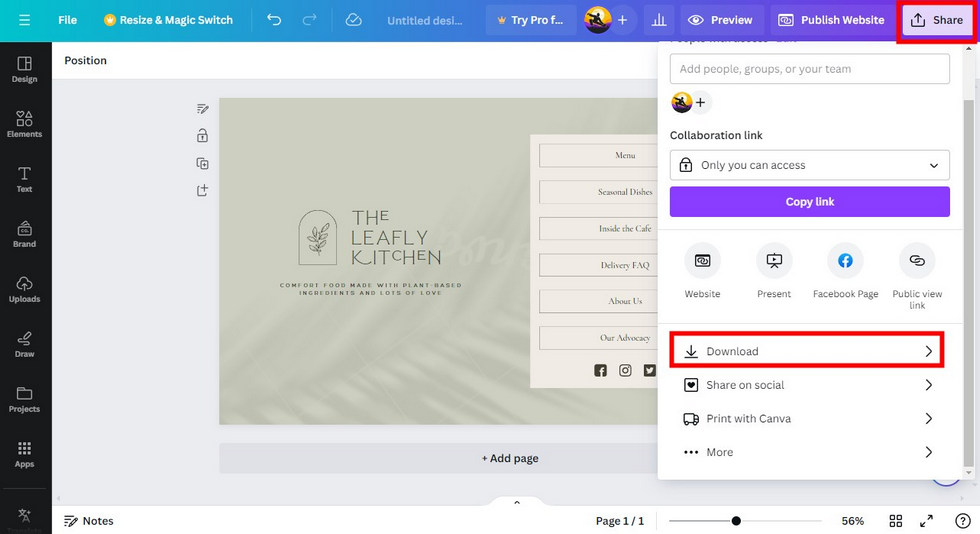
Download a Canva Design Online
Then, click/tap the drop-down menu of “File type” > Choose
- PDF Standard: PDF is of lower quality, for sharing and online viewing.
- PDF Print: PDF is of higher quality, for printing and further editing.
Based on your needs, you can make further selections for “Flatten PDF” or others. When choices are made, click the “Download” button.
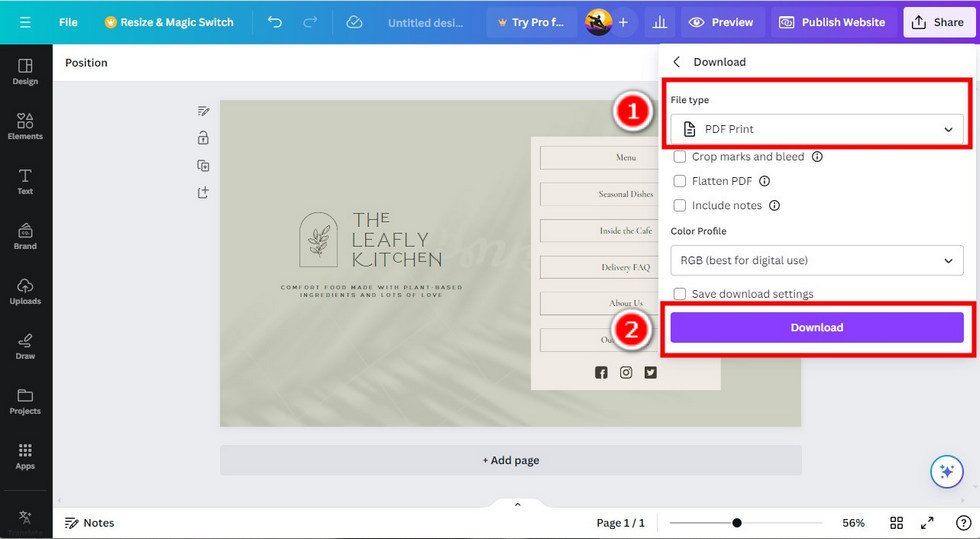
Save a Canva Design as PDF Online
Note: Some design elements like animations, interactivity, or specific fonts might be lost during the export process.
How to Save the Canva Projects as PDF on Software/App
For those who prefer working offline, saving large files as PDFs in Canva’s app is also quite simple.
Let’s take the mobile app as an example, here’s how you do it:
Step 1. Open a File with Canva on your Phone
Launch Canva on your mobile > Upload the file to Canva or select the existing design in Canva.
Step 2. Download the Design as PDF
Tap the share icon on the top right corner of the file editing page > Tap the “Download” button.
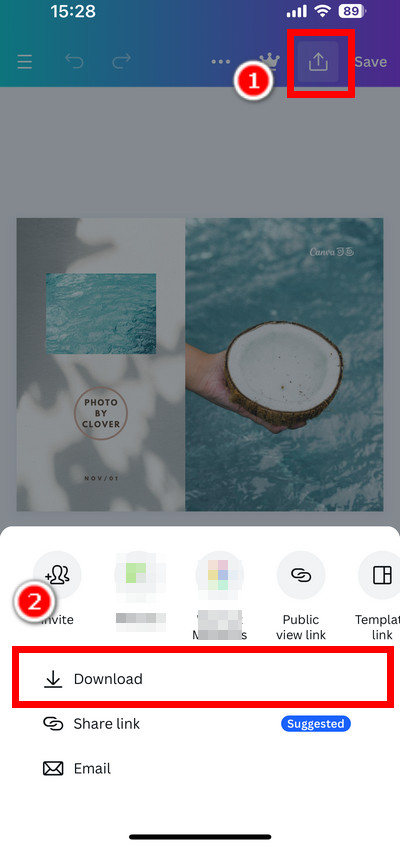
Download Design as PDF in Canva on Phone
Samely, opt for the PDF versions in the “File type” menu > Press the “Download” button at the bottom of the interface.
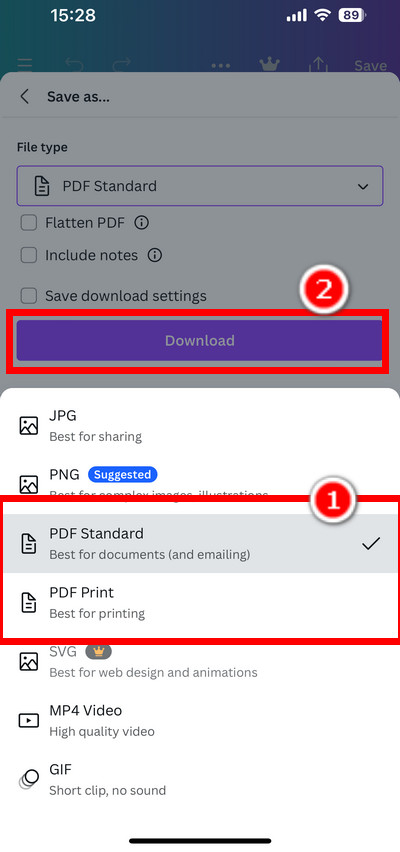
Save the Canva Design as PDF on Phone
How to Save a Shared Canva Link as PDF
In some situations, you may have only a Canva file link for viewing. To save the files within, however, would be a bit tricky. If you’re wondering how to download it, the following steps will help you out:
Step 1. Open the Link on Your Browser
Click to open the Canva design link on a Browser with a default file viewer, like Google Chrome or Microsoft Edge.
Step 2. Print the Canva Design as a PDF
For image-based files, when viewing them on the browser, right-click the images > Choose “Print…” or Press Ctrl + P > In the print window, select “Destination” as “Save as PDF” > Press “Save.”
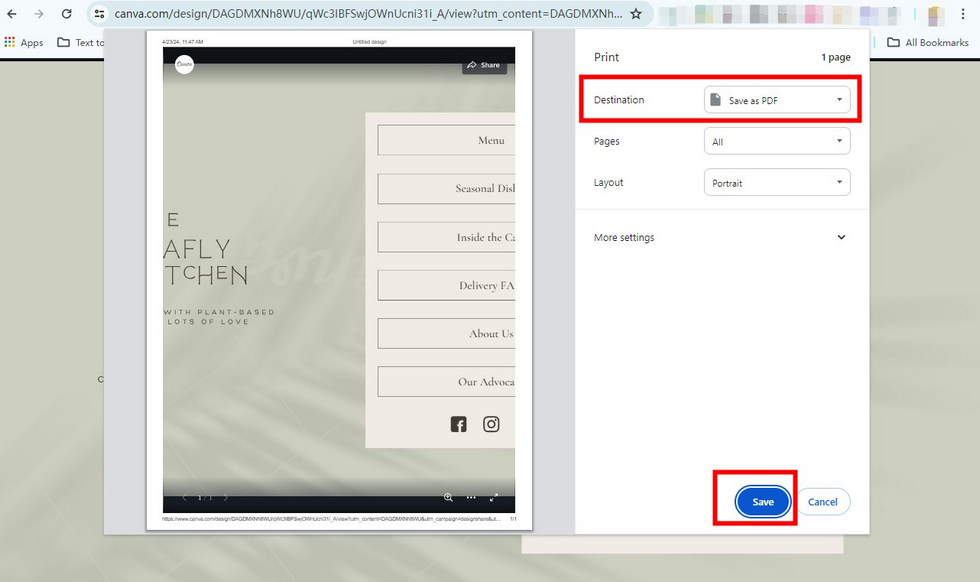
Save a Canva Design Link as a PDF
For files containing multiple images, you’ll need to repeat the saving operation for each page individually.
How to Batch Convert the Downloaded Canva Files to PDF
If you’ve saved Canva designs in other formats before, individually downloading them as PDFs can be a hassle.
But a professional file tool like PDFgear can help. It’s a versatile converter that turns webpages, PPT files, and even PSDs into PDFs for free.
It supports batch conversion to streamline your workflow. With only three steps, PDFgear helps to complete the tasks conveniently.
PDFgear is the top-notch option to batch convert Canva designs to PDF on Windows and Mac computers. It’s free, safe, full-featured, and easy to use.
Step 1. Open PDFgear
It is a lightweight and a no-frills software. Install PDFgear and launch it on your computers.
Step 2. Upload Canva Designs to the Converter
Click the “Convert to PDF” button in the window > Choose the converter you need below > In the new window, click “Add Files” > Select the Canva design files to open.
Step 3. Convert the Files
When uploading files, if you want them saved as a single PDF, simply check the “Output In One File” box. Otherwise, they will be saved separately. Then, click the “Convert” button. The converted files will be kept on your device automatically.
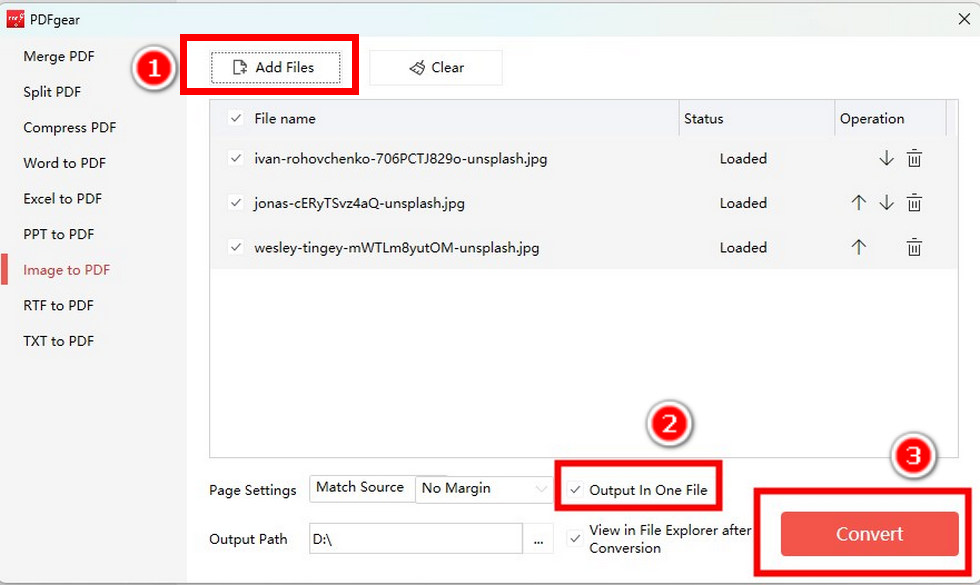
Convert Canva Design as PDF in PDFgear
FAQs
Can I use Canva for PDF?
Yes. You can upload PDFs to edit, or export designs as PDF files in Canva. It offers templates and tools for text and graphics designing in a PDF.
Can I adjust the quality or resolution when saving Canva designs as PDFs?
Yes. There are two options for PDF output quality for you to choose from: PDF Standard and PDF Print, which respectively refer to lower and higher quality.
How can I export multiple Canva designs into a single PDF?
You can directly not export multiple designs into a single PDF in Canva, however, you can use PDFgear to merge the saved Canva designs into one file:
Download each design as a PDF > Go to PDFgear’s online merger > Upload the PDFs to the merger and arrange them as needed > Click the “Merge” button > Click the “Download” button.
Conclusion
Now you know how to save Canva designs as PDFs, making printing and sharing documents a breeze. Plus, with PDFgear, you can convert multiple Canva files to PDF for free, boosting your productivity even more!
