How to Merge PDF Files on Mac for Free
Table of Contents
Merging PDFs on a Mac doesn’t have to cost anything. You can do it online, offline, or with tools already built into macOS.
In this guide, you’ll learn how to combine entire PDFs, merge selected pages, use specific page ranges, and put everything in the order you want on a MacBook Air, MacBook Pro, or iMac.
Merge PDFs and Arrange Individual Pages Online
PDFgear’s online PDF merger lets you combine PDFs directly in your browser without installing an app. You can arrange whole files first, then switch to Show Pages to reorder or remove individual pages before exporting.
It’s free to use, requires no sign-up, adds no watermark, and processes your PDFs locally in the browser rather than uploading them to a server for merging.
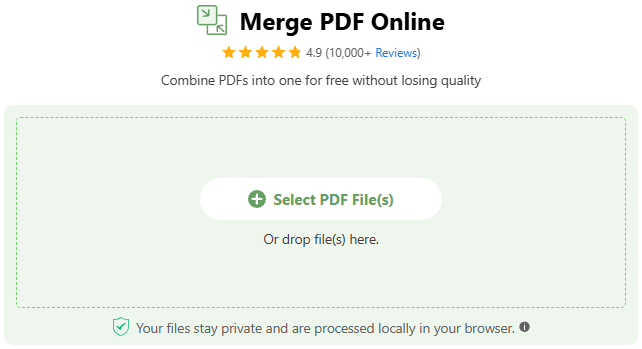
1. Open the PDFgear online PDF merger in your browser. Click Select PDF File(s) and choose the PDFs you want to combine.

2. Click Add PDF Files to add more documents if needed, then drag the files into the order you want. You can use the + button to insert another file at a specific position.
3. Turn on Show Pages if you want to work with individual pages. Drag pages to reorder them, and remove unwanted pages.
4. Click Export, then Download File. Open the merged PDF and check that the page order is correct.
Combine PDF Online Mac without Uploading
Merge Specific Page Ranges with PDFgear for Mac
If you prefer working offline for free or need more control over which pages are included from each PDF, switch to PDFgear for Mac. It lets you set a different page range for each file, arrange the file order, and choose the name and save location for the merged PDF.
Batch Merge PDF on Mac with PDFgear Software
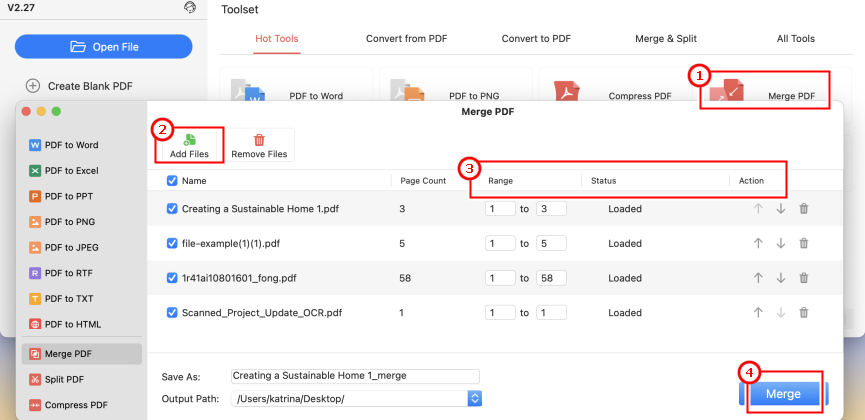
1. Open PDFgear for Mac and go to Hot Tools > Merge PDF.
2. Click Add Files and select the PDFs you want to combine. Use the arrows to arrange them in the order you want.
3. Use the up and down arrows under Action to arrange the PDFs in the order you want, then set the Range for each file to choose the starting and ending pages to include.
For example, you can select pages 1–3 from PDF A and pages 2–4 from PDF B. Leave the full range selected if you want to keep the entire file.
4. Enter the file name under Save As, then choose where to save the merged PDF under Output Path.
5. Click Merge. Open the saved PDF and check the page count and order to make sure the selected ranges were combined correctly.
Need to Insert Specific Pages?
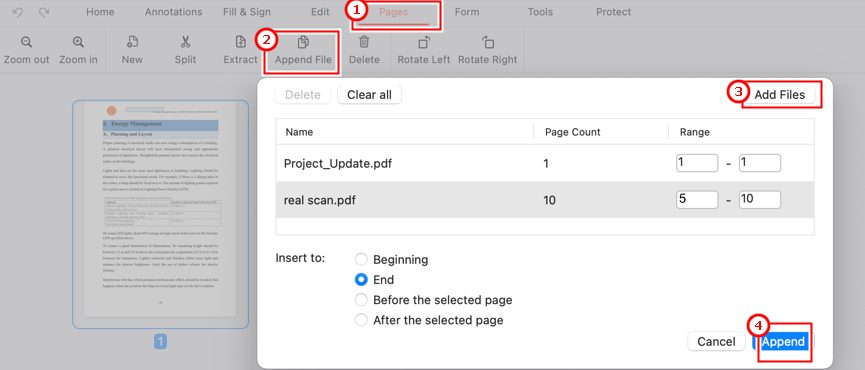
Go to Pages > Append File > Add Files, choose the page range you want to insert, set the insertion location, and click Append. After the pages are added, you can remove, rotate, or move individual pages as needed.
Insert Selected PDF Pages in PDFgear for Mac
Insert Selected Pages from Another PDF with Preview
Preview is a free, built-in way to merge PDFs on Mac. It works well when you want to insert a whole PDF or selected pages into another document. Because Preview saves changes automatically, make a copy of the destination PDF first so the original stays unchanged.
1. Open the destination PDF in Preview and choose File > Duplicate. Save the copy, then continue working with the duplicated file.
2. Go to View > Thumbnails to show the page thumbnails in the sidebar.
3. To merge a whole PDF: Choose Edit > Insert > Page from File, select the PDF you want to add, and click Open.
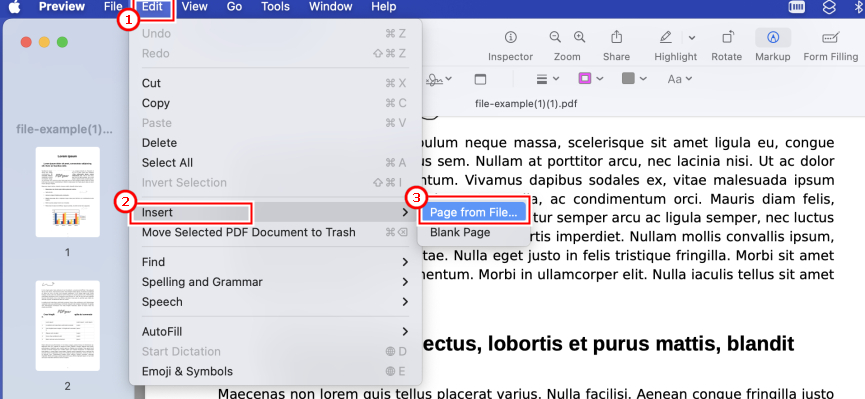
Combine the Whole PDFs in Mac Preview App
To merge only certain pages: Open the other PDF in Preview and show its thumbnails. Select the pages you want, then drag them into the thumbnail sidebar of the destination PDF and drop them where you want them to appear.
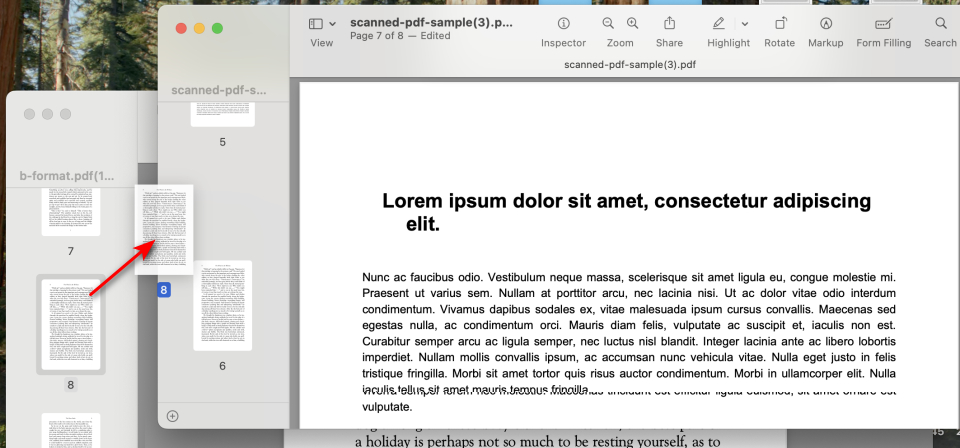
Combine Selected Pages with Preview on Mac
4. When finished, go to File > Export as PDF and save the combined document.
When Preview Is Less Suitable?
Preview works well for simple merges, but it’s more of a workaround than a dedicated PDF merging tool. If you’re combining many files or need different page ranges from each PDF, PDFgear for Mac gives you a more direct workflow.
Combine Whole PDFs Directly in Finder Quick Actions
If you only need to combine complete PDF files, Finder offers the straightforward built-in option on Mac. There’s no need to open a PDF editor. Just select the files you want, and Finder can create a new PDF from them through Quick Actions.
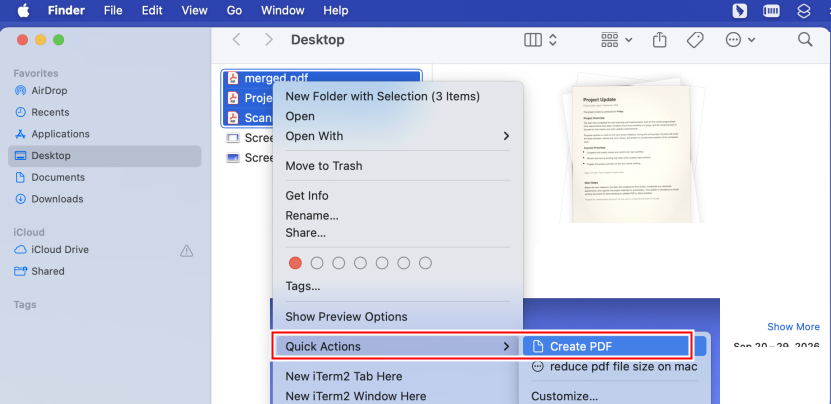
Create PDF from Multiple Files on Mac
This works best when you want to keep every page from each PDF and only need to control the file order.
1. In Finder, open the folder containing your PDFs and Command-click the files in the order you want them to appear.
2. Right-click the selected files, then choose Quick Actions > Create PDF.
3. Finder creates the merged PDF in the same folder, using a name similar to the first file you selected. Rename it if needed, then open it to check the page order.
Need More Page Control?
Finder only combines whole PDF files. If you need to select different page ranges from each PDF, PDFgear for Mac gives you more control.
Choose a Free Way to Merge PDFs on Mac
The main differences come down to page control and installation. Use the table below to quickly see which method fits your workflow best.
| Tools | PDFgear Merge Tool | PDFgear Online | Preview | Finder |
| Best for | Multiple page ranges | Rearrange individual pages | Insert selected pages | Merge whole PDFs |
| Installation | Yes | No | Built into macOS | Built into macOS |
| Range selection | Yes | No | No | No |
| Individual page control | No | Yes | Yes | No |
FAQs
Why can’t I combine PDF files correctly on my Mac?
This usually happens when files or pages are added in the wrong order, or PDFs are opened in Preview without actually being merged. PDFgear for Mac lets you arrange the file order and set page ranges before merging, so you can better control the final PDF. Follow Method 2 above for the full steps.
Why is my merged PDF larger, and how can I reduce its size?
A combined PDF usually contains more pages and resources than each source file, so the final file may be larger. If an email or upload limit requires a smaller file when sharing, you can separately reduce PDF file size on Mac.
How do I merge PDFs on Mac for free without Adobe?
You can use PDFgear for free. For the quickest option, open the PDFgear online PDF merger, add your PDFs, arrange the files or individual pages, then click Export > Download File.
If you prefer working offline, open PDFgear for Mac > Hot Tools > Merge PDF, add the files, set the order or page ranges, and click Merge.
Will merging PDFs reduce quality or preserve links and forms?
Merging PDFs is different from compressing them, so the merge itself does not automatically reduce image quality. Links, bookmarks, annotations, and form fields may not always be preserved, depending on the source files and the method used. Check the merged PDF before sharing it. If a hyperlink is missing, you can add a link to the PDF with PDFgear.
Can I merge password-protected PDFs on Mac?
Yes. In PDFgear, go to Hot Tools > Merge PDF and add the password-protected PDF. Enter the correct password when prompted, then add the other files, arrange the file order or page ranges, and click Merge.
Does merging scanned PDFs make them searchable?
Not by itself. If the scanned pages are image-only, use PDFgear’s OCR feature to make the PDF searchable: open the PDF, go to Home > OCR > OCR to Searchable PDF, then save the new file. After that, you can use Command + F to search the text.
Conclusion
Merging PDFs on a Mac can be done for free with online, desktop, or built-in tools. The best option depends on whether you need to combine whole files, insert selected pages, or use specific page ranges. Whatever method you choose, check the final PDF’s page order, content, and file location before sharing or replacing the originals.
