How to Convert TXT to PDF Without Losing Formatting – 4 Ways

Summary :
How to convert TXT files to PDF without losing formatting? This article introduces four methods to you. Read on to learn about step-by-step guides.
Table of Contents
Convert TXT to PDF without Losing Formatting
TXT is a plain text file format, while PDF is a portable document format that preserves the formatting of the original document. It is essential to convert TXT to PDF without losing formatting to ensure that the document looks professional and retains its original layout when shared or printed.
If you are struggling with this issue, follow this article to discover effective solutions for converting TXT files to PDF seamlessly.
Don’t let formatting issues hinder the effectiveness of your documents. Read on and find solutions now!
Using Free TXT to PDF Converter Without Formatting Loss
Conversion may result in quality loss. To preserve formatting and ensure data security, you can use PDFgear, a feature-rich TXT to PDF converter. With it, you can convert TXT files to PDF without losing any formatting or affecting fonts. Its features are as follows:
- A free PDF converter with a clear interface;
- Convert TXT to PDF in batches without losing format;
- There is no limit on source files’ size;
Follow the instructions below to learn how:
Step 1. Download, install, and launch PDFgear on your computer. After opening PDFgear, you need to select “Convert to PDF” from the top menu bar and select “TXT to PDF” to proceed.
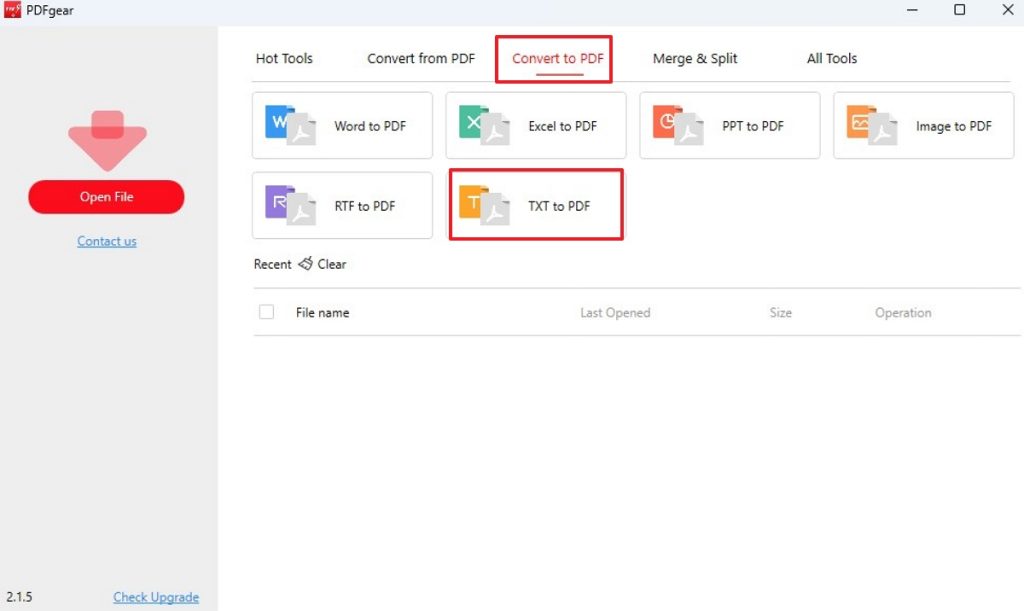
Navigate to Convert to PDF Section and Select TXT to PDF
Step 2. Click “Add File” to import the source TXT file, click the three dots next to the “Output Path” box to select the location to store the converted file, and click “Convert” to start conversion.
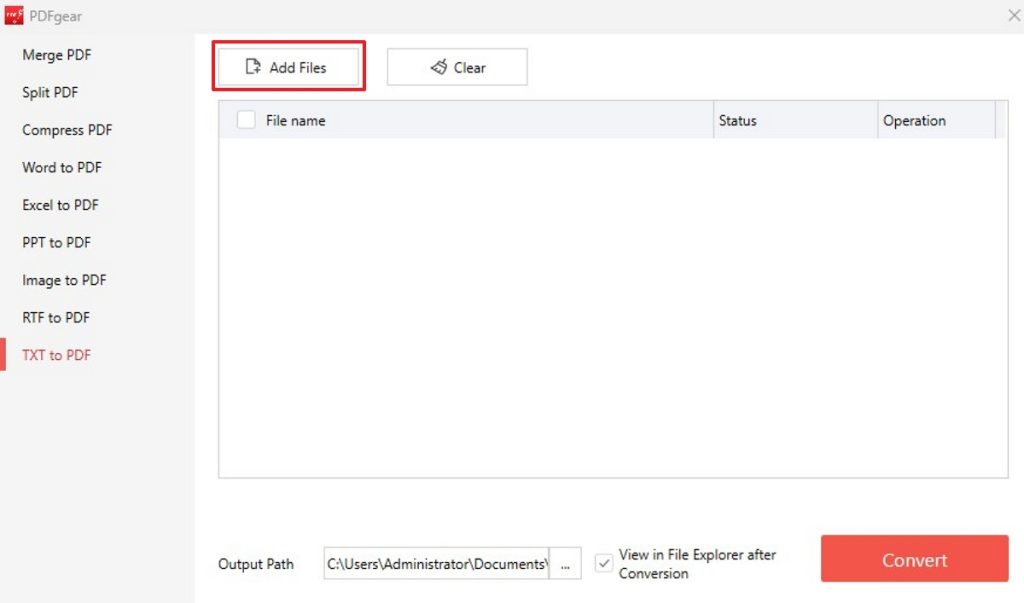
Click Add Files to Upload Source TXT File
PDFgear allows users to upload multiple files in batches without being limited by file size or quantity, allowing you to convert a large number of files at once, which will save you a lot of time.
In addition, it’s also a reliable PDF editor and enables users to copy text from PDF without line breaks.
Convert TXT to PDF with Microsoft Word
Microsoft Word offers a convenient feature for converting TXT files to PDF files without losing formatting. With Microsoft Word, users can easily open a TXT file, make any necessary formatting adjustments, and then save the TXT document as a PDF file.
This seamless conversion process ensures that the document retains its original layout and appearance.
Here is how to convert TXT to PDF using Microsoft Word:
Step 1. Open Microsoft Word and click on “File” in the top left corner.
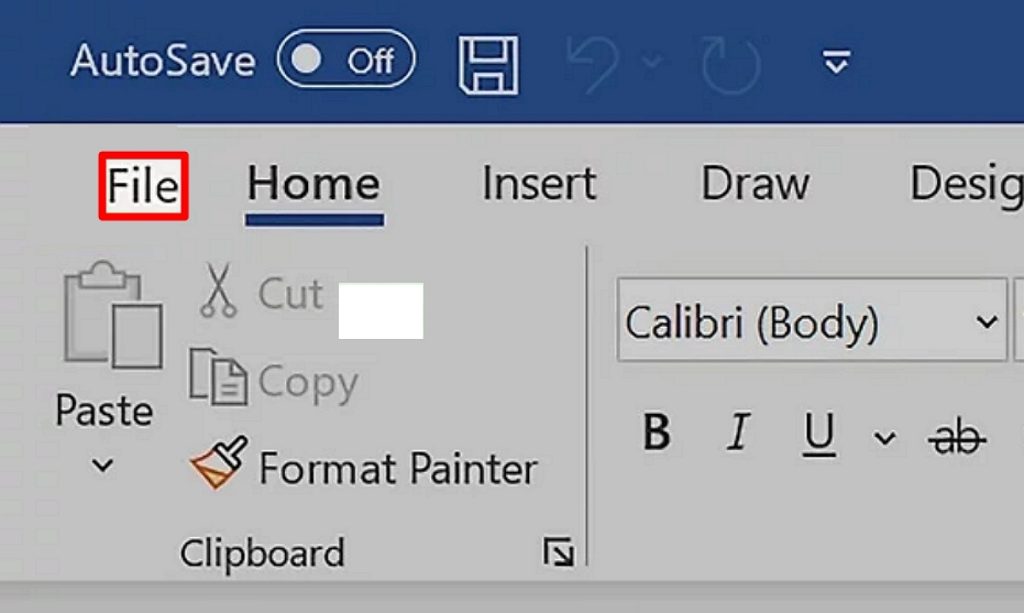
Click File to Open TXT File in Word
Step 2. Select “Open” and choose the TXT file you want to convert.
Step 3. Click on “File” again after any necessary adjustment, then select Save As or Export. (Here, I’ll set “Export” as an example.)

Export TXT to PDF in Word
Step 4. In the Export tab, select “Create PDF/XPS Document” and then “Create PDF/XPS.”
Step 5.Then, you need choose a destination location where you want to save the PDF file and assign a name to your target PDF conversion file.
This way, your TXT file is saved as a PDF file in the destination location you just selected.
Using PDFgear Online TXT to PDF Converter
Another straightforward way to convert TXT to PDF without losing formatting is to use an online tool like PDFgear Online TXT to PDF Converter. This online converter is easy to use and provides high conversion speed.
You can convert files directly on your browser (e.g., Google, Edge, Firefox, etc.) without any program. Here’s how to do it:
Step 1. Access PDFgear TXT to PDF Converter in your web browser. Or open this URL directly:
Step 2. Click “Select TXT File” to upload your file. Or you can drag and drop the TXT file to the current web page. Then, PDFgear TXT to PDF Converter automatically converts your files.

Go to Converter
Step 3. After the conversion, click “Download” to save the PDF file to your device, and you can choose a suitable storage location for it.
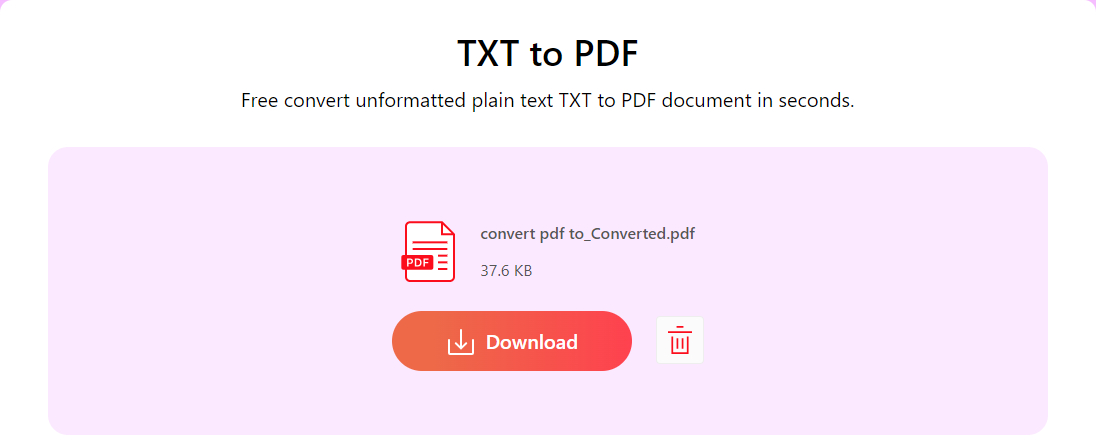
Download Converted PDF
Well, if you want to batch upload and convert files, it’s suggested you turn to PDFgear Desktop, which can also convert Word to PDF without changing font.
Change TXT to PDF Using Notepad
Notepad is a universal text editor included in all Microsoft Windows that allows you to read, edit, or create plain text files with a .txt file extension. You can also use Notepad to convert TXT to PDF.
You can do this offline, even if you don’t have a stable internet connection. Here is how to use Notepad to convert a TXT file to a PDF file while keeping its original formatting:
Step 1. To open the TXT file in Notepad, you can double-click the TXT file or right-click it, and select Open it with Notepad.
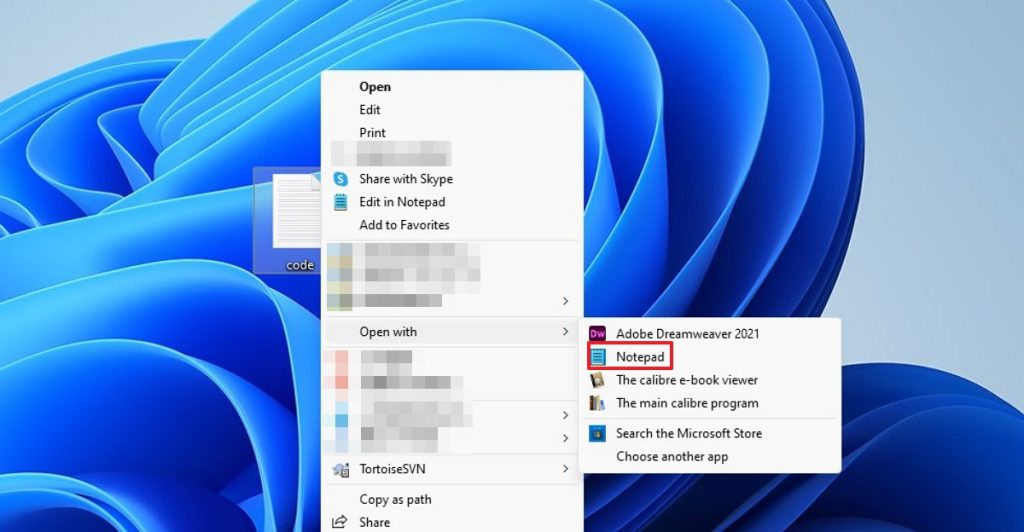
Open TXT File with Notepad
Step 2. Go to “File” and select “Print.”
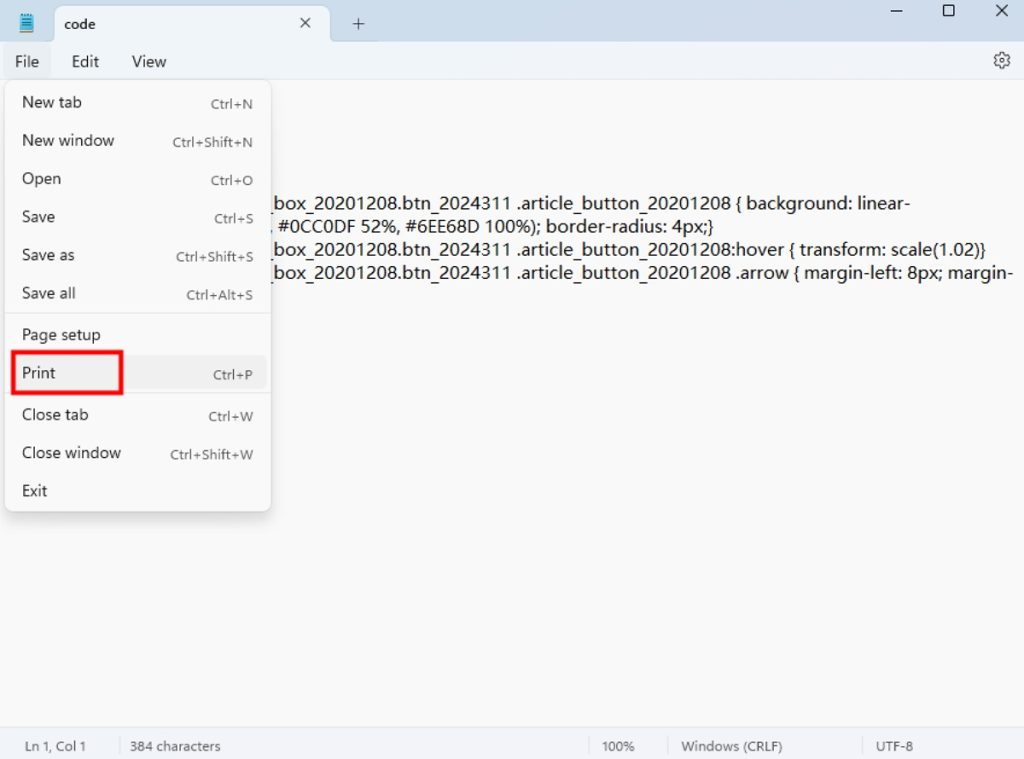
Select Microsoft Print to PDF Under the Printer Section
Step 3. Then, in the printer options, choose “Microsoft Print to PDF” under the printer drop-down box.

Microsoft Print to PDF
Step 4. Click on “Print” and choose a location to save the PDF file. Do not forget to name the file and click “Save.”
Your TXT file will be converted to PDF without losing formatting and saved in the correct location.
What Is Formatting in TXT, and How to Keep It?
Formatting in a TXT file typically refers to text alignment, font styles, spacing, and line breaks.
To keep formatting when converting a TXT file to a PDF file, you can use a text editor like Notepad or Microsoft Word to adjust the formatting before saving it as a PDF.
Additionally, it is an easier and safer option to consider using PDFgear specifically designed to convert TXT to PDF while preserving formatting. Using these right tools, you can successfully retain the formatting of your TXT file when converting it to a PDF.
Conclusion
During TXT to PDF conversion, it is crucial to ensure that fonts, sizes, and alignment are consistent throughout the document. This article introduces four ways to convert a TXT to a PDF without losing any formatting. Various PDF converter tools make TXT file to PDF file conversion easy, safe, and fast.
You can choose the suitable conversion tool to deal with the conversion task based on your specific needs and the device you use. PDFgear is one of the most powerful converting tools and can finish conversion tasks, like converting Excel to PDF without losing formatting.
