Simple Steps to Insert PDF Files into Your Google Sheets

Summary :
Unable to use Google Sheets to process PDF information? Don’t worry, this article will take you through 4 effective solutions to insert PDFs into Google Sheets.
Table of Contents
Insert PDF Files into Your Google Sheets
In some industries, you may need to process PDF documents containing large amounts of data such as orders, invoices, deliveries, user registrations, etc., but the PDF format is not conducive to data processing and calculations.
In this case, you may need to convert the PDF to a worksheet. As Google Sheets is the most powerful online collaboration form, it is particularly important to master the skills of inserting PDF into Google Sheets.
This article will take you to learn 4 effective methods of inserting PDF into Google Sheets to help you quickly process PDF information.
Insert PDF in Google Sheets by Converting
The easiest way to first insert a PDF into Google Sheets is to extract the PDF’s information and paste it into Google Sheets.
PDFgear provides a series of professional PDF online format converters that can quickly and easily convert PDF into fully editable Excel spreadsheets with high accuracy and preserve the original format.
No registration or login required, completely free. And there is no need to download or install any third-party software on your computer, you can convert and insert PDF content into Google Sheets online.
Step 1. Access PDFgear PDF to Excel Online Converter > Click “Choose files” or Drag and Drop PDF to the appropriate location to upload the PDF that needs to be processed.
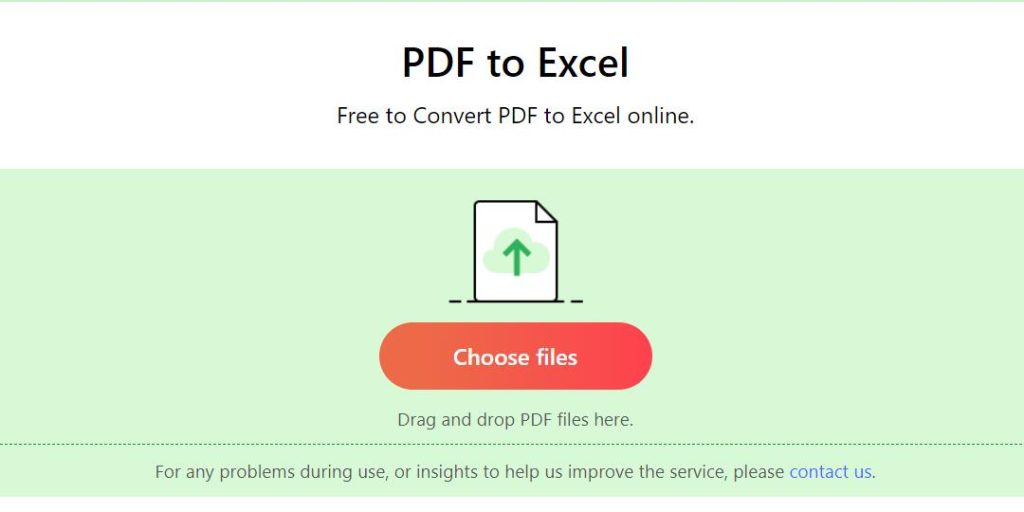
Upload PDF to PDFgear Format Converter
Step 2. Wait a few seconds and PDFgear will convert PDF to Excel online > Click “Download” to download the editable Excel table to your local computer.
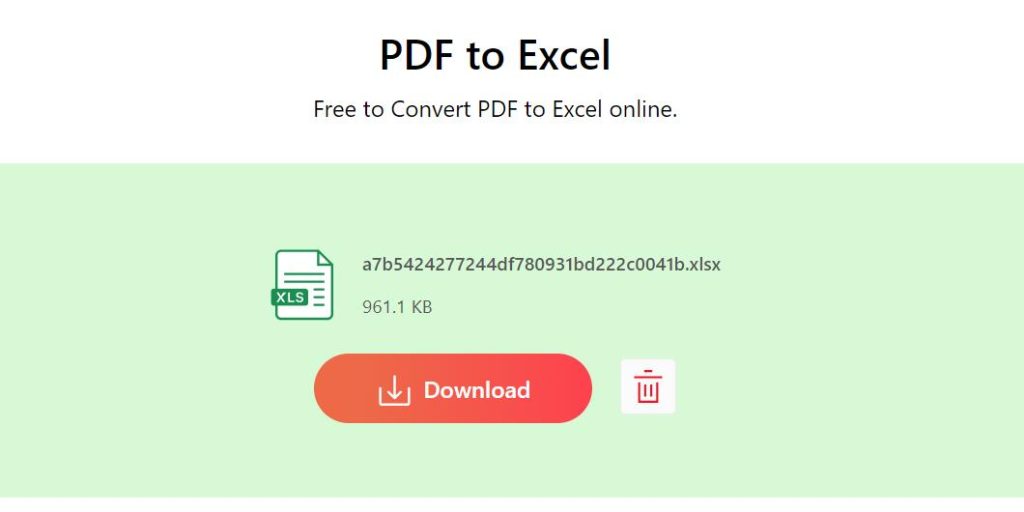
Convert PDF to Excel
Step 3. Open the Excel you just downloaded > select all the data > right-click the mouse > click “Copy”.
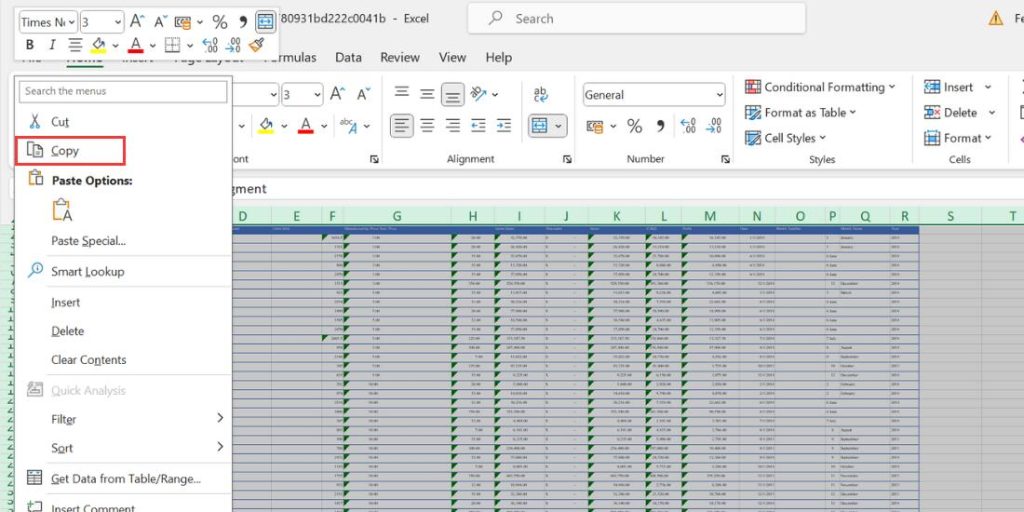
Copy All Table Data
Step 4. Open Google Sheets > Right-click the location where the PDF content needs to be inserted > Click “Paste” to insert the PDF content into Google Sheets.
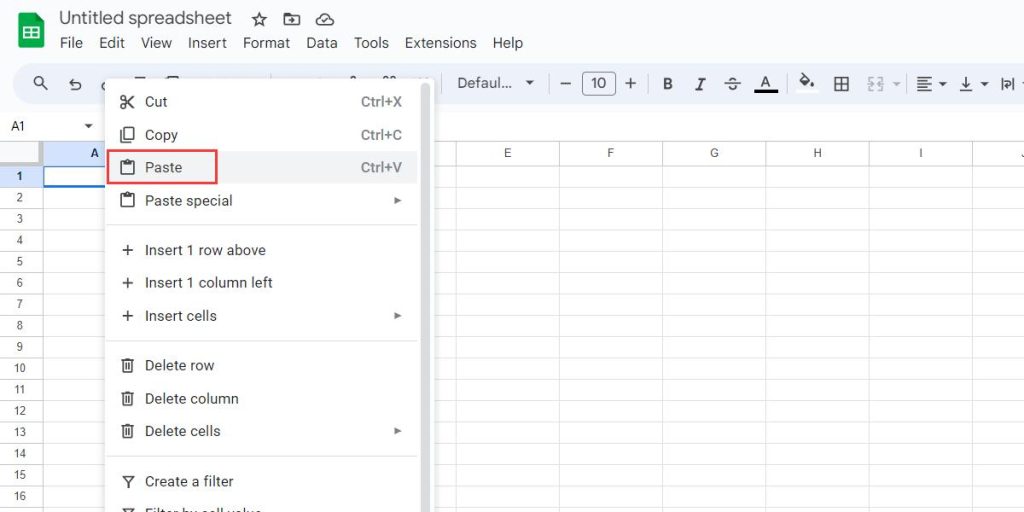
Paste the Table into Google Sheets
However, this method can only process one PDF file at a time and is highly dependent on the network. Once the network is terminated, the conversion will fail. Therefore, we recommend PDFgear offline PDF Editor.
Not only can it process PDF conversion offline, but it also supports batch conversion, making it the best choice for processing large amounts of PDF work.
PDFgear Converter enables simultaneous processing of multiple PDF files, preserving their original format and layout. This service is free and does not require registration.
Add PDF to Google Sheets via Link
If you just need to insert the PDF into Google Sheets as a content explanation or additional supplement, you can choose to insert the PDF as a link.
This method can conveniently and directly share the PDF with other people collaborating in real-time in Google Sheets, allowing them to quickly obtain information.
Step 1. Open Google Drive > Click “New” > Select “File Upload” and upload the target PDF file to Google Drive.
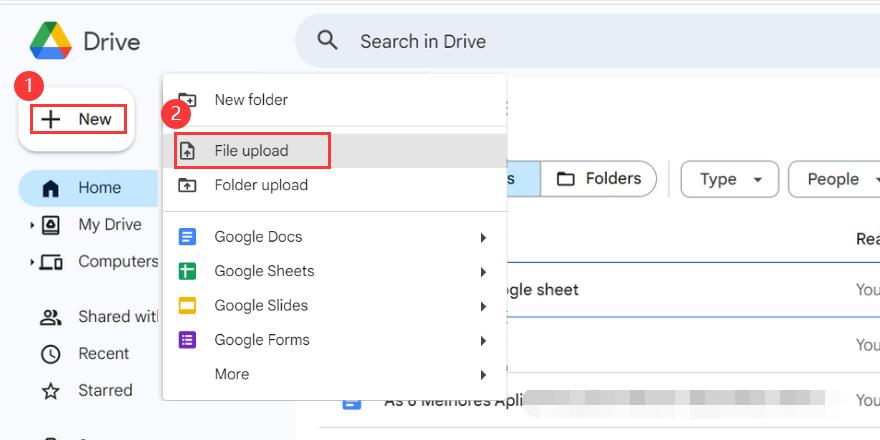
Upload PDF to Google Drive
Step 2. Click “…” next to the document > “Share”> Click “Copy link”.
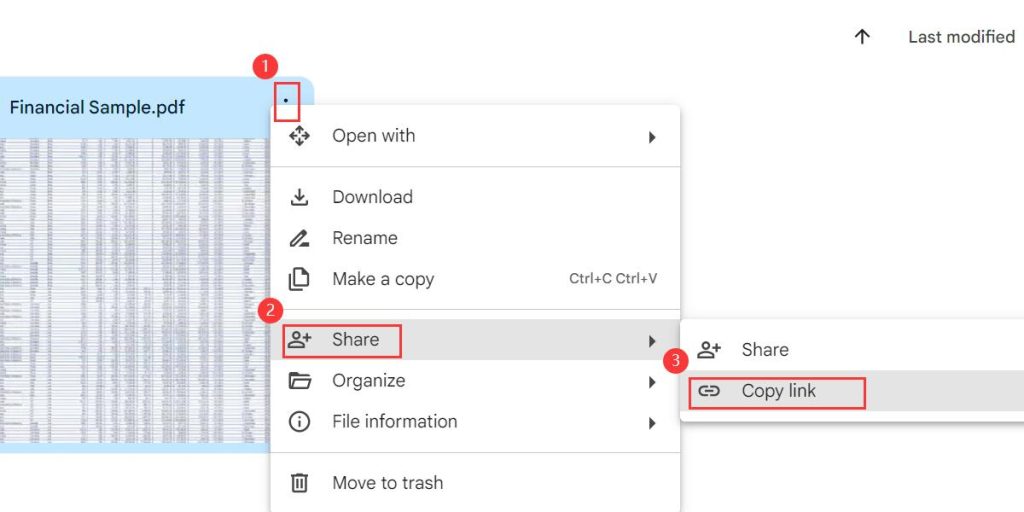
Share the Document as Link
Step 3. Open Google Sheets > Select the location where you want to insert the link > Right-click the mouse > Click “Paste”.

Insert PDF as a Link into Google Sheets
If you want to display the PDF file name, you can press “Tab” to create it.
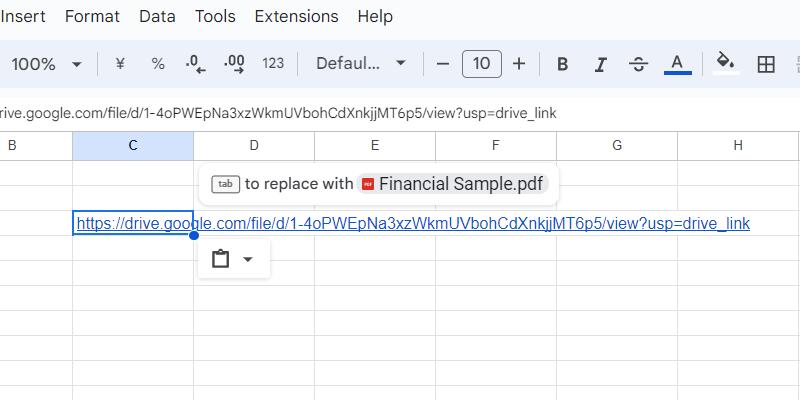
Replace the Link with the Name of the PDF
If you want to insert the PDF into part of the content in Google Sheets: right-click the target cell > click “Insert Link”.
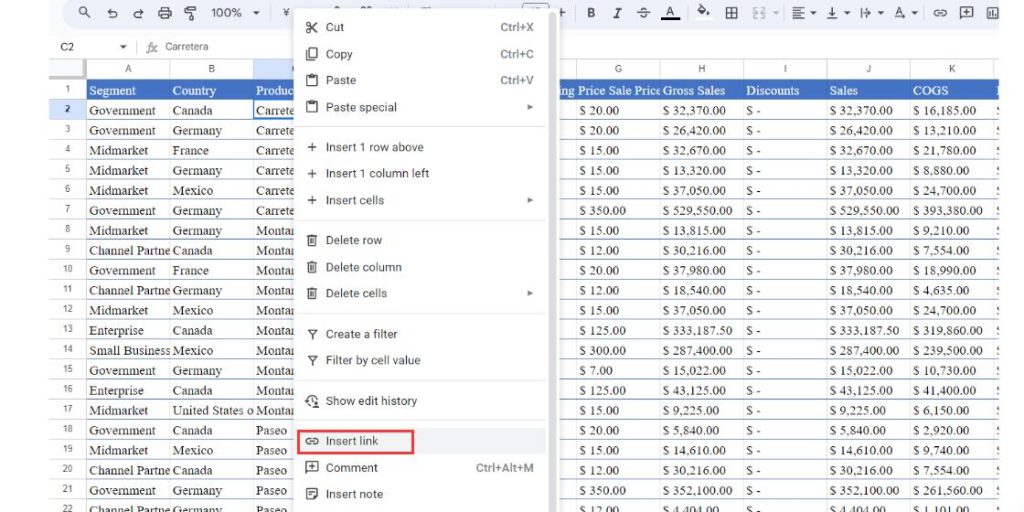
Insert Link into Google Sheets
Paste the copied link > Click “Apply”.
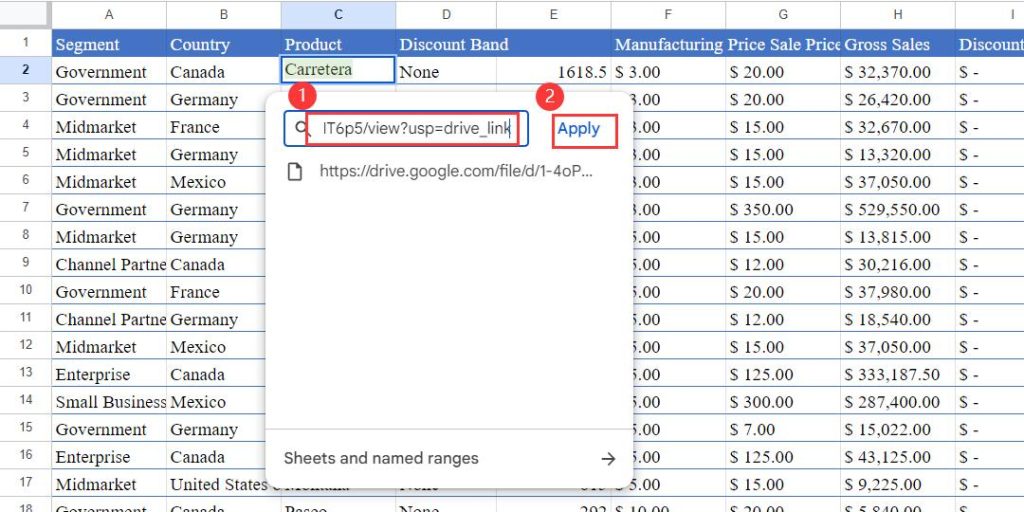
Apply Link to Cell
Embed PDF in Google Sheets as an Image
If you want the content of the PDF to be displayed directly in Google Sheets, another possible method is to convert the PDF to an image and insert the image into Google Sheets.
PDFgear PDF to Image Converter supports online conversion of PDF to a variety of commonly used image formats including JPG, PNG, JPEG, etc. without any restrictions. You can convert PDF files of any size and length.
However, this method is more suitable for PDF documents with only one page to ensure the high-quality presentation of PDF content in Google Sheets.
Step 1. Access PDFgear PDF to Image Converter online > Click “Upload your PDF File” to locally select and upload the PDF file that needs to be converted.

Upload PDF to PDFgear PDF to Image Converter
Step 2. Wait for PDFgear to analyze your PDF and complete the conversion > Click “Download File” and PDFgear will save the converted image locally in the form of a compressed package.
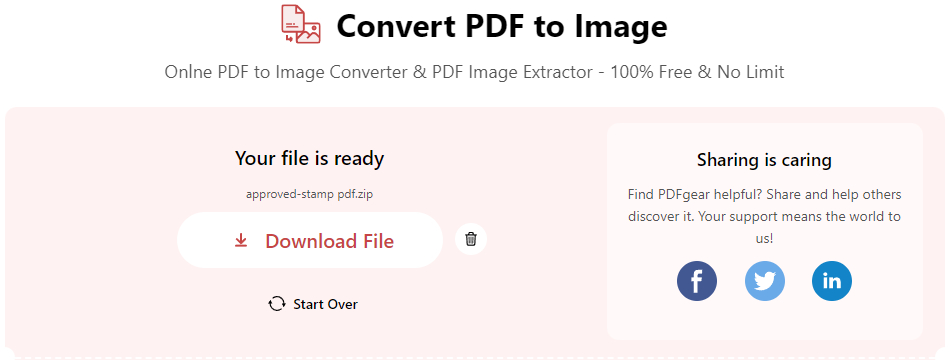
Download PDF Converted Images
Step 3. Insert the image into Google Sheets. There are two methods.
The first and easiest method: directly copy the image you just downloaded > Open Google Sheets > Right-click the mouse > Select “Paste” to insert the image into Google Sheets.
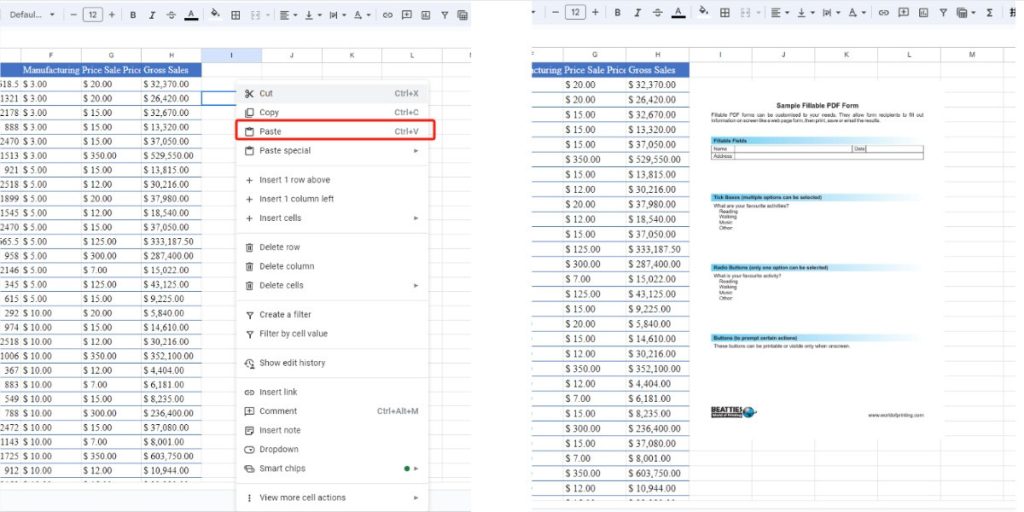
Paste the Image into Google Sheets
The second method: Upload the image to Google Drive > Return to Google Sheets > Click “Insert” > “Image” > You can choose “Insert Image in cell” or “Insert Image over cell”.
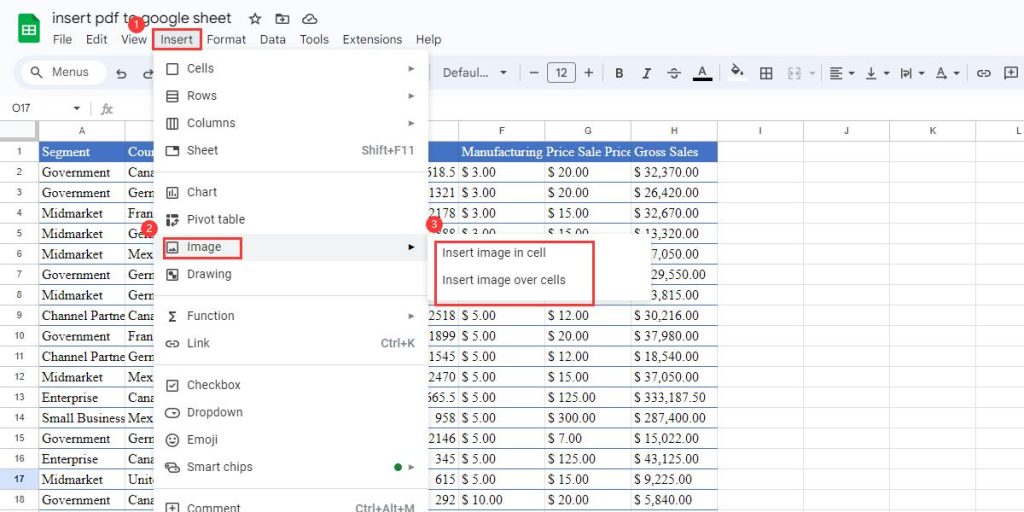
Insert Image into Google Sheets
Insert PDF in Google Sheets With Google Sheets Functions
The last and latest way to insert PDFs into Google Sheets is to utilize Google Sheets Functions. This method can help you quickly insert PDFs into Google Sheets in the form of hyperlinks, thereby enhancing the interactivity of the document.
In addition, you can customize more functions to help you quickly process the information and data in PDF.
Step 1. Launch Google Sheets and locate the cells where you intend to embed the PDF.
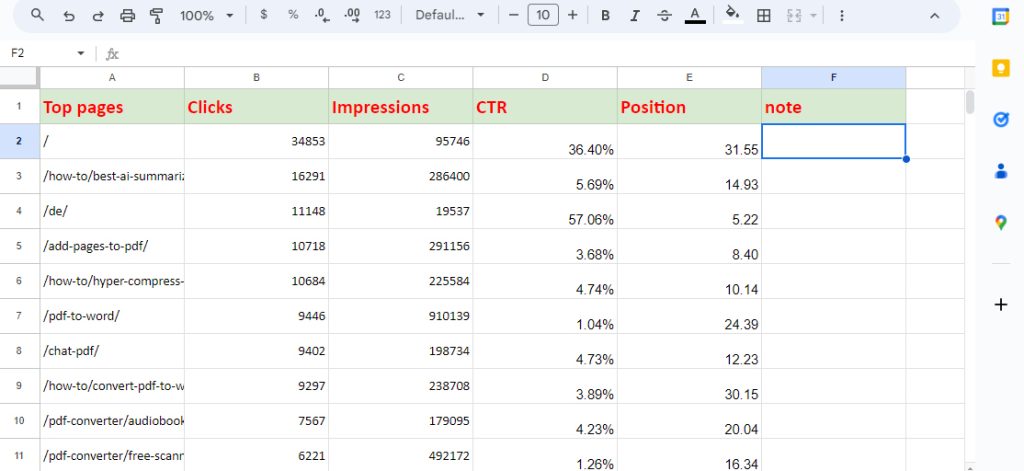
Navigate to the Cell
Step 2. Click the “Functions” button > Hover over “All” > Scroll down and choose the “HYPERLINK”
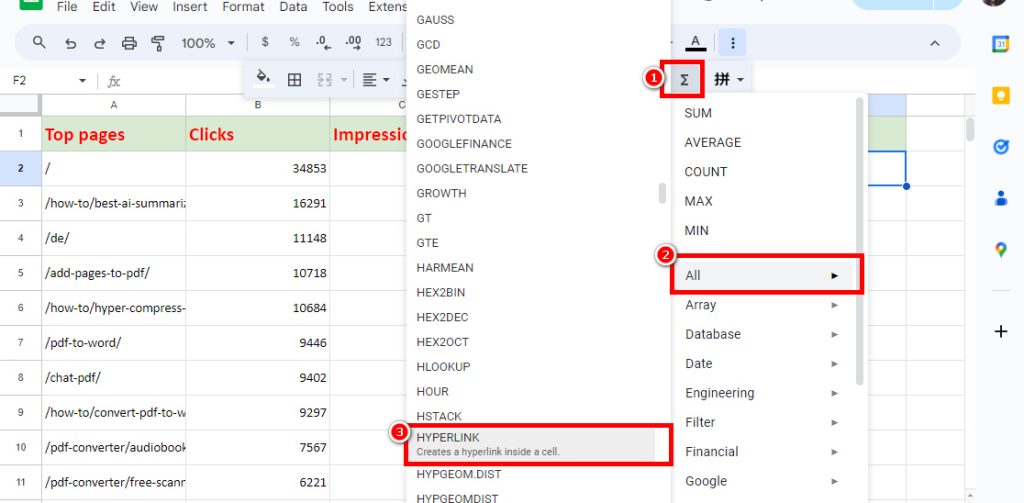
Choose the HYPERLINK Function
Step 3. Enter the PDF URL and Link Text into the function, enclosing each with double quotes as follows: =HYPERLINK(“URL”, “Link Text”). Then press “Enter” on the keyboard to insert the PDF to Google Sheets
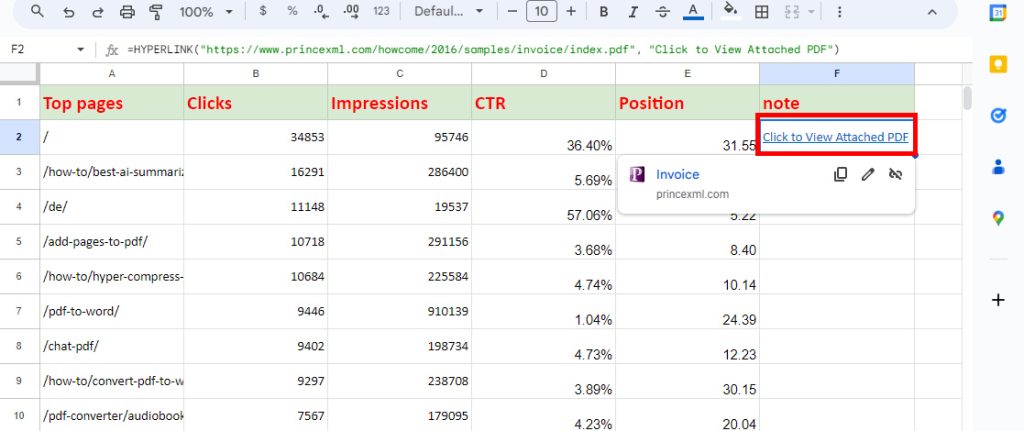
Complete the Function and Insert PDF
FAQs
Can I Directly Embed a PDF into Google Sheets?
Sure. You can embed PDFs directly into Google Sheets as links, or images, or using Google Sheets Functions.
Can Google Sheets Import Data from a PDF?
Google Sheets cannot import data directly from PDF files. However, you can use PDFgear to convert PDF to Excel and then import the data into Google Sheets.
How Do I Fill out a PDF in Google Sheets?
Google Sheets does not support filling out PDFs directly. But you can use some third-party tools.
Use PDFgear Online Converter to convert PDF to Excel > Copy the PDF content to Google Sheets > Fill out the PDF > Click “File” > “Download” > Select to download the file in “PDF” format.
Conclusion
Although you cannot insert PDFs directly into Google Sheets, with the help of some third-party tools, you can import PDFs into Google Sheets as a link, image, or copied content.
Choose the method that best meets your needs to enhance your data processing and information-sharing capabilities.
