How to Add an Attachment to a PDF

Summary:
Learn how to add Word, Excel, PDF, and other files as PDF attachments for free, then open, save, manage, and check them before sharing.
Table of Contents
You can add files like Excel, Word, or another PDF as attachments inside a PDF without turning them into new pages. This guide shows you how to add, open, save, and manage PDF attachments, plus what to check before sharing the file.
Add and Manage PDF Attachments for Free with PDFgear
PDFgear lets you embed files in a PDF as separate attachments and manage them from the Attachment panel.
Attachment support is currently available in PDFgear for Windows. Mac users, stay tuned.
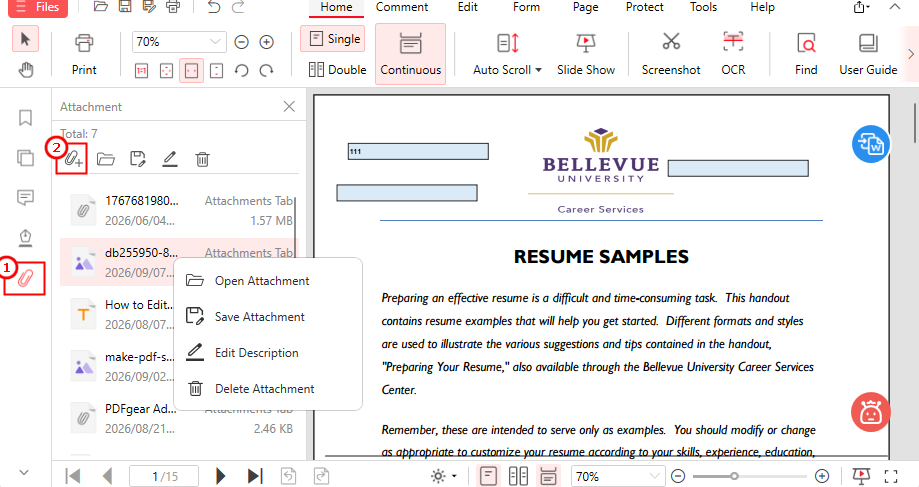
Attach Files in PDF with PDFgear for Free
1. Download PDFgear for Windows, then open the PDF.
2. Click Attachment on the left, then select Add Attachment. Alternatively, go to Edit > Attachment > Add Attachment.
3. Choose the file you want to attach. You can add Excel files, Word documents, PDFs, images, and other file types. You can also select multiple files at once.
4. Check that the files appear in the Attachment panel.
5. Save the PDF, then reopen it and check the Attachment panel to make sure the files are still there.
Manage Attachments in One Place:
PDFgear keeps attachment management in one place, so you can open, save, describe, or remove attached files from the Attachment panel.
Attach Files to a PDF with Adobe Acrobat Pro
If you already use Adobe Acrobat Pro, or don’t mind paying for its full editing tools, you can add file attachments directly in the app. The files stay with the PDF and can be checked from the Attachments pane. Here’s how to add one.
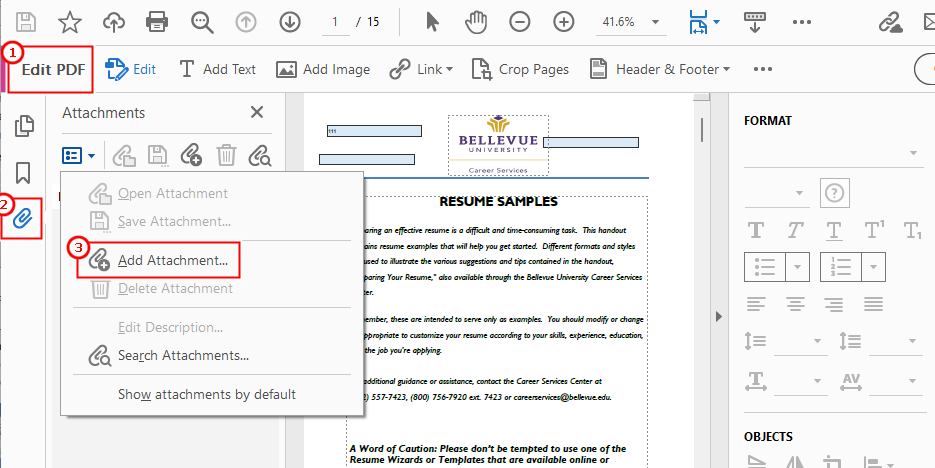
Embed Files into PDF as Attachment with Acrobat Pro
1. Open the PDF in Acrobat Pro and select Edit PDF.
2. In the left panel, click Attachments: View file attachments.
3. Open the Options menu and select Add Attachment.
4. Choose the file you want to attach, click Open, then save the PDF. Check the Attachments pane to make sure the file was added successfully.
Another Option:
If you want a free Windows alternative, PDFgear lets you add and manage PDF attachments from one panel.
How to Open, Save, and Manage PDF Attachments
Once a file is attached, you can manage it directly from the Attachment panel in PDFgear. Right-click an attachment to see the available options.
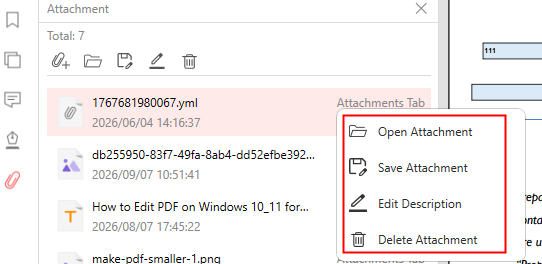
Manage PDF Attachments in PDFgear
| Command | What it does | When to use it |
| Open Attachment | Open separately in a compatible app | View or work with the original file |
| Save Attachment | Save the attachment as a separate file | Keep, share, or edit the attached file |
| Edit Description | Explain what the attachment contains | Help readers identify the right attachment |
| Delete Attachment | Remove the attachment from the PDF | You no longer need it in the document |
What to Know When Managing PDF Attachments:
- Opening an attachment may require a compatible app for that file type.
- Save Attachment creates a separate copy. Changes to that copy won’t update the PDF attachment. To update it, replace the old attachment with the revised file and save the PDF again.
- After editing a description or deleting an attachment, save the main PDF again to keep the changes.
Why Can’t I Find or Open My PDF Attachments?
PDF attachments may be unavailable because of the app you’re using, the file type, document permissions, or how the PDF was received.
1. The attachment panel is missing
Open the PDF in PDFgear for Windows, then go to Edit > Attachment > Manage Attachment to show the panel.
Browser or email previews may not display PDF attachments.
2. Attachment is visible but won’t open
Make sure your device has an app that supports the file type. You can also save the attachment first and open it separately.
Some readers or organization security policies may block certain file types.
3. The recipient can’t see the attachment
First, reopen the PDF and make sure the attachment is still listed. Then ask the recipient to open the file in a PDF reader that supports viewing attachments, such as PDFgear. In PDFgear, click Attachment on the left to view the attached files.
Browser viewers such as Microsoft Edge may not display PDF attachments.
FAQs
How do I attach an Excel or Word file to a PDF?
Open the PDF in PDFgear for Windows, click Attachment > Add Attachment, and select the Excel or Word file you want to attach. You can also select multiple files at once to add several attachments in one go. Then save the PDF.
How do I attach a PDF to another PDF without merging them?
Add the second PDF as an attachment to the main PDF. It stays as a separate file, so its pages won’t be added to the document. If you want the pages to appear together instead, use Merge PDF.
How do I attach multiple files to one PDF?
In PDFgear for Windows, click Add Attachment and select multiple files at once. It can keep different file types in the same Attachment panel. Check the list, then save the PDF.
Can I add a file attachment in Adobe Acrobat Reader DC?
No. This feature requires a paid Acrobat subscription, which costs US$29.99 per month in the U.S. Pricing varies by country and plan. For a free option on Windows, PDFgear lets you add files from its Attachment panel and save them with the PDF.
Is there a file size limit for PDF attachments?
No single size limit applies to every PDF tool or sharing method. Adding attachments increases the PDF’s total size, and email or upload services may have their own limits. Check the final PDF before sharing it.
Conclusion
PDF attachments keep supporting files together without adding them as new pages. Before sharing, save and reopen the PDF to make sure everything is there, and let recipients know where to find the attachments.
