2 Available Ways to Change Password on PDF

Summary :
This article explores two effective ways to change the password of a PDF file and their specific steps. Learn how to protect your documents easily and securely.
Table of Contents
Change Password on PDF
As users pay more attention to privacy, more and more people choose to add passwords to PDF documents to protect the documents from being accessed. However, in addition to setting an initial password, you often have the option to change the password when sharing a document with a third party, suspecting that the current password has been compromised, or to keep file security up to date.
But compared to adding a password, changing it can be a bit more challenging. This article will explore two available methods to change PDF passwords, one free and one online, to suit the different needs of users.
How to Change the PDF Password for Free
PDFgear is a completely free, all-in-one PDF editor. It is listed as one of the best PDF editors because of its wide range of functions, which can complete tasks such as PDF cropping, splitting, merging, and conversion.
When it comes to protecting PDFs, PDFgear makes it easy to add a password to a PDF or change it at any time to help protect your important documents.
Step 1. Open PDF in PDFgear
Download and install PDFgear to your device > Open PDFgear > Click “Open File” to open the PDF that requires changing the password > Enter the password > Click “OK”.
PDF encryption and unlocking software for Windows, Mac, and iOS, helping users quickly change PDF passwords.
Step 2. Change Password on PDF
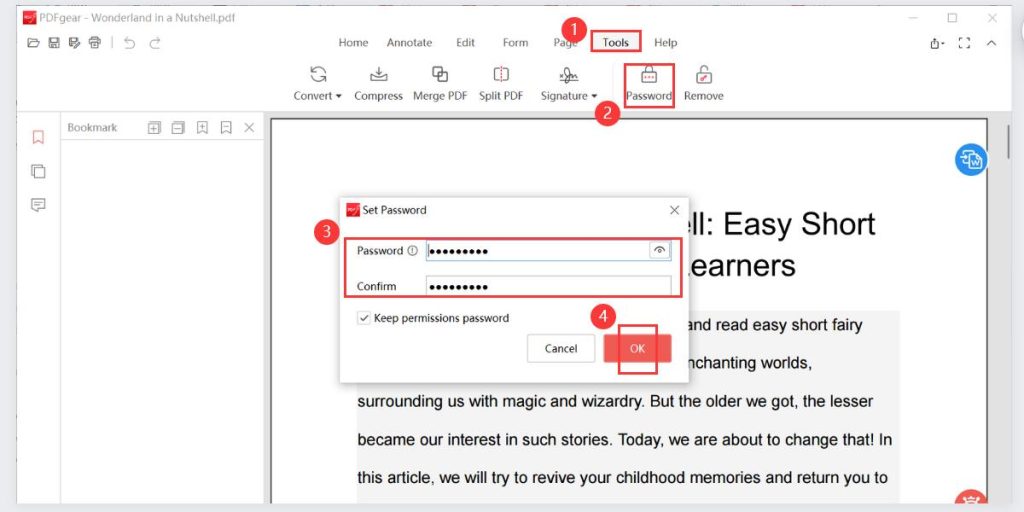
Click “Tools” > “Password” in the upper toolbar > Delete the original password and enter a new password in the “Set Password” pop-up window > Confirm the new password > Click “OK”.
Change Password on PDF with PDFgear
Step 3. Save PDF with New Password
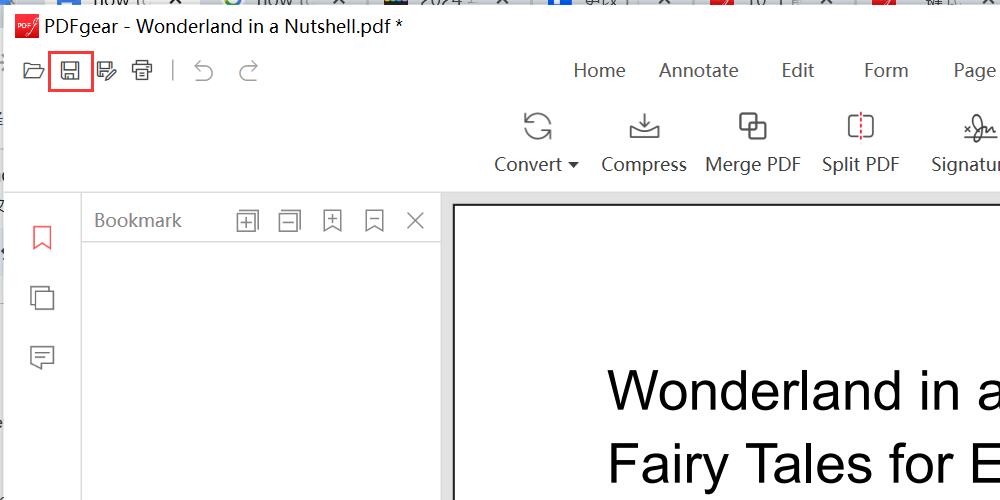
Click “Save” in the upper left corner to save the PDF with the new password.
Save PDF with New Password
How to Reset PDF File Password Online
In addition to offline applications, PDFgear also provides an online PDF unlocker. To change the password of a PDF online, you can first use PDFgear to remove the password of the current PDF, and then add a new password.
PDFgear online allows you to delete and change passwords anytime, anywhere on any device. It’s completely free, and fast and to keep your data safe, documents will be automatically deleted once you exit.
But just like the offline version, if you want to delete the password, you first need to enter the password, which means you need to know the original password of the document.
Step 1. Open Protected PDF Online
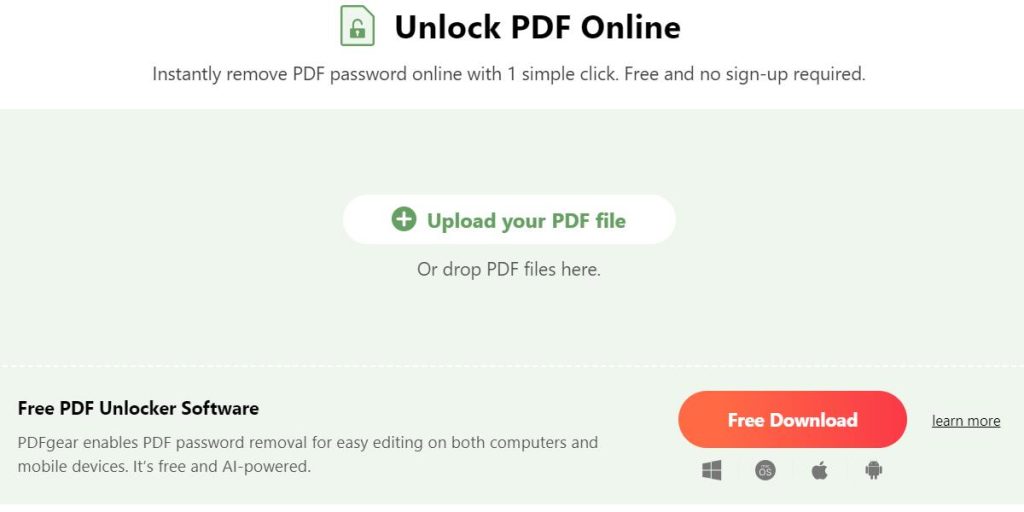
Visit the PDFgear official website and go to PDFgear PDF Unlocker > Click “Upload your PDF file” or drop the PDF file to the appropriate location.
Upload PDF Online
Step 2. Unlock PDF
Enter your existing password > Click “Unlock” to unlock the current PDF.
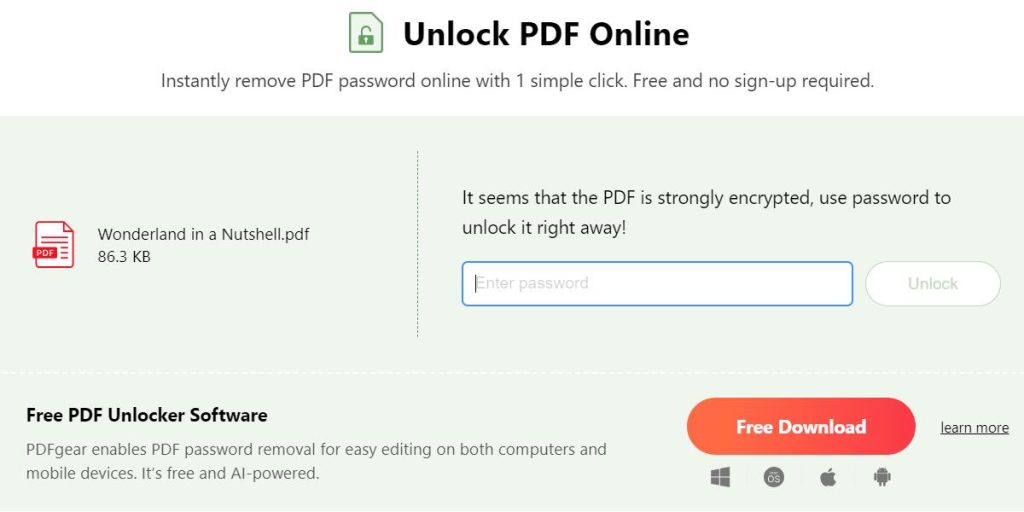
Enter Password Online
Step 3. Remove Password from PDF
PDFgear will remove the password for you in a few seconds, click “Download” to save the PDF without a password.
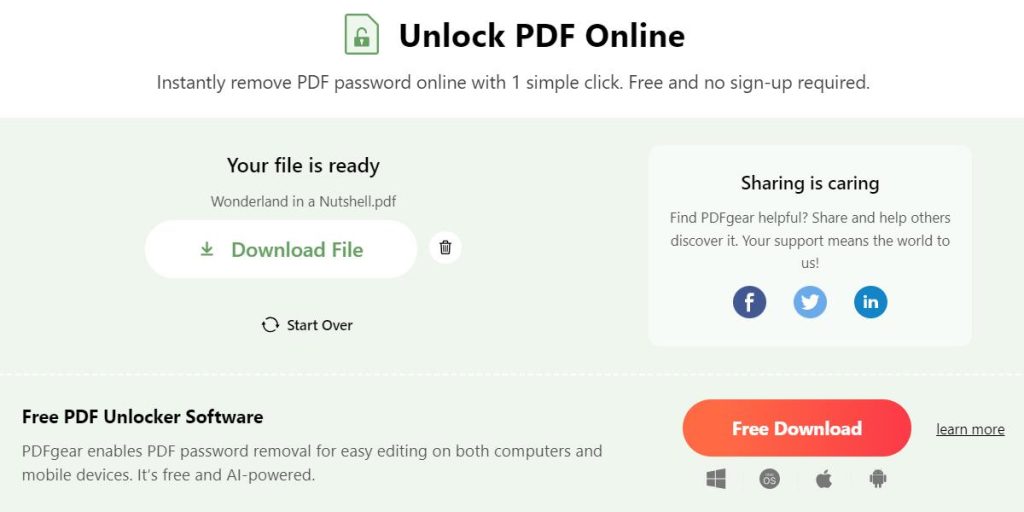
Remove Password from PDF Online
Step 4. Add New Password to PDF
Use any online PDF encryption software or PDFgear offline client and repeat the above method to add a new password to the PDF.
FAQs
Can I Change the Password of a PDF If I’ve Forgotten the Current One?
Unfortunately, if you forget your current password, you won’t be able to change it directly. However, you can use a tool like PDFgear to remove the password and then set a new one. Or you can choose some paid software.
How to Change Password on PDF in Mobile?
Use your mobile phone to access PDFgear PDF Unlocker online, upload PDFs and remove passwords, and then download PDFs without passwords. Finally, add a new password to the PDF.
How Do I Remove Password Protection from a PDF?
PDFgear online PDF unlocker can help you remove passwords quickly.
Visit PDFgear Online Unlocker > Upload PDF > Enter password > Click “Unlock” > Wait for PDFgear to remove the password, then click “Download” to save the PDF without password protection.
How to Change Password in Adobe Acrobat
Open the PDF in Adobe Acrobat > Enter the password > Click the “Lock” icon in the left toolbar > Click on “Permission Details” > “Change Settings” > Enter the original password > Click “OK” > Enter the new password > Click “OK” > Save PDF.
Conclusion
Passwords can protect PDF data well, but there will inevitably be times when they are forgotten or need to be changed. With PDFgear, you can easily change the PDF password offline or online.
Works for everyone, on all devices, and best of all, completely free. Try PDFgear now to protect your PDFs.
