Top 8 Online & Offline PDF Snipping Tools for Cropping

Summary :
After thousands of times of trials and comparisons, we finally concluded the best PDF snipping tools to take a screenshot of PDFs or crop PDFs easily. Check them out!
Table of Contents
Best PDF Snipping Tools
A PDF snipping tool means you can take pictures of any PDFs. It is now widely used to help people reference information, share specific parts of a PDF, save storage space, or better collaborate with others.
In the following parts, we will show you the top 8 PDF snipping tools working both online and desktop in the market with their pros and cons. Let’s dive in!
PDFgear is an excellent free PDF tool that includes features like snipping, editing, compressing, splitting, OCR, merging, converting, and more. Download it for free without the need for registrations.
| Product Name | Starting Price | OS | G2 Rating |
| PDFgear | Free | Windows/Mac/iOS | 4.5 |
| Acrobat Acrobat | US$19.99/mo | Windows/Mac/Android/iOS | 4.5 |
| Foxit PDF Reader | $9.17/month | Windows/Mac/Linux/Android/iOS | 4.5 |
| Nitro Pro | $9.99/month | Windows/Mac/iOS | 4.3 |
| PDFgear Online Cropper | Free | Windows/Mac/iOS/Android | 4.5 |
| Adobe Acrobat Online | $9.99/month | Windows/Mac/iOS/Android | 4.5 |
| Xodo | $9/month | Windows/Android/iOS | 4.4 |
| Sejda | $7.5/month | Windows/Mac/Linux/Android | 4.4 |
PDFgear
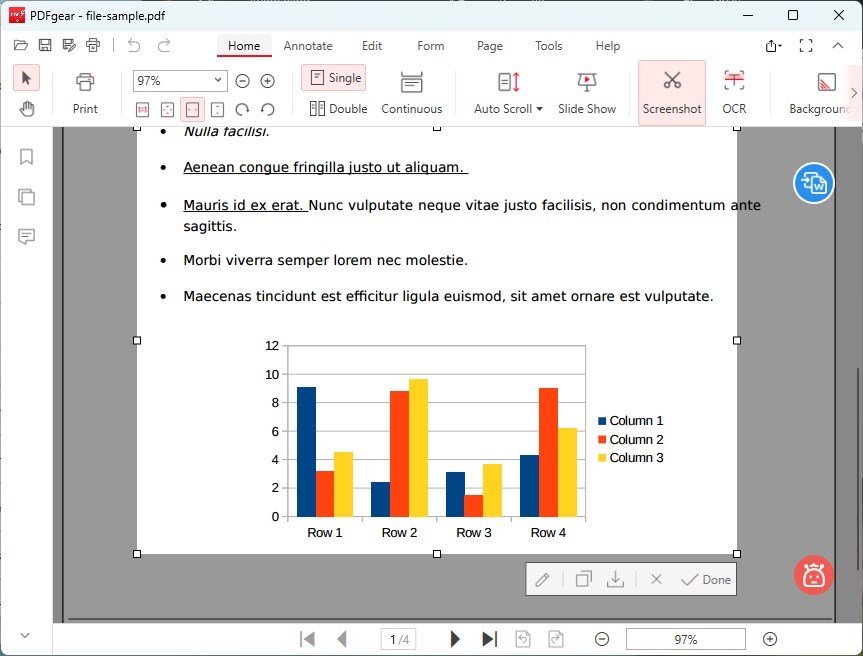
As the top PDF editor with an excellent snipping tool, PDFgear can take as many screenshots as you want from the PDF. Go to the Screenshot option, you can take a picture of any part of a PDF. Instead, you can also go to the Page section, and crop any page of the PDF.
The following two reasons make PDFgear top the list. First, the screenshot taken with PDFgear will remain of the highest quality. You can even zoom in on the screenshot to further check the PDF content. Secondly, you can convert the screenshot to a PDF again according to your needs.
PDFgear Snipping Tool
PROS
- It is free to download and use PDFgear. You don’t need to pay a penny.
- No restrictions on how many high-quality screenshots you can take.
- Small and powerful PDF editing software that doesn’t take up a large storage room.
CONS
- Not able to upload a PDF from cloud services directly.
- Not able to choose screenshot format.
Adobe Acrobat
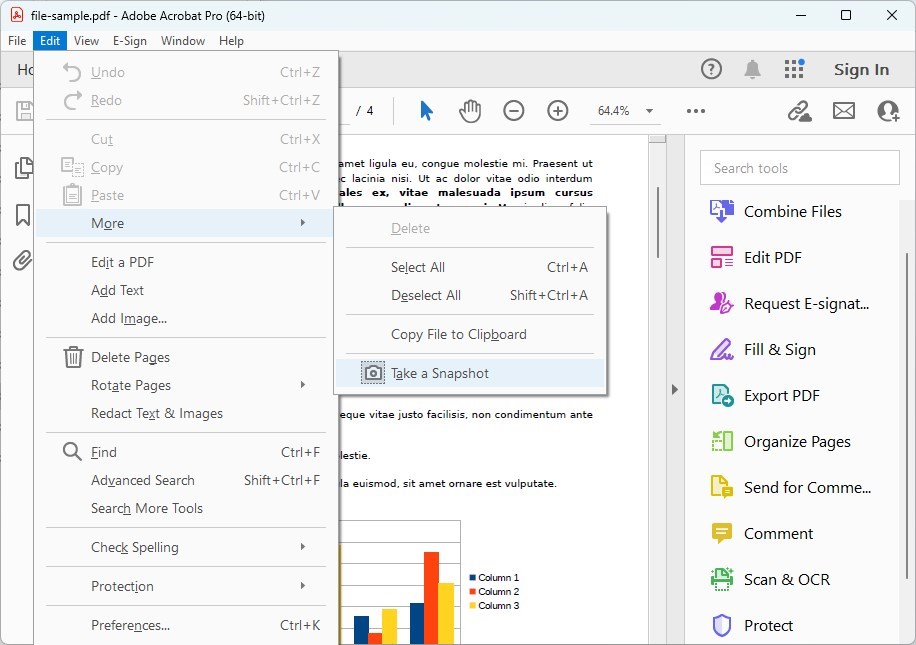
Adobe Acrobat is a well-known PDF editor. It lets you take a snapshot of PDFs on both Windows and Mac. Besides grabbing a snapshot, you can crop unwanted margins for a better look. You can also add or delete text, put watermarks and images, redact info in PDFs, and more.
All these tools help you make a perfect PDF for taking screenshots. But remember, this program isn’t free. You have to pay at least US$19.99 each month to use most of its editing features.
Adobe Acrobat Snipping Tool
PROS
- Acrobat Reader comes from a big company, with no data security issues.
- Easy snipping and cropping tools to use.
- Loads of powerful PDF editing tools.
CONS
- You can’t download the screenshot directly.
- Acrobat Reader gets really slow when handling big PDFs.
Foxit PDF Reader
Foxit PDF Reader is a one-stop PDF processor. No matter what edits you need to make, you can always find respective features. Strong as it is, Foxit PDF Reader never stops evolving. The integration of AI streamlines your PDF reading experience by summarizing a long PDF.
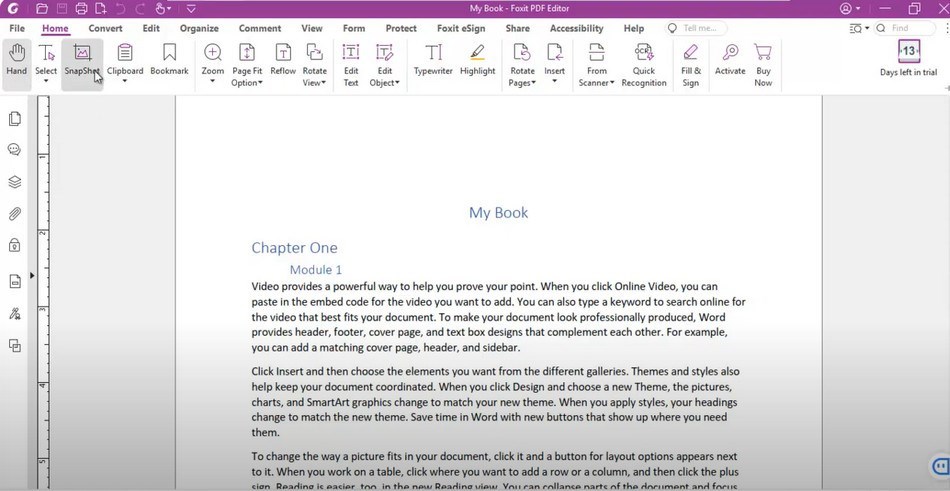
Let’s talk about the circumstances of Foxit working as one of the best PDF snipping tools. Click on the SnapShot button, you can take a picture of the current page. Once you choose the Crop Pages option, you can specify the settings in the margin control like CropBox, ArtBox, TrimBox, or BleedBox so that you only keep the important part of the PDF.
Foxit Reader Snipping Tool
PROS
- Rich setup options allow you to crop better.
- You can always restore the PDF to its original dimensions.
- AI integration makes it easy to summarize long content.
CONS
- It can be hard to operate Foxit.
- Foxit is a paid software costing $9.17 per month.
Nitro Pro
Similar to Adobe Premiere, go to Home > SnapShot, you can take a picture of your PDF. What’s better, Nitro Pro’s crop tool helps get rid of the margins or unwanted information and allows you to set margins and specify the pages to crop. If necessary, you can repeat the cropping task on multiple PDFs.
Nitro Pro is also a multi-feature PDF tool that allows you to edit, convert, sign, annotate, OCR, secure & protect your documents. All those features are organized well in the simple and clear interfaces.

Nitro Pro Snipping Tool
PROS
- Allows you to set the margins and specify the pages to crop.
- Repeat the cropping operation on multiple PDFs.
- Simple interfaces make sure you find all features easily.
CONS
- Nitro Pro is one of the most expensive software on this list.
- The free version of Nitro Pro adds a watermark to the PDF.
PDFgear Online Cropper
If you are seeking a one-time PDF editor with cropping features, PDFgear Online Cropper is the best to go. First, PDFgear Online Cropper is safe to use. Once you click the Delete button, your PDF will be permanently removed from its server. Secondly, to crop a PDF, all you need to do is select a specific area, and set the page range.
You can’t take a photo of a PDF page with PDFgear Online Cropper directly. However, you can convert the cropped PDF into JPG or PNG within several clicks!
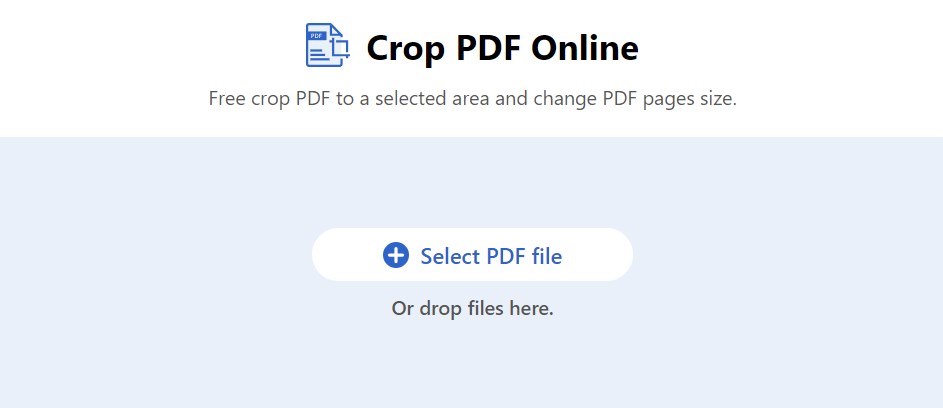
PDFgear Online PDF Cropper
PROS
- Safe to process PDF with PDFgear Online Cropper.
- Comes with 10+ other editing tools to help process PDFs.
- Free to use all PDFgear Online tools without restriction.
CONS
- It can be slow to process big PDFs.
- Not able to process PDFs from cloud services.
Adobe Acrobat Online
Adobe Acrobat now has the online version! It can be accessed through many web browsers and includes lots of features to help you process PDFs, like combining several PDFs into one, converting PDFs into Word, Excel, and PowerPoint, or protecting a PDF with a password.
When it comes to PDF snipping, Adobe Acrobat online allows you to focus on an area and remove unused white space, or choose the area you want to keep with cropping. Margin controls, cropping page settings, and reverting changes are all available. Still, you need to convert the cropped PDF to an image.
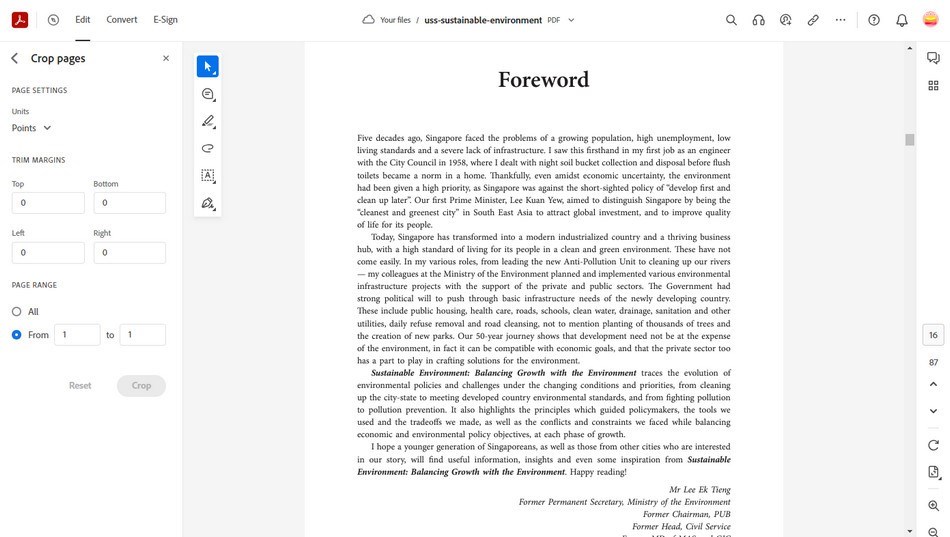
Acrobat Online PDF Cropper
PROS
- Powerful cropping features that best meet everyone’s needs.
- Works with all major web browsers.
- No quality loss will occur after cropping.
CONS
- It is slow to process big PDFs.
- You need to subscribe to crop a PDF with Adobe Acrobat Online.
Xodo
Xodo works on both computer and mobile devices. On mobile devices and Windows desktops, you have access to all features in one place, including cropping PDFs. Xodo is also an online PDF editor. You can easily find its cropping tool and crop out unwanted parts of a PDF from a local folder, Dropbox, or Google Drive.
Xodo allows you to make other PDF edits, like redacting, compressing, signing, cropping, and converting a cropped PDF to an image. However, only one PDF can be processed each day.
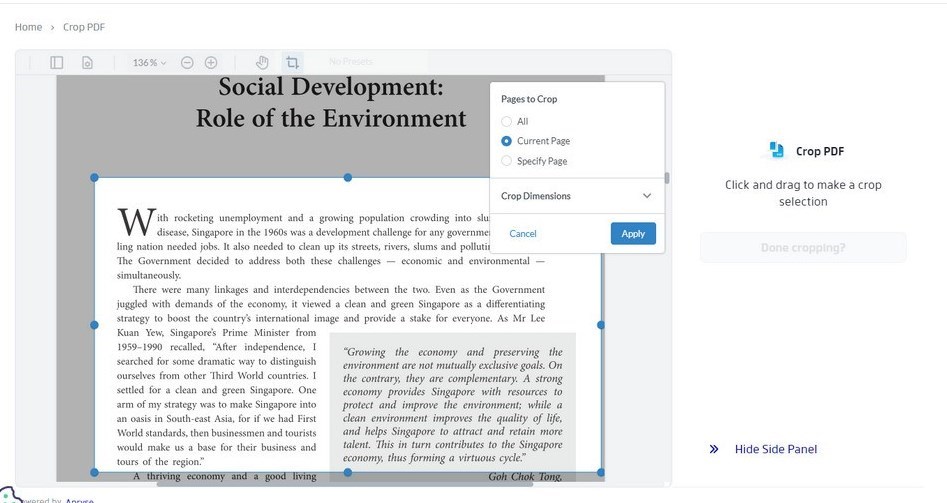
Xodo PDF Online Cropper
PROS
- Cross-platform compatibility.
- User-friendly interface that never confuses its users.
- Able to upload PDFs from cloud services.
CONS
- Only one PDF can be processed each day. Subscription price costs $9 per month.
- Limit advanced editing options.
Sejda
According to the different subscription plans you are in, you can access Sejda web, and Sejda desktop to crop PDFs. You can then take a screenshot of the cropped PDF.
Over 30+ more tools help level up your PDF, for instance, extracting a page as a document, creating a fillable form, compressing PDFs, flattening PDFs, and OCR. Sejda offers free services to process documents up to 200 pages, and 3 PDFs per hour.
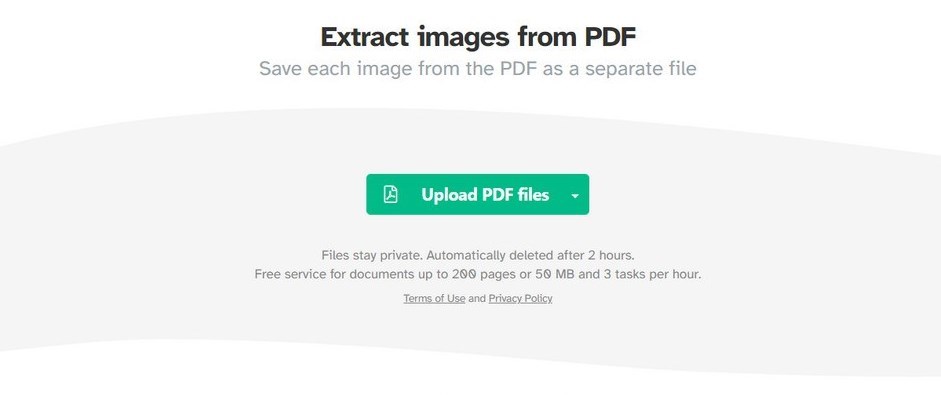
Sejda Online PDF Cropper
PROS
- 30+ various PDF editing tools catering to all your needs.
- Integrates with cloud services.
- Multiple PDF editing tools.
CONS
- Advanced features are behind the paywall.
- The text editing feature may have unsolved bugs.
Conclusion
That’s the end of the best PDF snipping tools working online and on desktop. They can help you in a variety of ways. In terms of features and cost-efficiency,
We recommend PDFgear. It does well in taking a screenshot of your PDF saving it as an image, and cropping PDFs. Most important of all, PDFgear is free to download and use. No more hesitation! Get PDFgear and start working on your PDFs.
