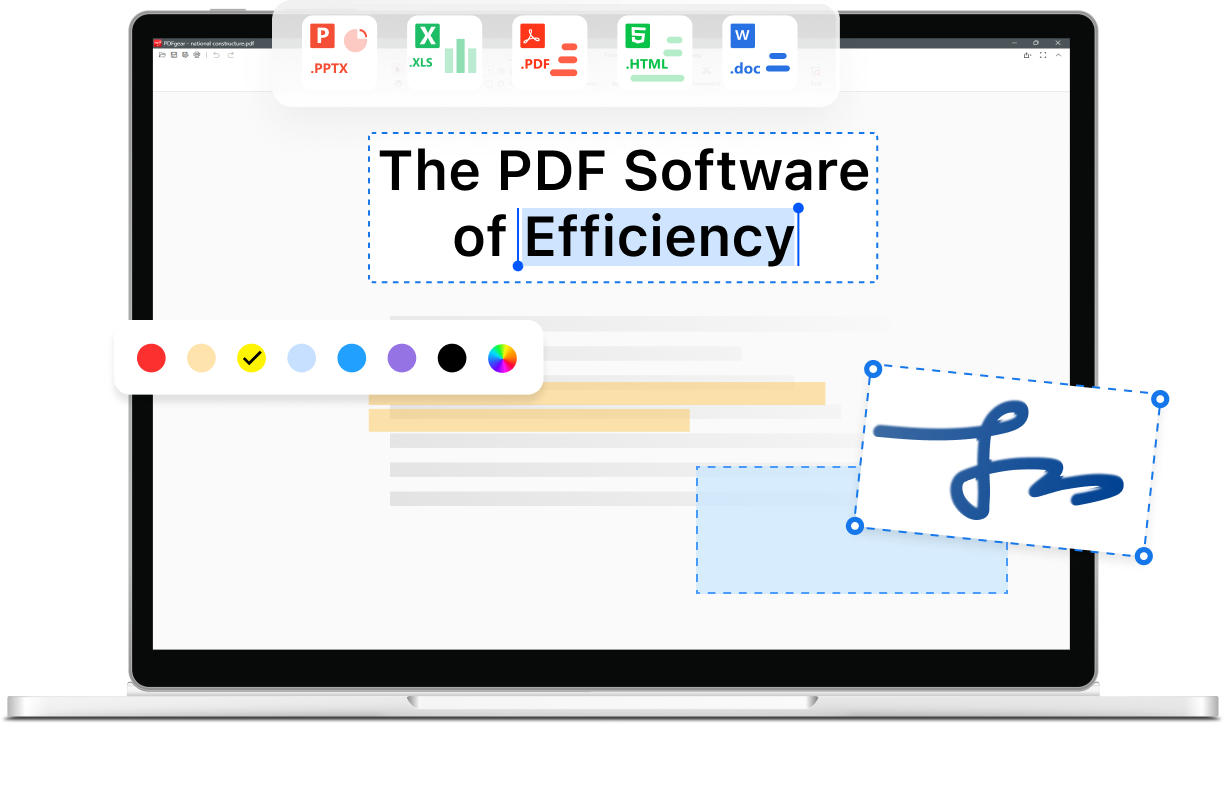


Edit PDF Text and Images
PDFgear lets you edit existing PDF text, add new content, and adjust fonts, sizes, and colors without converting to Word. Images can be moved, resized, or replaced before saving your updated document.
Edit PDF Text and Images
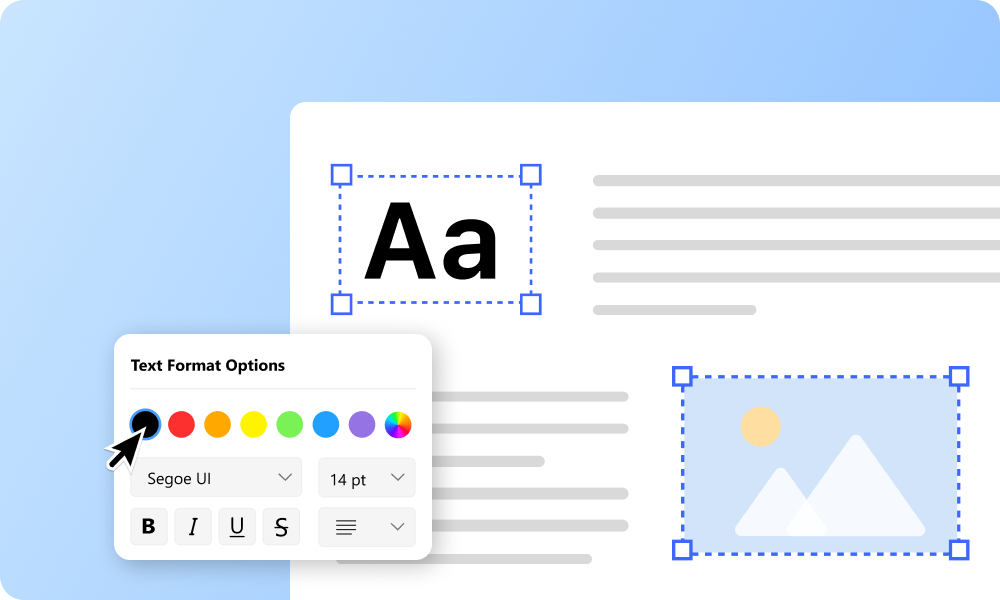
Make Scanned PDFs Searchable with OCR
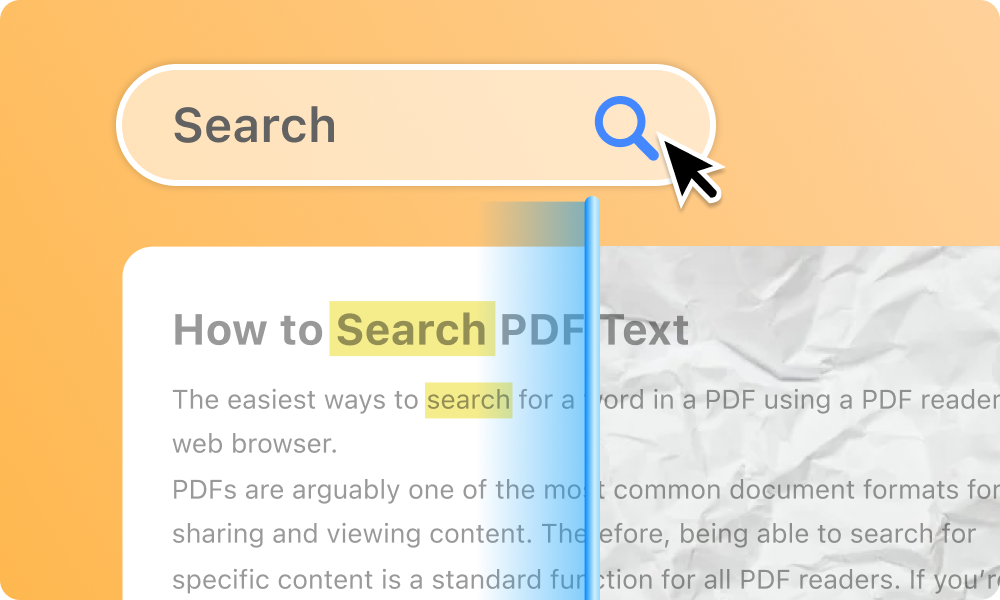
Make Scanned PDFs Searchable with OCR
OCR makes scanned PDFs searchable and their text selectable. It also powers scanned PDF-to-Word conversion and extracts text from selected areas for copying into other documents.
Read PDFs and Get Answers with AI
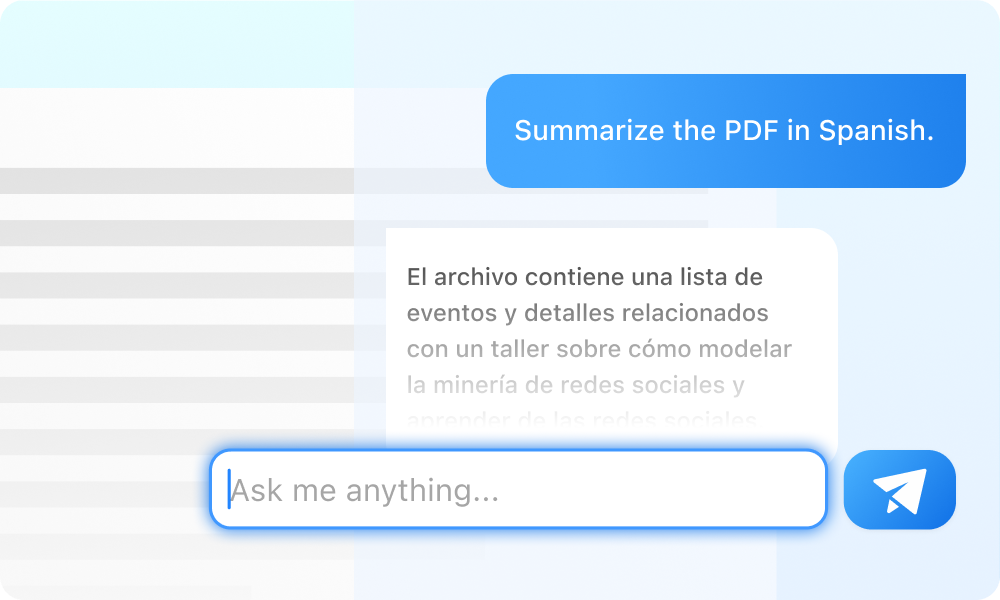
PDFgear combines PDF reading, text search, copying, and printing selected pages with an AI assistant for summaries, explanations, and translations. You can check the original PDF as you read the responses. AI features require an internet connection.
Read PDFs and Get Answers with AI
Highlight, Draw, and Add Comments
Highlight, Draw, and Add Comments
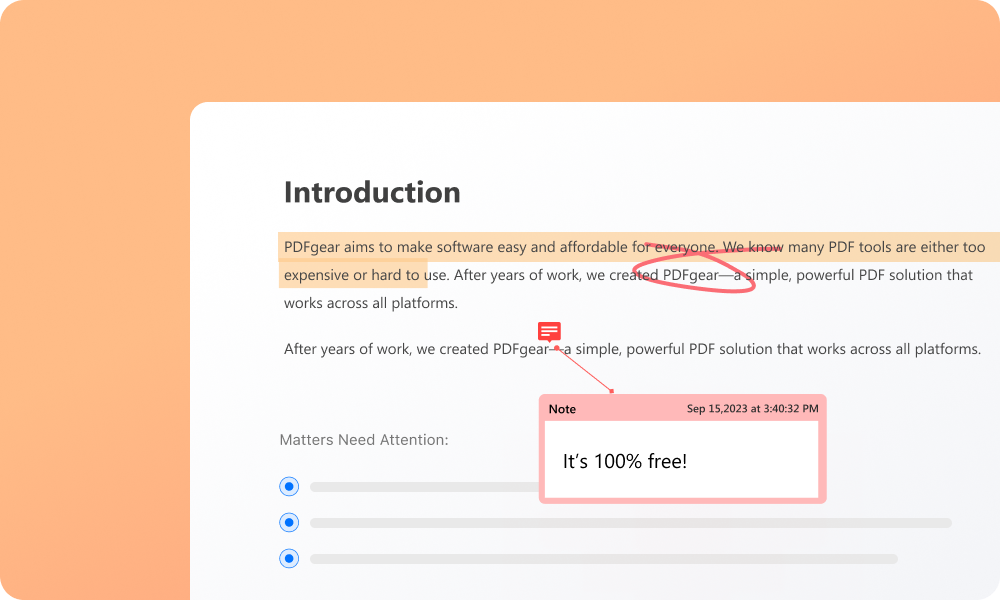
Annotate PDFs with highlights, underlines, comments, and text boxes. Drawing tools and shapes help explain your feedback, and annotations can be saved or printed with the document.

Get Full-Featured PDFgear for Free
Sign PDFs and Fill Out Forms
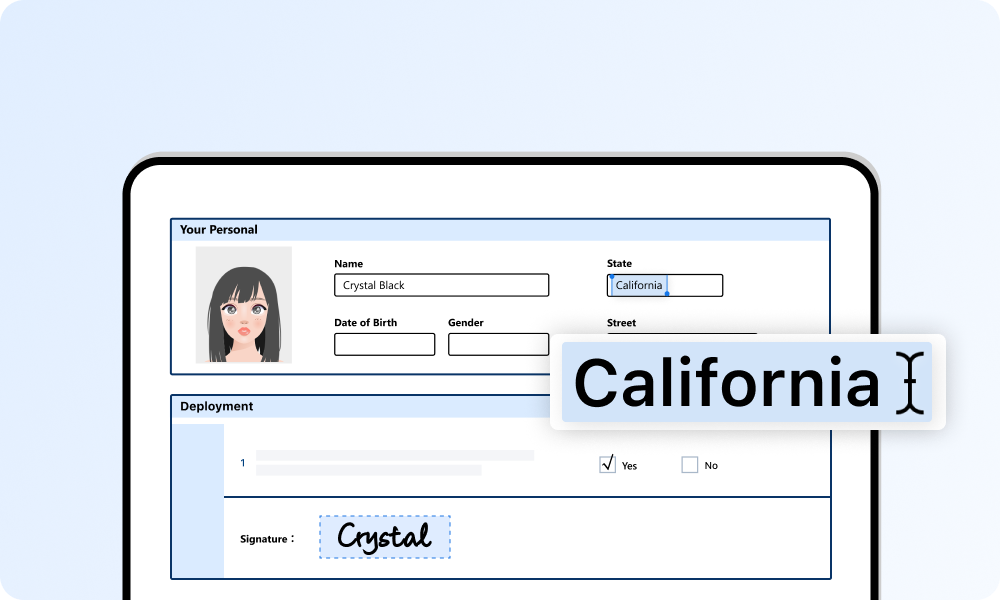
Sign PDFs by drawing, typing, or uploading a signature image, and apply it to multiple pages at once. Forms can be filled out with text, checkmarks, and symbols—even when there are no interactive fields.
Sign PDFs and Fill Out Forms
Delete, Reorder, and Rotate PDF Pages
Delete, Reorder, and Rotate PDF Pages
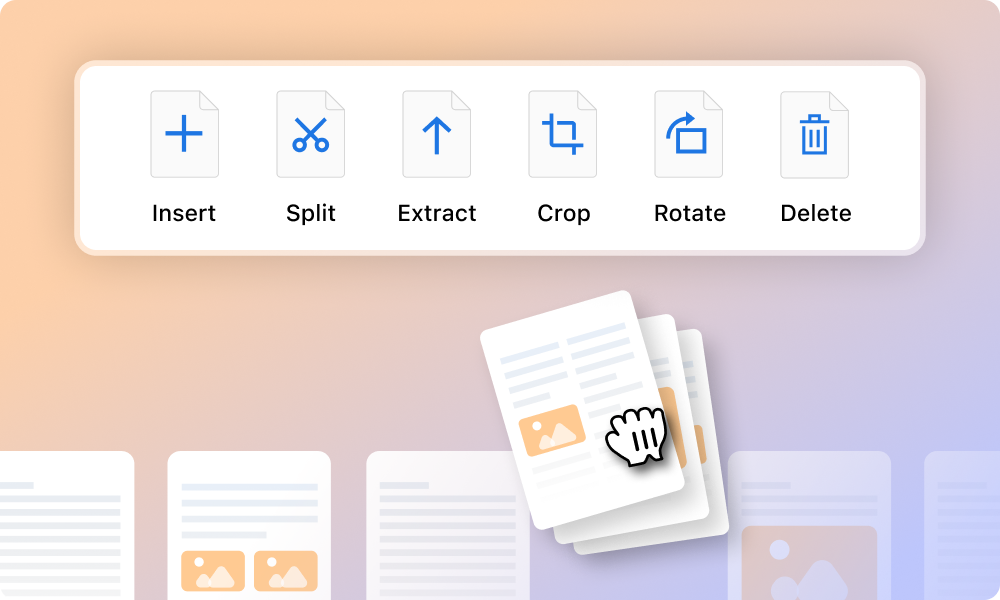
Page tools let you delete unwanted pages, insert new ones, and rearrange their order. You can also rotate sideways pages, extract selected pages into a separate PDF, or crop margins to adjust the visible page area.
Merge and Split PDF Files
Combine multiple PDFs into one document, choose which pages to include, and arrange the file order. Larger PDFs can be split by custom page ranges or fixed intervals to share only what you need.
Merge and Split PDF Files
Convert PDFs, Images, and Office Files
Convert PDFs, Images, and Office Files
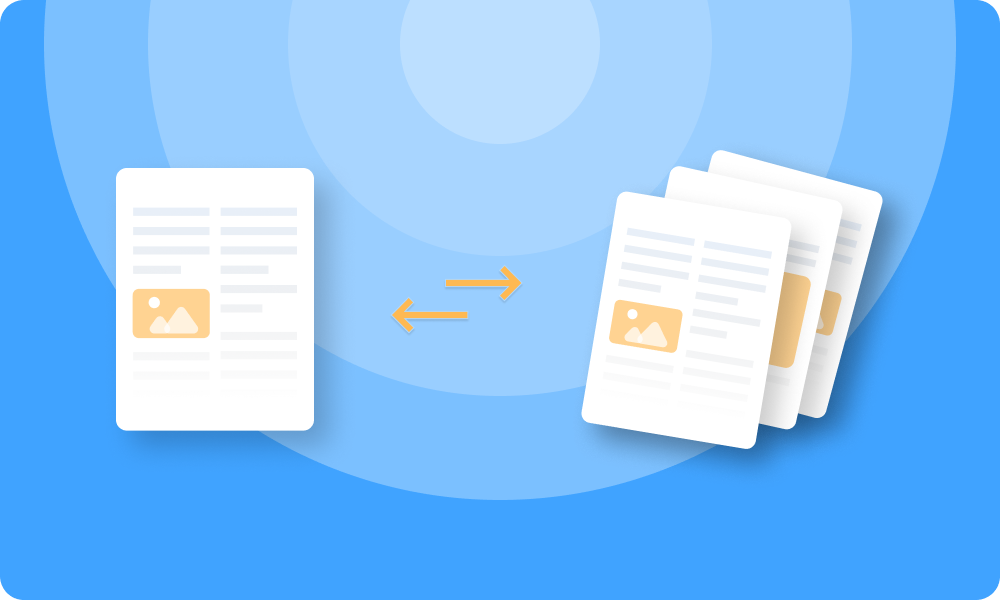
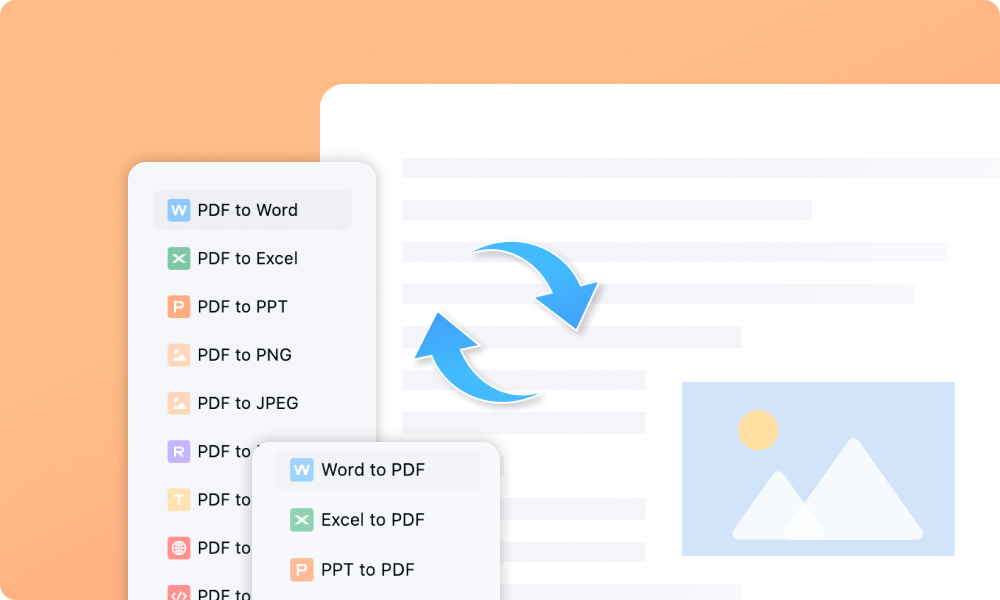
Convert JPG to PDF, convert PNG images to PDF, or export PDF pages as images. PDFgear also converts between PDF and supported Office formats, including Word, Excel, and PowerPoint, with batch processing for multiple files.
Compress PDFs with Adjustable Quality
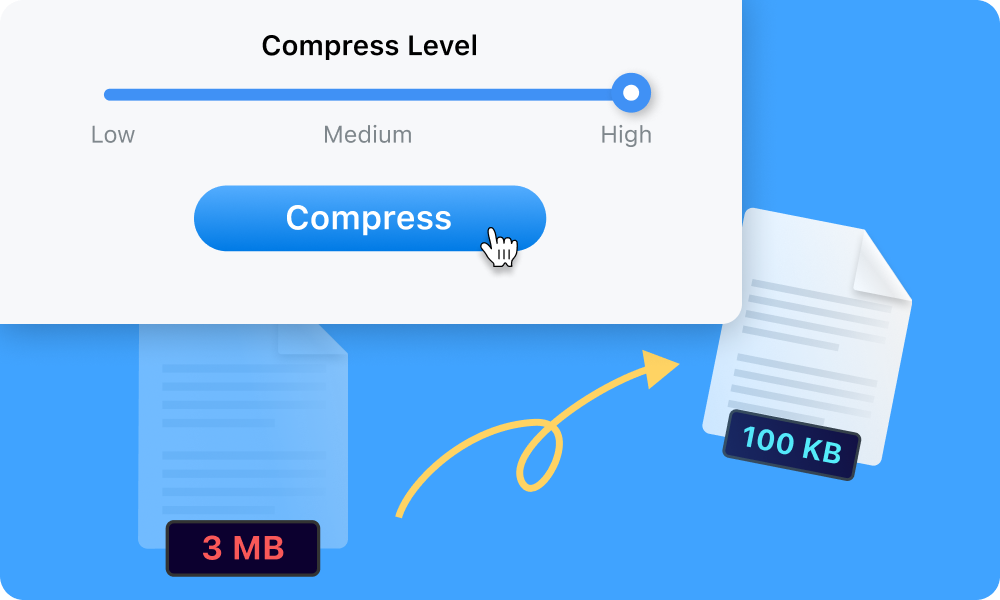
Adjustable compression levels help balance PDF file size and image quality for email attachments and uploads. Batch compression handles several PDFs at once.
Compress PDFs with Adjustable Quality
Frequently Asked Questions
Frequently Asked Questions
Is PDFgear a free PDF editor for Windows?
Yes. PDFgear for Windows is free to use, with no sign-up required and no added watermarks on saved PDFs. It includes tools for editing, reading, converting, organizing, annotating, and signing documents.
Does PDFgear work on Windows 11 and Windows 10?
Yes. PDFgear supports Windows 11 and Windows 10. Download the Windows version from this page and follow the installer to get started. For step-by-step instructions, see how to install PDFgear on Windows.
Can I use PDFgear offline?
Yes. You can read, edit, organize, and print PDFs locally on your Windows PC without an internet connection.
How does PDFgear handle my files and data?
Desktop tasks such as reading, editing, organizing, and printing PDFs are processed locally on your device. When you use AI features, PDF content and chat inputs may be sent to an AI service provider after you give consent in the app. See our Privacy Policy for details about data handling and your choices.
How do I make PDFgear my default PDF reader on Windows?
In PDFgear, go to Help > Settings and use the option to set PDFgear as your default PDF viewer. See Preference Settings for the settings screen and instructions. You can also choose PDFgear as the default app for .pdf files in Windows Settings.
Explore PDFgear Online Tools
Need a browser-based tool? Explore PDFgear tools for working with PDFs online.
See PDFgear Online Tools
More PDF Tips on Windows
Download PDFgear for Windows
Get the tools you need to read, edit, convert, and organize PDFs on your Windows PC.