How to Sign PDF with Certificate for Free

Summary:
Learn how to sign a PDF with a certificate using PDFgear or Adobe. Create a Digital ID, add a certificate signature, save the signed PDF, and verify it.
Table of Contents
You can sign a PDF with a certificate for free and create a verifiable digital signature that helps confirm your identity and shows whether the document has been changed after signing.
This guide walks you through the entire process, from creating or using a Digital ID to adding the certificate signature and verifying the signed PDF. You’ll find step-by-step methods for both PDFgear and Adobe.
How to Sign PDF with Certificate in PDFgear
You can sign a PDF with a digital certificate for free with PDFgear for Windows and Mac. You’ll need a Digital ID for signing, which you can create or import in PDFgear before or during the signing process.
Prepare First: Create or Import Certificate/Digital ID in PDFgear
On Windows, PDFgear lets you set up a Digital ID by creating a new one or importing an existing Digital ID or certificate bundle. The Digital ID contains the certificate and private key required to create your digital signature.
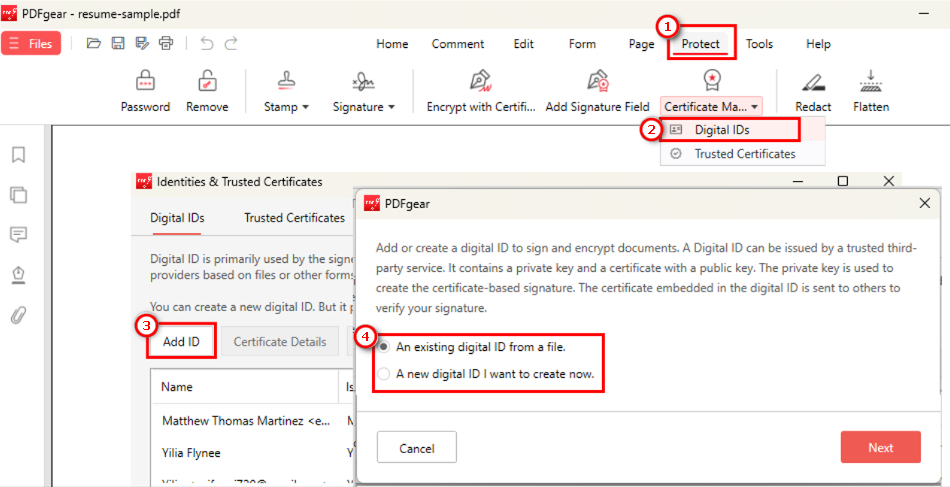
Choose to Create or Import a Digital ID in PDFgear
1. Download PDFgear and open your PDF in PDFgear.
2. Go to the Protect tab, click Certificate Manager, and select Digital IDs.
3. Click Add ID, then choose to import an existing Digital ID from a file or create a new one.
4. Set a password and complete the setup. Your Digital ID will then appear in the list.
Using PDFgear on Mac?
You can skip this preparation. Go to Protect > Encrypt with Certificate to create or import a Digital ID during the signing process.
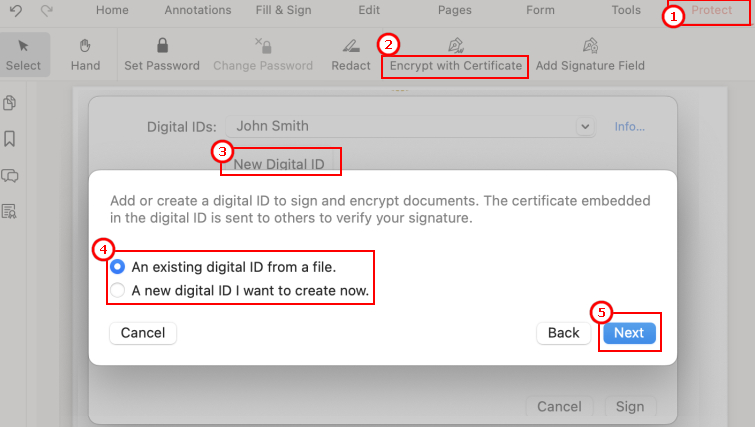
Create or import a Digital ID while signing on Mac
Import a Digital ID or Create Your Own?
Create your own for personal or internal use, but keep in mind that recipients may not trust it automatically.
For formal external documents, import a certificate or Digital ID that the recipient or institution recognizes as trusted.
Then Sign: Add Certificate Signature to the PDF in PDFgear
Once your Digital ID is ready, you can use it to add a certificate-based digital signature to the PDF. Make sure the document is in its final version before signing, as changes made afterward may affect the validity of the signature.
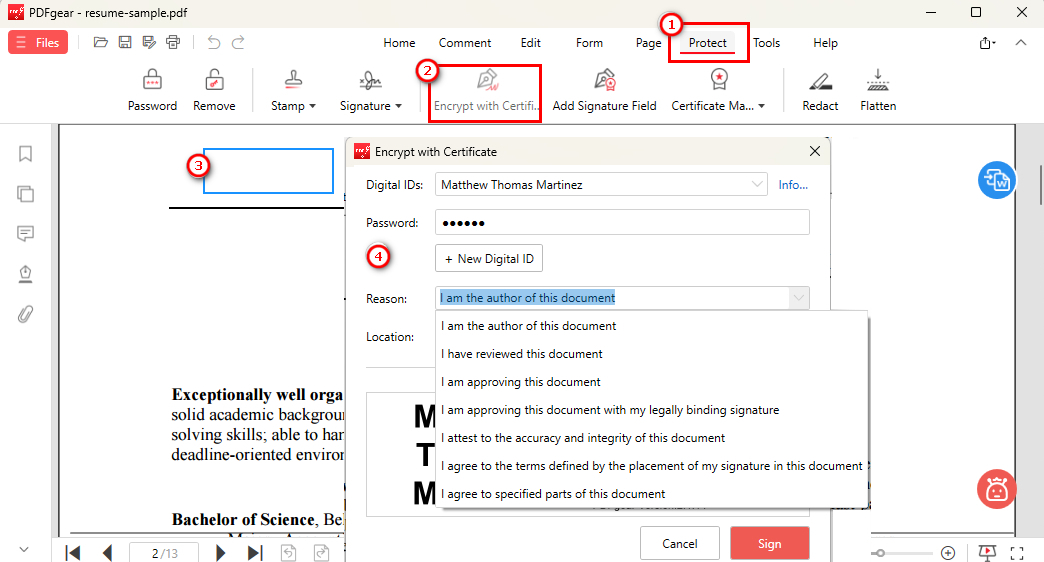
Add Certificate-Based Digital Signature to PDF
1. Open the final version of your PDF in PDFgear, go to Protect, and select Encrypt with Certificate.
2. Drag over the area where you want the certificate signature to appear.
3. Enter your certificate password and select a signing reason if needed.
4. Click Sign. In the pop-up window, choose where to save the signed PDF, then click Save to complete the process.
Platform Availability:
Certificate-based PDF signing is currently available in PDFgear for Windows and Mac. On iPhone, iPad, and Android, you can add regular electronic signatures, such as typed, drawn, or image signatures, but certificate-based signing is not currently supported.
How to Create Certificate and Sign PDF in Adobe
Adobe Acrobat also supports certificate-based digital signatures. Similar to the PDFgear method above, you first need to create or add a Digital ID, then use it to sign the PDF digitally.
Create Digital ID in Adobe
If you don’t already have a Digital ID in Acrobat, you can create one before signing. The Preferences path differs slightly between Windows and Mac:
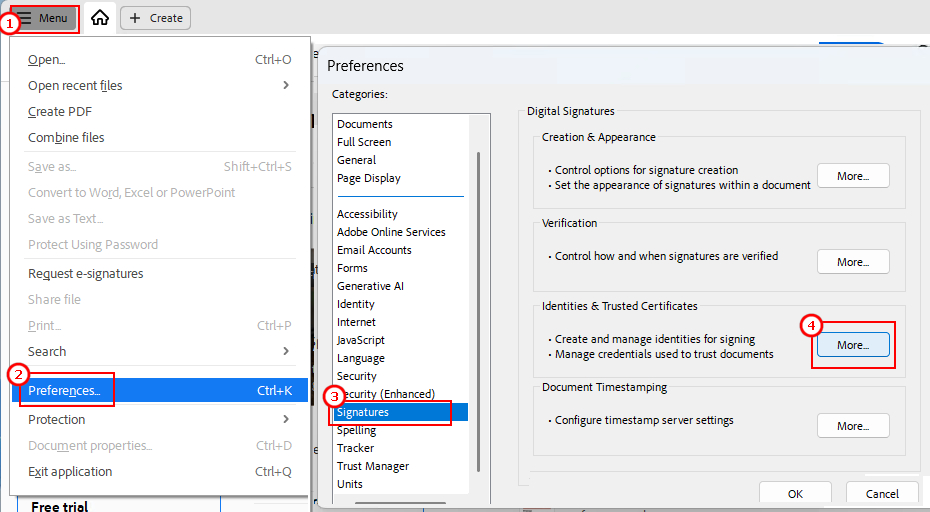
Adobe Certified Signature
1. Open Adobe Acrobat and go to Preferences from the Menu on Windows or the Acrobat menu on Mac.
(Older Acrobat on Windows: You may find Preferences under Edit > Preferences.)
2. Select Signatures, find Identities & Trusted Certificates, and click More.
3. Select Digital IDs and click Add ID.
4. Choose to create a new Digital ID, then follow the prompts to enter your identity information.
5. Set a password and complete the setup. Your new Digital ID will appear in the Digital IDs list.
6. If needed, select the Digital ID and specify how you want to use it.
Add Certificate Signature in Adobe
Once your Digital ID is set up, the following signing steps apply to both Windows and Mac:
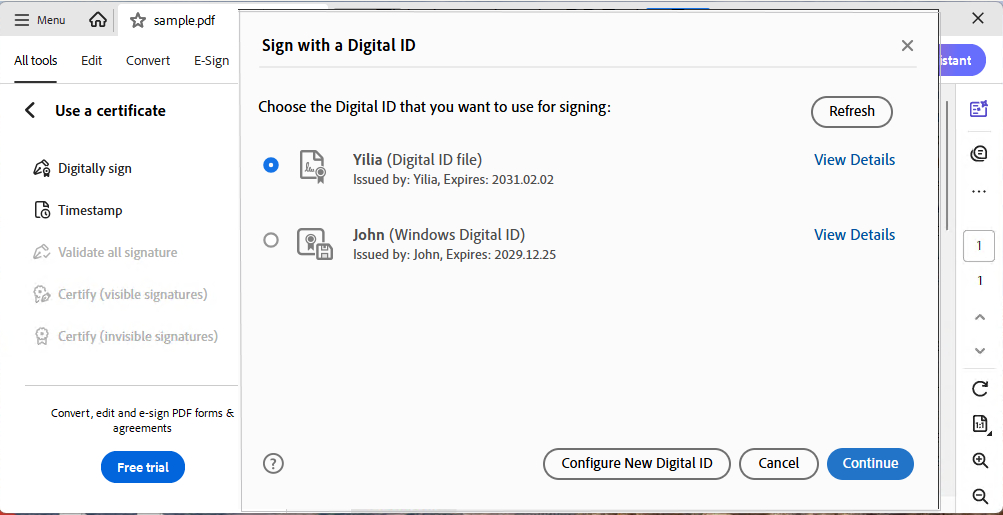
How to Sign Adobe PDF with Certificate
1. Open the PDF you want to sign in Adobe Acrobat.
2. Go to All tools and select Use a certificate.
3. Click Digitally sign, then drag over the area where you want the signature to appear.
4. Select the Digital ID you want to use, enter its password, and confirm the signature.
5. Choose where to save the signed PDF to complete the signing process.
Limits:
Adobe supports certificate-based signing, but the setup involves several menus and may take a little more time to configure.
If you prefer a simpler free desktop workflow, PDFgear lets you create or import a Digital ID and sign the PDF locally in one place.
How to Verify PDF Certificate Signature
After signing, you can verify the PDF certificate signature to make sure the signature is valid and the document has not been changed since it was signed.
1. Open the signed PDF in a PDF reader that supports digital signature validation.
2. Open the Signature Panel or click the visible certificate signature in the PDF.
3. Check the signature status. A valid signature indicates that the signature can be verified and the signed content has not been altered.
4. If you see Unknown, Invalid, or Certificate Not Trusted, don’t worry right away. It may simply be a certificate trust issue or a change made after signing. Follow our guide to validate digital signatures and find out what the warning means and how to fix it.
What Is Certificate Signature in PDF?
A certificate signature in a PDF is a type of digital signature created using a Digital ID, which includes a digital certificate and the private key used for signing.
When the PDF is signed, the private key creates the signature, while the certificate and public key allow a compatible PDF reader to verify it. This helps confirm the signer’s identity and detect whether the document has been changed after signing.
So, how is it different from a regular electronic signature? Here’s a quick comparison.
| Comparison | Electronic Signature | Certificate-Based Digital Signature |
| How It’s Added | Type, draw, or image | Digital certificate + private key |
| Show Signing Intent | Yes | Yes |
| Verify Identity | No | Yes* |
| Detect PDF Changes | No | Yes |
| Visible on PDF | Yes | Optional — can be visible or invisible |
| Best for | Everyday signing | Formal or sensitive documents |
*Identity verification depends on the certificate used and whether it is trusted.
For more details, see the full comparison of digital signatures and electronic signatures.
FAQs
How do I insert a certificate in a PDF?
You can do this for free with PDFgear.
On Windows, go to Protect > Certificate Manager > Digital IDs to create or import a Digital ID, then use Encrypt with Certificate to sign the PDF.
On Mac, go directly to Protect > Encrypt with Certificate, where you can create, import, or select your Digital ID during signing.
Why does my signed PDF say the certificate is not trusted?
This can happen when the certificate is self-signed, the required certificate chain isn’t trusted or available, or the recipient’s PDF reader doesn’t recognize the certificate authority. It doesn’t necessarily mean the PDF was signed incorrectly. You can validate the digital signature to identify the specific trust issue.
Can I sign a PDF with a certificate online?
Certificate signing involves sensitive signing credentials such as your certificate and private key, so you should be careful about using online services for this process. A desktop PDF signer like PDFgear is generally a better choice when you want to keep these credentials local.
If you only need a typed, drawn, or image signature, you can sign a PDF online instead.
How to sign a PDF with a certificate without Adobe?
You can use PDFgear to sign a PDF with a certificate for free without Adobe. Open your PDF, go to Protect > Encrypt with Certificate, place the signature on the PDF, enter the password for your Digital ID, and click Sign. Finally, choose a location to save the signed PDF.
Do I need a trusted certificate, or is a self-signed Digital ID enough?
It depends on where you will use the signed PDF. A self-signed Digital ID may be sufficient for personal or internal documents. For formal submissions or documents sent to other organizations, use a certificate that the recipient recognizes and trusts.
Is a certificate signature legally binding?
Yes, it can be. Its legal validity depends on local laws, how the signer’s identity is verified, and whether the document requires a specific type of signature or certificate.
Because these requirements vary by jurisdiction and use case, this is general information, not legal advice. For important legal documents, check the applicable local requirements or consult a qualified legal professional.
Conclusion
Signing a PDF with a certificate gives you more than a visible signature. It also provides a way to verify the signer and detect changes made after signing.
Whether you create your own Digital ID or use an existing certificate, make sure the PDF is finalized before you sign. Ready to get started? Download PDFgear for free and sign your PDF with a certificate on Windows or Mac.
