How to Convert a PDF to a Link: 2 Free Methods

Summary :
Explore the top 2 free PDF-to-link converters. Instantly turn a PDF into a link without Adobe Acrobat. Enhance the readability of PDFs across different platforms.
Table of Contents
How to Convert a PDF to Link
Sharing a massive PDF file with an attachment may not work due to the size limitation of the email. Alternatively, suppose the recipients lack a PDF viewer.
To address this issue, generating a link for a PDF is a nice shot, as viewing a PDF via a link can be easily achieved only if a browser is available on the devices.
How to convert a PDF to a link is as easy as pie with proper PDF link generators.
In this article, we will analyze two free methods for changing a PDF to a link for your reference.
Converting PDF to HTML with a Free PDF to Link Converter
The PDFgear is an all-in-one PDF converter and editor that allows users to edit & read, merge & split, and convert PDF to text and other formats, and more.
It requires no size limitations for PDF documents. If the PDF is too long to read or too complicated to understand, PDFgear AI-powered Copilot enables you to summarize a PDF into short or rewrite a PDF with digestible sentences.
PDFgear supports converting PDF to HTML files with just a few clicks, without any compromise to format and quality loss.
Let’s see how to use PDFgear, the complete free PDF-to-HTML converter, to create a shareable link for a PDF.
PDFgear is the top-notch option for converting PDFs to links on Windows and Mac computers. It’s free, safe, full-featured, and easy to use.
Step 1. Run the PDF to Link Converter
Straightly go to the PDFgear’s official website > Download the PDFgear PDF to Link Converter > Install and launch this tool on your computer.
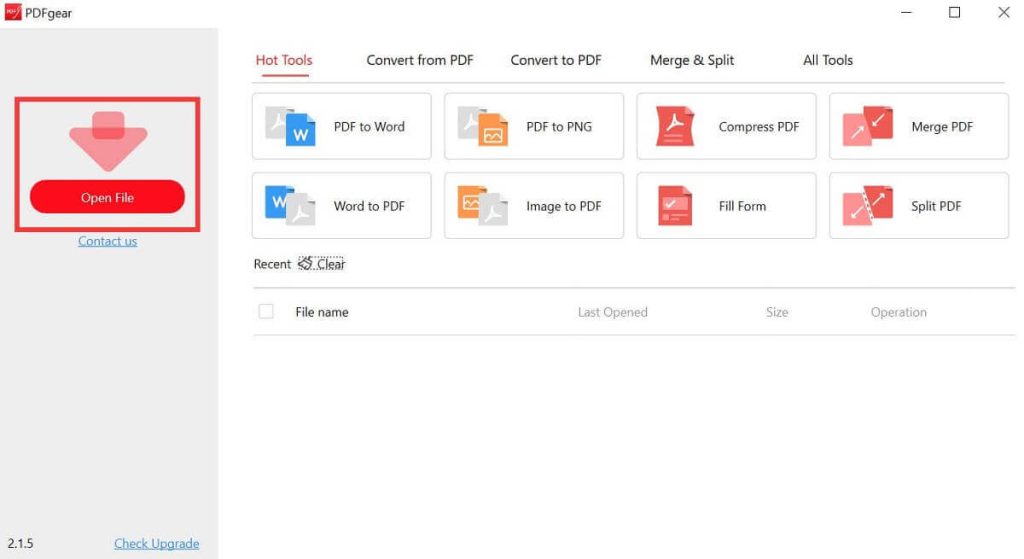
Install and Launch PDFgear on Your Computer
Step 2. Convert a PDF to HTML File
Open a PDF file by clicking the “Open File” button > Navigate to “Tools” > Click “Convert” > Choose “PDF to HTML” in the dropdown menu.
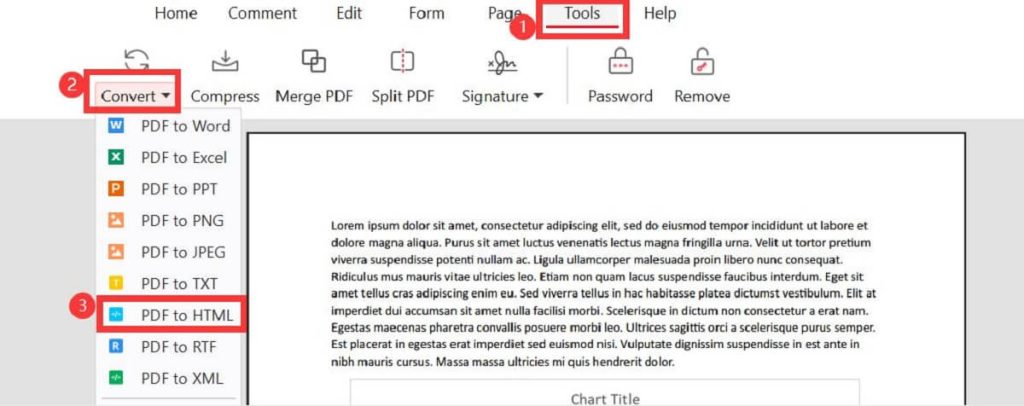
Steps to Convert PDF to HTML with PDFgear
Step 3. Customize the PDF to HTML Conversion
Click “Add File” to add more PDF files to convert simultaneously if necessary > Set the output path for your files > Hit the “Convert” button to proceed with the conversion.
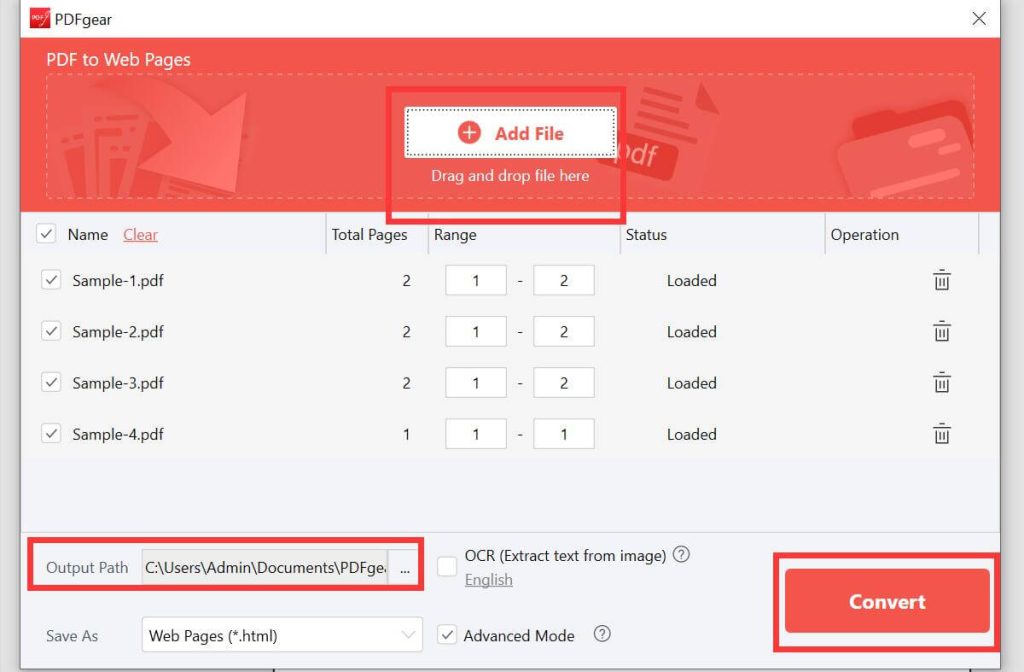
Customize the PDF to HTML Conversion in PDFgear
Step 4. Access the HTML Files on Your Device
When the conversion is completed, the HTML files will be automatically saved on your computer as the default setting. Alternatively, you can select the output path where you prefer to store them.
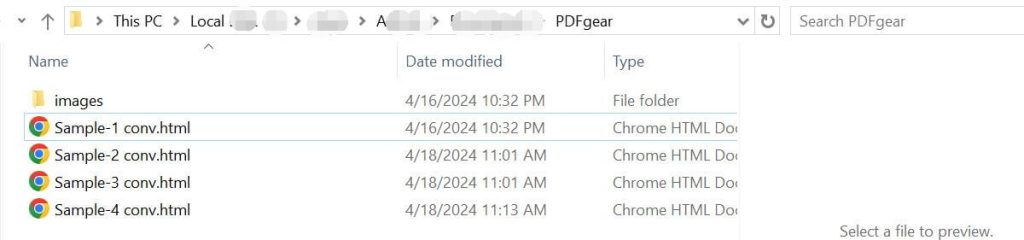
Access the HTML Files on Your Device
After converting PDFs to HTML files, you need to host it on your website server, and then you can access the converted HTML file through the URL link.
If you are looking for a way to turn a PDF into a URL link directly, keep reading to explore an online free method that can achieve the goal with ease.
Converting a PDF to URL Online with Google Drive
If you already have a Google account, one straightforward way to turn PDF into URL is to utilize Google Drive.
By storing your files in the cloud with Google Drive, you can generate links to make them easily accessible, allowing for sharing PDFs easily and accessing from other devices, such as your mobile phone.
Step 1. Upload a PDF File to PDF to URL Generator
Open your Google Drive in your browser > Click “New” on the right side interface > Upload a PDF file to your Drive.
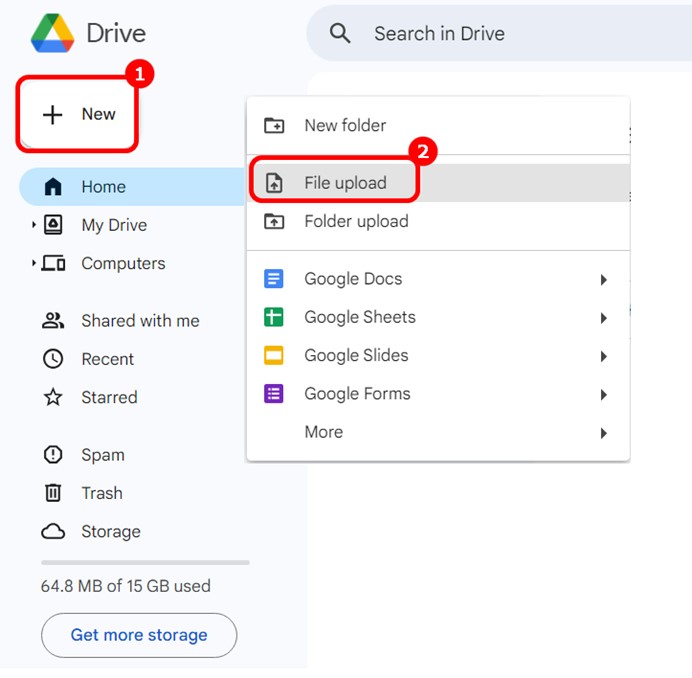
Upload Your PDF Files to Google Drive
Step 2. Generate a Link for the PDF File
Right-click the PDF file > Hit “Share” > Pop up a new window where you can set the General Access for the link > Click “Copy Link” > Hit the “Done” button.
During this step, general access is set to Restricted by default. However, you have the flexibility to customize the general access based on your specific requirements.
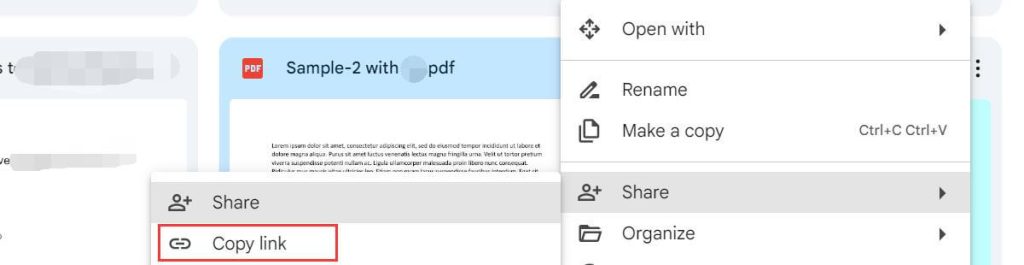
Generate a URL Link for a PDF File with Google Drive
Step 3. Share Your Link Now
Upon completing the steps mentioned above, a link has been copied and you are now able to share it via chat, email, or third-party social media platforms such as Facebook or WhatsApp.
However, if you happen to be a non-Google user, the most effective method to change a PDF into a link at no cost is by utilizing the PDFgear PDF converter.
You won’t need to register, buy anything, or face any size limitations – simply download and install this converter.
FAQs on How to Make a PDF into a Link
Can I Convert PDF to Link via Adobe Acrobat?
Yes. Just open a PDF file with Adobe Acrobat, click the “Share a link to this file”, then hit the “Create Link” button, and the file will be uploaded to Adobe’s cloud storage. Anyone with the link can access the file.
Another way is to utilize the “Export PDF” feature. This allows you to export the PDF as an HTML web page, and then import it into your website, enabling access to the PDF via a URL.
How Do I Turn a PDF into a Link for Free?
As mentioned in the post above, the most convenient way to convert PDF to link for free is to use PDFgear. It’s a professional PDF reader, editor, and converter, that allows you to do PDF tasks anywhere.
How to Share a PDF as a URL Link?
The straightforward way to share a PDF as a URL link is to upload the file to Google Drive and then copy the link to the clipboard. Detailed steps are illustrated in method 2 in this post.
Final Thoughts
To sum up, this post presents 2 free ways to convert a PDF to a link.
The online converter doesn’t require any software download or installation, but it does have several drawbacks, including reliance on an internet connection and limitations on file size.
The standout feature of PDFgear is its free-to-use capability and lack of size limitations when converting PDF to HTML.
Furthermore, the PDFgear converter accelerates the entire conversion process quickly like a breeze and delivers precise results without losing any format.
