How to Import a PDF Into Google Docs | Top 4 Ways

Summary :
Follow this tutorial to learn how to import a PDF into Google Docs with four solutions. You can choose an easy and safe way to insert a PDF into Google Docs.
Table of Contents
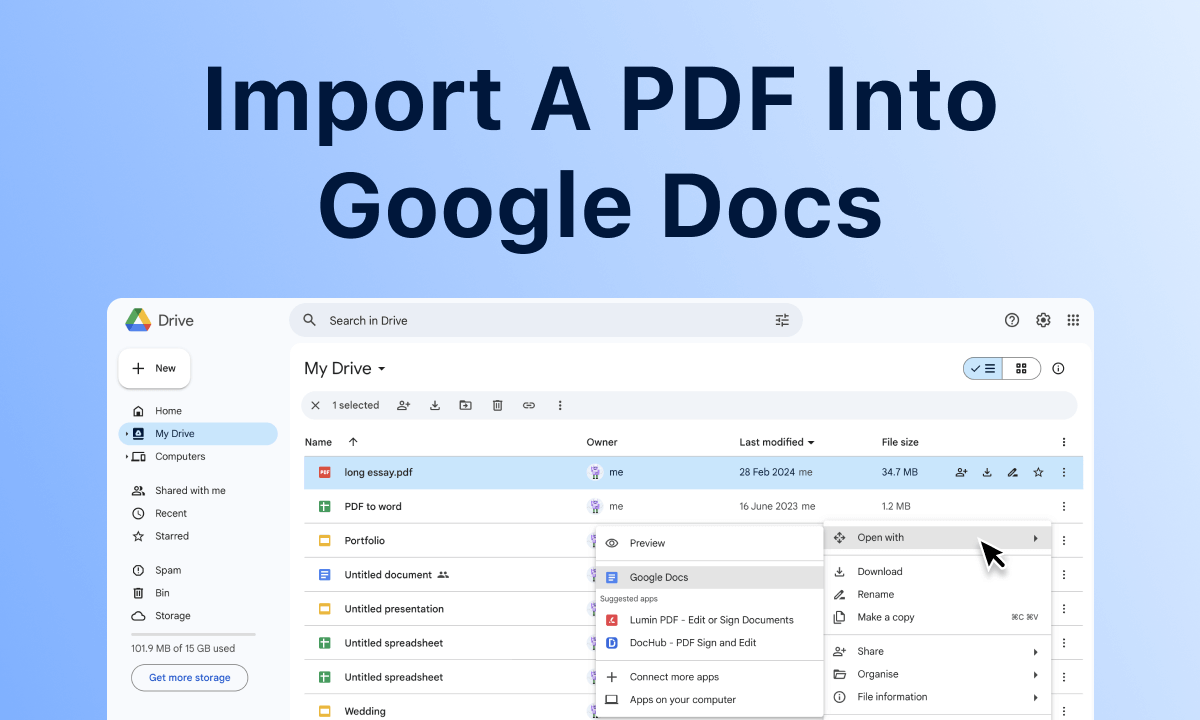
How to Import a PDF Into Google Docs
Do you want to insert a PDF in Google Docs? Unfortunately, Google Docs doesn’t provide a direct way to import PDF files into Google Docs.
If you want to import a scanned PDF into Google Docs, you need to use the right methods and techniques and convert the PDF to a Google Docs format or in the form of an image.
This passage will teach you how to import a PDF into Google Docs with step-by-step tutorials. To solve the problem faster, first try using a professional PDF converter, PDFgear.
Bulk Convert PDF to DOCX for Free
The fastest way to insert PDF files into Google Docs is to directly convert PDF to a file format acceptable to Google Docs – DOCX. PDFgear provides an efficient and free PDF to DOXC conversion solution.
PDFgear is the best free PDF converter to batch convert documents to Google Docs format.
As a comprehensive PDF editor, PDFgear allows users to batch convert PDF to DOCX offline and this also allows you to copy text from PDF to Word. In addition, the tool can also use accurate OCR to recognize PDF text.
No matter how big your PDF files are, you can easily bulk import PDF files into Google Docs after converting them to DOCX with this tool.
Step 1. Download and launch PDFgear, go to Convert from PDF tab, and click PDF to Word.
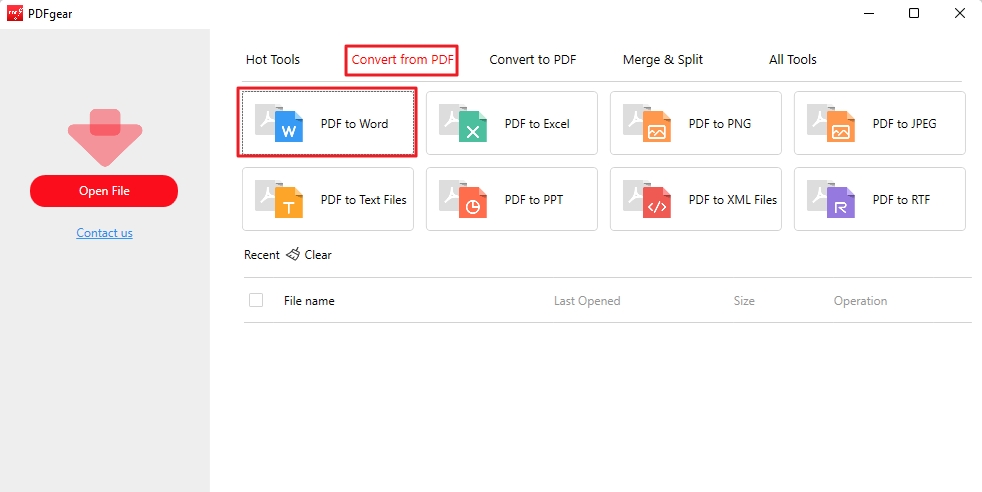
Click PDF to Word to Prepare PDF Import
Step 2. Click “Add Files” to upload the target PDF files to be converted.
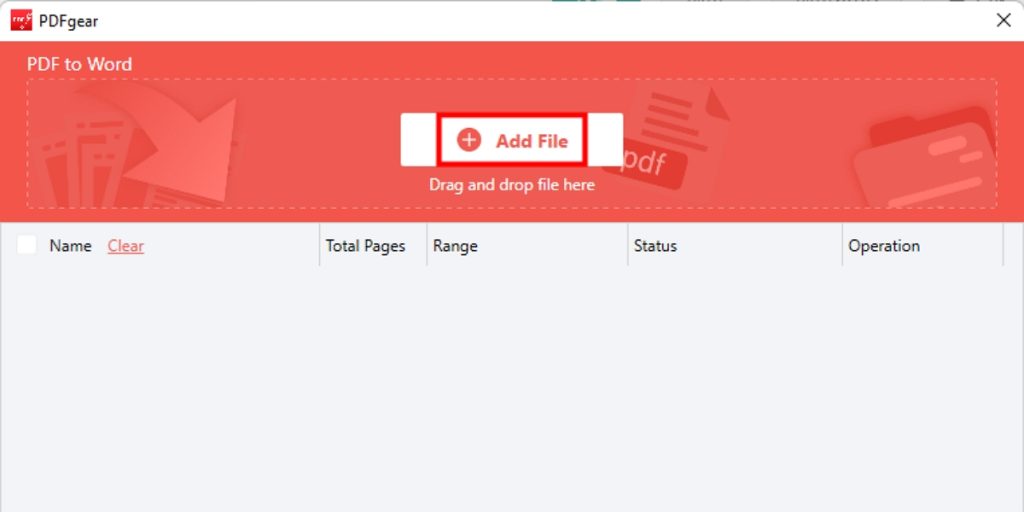
Click Add Files for PDF Import
Step 3. After uploading the PDF file, set the number of pages to be converted, the path, and the format to be saved, and click “Convert.”
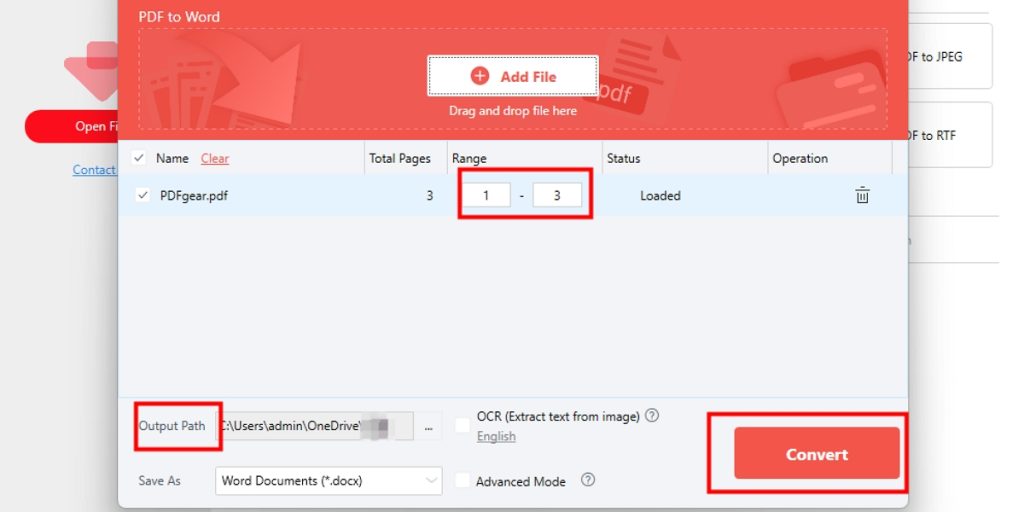
Set PDF Output Path for PDF Import
Step 4. Wait for the conversion process to complete, and you will see “conversion succeed.” After that, you can directly open the converted PDF in Google Docs.
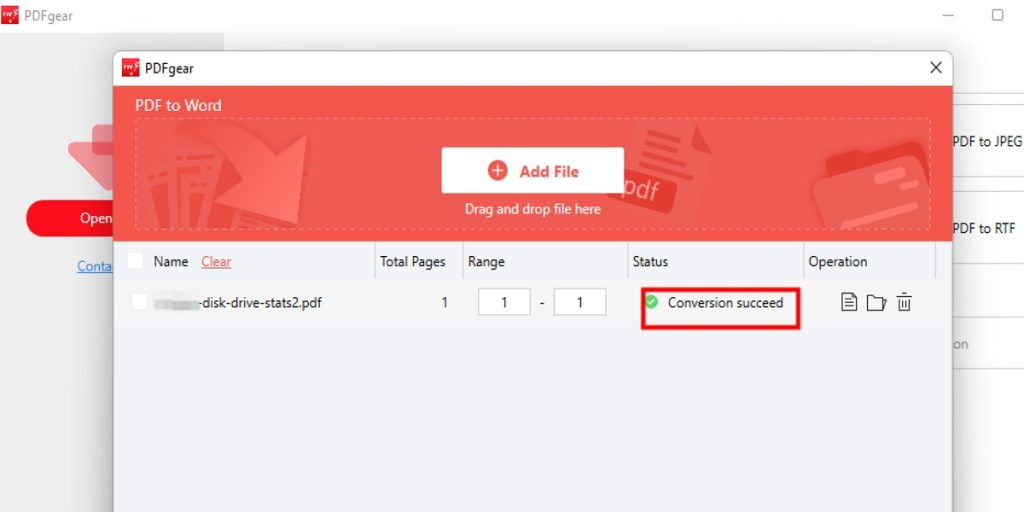
PDF to DOCX Succeed for PDF Import
By the way, this powerful PDF editor also support to make a fillable PDF in Google Docs. Download this PDgear and make your work easy!
Convert PDF to DOCX Online for Free
If you don’t want to download or register any software, PDFgear provides a convenient and free online PDF to DOCX converter. PDFgear Online tool can help you convert PDF to DOCX safely and quickly.
This tool is easy to operate and suitable for all users, especially computer novices:
Step 1. Open and access PDFgear Online PDF to Word Converter using your web browser.
Step 2. Click the “Choose files” option to upload PDF documents to be converted.
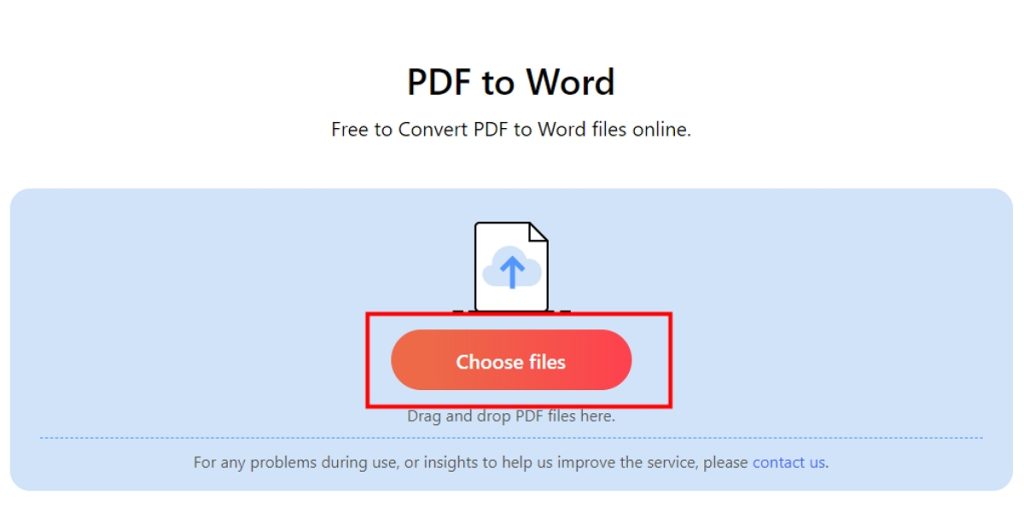
Choose Files for PDF Import
Step 3. After the upload is completed, the PDFgear Online tool will automatically convert PDF to DOCX format for you. Click “Download” to save the completed Word file.
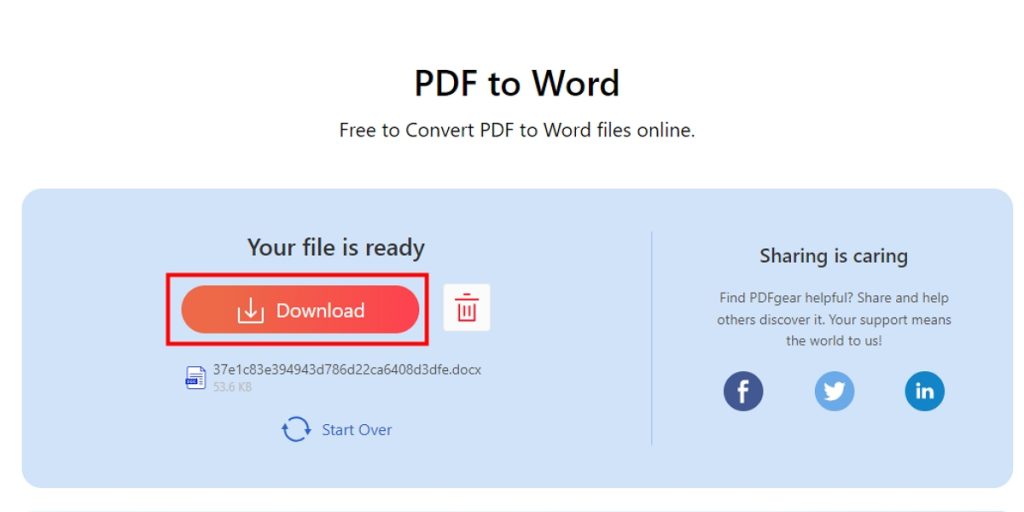
Download the Finished PDF File for Import
Import PDF to Google Docs via Google Drive
If you don’t want to change the format of the PDF document, you can also import PDF to Google Docs via another Google product – Google Drive. Google Drive provides an “open with” option to help you open PDFs in Google Docs.
To use this feature, you need first to upload the targert PDF you want to edit to Google Drive:
Step 1. After opening and logging in to Google Drive, click the “New” button in the upper left corner.
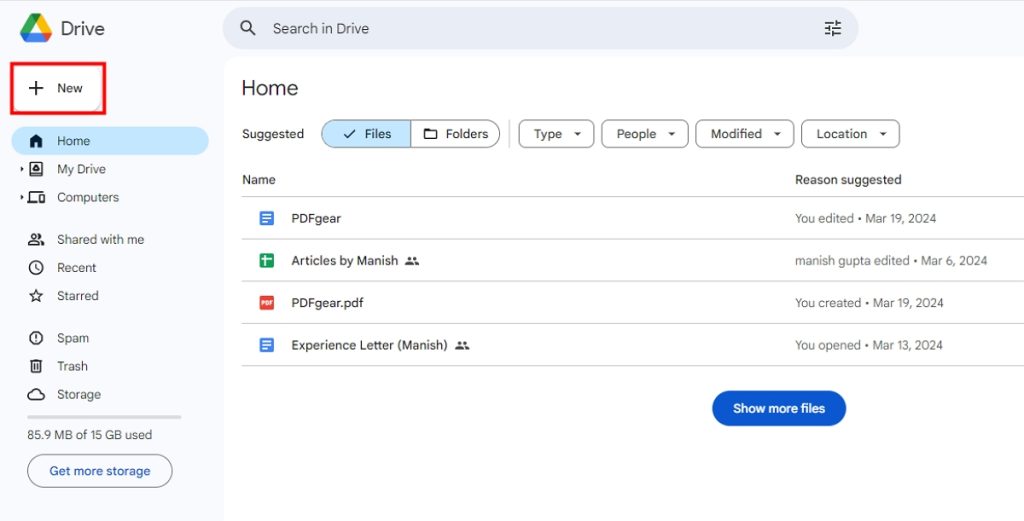
Click New for Import PDF
Step 2. Select “File Upload,” then select the PDF file you want to import.
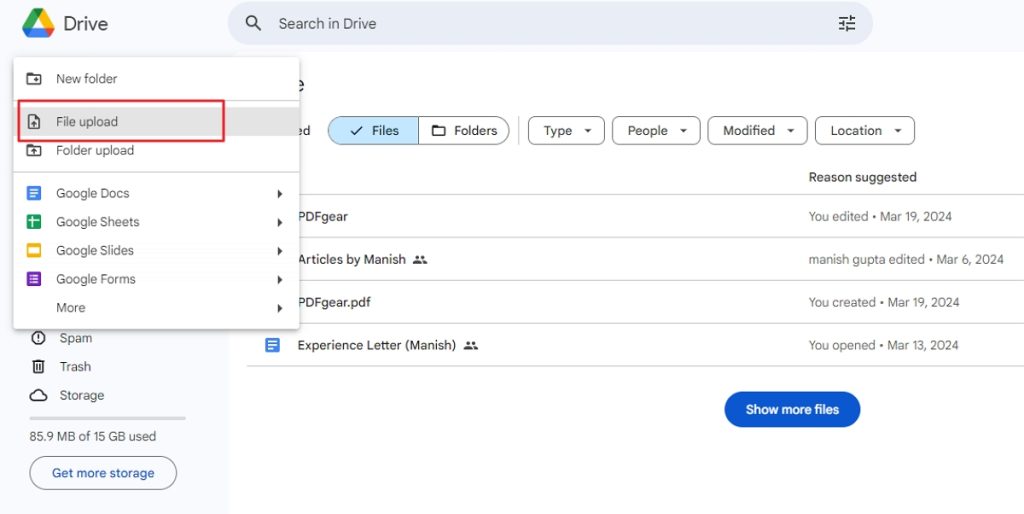
Upload the Target File to Import the PDF
Step 3. After completing the file upload, right-click the target PDF file >open with > Google Docs.
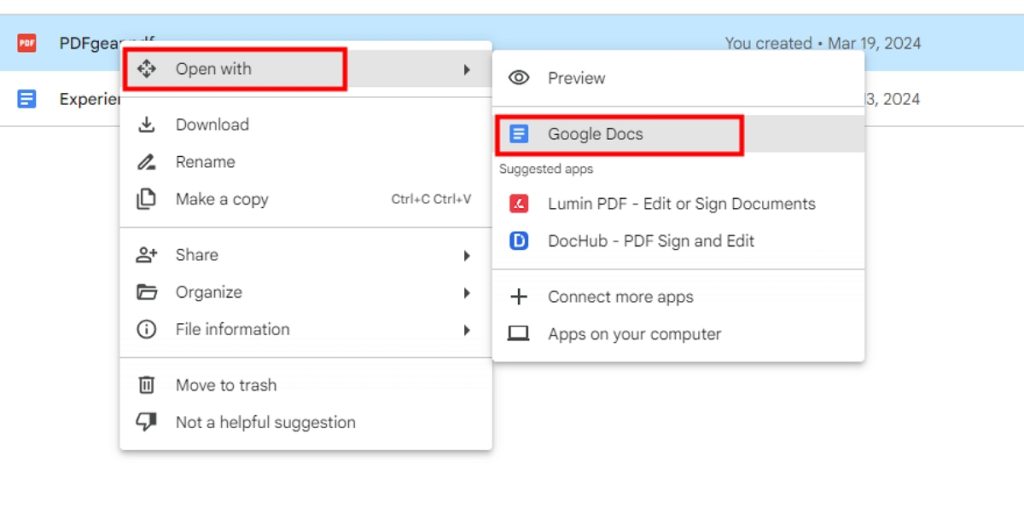
Open the Target PDF to Be Imported With Google Docs
Google will automatically convert the PDF to Google Docs format, which you can edit and save.
Import Scanned PDF to Google Docs with OCR
Google Drive integrates several features, including the OCR function, which will automatically convert PDFs to editable text. You can edit the PDF file by setting the uploaded file to Google Document Editor format beforehand.
However, the method is a little more complicated compared to the previous method. If you are unfamiliar with the operation of Google Drive, please refer to the steps below and copy scanned PDF text:
Step 1. Click the gear icon in the top right corner of the Google Drive website, open it, and choose “Settings.”
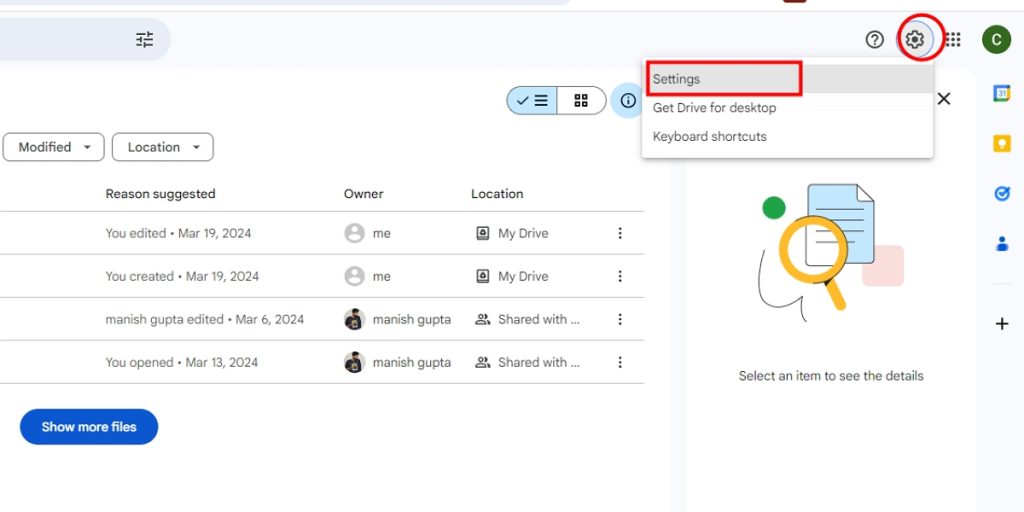
Choose Settings in Order to Import PDF
Step 2. Under the “General” tab, make sure “Convert uploads to Google Docs editor format” is checked. And save the changes.
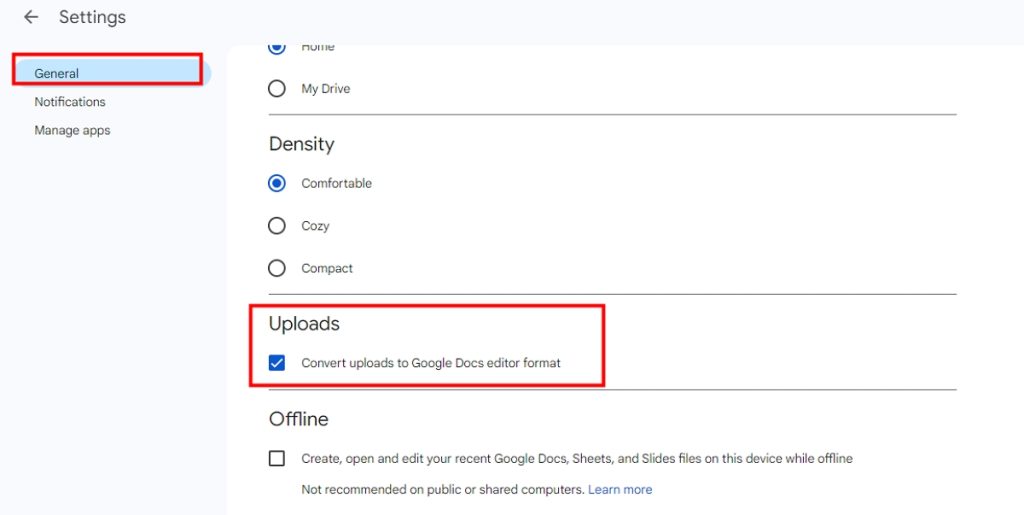
Set Up Uploaded Files to Google Docs Editor Format
Step 3. In the Google Drive interface, click “New”> “File Upload” in the upper left corner, and select the scanned PDF files you want to import.
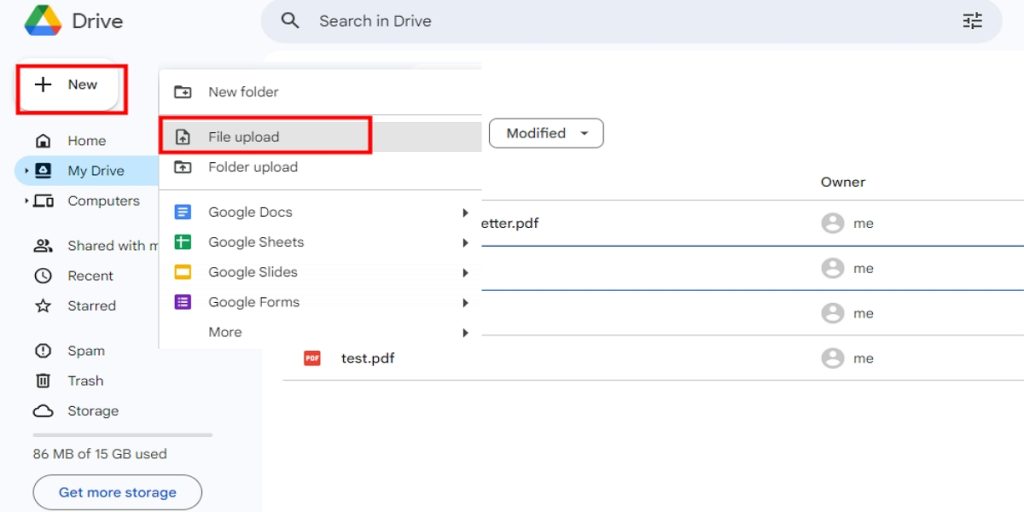
Upload the Scanned PDF File to Be Imported
Step 4. Google Drive will use OCR to automatically recognize the text in the scanned PDF. After finishing, you can see the converted files in Google Docs.
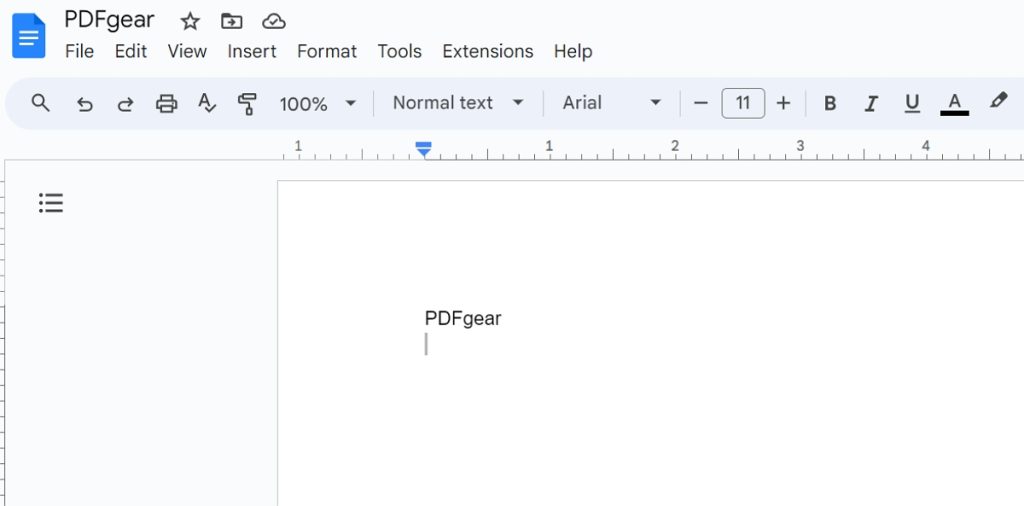
Check and Edit Converted PDF Files
However, Google Drive OCR is limited, it can only handle files smaller than 2MB and cannot preserve the file format. If you want to break through the limitation of Google OCR and upload and process multiple documents at the same time, please try to use the OCR function provided by PDFgear.
FAQs
Is it free to import a PDF into Google Docs?
Yes, importing a PDF into Google Docs is free. All you need is a Google account, which allows you to access Google Drive and Google Docs at no cost.
Will the formatting of my PDF be preserved when importing it into Google Docs?
Google Docs does its best to preserve the formatting of the imported PDF, but some elements may not be preserved perfectly. Complex formatting, images, tables, and fonts may be altered during the conversion process. It is recommended to double-check the formatting after the import and make any necessary adjustments.
Can I import scanned or image-based PDFs into Google Docs?
Yes, Google Docs can import scanned or image-based PDFs using Optical Character Recognition (OCR) technology. However, the accuracy of the OCR conversion depends on the quality of the scanned document and the clarity of the text. You may need to proofread and correct any errors after importing the PDF.
What is the maximum file size for importing a PDF into Google Docs?
The maximum file size for importing a PDF into Google Docs is 50 MB. If your PDF file is larger than this limit, you may need to compress it or split it into smaller parts before importing.
Can I import a password-protected PDF into Google Docs?
No, you cannot directly import a password-protected PDF into Google Docs. You will need to remove the password protection using a PDF editing tool or by contacting the document’s creator to obtain an unprotected version of the PDF.
Conclusion
This article shows you how to import PDFs into Google Docs in simple ways. The most effective solution is to use PDFgear to convert PDFs to DOCX documents directly. Whether you want to insert small files online or import large files offline, PDFgear provides full support.
If you do not want to use a third-party tool, Google’s OCR function can help you automatically convert PDF files and easily edit them.
