How to Add Multiple Signatures to PDF for Yourself or Others

Summary:
Learn how to add multiple signatures to a PDF yourself, place one signature on multiple pages, prepare signature fields, or request signatures from others.
Table of Contents
You can add multiple signatures to a PDF in different ways. This may mean adding several visible signatures yourself, placing the same signature on multiple pages, preparing signature fields for others, or collecting signatures from multiple people.
This guide shows the right method for each case. If you want the fastest option, start with the free online method below.
Quick Way: Add Multiple Signatures to PDF Online for Free
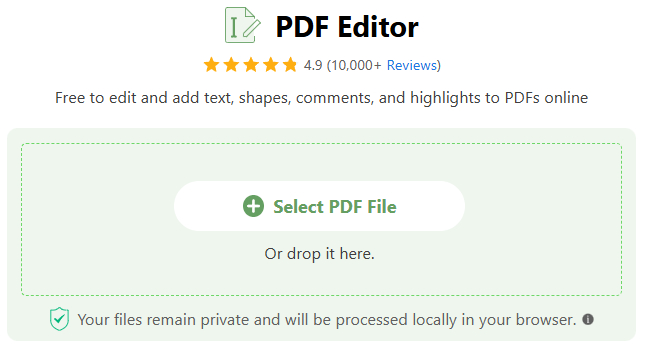
Insert Multiple Signatures to PDF without an Account
1. Open PDFgear Online Editor and select a PDF from your device.
2. To add visible signatures, draw, type, or import your signature, place it where needed, and repeat for other pages or positions.
3. To add signature boxes, click Add and Edit Form Field, choose the signature field, and place a box for each signing position.
4. Save and download the PDF.
Privacy note: Your PDF stays in your browser instead of being uploaded to third-party servers, helping keep private or confidential content secure.
For digital signature fields that can be validated after signing, use PDFgear Software for Windows or Mac instead.

Which Tool Should You Use for Multiple Signatures?
Different signing needs call for different tools. The table below compares four options for adding your own signatures, preparing fields for others, and collecting signatures from multiple people.
| Feature | PDFgear Online | PDFgear Software | eSignGear | Adobe Acrobat |
| Add multiple visible signatures | Yes | Yes | Yes | Yes |
| Place the same signature on multiple pages | Manually | In batch | Manually | Manually |
| Add multiple signature fields | Yes | Yes | Yes | Paid feature¹ |
| Add multiple digital signatures | No | Yes | No | Yes |
| Request signatures from multiple people | No | No | Yes | Limited free use² |
| Assign signature fields to different signers | No | No | Yes | Limited free use² |
| Track signing status | No | No | Yes | Limited free use² |
| Keep an audit trail | No | No | Yes | Limited free use² |
Sign Multiple Pages or Add Digital Signature Fields for Free
For more advanced multiple-signature tasks, PDFgear Software gives you more control than the online editor. You can place the same signature across multiple pages or prepare multiple digital signature fields for others to sign.
Place the Same Signature on Multiple PDF Pages in Batch
Once a signature is added, PDFgear lets you apply it to multiple pages in a single batch instead of placing it page by page. This is especially useful for contracts, forms, or other long PDFs where the same person needs to sign or initial multiple pages.
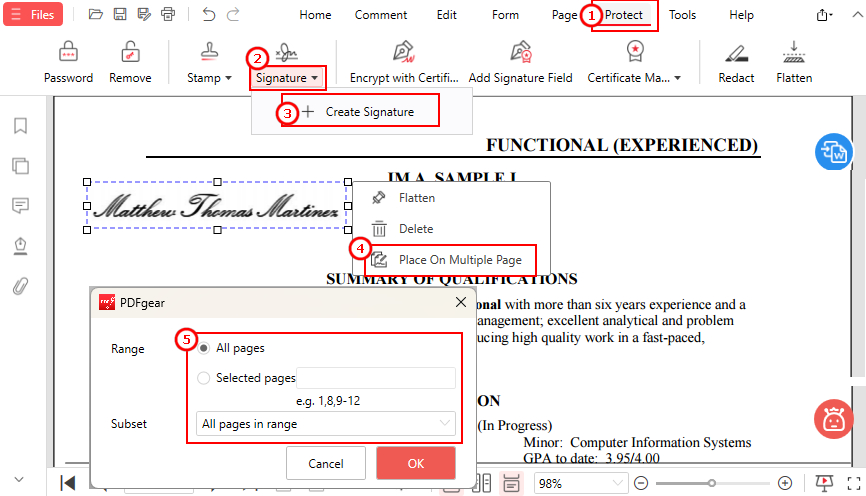
Sign Multiple Pages in PDF on Windows
1. Download PDFgear and open your PDF with it.
2. Go to Protect > Signature > Create Signature.
3. Draw, type, or add an image of your signature, then place it on the PDF. PDFgear automatically saves your signature so you can reuse it later.
4. Click the added signature and select Place on Multiple Pages.
5. Choose All Pages, Odd Pages, Even Pages, or enter specific page numbers. Confirm your selection and save the PDF.
Using PDFgear on Mac?
After adding a signature from Home > Signature, you have two ways to place the same signature on multiple pages:
- Scroll to another page and click to place it again, then press Esc when finished.
- To add it to every page at once, right-click the signature and choose Add to all pages. The signatures are added in the same position and can be moved individually afterward.
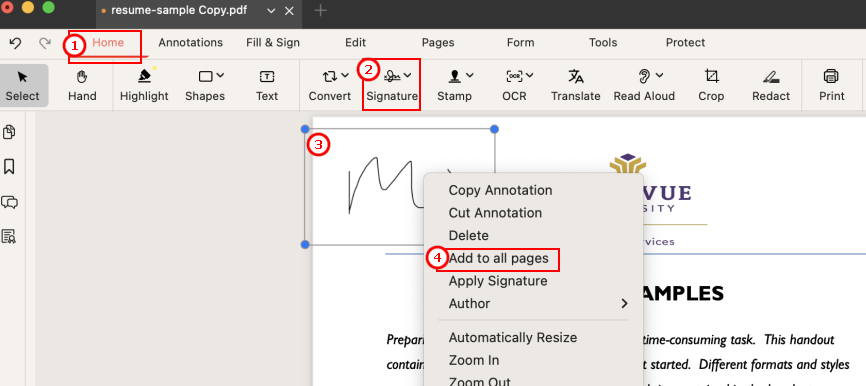
Add the Same Signature to All PDF Pages on Mac
Add Multiple Digital Signature Fields for Other Signers
If different people need to digitally sign the PDF with their own Digital IDs, you can add a separate digital signature field for each signer.
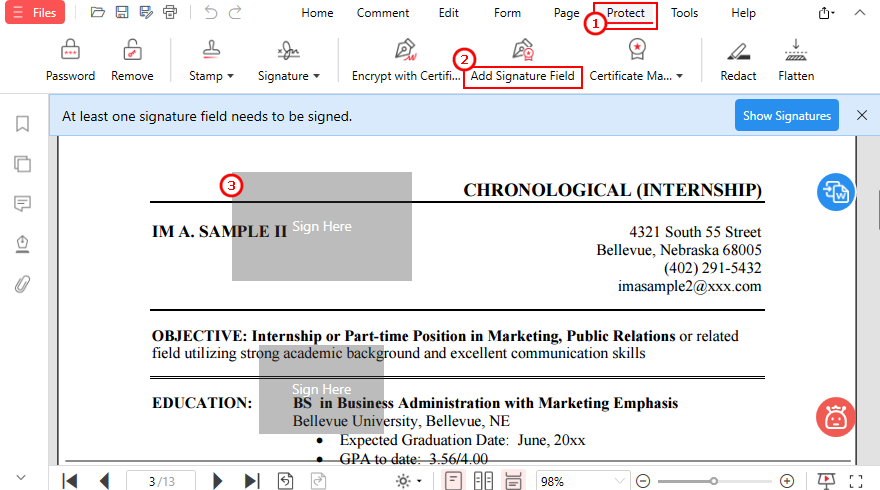
Add multiple Digital Signatures in PDF for Free
1. Download PDFgear, open it, and click Open File to select your PDF.
2. Go to Protect > Add Signature Field.
3. Place a signature field where the first person needs to sign.
4. Repeat to add separate signature fields for the other signers.
5. Save the finished PDF as a copy to keep the original file as a backup, then share the copy with the signers.
On Mac, save after each field:
PDFgear prompts you to save the PDF each time you add a signature field. After saving, repeat the process to add the next field.
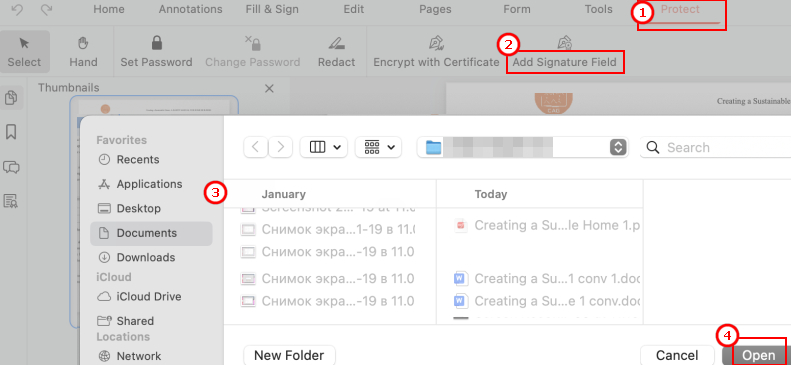
Add multiple Digital Signatures in PDF on Mac
Once every signer has completed signing, the digital signatures can be validated to check their validity and whether the PDF has been changed afterward.
Add Multiple Signatures and Signature Boxes Online
The Quick Solution above covers the basic steps. Here, we’ll look more closely at the two online options: adding multiple visible signatures yourself and creating fillable signature boxes for others to sign later.
Add Several Visible Signatures to Different Pages
For visible electronic signatures or initials, you can add signatures wherever they are needed and adjust each one separately.
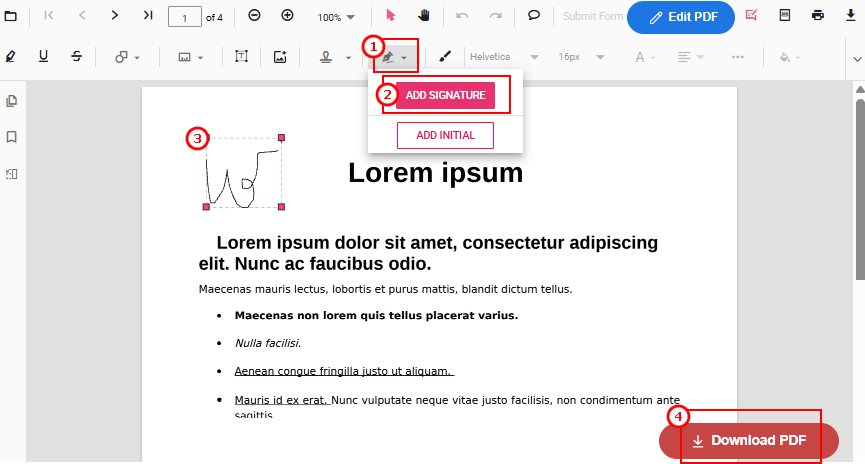
Add Multiple Signatures to PDF Online for Free
1. Open PDFgear Online Editor, select your PDF, and choose Add Signature.
2. Create a signature by drawing, typing, or adding an image, then place it where needed.
3. To add the same signature multiple times on the same page, simply copy and paste it, then move each copy into position.
4. To add a signature or initials to a different PDF page, return to the Add Signature tool and add a new one, since copy and paste currently works only within the same page.
5. Repeat as needed, review all the signatures, then click Download PDF to save the signed file.
Add Multiple Fillable Signature Boxes Online
If you’re preparing a PDF for others to sign, you can create separate fillable signature boxes and customize each field for different signers or signing positions.
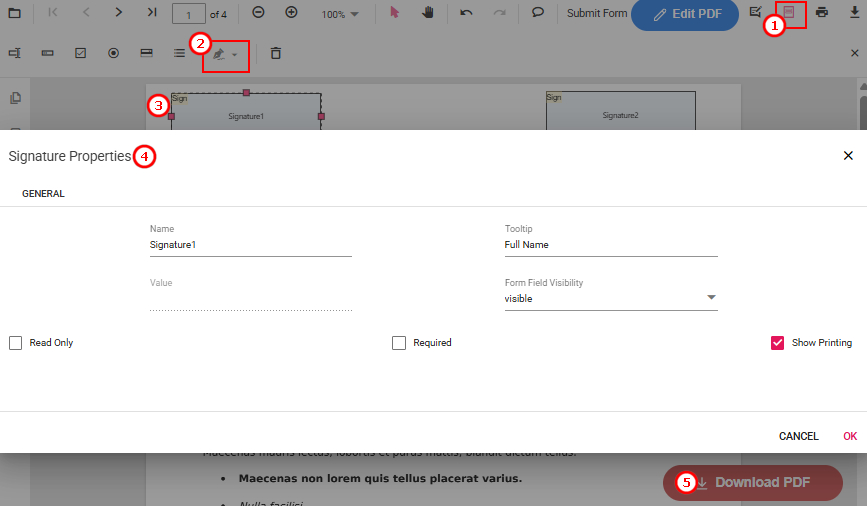
Add Multiple Signature Fields to PDF Online for Free
1. Open your PDF in PDFgear Online Editor and click Add and Edit Form Field in the upper-right corner.
2. Select Add Signature, then click or drag on the PDF to place a signature box where someone needs to sign.
3. Double-click the added signature box to open Signature Properties. Set a field name, add a tooltip, adjust its visibility, or mark the field as required as needed.
4. Repeat the process to add signature boxes for other signers or signing positions. Give each field a different name when needed to keep them easy to identify.
5. Review the fields, then click Download PDF to save the prepared document.
All signatures added with PDFgear Online Editor are electronic signatures. For digital signatures, use PDFgear Software for Windows or Mac instead.
Already Use Adobe? Add Multiple Signatures with Acrobat
Adobe Acrobat can also handle different signing workflows, from placing the same visible signature on different pages to preparing fields for other signers and requesting signatures online.
Add the Same Visible Signature to Multiple Pages for Free
Acrobat’s Fill & Sign tool lets you create a signature by typing, drawing, or uploading an image. Once created, the signature is saved for reuse, so you can place it on other pages without recreating it each time.
Steps: Fill & Sign > Create a signature > Place it on the needed page > Repeat on other pages > Save the PDF.
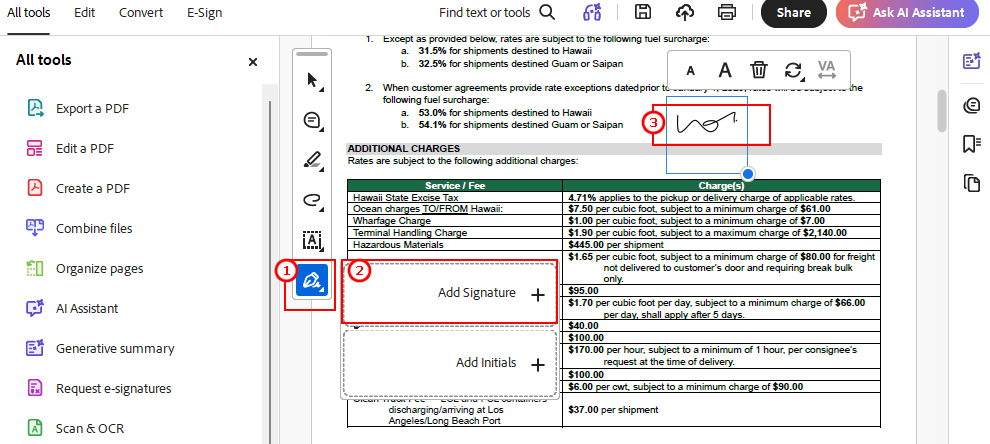
How to Add Multiple Signatures in PDF
Add Multiple Signature Fields with Paid Acrobat
Acrobat Pro lets you create separate signature fields with Prepare a Form. You can place them wherever needed and repeat the process for additional signers.
Steps: All tools > Prepare a form > Add signature fields > Place the fields where needed > Save the PDF.
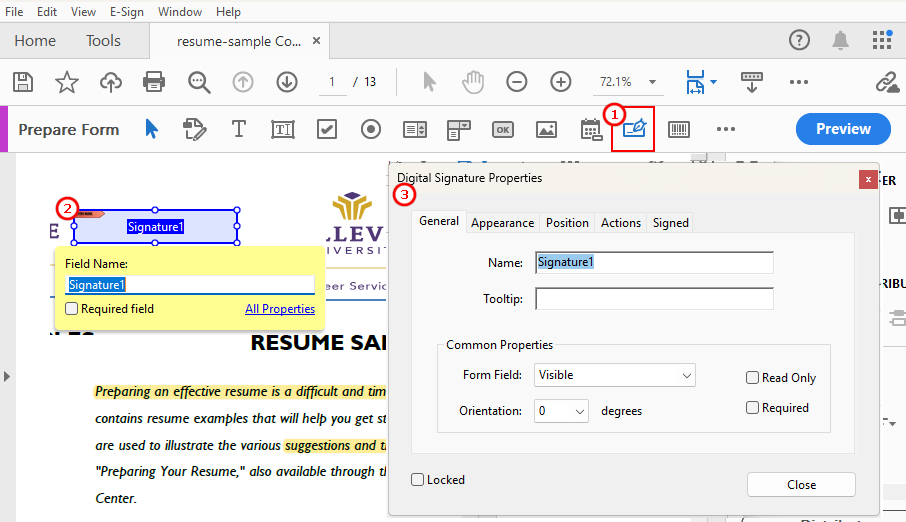
Prepare Multiple Fillable Signature Boxes for Others to Sign
Want a free option?
If you just need to add multiple signature fields, PDFgear Online Editor lets you do it for free in your browser, with no sign-up, account, or download required.
Request and Track Multiple Signatures with Paid Acrobat
Acrobat’s Request E-Signatures feature lets you send a PDF to multiple people for signing and track each recipient’s signing status, making it useful for approval workflows.
Steps: Request e-signatures > Add recipients > Prepare document > Add and assign signature fields > Review & send.
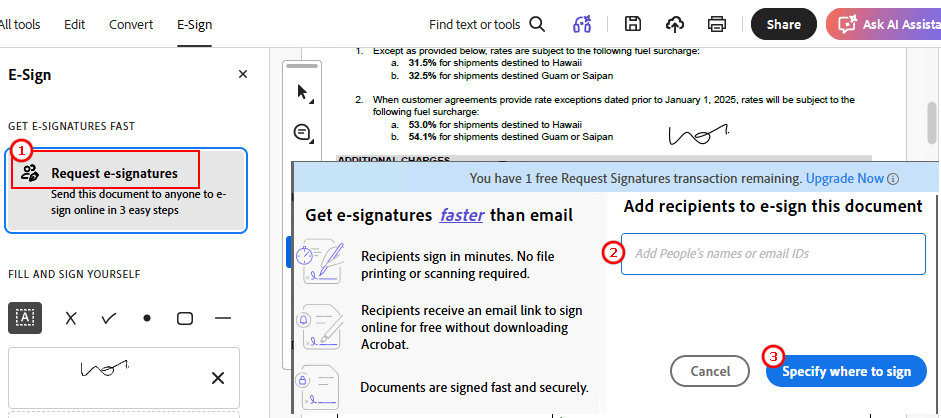
Request Multiple Signatures on PDF with Adobe Acrobat
Request E-Signature limits:
A free Acrobat account is limited to 2 Request E-Signature transactions every 30 days on a rolling basis. Paid Acrobat plans provide higher e-signature limits and additional workflow features.
Request and Track Multiple Signatures with eSignGear
When multiple people need to sign a PDF remotely, emailing the file back and forth can make it difficult to assign fields and track who has signed.
eSignGear, PDFgear’s companion e-signing service, keeps the entire process online, letting you invite signers, assign specific signature fields to each person, send requests, and track completion in one place.

Send PDF for Multiple Signatures Online with eSignGear
1. Open eSignGear, sign in with Google without creating a separate account, and add the PDF you want others to sign.
2. Click Add More Signees and enter each signee’s name and email address. You can also set reminders or an expiration date if needed.
3. Select each signee, then add the required signature fields to the PDF. Each field is assigned to that signee’s email address, so they sign in their designated fields.
4. If you also need to sign, select your own account and add your signature by drawing, typing, or adding an image. Your signature is automatically saved for future use.
5. Then click Finish and sign to send the requests.
6. The Waiting for signatures page shows who has signed and who hasn’t.
Tracking details:
Open the file from the document list and check Activity History to see when a request was sent, viewed, and signed. Once everyone has signed, download the completed PDF.
FAQs
Can a PDF Have Multiple Signatures?
Yes. PDFgear Online Editor lets you add multiple visible signatures or signature boxes online, while PDFgear Software supports more advanced needs, including multiple digital signature fields.
Why Did a Previous Digital Signature Become Invalid After I Added Another Signature?
A digital signature can become invalid if the PDF is modified after it was signed. To collect multiple digital signatures, prepare separate digital signature fields before the first person signs. This allows additional signers to use the designated fields without making unrelated changes to the signed document.
Can I Put the Same Signature on Every Page of a PDF?
Yes. With PDFgear Software, create and place your signature on the PDF, then choose Place on Multiple Pages > All Pages to add it to every page at once.
On Mac, place your signature first, then right-click it and choose Add to all pages. See Method 1 for detailed steps.
How Do I Add Signature Boxes for Different People?
Use eSignGear when different people need to sign specific fields. Open your PDF, enter each signee’s name and email, then assign signature fields to each person and send the request.
You can set reminders or an expiration date if needed and track when each signee views and signs the PDF. See Method 4 for detailed steps.
What Is the Difference Between Multiple Visible Signatures and Multiple Digital Signatures?
Multiple visible signatures usually refer to typed, drawn, or image-based electronic signatures placed on the PDF pages. Multiple digital signatures, by contrast, use Digital IDs and certificates to verify the signers and help detect changes to the document after signing.
This comes down to the broader difference between digital signatures and electronic signatures.
Conclusion
Whether you need to add multiple signatures yourself, prepare fields for others, or collect signatures remotely, the right method depends on how your PDF needs to be signed. PDFgear and eSignGear cover these workflows for free, so choose the method above that fits your needs and start signing.
