How to Send PDF for Signature to Someone Else

Summary:
Learn how to send a PDF for signature to someone else for free, add signature fields, request signatures, track progress, and get the signed PDF back.
Table of Contents
Need someone else to sign a contract, approval form, or other PDF? You can send the PDF directly for their signature.
This guide covers the complete process of sending and tracking a signature request, as well as adding electronic or digital signature fields for signatures when needed. To get started right away, check out the quick solution below.
The Fastest Way to Send PDF and Get It Signed
Send PDF for Signature Online
1. Upload your PDF to eSignGear and add the signees who need to sign.
2. Set the signing order, deadline, and reminders if needed.

3. Select a signee and assign signature fields where they need to sign.
4. Send the request and track who has viewed or signed the PDF.
5. Download the completed PDF once everyone has signed.
Privacy Note: eSignGear uses enterprise-grade encryption and secure data handling to protect your documents and personal information. So your privacy and document security are protected.
Send and Track PDF Signature Request with eSignGear
The quick solution above gets you started fast. Here, we’ll walk through the complete eSignGear workflow, with more control over signees, signature fields, signing order, reminders, tracking, and the completed PDF.
How to Send a PDF for Someone to Sign
1. Go to eSignGear and sign in with your Google account without extra registration.
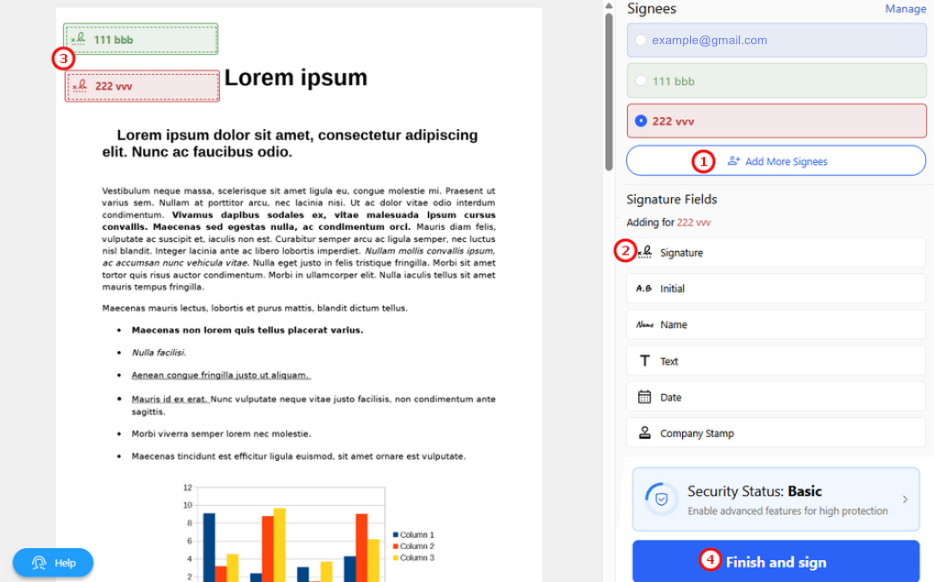
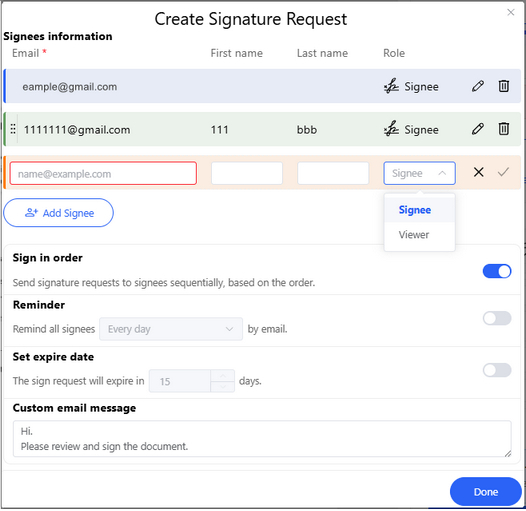
2. Click Add More Signees, then enter the name and email address of each person who needs to sign.
3. Arrange the signees in the required signing order if they need to sign one after another. Then set a deadline, choose how often reminders are sent, and add a note if needed.
Create the Signature Request for Each Signee
4. Select a signee, then place the signature, date, or other required fields where that person needs to complete them. Each field will be assigned to the selected signee.
5. Click Finish and sign. Then check whether each signee has viewed or signed the PDF to track the progress.
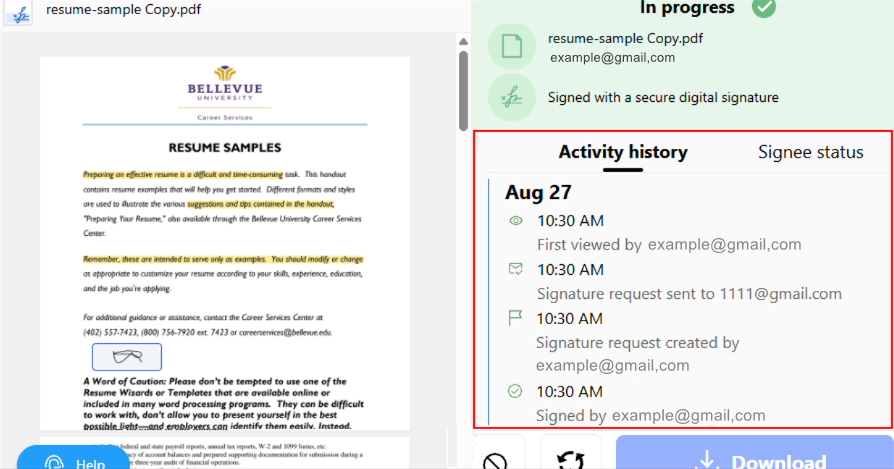
How to Track a PDF Sent for Signature
6. Once everyone has signed, download the completed PDF for your records.
What you can manage with eSignGear:
- Full signature request workflow, not just signature fields.
- Built-in email invitations to signees.
- Custom signing order, deadlines, reminders, and notes.
- Signature fields assigned to specific signees.
- Real-time viewed and signed status tracking.
Create Signable PDF to Send with PDFgear Online
If you only need to prepare a PDF for someone else to sign and plan to send it yourself, PDFgear Fillable PDF Creator is a simple option.
It works right in your browser, requires no installation, and lets you add multiple fillable signature fields for free. You can also fill out a PDF form when needed.
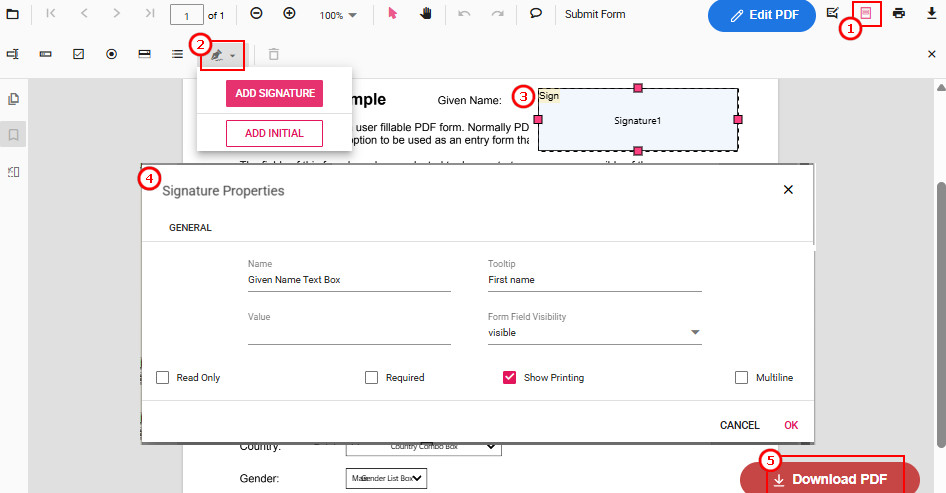
Add and Customize Signature Boxes in PDFgear Fillable PDF Creator
1. Open PDFgear Fillable PDF Creator and select your PDF.
2. Click the Signature icon, then choose Add Signature or Add Initial.
3. Place the signature fields wherever you want the recipients to sign.
4. Double-click a signature field to customize its properties. You can set the field Name and Tooltip, make it Required or Read Only, choose its Visibility, and decide whether it appears when printing.
5. Download the PDF and send it to the recipients.
How Recipients Sign:
When recipients open the PDF in a PDF editor that supports fillable signature fields, they can click the signature field and add their signature by drawing, typing, or uploading an image.
Set Up PDF for Digital Signature with PDFgear Software
For documents that require a verifiable digital signature, such as formal agreements or approval documents, you can use PDFgear Software to add a digital signature field before sending the PDF.
The recipient can then sign the designated field with their Digital ID, allowing the signature and document integrity to be verified afterward.
1. Download PDFgear on Windows and Mac. Then open the PDF in PDFgear and go to Protect > Add Signature Field.
2. Drag a box where you want the recipient to sign digitally.
3. Add more signature fields if needed. Windows and Mac handle the saving process differently:
- Windows: Add all the signature fields you need, then save the PDF.
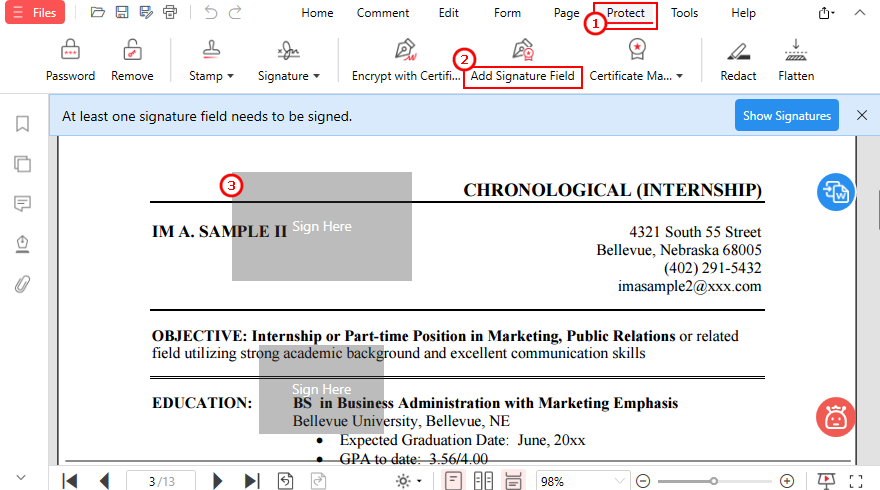
Request Digital Signature in PDF
- Mac: Save the PDF after adding each signature field, then repeat the process to add another.
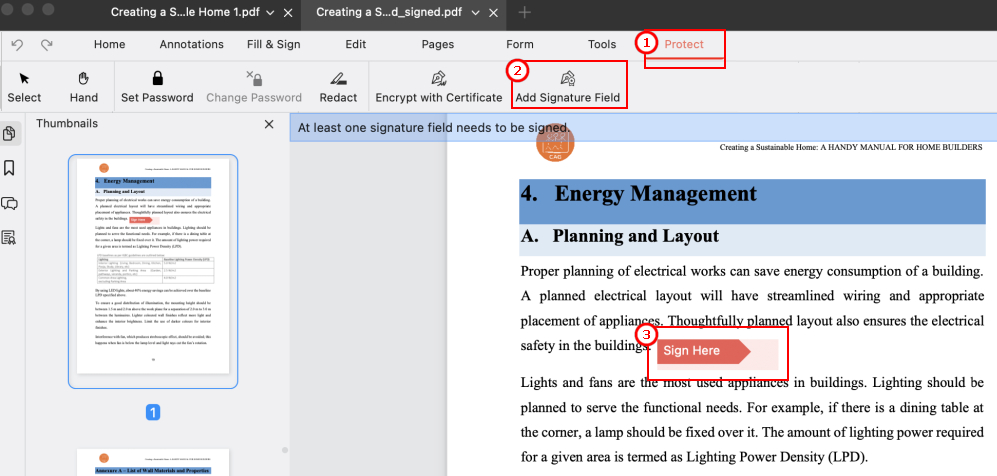
How to Send PDF for Digital Signature
4. Send the saved PDF to the recipients for digital signing.
Request PDF Signature with Adobe Acrobat
If sending PDFs for signature is essential to your workflow and you’re willing to pay for it, Adobe Acrobat is a solid option. It provides a built-in workflow for sending signature requests and managing the signing process.
Steps: Open your PDF in Adobe Acrobat > Choose Request e-signatures > Add recipients > Specify where to sign > Review and send the request.
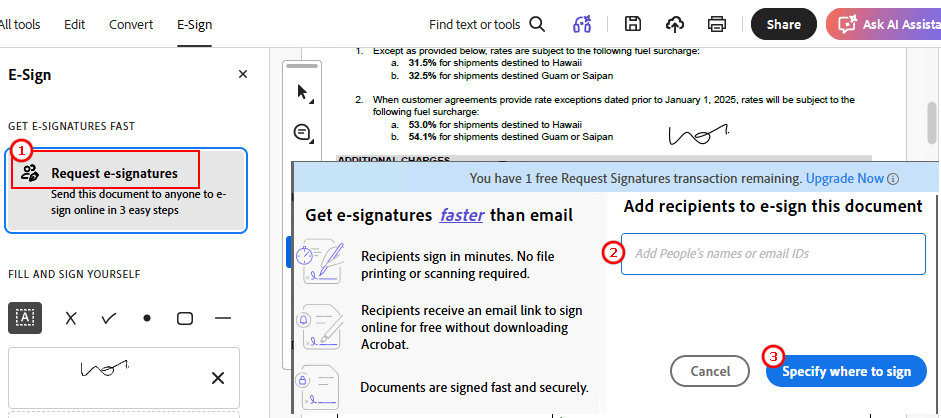
How to Send PDF for Signature in Adobe
Limits:
A free Adobe Acrobat account includes 2 free Request Signatures transactions every 30 days.
If you need to send more signature requests, use eSignGear for a complete request and tracking workflow, or PDFgear Fillable PDF Creator to create a signable PDF and send it yourself.
FAQs
Can I send a PDF for signature for free?
Yes. eSignGear lets you send up to 2 documents per month for free with no signee limits. If you prefer to send the PDF yourself, PDFgear Fillable PDF Creator lets you add fillable signature fields for free with no registration required.
What is the easiest way to send a PDF for signature?
eSignGear is an easy option for sending PDFs for signature online. It handles sending, signing, and tracking in one workflow. Simply upload your PDF, add signees and signature fields, then send the request.
See Method 1 above for detailed steps.
Can I send a PDF to multiple people for signature?
Yes. With eSignGear, you can collect multiple signatures in one PDF by adding multiple signees, assigning fields to specific people, and setting a signing order when needed.
Is it safe and legally valid to send a PDF for e-signature?
E-signatures are widely used for agreements and approvals, but their legal validity depends on local laws and the type of document. For higher verification needs, consider a digital signature. (This is general information, not legal advice.)
What is the difference between an electronic signature and a digital signature?
An electronic signature can be typed, drawn, or image-based to show a person’s intent to sign. A digital signature uses a Digital ID and certificate to verify the signer and detect document changes.
See the full difference between digital and electronic signatures for more details.
Why can’t the recipient sign the PDF after I add a signature box?
Make sure you added an actual fillable signature field rather than a visual box or annotation. If the field doesn’t work, try opening the PDF in a PDF editor that supports fillable signature fields, such as PDFgear or Adobe Acrobat.
Should I use Adobe Acrobat to send a PDF for signature?
Adobe Acrobat is a good option if you need its full PDF and e-signature toolkit. However, Acrobat Pro costs $29.99/month and supports up to 25 signers per transaction, while eSignGear Premium costs $10/month with no signee limits.
If your main need is sending and tracking signature requests, eSignGear can be a more affordable option.
Conclusion
Sending a PDF for signature is easy with the right method. eSignGear handles the complete sending and tracking workflow, while PDFgear Fillable PDF Creator lets you create a signable PDF for free and send it yourself. For certificate-based signing, PDFgear Software lets you add digital signature fields before sending the PDF.
