How to Convert Word to PDF on Mac without Losing Original Format and Quality

Summary :
Learn the top 5 ways to transform Word to PDF on Mac for free, using free PDF editors and online tools, without compromising the original format and quality.
Table of Contents
How to Convert Word to PDF on Mac
When it comes to sharing a Word document with others, to maintain the document’s integrity, and make it more accessible and easier to share, it is generally better to convert it to a PDF file.
In this post, you will find several methods to convert Word to PDF on Mac with online and offline converters.
How to Batch Convert Word to PDF with a Free PDF Converter
As an all-in-one PDF solution, PDFgear allows you to read, edit, convert, merge, and sign PDF files across devices for completely free and without signing up.
PDFgear is a fast and reliable PDF converter that allows you to batch convert PDF documents and images without format messing up.
The best part is that PDFgear is a free generative AI-powered PDF editor. It offers PDF solutions like proofreading, summarizing, rewriting, analyzing data, and translating PDF files, which can streamline your PDF workflow to a large extent.
PDFgear is the top-notch option for you to convert Word to PDF on Windows, Mac, iPhone, and iPad. It’s free, safe, and easy to use.
Step 1. Download the Word to PDF Converter
Go to the PDFgear official website, download PDFgear software on your Mac, install and launch it on your device. Choose the Word to PDF tool and continue.
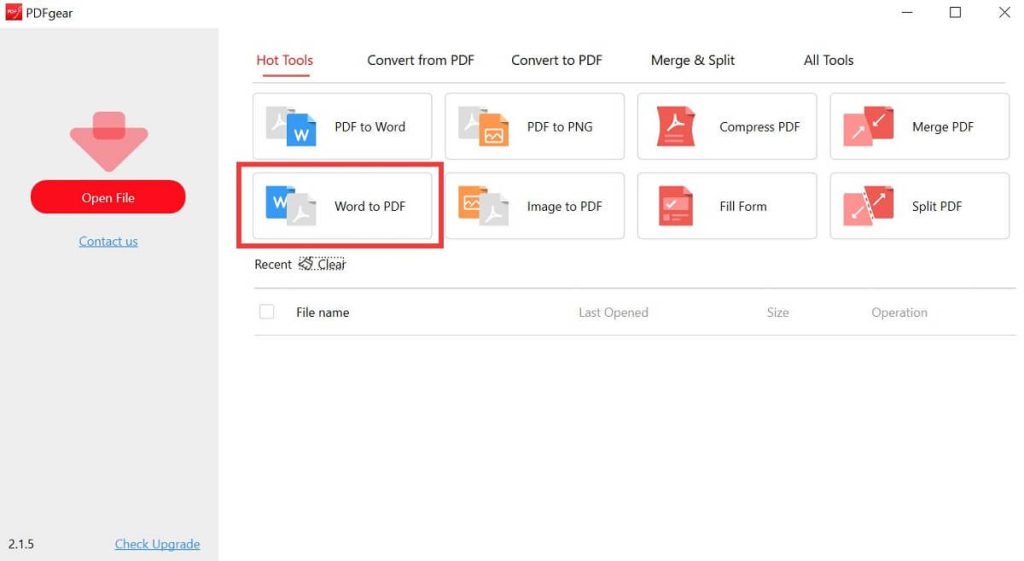
Launch PDFgear Software
Step 2. Batch Convert Word Documents to PDF Files
Hit Add Files to add one or more Word documents you want to convert, set the output path for the files, and hit the Convert button to go on.
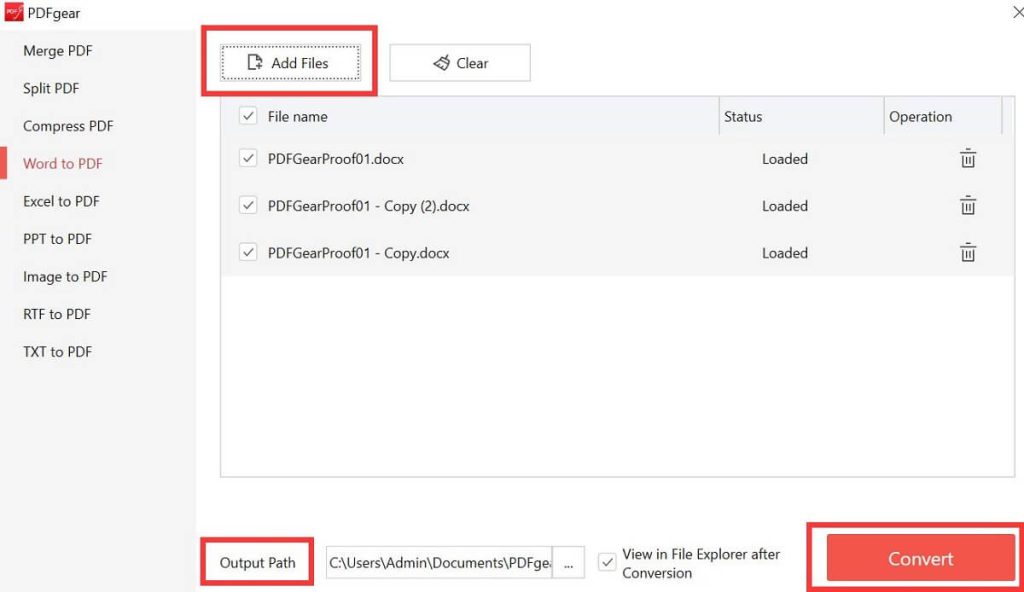
Batch Word to PDF Conversion with PDFgear
Step 3. Locate Your PDF Files
After clicking the Export button, PDFgear will immediately initiate the conversion process and save the PDF files to the folder you have specified.
You can then navigate to that folder and verify that the Word documents have been successfully converted to PDF.
How to Export Word to PDF with Pages – Free Word Processor on Mac
Mac users often utilize Pages as their word processing application, similar to how Windows users rely on Microsoft Word.
As a native Mac app, you can use Pages to convert Pages to PDF and various other format files.
If you have installed Pages on your Mac, you can open a Word file with Pages and then export it as a PDF document.
Step 1. Open a Word File with Pages
Run the Pages application on your computer, navigate to File, and select Open to open a Word document from your device.
Step 2. Export Word to PDF File
Navigate to File again, select Export To in the drop-down menu, and then choose PDF to go on.
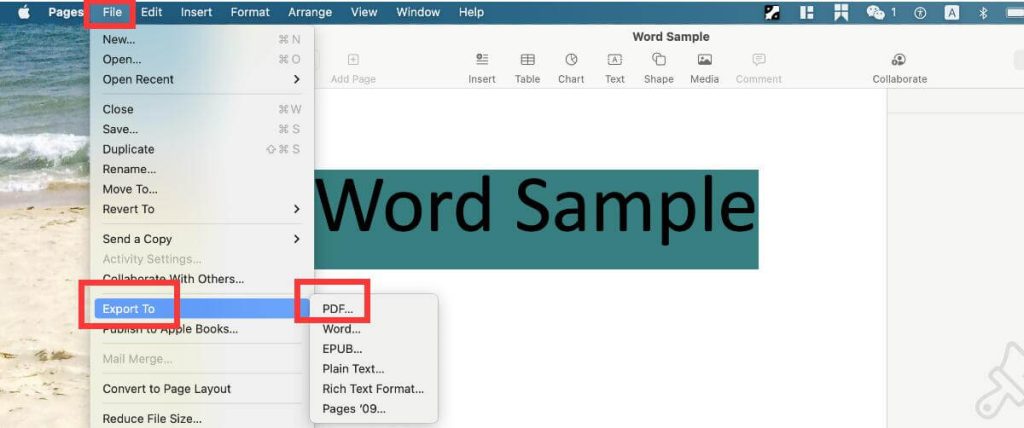
Steps to Export Word to PDF in Pages
In the new window, you can choose the Image Quality (Good, Better, or Best) of the PDF file. What’s more, you can also export the PDF with comments, and you are allowed to sign the PDF file with a password by selecting Require password to open.
Then hit the Next button to go on.
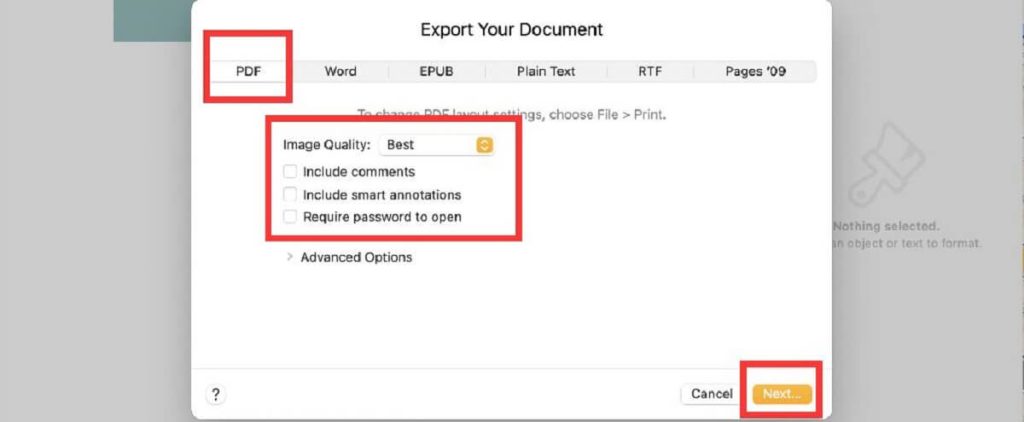
Export Your PDF Document
Step 3. Save the PDF Document
In this section, you can name your new PDF file in the Save As frame and select an output path where you locate your file. Then hit the Export button to save the file.
How to Transform Word to PDF via Preview – Big Sur or Earlier Mac Versions Only
Preview is a pre-installed image and PDF viewer within the Mac operating system. It allows users to slightly edit PDFs on Mac with ease.
Furthermore, Preview can also open iWork and Office documents in Big Sur and earlier macOS versions. Users who use these versions may follow the simple two steps below to change Word to PDF free on your Mac.
Step 1. Right-click the Word document and open it with Preview.
Step 2. Navigate to File, and select Export as PDF. Rename the PDF file and save it on your device.
How to Turn Word into PDF with Online Free
In addition to its intuitive software, PDFgear also offers a comprehensive suite of online tools.
You can utilize PDFgear’s online tools without the need for registration, and you are free to download all files without any watermarks.
PDFgear’s online tools are compatible across Linux, Windows, and Mac browsers, enabling the flexibility to convert PDF to Word and other formats on any device, anytime.
Step 1. Upload a Word File to Convert
Navigate to PDFgear online Word to PDF converter, Upload your Word file by clicking the button or drag and drop files here.
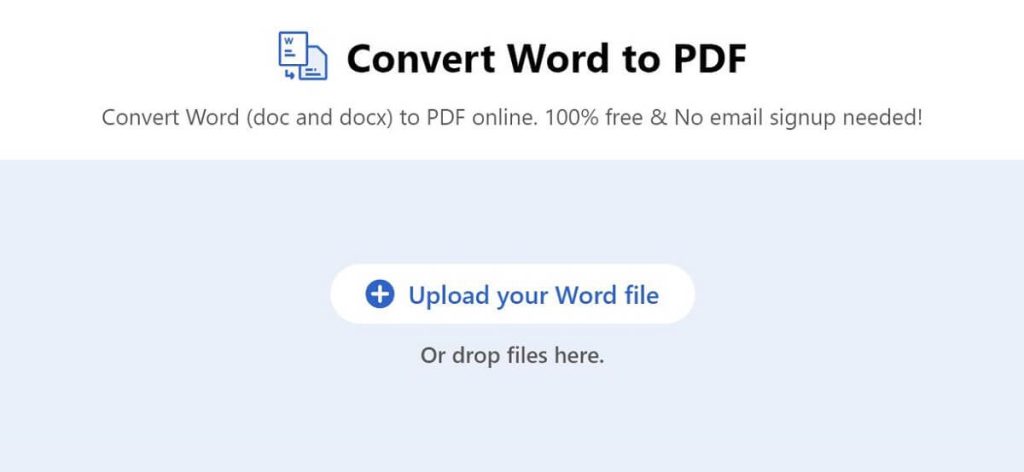
Upload a Word File to Convert
Step 2. Convert Word to PDF Automatically
Once uploading the Word file, PDFgear will automatically initiate the conversion process to change the Word file to a PDF file. Just wait for the process to be finished.
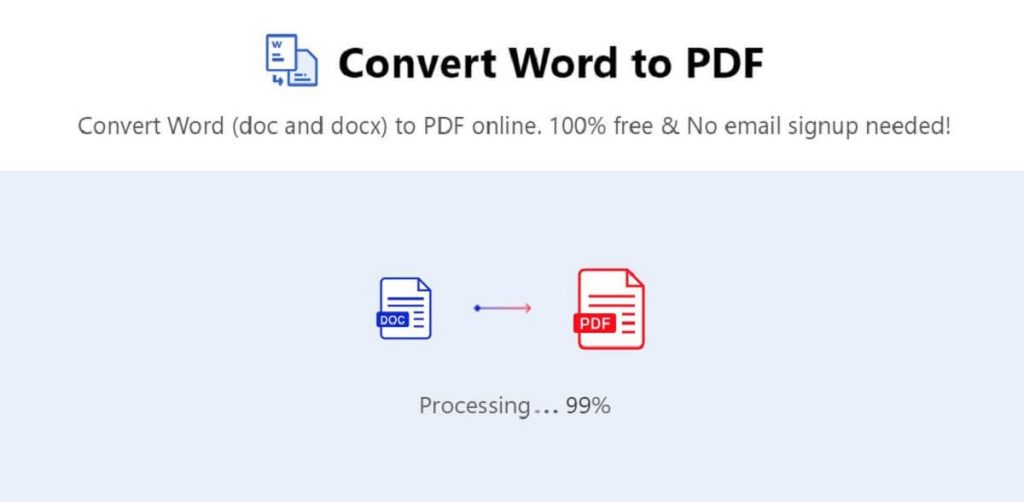
Transform Word to PDF Online
Step 3. Download the PDF Document
When the conversion process is finished, a new page will appear, allowing you to download the PDF file by clicking the Download button.
How to Change Word to PDF with Google Docs – Google Account Needed
Google Drive is a popular cloud storage and file-sharing service provided by Google. It is free to use but requires users to have a registered Google account.
If you are a Google account subscriber, one straightforward way to turn a Word file into a PDF document is using Google Docs.
Step 1. Upload a Word File to Google Drive
Directly go to the Google Drive homepage, sign in with your Google account, navigate to New, and select File upload to import a Word file.
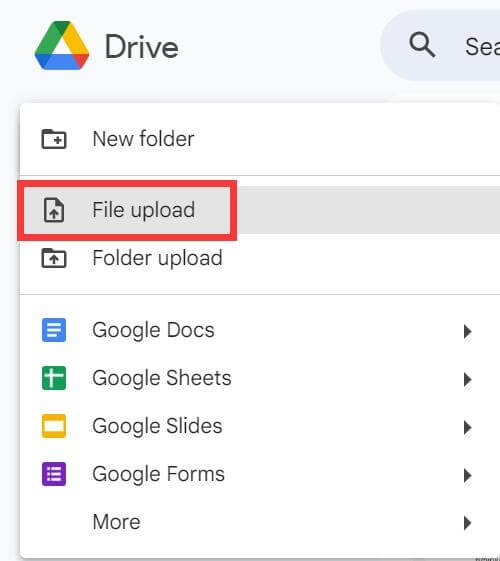
Import a Word File to Google Drive
Step 2. Open Word File with Google Docs
Click the three dots at the upper right corner of the Word file, choose Open with, and then select Google Docs.
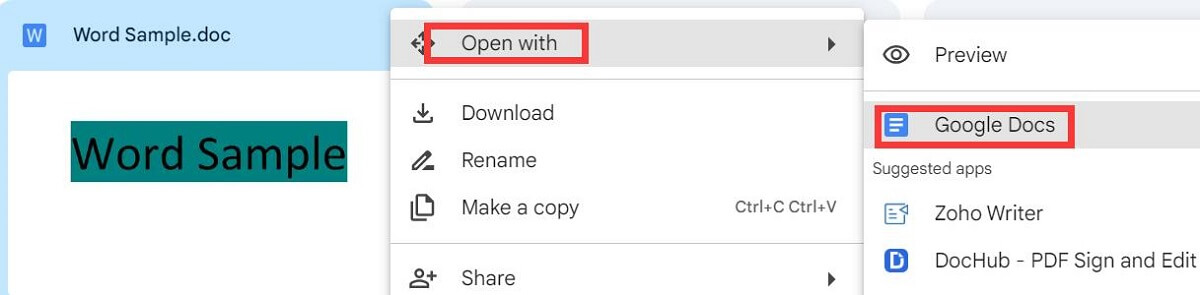
Open Word with Google Docs
Step 3. Download the Word File in a PDF Format
When you open a Word file with Google Docs, you can edit the file if needed. Then navigate to File, choose Download in the dropdown menu, and then select PDF Document (.pdf) to save the PDF file.
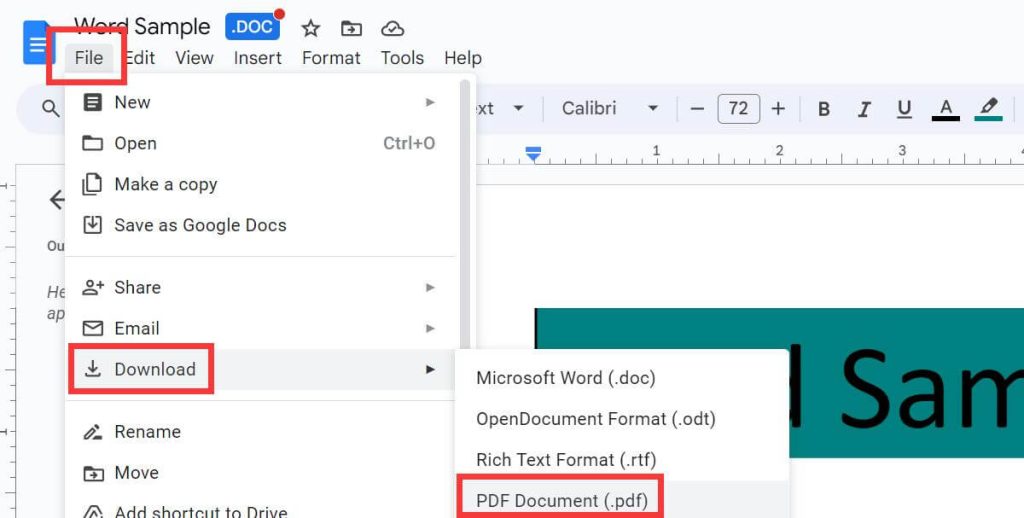
Download Word in PDF Format
FAQs
How can I transform Word to PDF using Microsoft Word?
If you have installed Microsoft Office, it is easy to turn Word into PDF with it. Open a file with Microsoft Word, navigate to File, select Save As, and in the popup window, choose PDF as the format to save the file.
How to export Word to PDF on Mac without software?
You can use the PDFgear online tool and Google Docs mentioned in the article. We recommend PDFgear online Word to PDF converter as it allows you to export a Word to PDF with a simple click. Most importantly, it is free to use without any ads or watermarks.
How can I convert Word to PDF on iPhone?
Open a Word file on your iPhone, tap the Share icon at the lower left corner, select Print, and then you will see a preview of the new PDF file to print. Tap the Print icon again at the upper right corner, then you can save the PDF to Files or simply share it with others.
How to convert Word doc to PDF with hyperlinks?
PDFgear can transform Word to PDF with hyperlinks. It allows batch document and image conversion without losing format.
Final Thoughts
In conclusion, we have explored 5 efficient ways to convert Word to PDF on Mac. Whether you prefer Mac native apps, PDFgear, or online tools to transform Word to PDF, you can follow the steps mentioned above to handle the task.
If you need a PDF editor, we recommend PDFgear. It is one of the best free AI-powered PDF editors that allows you to streamline your workflow with a solution that is instantly available and fully compatible with your Mac’s ecosystem.
